Voicemail in Zendesk Contact Center captures caller messages and delivers them as Zendesk tickets with audio playback and optional transcription. Settings are configured in the admin interface and applied at runtime in Amazon Connect contact flows.
In the Contact Center application, you can configure voicemail for inbound calls to reduce missed calls and create clear ownership when agents or queues are unavailable. Voicemail can be configured per queue or per agent using direct inward dialing (DID) or extension numbers. You can also control how voicemail tickets are created in Zendesk, and optionally include transcriptions.
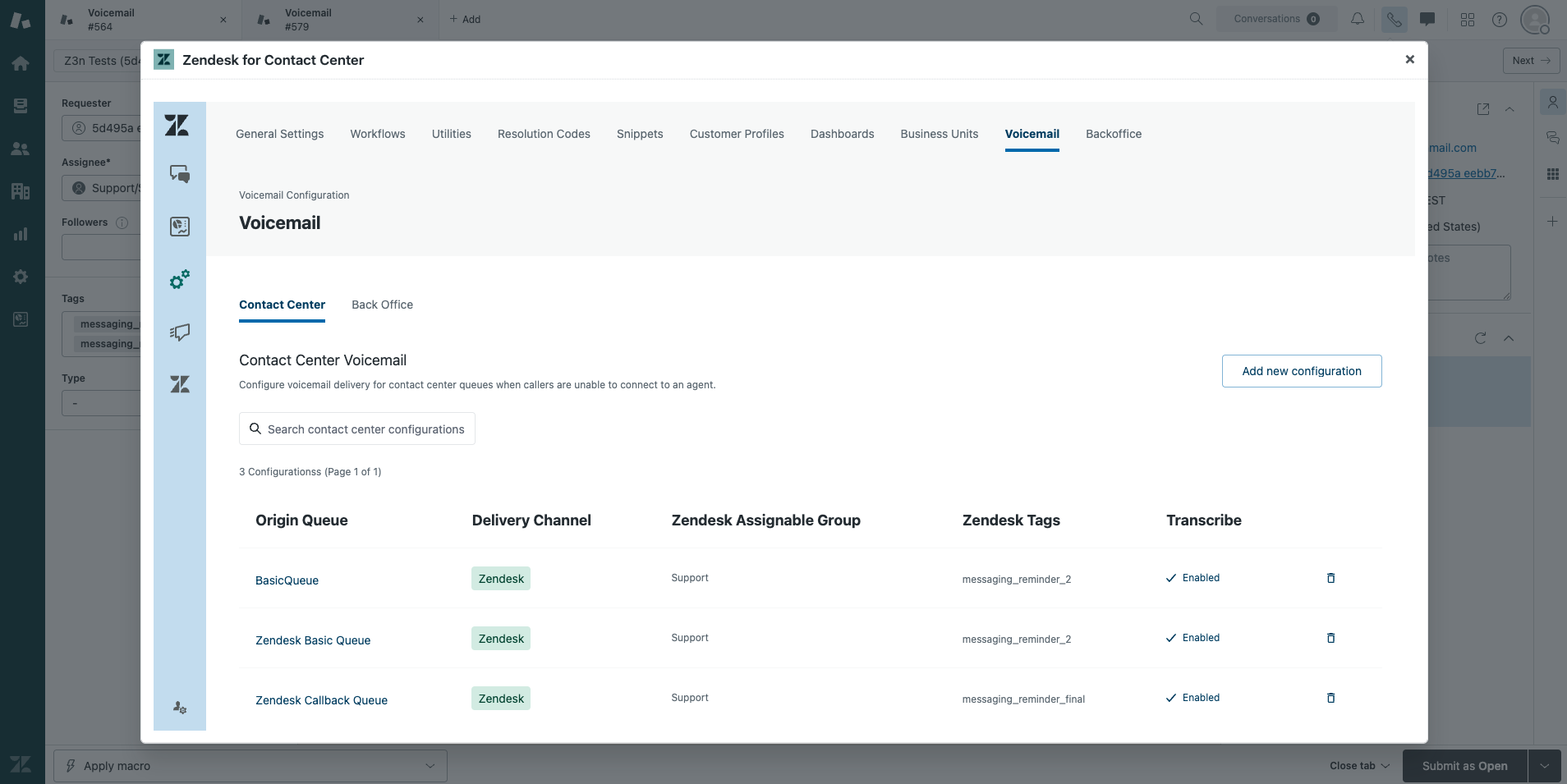
Admins can access voicemail settings in the Contact Center admin interface. If you can't access the settings, then contact Zendesk Customer Support to request the activation of the Voicemail solution on your CloudFormation stack.
This article contains the following topics:
Understanding voicemail in Contact Center
There are two ways to deliver voicemail, depending on whether messages should be worked by a shared team or by a specific agent:
- Contact Center queue-based voicemail: Voicemails are delivered to a Zendesk group associated with an Amazon Connect queue. Use this for shared contact center queues.
- User-based voicemail: Voicemails are delivered to a specific agent workflow. You’ll select the agent who owns the direct back office number (DID owner) or extension and the agent who should be assigned the resulting ticket. This can be the same person or different people.
Voicemail tickets include caller details, call metadata, an audio recording with playback, and, (if activated) a transcription. They behave like standard Zendesk tickets, so you can use existing views, triggers, automations, and reporting.
Configuring queue-based voicemail
Use a queue-based voicemail configuration when callers should leave messages for a shared team. Voicemails are delivered to a Zendesk group associated with an Amazon Connect queue.
- In Contact Center, click Admin Settings.
- Click the settings icon (
 ) in the sidebar.
 - Click the Voicemail tab at the top.
- Under Contact Center, click Add new configuration.
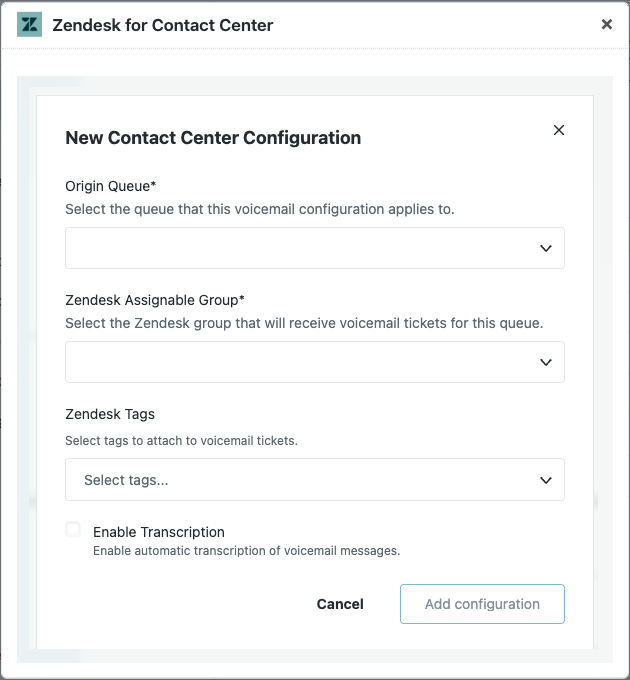
- Under Origin queue, select the Amazon Connect queue this voicemail configuration applies to.
- Select the Zendesk assignable group to which newly created voicemail tickets will be assigned.
- Under Zendesk Tags, select one or more ticket tags to add to these
voicemail tickets.
These tags can be used for routing, automation, and reporting.
- (Optional) Select Enable transcription to include an automated voicemail transcription in the tickets.
- Click Add configuration.
Configuring user-based voicemail
Use a user-based (or agent-based) voicemail configuration to assign tickets resulting from missed calls to an agent’s direct number to a specific agent for follow-up. The DID owner and the ticket assignee can be the same agent, buto don't have to be.
- In Contact Center, click Admin Settings.
- Click the settings icon () in the sidebar.
- Click the Voicemail tab at the top.
- Click the Back Office tab and then click Add new
configuration.
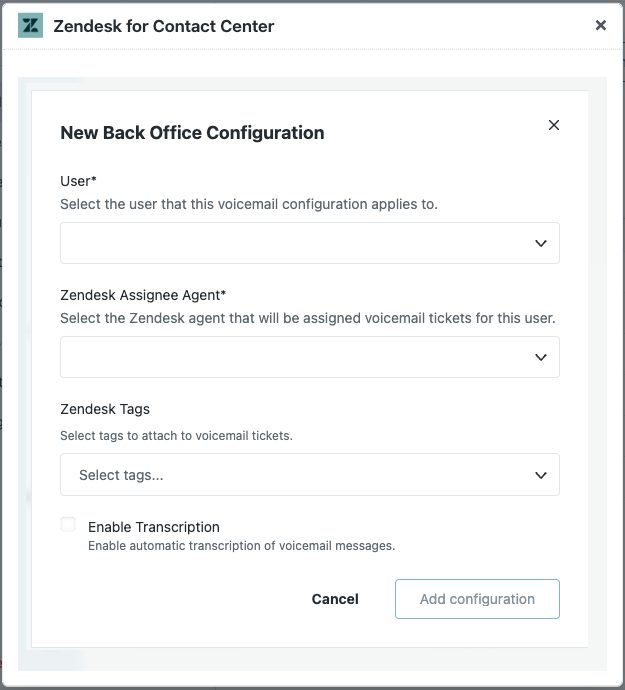
- Under User, select the agent who owns the direct number this
voicemail configuration applies to.
This is the DID owner. To add user entries, see Configuring number assignments and voicemail for direct agent routing.
-
Under Zendesk assignee agent, select the Zendesk agent to assign the voicemail tickets created from calls to this DID.
-
Under Zendesk tags, select one or more ticket tags to add to these voicemail tickets.
These tags can be used for routing, automation, and reporting.
-
(Optional) Select Enable transcription to include an automated voicemail transcription in the tickets.
- Click Add configuration.