| Announced on | Rollout starts | Rollout ends |
| February 27, 2026 | February 27, 202 | April 30, 2026 |
Zendesk is improving how time off works in Workforce Management (WFM) to ensure recorded hours better match an agent's actual paid time.
This announcement includes the following topics:
What is changing?
We’re updating how time off is recorded and measured to better match agents’ actual shifts and payroll exposure:
-
Full-day time off isn’t treated as a flat 24-hour block anymore. Instead, a full-day request maps to the agent’s scheduled shift for that day—for example, a 9-hour shift instead of 24 hours.
- If an agent has multiple shifts starting in a day, all shifts will be covered by corresponding time off blocks. Overnight shifts are attributed to the day they start and will be fully covered if the agent requests a full day off.
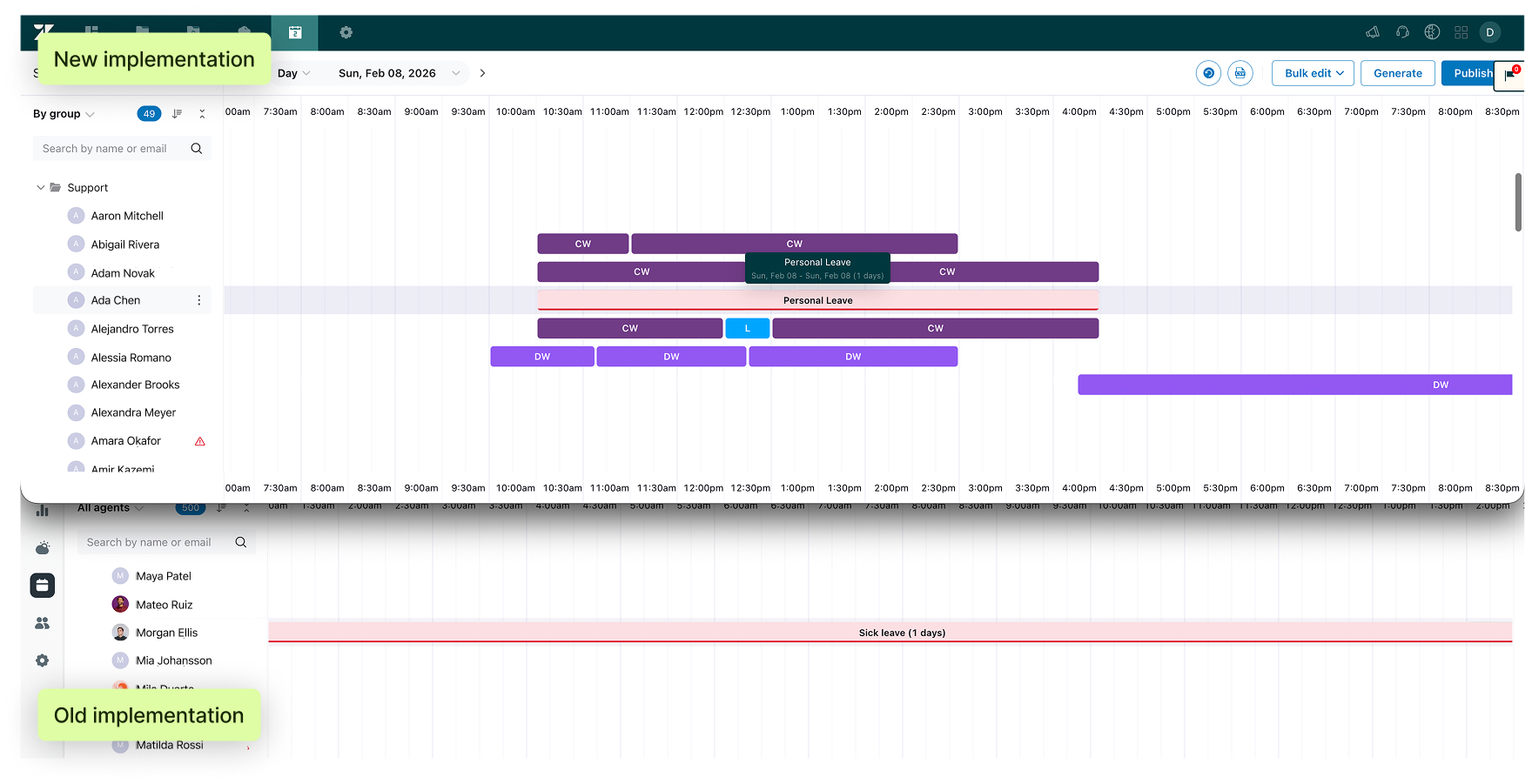
- We’re introducing a new metric called "billable hours," which represents the amount of paid time that the time off covers. Billable hours equal shift duration minus any unpaid portions of that shift, such as lunch or other unpaid tasks.
- Billable hours are only counted on days when the agent is scheduled to work according to their assigned location settings. For example, if an agent doesn’t work weekends, a two-week time off that spans a weekend counts only the weekdays toward billable hours.
- Billable hours are counted for both full-day and partial time off.
-
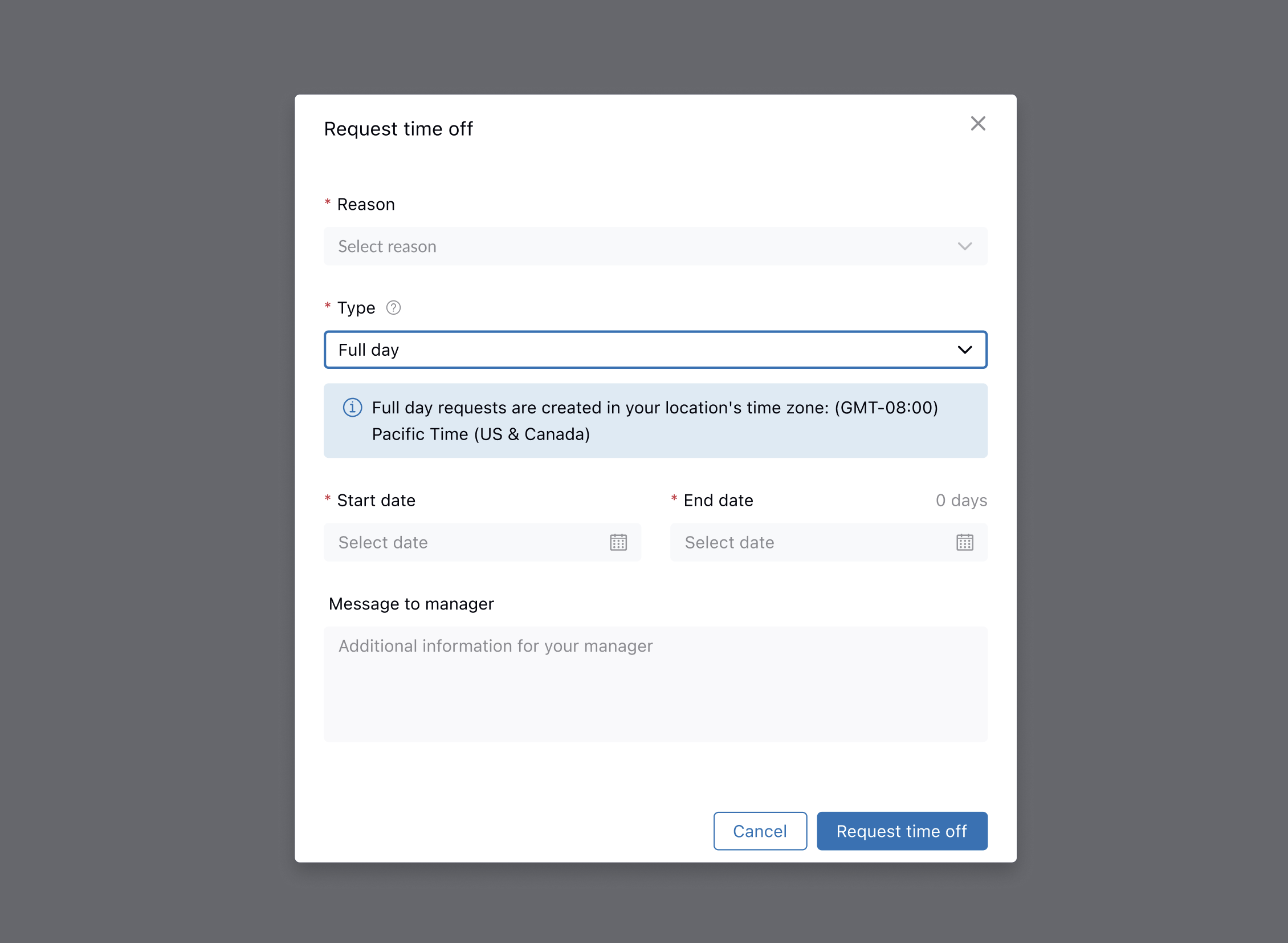
On the agent side, full-day time off requests will be mapped to the time zone of the agent’s assigned location. Agents will see an in-product notification during the request. This ensures that managers and agents share the same source of truth for time off timing.
- Historical time off records won't be changed. Only time off requests created after this change is enabled will use the new calculations.
- Time off blocks and billable hours are calculated when the request is submitted and won't retroactively change if the agent’s shift changes later. You can delete a time off request and add it back to issue a new calculation.
Why is Zendesk making this change?
We received consistent feedback that the previous 24-hour approach caused inaccuracies and friction:
- Recording full days as 24 hours inflated hours and complicated payroll calculations.
- Time zone mismatches sometimes caused time off to appear on the wrong date because the 24‑hour block crossed date boundaries.
This change aligns time off with actual shifts and Location time zones, ensuring that the data you see and report on is accurate and dependable.
What do I need to do?
We’ll run an extended rollout that completes in April. The first phase is opt‑in only.
If you want the new behavior enabled on your account now, fill out this form. We’ll enable it for your account shortly after you submit.
If you prefer to wait, no action is required now — the change will reach all accounts by the end of the rollout.
The billable hours metric is expected to be available in reporting later, within the first half of 2026.
Recommended steps for your team
- Notify agents and managers that full-day time off will be recorded in the agent’s assigned location time zone and matched to their shift. This means a full day will reflect the shift length instead of 24 hours.
- If you previously avoided using full-day time off because it recorded as 24 hours, opt in for early access and run tests with a small group.
- Review any payroll or reporting integrations that assumed 24-hour time off so they can use the new billable hours values instead.
- If you’re using the Workforce Management (WFM) API, make sure you've switched to the v2 endpoints for importing and exporting time off.
- Update internal documentation or training to reflect the following:
- Billable hours equal shift duration minus unpaid time.
- Billable hours count only on scheduled workdays per location.
- Time off totals are fixed at request time and won’t change if shifts change later.
To learn more about time off, see Managing agents' time off requests and Requesting time off.
For more information about configuring locations and shifts, review Setting up locations and shifts in Zendesk WFM.
If you have feedback or questions related to this announcement, visit our community forum where we collect and manage customer product feedback. For general assistance with your Zendesk products, contact Zendesk Customer Support.