Summary: ◀▼
Analyst copilot in agentic analytics is an Early Access feature that gives you group-based project access with Viewer, Writer, or Admin permissions. Admins can assign access to projects, and custom Analytics roles map to these levels. Use it to control who can view, edit, and manage project settings.
To use analyst copilot in agentic analytics, users must have the proper Explore or project-level permissions.
This article contains the following topics:
Understanding permissions
Access to analyst copilot projects is granted at the group level. Each group you add can be assigned one of three permission levels for a project and its assets:
- Viewer: Can view the content within projects, but cannot modify it. Cannot see project access settings.
- Writer: Can view and modify the content of projects. Cannot see project access settings.
- Admin: Can view and modify the content of projects. Can see project access settings.
Project access is determined by group assignment and a user's analyst copilot role. Viewers are always view-only. Editors inherit the level they're assigned. Admins have full access.
| Analytics role | Analyst copilot permission |
|---|---|
| View dashboards | Viewer |
| Manage reports and dashboards | Writer |
| Manage reports, dashboards and dataset permissions | Admin |
Configuring permissions
Before users can access analyst copilot, an admin must give them the necessary access.
To grant access to projects
- In Analytics, click the Analyst copilot
icon (
 ) in the sidebar.
 - On the analyst copilot home page, locate your project in the list of assets.
- Next to your project, click the options icon (
 ), then select Manage
access.
), then select Manage
access.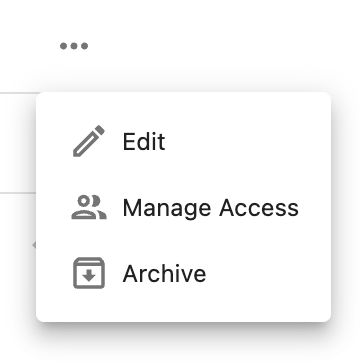
- On the Manage access page, for each group you want to give access, select the group name and the level of access (Viewer, Writer, Admin), then click Add.
- When you've finished adding groups, click Save.
If you don't see analyst copilot in Analytics or don’t have access to specific projects, reach out to your Zendesk admin or the project owner to request the necessary group-based permissions.
For help with Explore permissions, see Giving users access to Explore.