This article contains the following topics:

What's my plan?
All Suites Professional, Enterprise, or Enterprise Plus
Support with Explore Professional or Enterprise

Summary: ◀▼

You can create reports in analyst copilot by asking a natural-language question or building one manually from available datasets like support tickets, agent daily snapshots, and IT asset management. You can add filters, groupings, columns, and visualizations, apply conditional formatting, use suggestions, refresh or share reports, and save them for later or for your team.

This feature is currently in an Early Access Program (EAP). You can sign up for the EAP here.
You create reports in analyst copilot, the primary interface for agentic analytics. To create a report, you have two options:
  • Use natural language to query your business information.
  • Manually build a report using datasets and configurable fields.

This article contains the following topics:

  • Understanding available data
  • Creating a report using a prompt
  • Creating reports manually
  • Changing how your report is displayed
  • Using suggestions to give reporting ideas
  • Saving reports

Understanding available data

For this EAP, the following datasets are available:

  • Support tickets: Contains detailed ticket information such as attributes, status, timings, customer and agent metadata, AI-assisted suggestions, and enhanced writing features usage.
  • Agent daily snapshot: Contains agent activity metrics such as ticket volumes, resolution stats, AI and enhanced writing feature usage, roles, groups, and other agent-level attributes.
  • IT asset management: Contains information about the assets you manage, their status, and their location.

Creating a report using a prompt

Analyst copilot understands natural language prompts, so you can enter a natural-language prompt to create a report. Alternatively, you can create a report manually using the metrics and attributes in one of your datasets.

To create a report using a prompt

  1. In Analytics, click the Analyst copilot icon () in the sidebar.
  2. Click the prompt type icon () to choose the prompt type you want from the following:
    • Analyze data: Uses existing memories to create the report. This prompt type is suitable for most users.
    • In-depth exploration: Uses existing memories and deeper analysis to create the report. This can be useful for more detailed analysis to discover the reasons behind your results.

  3. Enter your prompt, then press Enter.

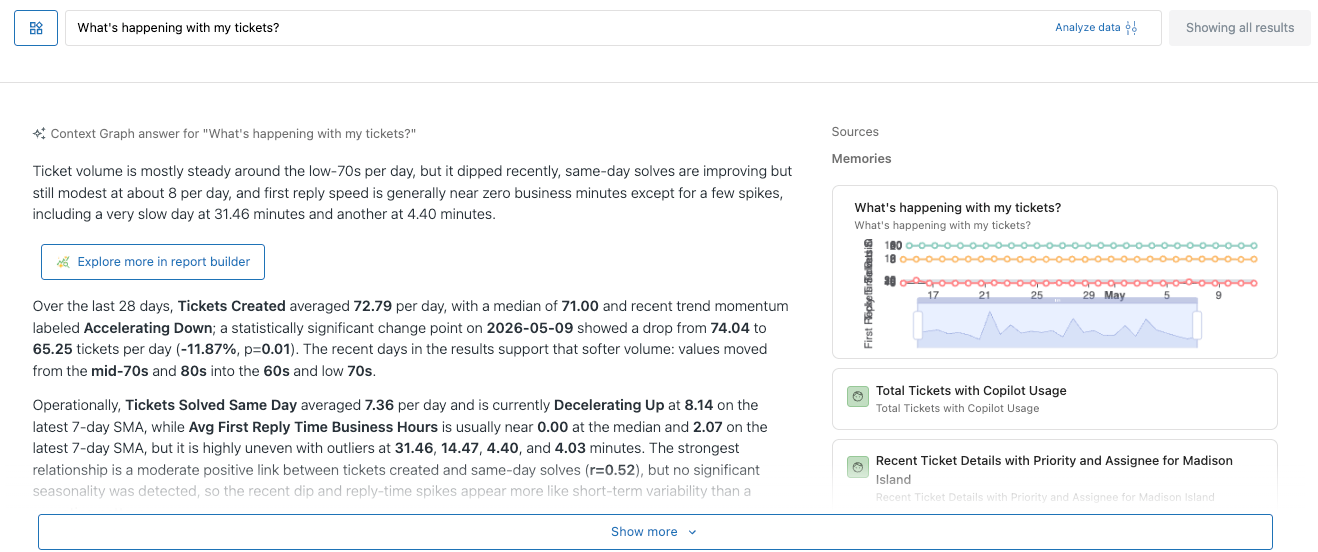
    For example, “What’s happening with my tickets?”

    Tip: For prompt ideas, see Using natural language prompts to create analyst copilot reports.

    Analyst copilot returns an answer and relevant memories.

  4. Click an item in the Sources panel to see what information that was used to create the report.

    Below your report, you’ll see a list of assets (such as reports, dashboards, and datasets) related to your question.

If analyst copilot does not have sufficient information or memories to answer your question, no answer or memories appear.

Creating reports manually

In this section, you’ll create a report using the metrics and attributes in one of your datasets.

To create a report manually

  1. In Analytics, click the Analyst copilot icon () in the sidebar.
  2. Click the create icon (+), then select Report.

  3. On the Select a dataset to query page, click the dataset containing the information you want to report, for example, Support tickets. A new page opens with a blank report.
  4. Add any required filters or groupings to your report. Under the filters or grouping panel, click the add icon (+).
    Tip: Filtering limits the rows that are included in the report results. Filtering happens before grouping.

    Grouping buckets results to compare aggregates (for example, by agent, channel, or month). Grouping happens after filtering.

  5. In the filter or grouping chooser, choose what you want to filter by. For example, click the filter, Ticket solved. The filter is added to your report.
  6. Click the filter you just added.
  7. In the filter options, configure the filter behavior. For example, to set a date range, you could configure the following values:
    • Filter by: Select the type of filter you want.
    • Use rows when the value is: Select how you want to filter, for example, between, or equals.
    • Start and end dates: Set these values to the start and end of the period you want to display.

  8. Under the filters panel, click the add icon (+).
  9. In the filter chooser, click Assignee name. The filter is added to your report.
  10. Continue to add filters and groupings as required.
    Tip: While you are creating the report, watch the status indicator at the bottom left of the page. This provides helpful suggestions to improve your report and also informs you when your actions are added to analyst copilot's memories, where they can be accessed later.

Changing how your report is displayed

Once you've created a report, you can add more information to it or change how it's displayed.

Adding columns

You can add more columns to a report to show more information.

To add columns to a report

  1. From the Dataset panel of your report, drag the dimensions you want into the Fields section.
  2. Drag and drop the dimensions you added into the order you want.

Changing a report visualization type

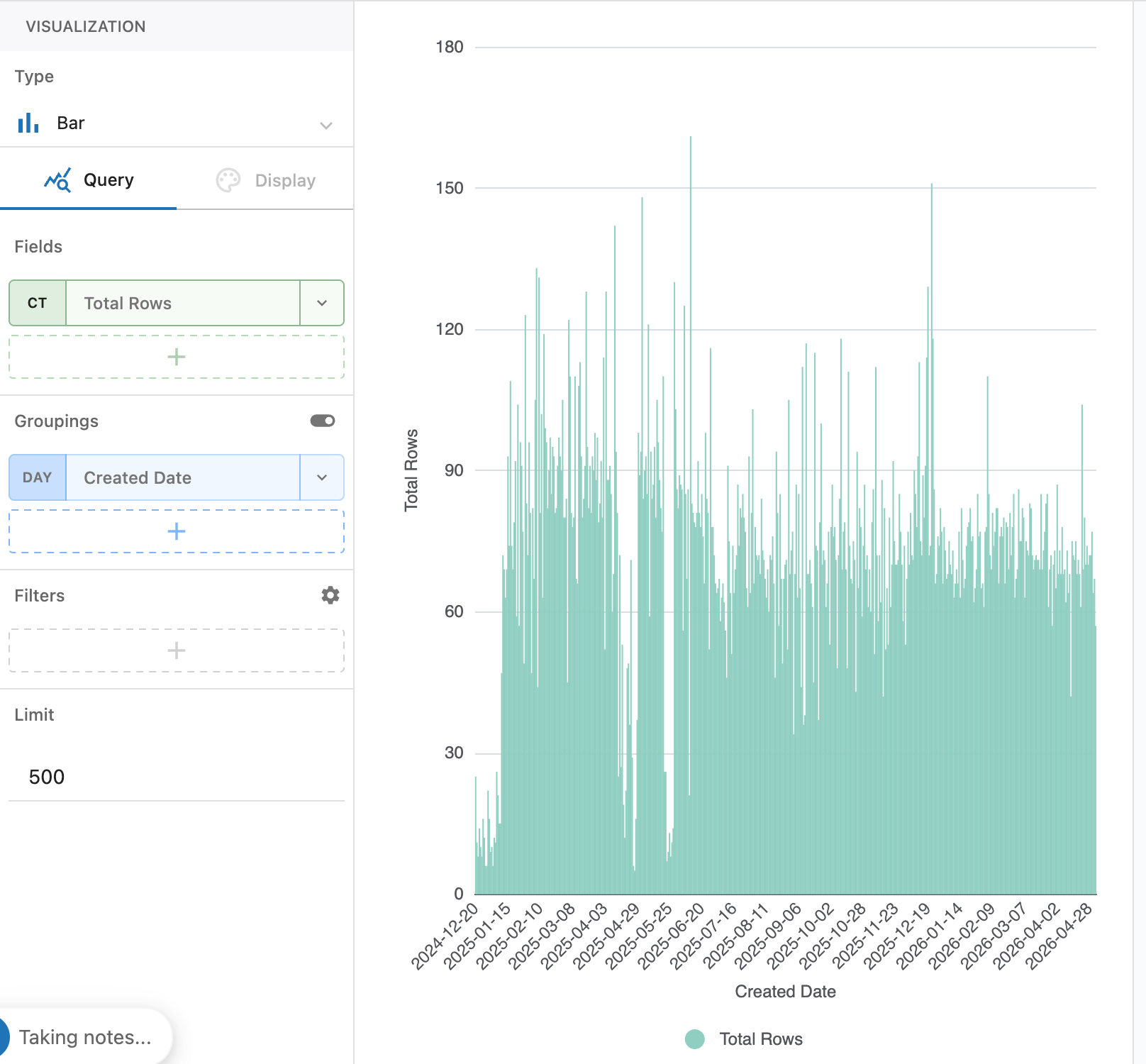
You can choose from a range of visualization types such as tables, pie charts, and column charts to present your report how you want.

To change the visualization type

  1. Open a report, then click the Type drop down in the Visualization section.
  2. From the list, select the visualization type you want.

The report updates to display the new visualization type.

Using conditional formatting

Conditional formatting gives users visual information at a glance like color scales and status icons. This makes it easier to spot outliers in data instantly. To help reduce cognitive load you can look at a dashboard and immediately know where to focus your attention. For example:
  • Business leaders or supervisors often require "at-a-glance" visual cues (for example, red for low performance, green for targets met) driving immediate, actionable insights, accelerating decision-making speed, and reducing cognitive load for users.
  • Support agents appreciate the ability to view their performance against their peers or a benchmark, so they can easily see if they need to take action to improve their performance.

To conditionally format report results

  1. Open a report, then click Conditional formatting.
  2. In the Add conditional formatting panel, configure the following:
    • Apply conditional formatting to: Choose the measure you want to conditionally format.
    • Field: Choose what you want to measure, for example, Ticket status.
    • Operator: Choose the operator you want to use. The available operators will vary depending on the field type you choose. Example include, is, is greater than, and equals.
    • Value: Choose the value you want to evaluate for formatting.
    • Fill color: Choose the color that the result will be displayed in if it evaluates as true.
  3. Click Apply.

    Your new rule is displayed

Example

You configure a rule with the following values:

  • Field: Ticket status
  • Operator: is
  • Value: Open
  • Fill color: Red

Analyst copilot displays open tickets in red.

Configuring advanced report options

There are several capabilities you can use to fine-tune your report configuration and presentation.

To configure advanced report options

  1. Open a report, then click the options menu () .

  2. Select one of the following options:
    • Refresh: Refreshes your report with the latest results.
    • Share: Opens the share report page where you can share a URL to your report, or save it as an image file.
    • Dev mode: Displays the report configuration in JSON format. You can modify the configuration as required.

Using suggestions to give reporting ideas

You can use either AI-powered or manually-generated suggestions to give you ideas on further reports you might find useful.

To use AI-powered suggestions

  1. In a report, review the suggestions at the bottom of the page when a memory is created.
  2. Click the suggestion you want to review.

    The suggestion is expanded with more information.

  3. Click Apply suggestion to update your report or click Try this in a new report to open the suggestion in a new report.

To manually generate suggestions

  1. Open the memories panel.
  2. Click a memory for which you want to generate suggestions.
  3. In the memory narration panel, click the find inspiration icon ().

    Analyst copilot displays suggestions at the bottom of the page.

Saving reports

Once you've finished editing your report, save it so you can work on it later, or share it with others.

To save a report

  1. Open a report, then click Save or Save as.

  2. Provide the following information:
    • If you're saving a report for the first time:
      • On the Save report as page, provide the following information:
        • Name: Enter a name for the report.
        • Description: Optionally, enter a description for the report.
        • Project: Choose the project where your report will be saved.
        • URL: The URL for the report is created automatically from the report name, but you can change this if required.
      • Click Save.

    • If you're saving a report that was previously saved:
      • On the What's changed page, review the AI-generated summary of changes since you last saved, or provide your own summary.
      • Click Save.

Powered by Zendesk