The Model Context Protocol (MCP) lets admins connect Zendesk to external MCP servers, discover the tools those servers provide, and use those tools as steps in action flows. This extends your Zendesk workflows to interact with third-party systems—such as project management tools, e-commerce platforms, or internal knowledge systems—without building custom API integrations.
MCP connections are created and managed in Admin Center. After you create a connection, Zendesk retrieves the available MCP tools from that server and displays them in the action builder so you can use them in action flows and, optionally, surface those flows through auto assist, AI agents, or custom agents.
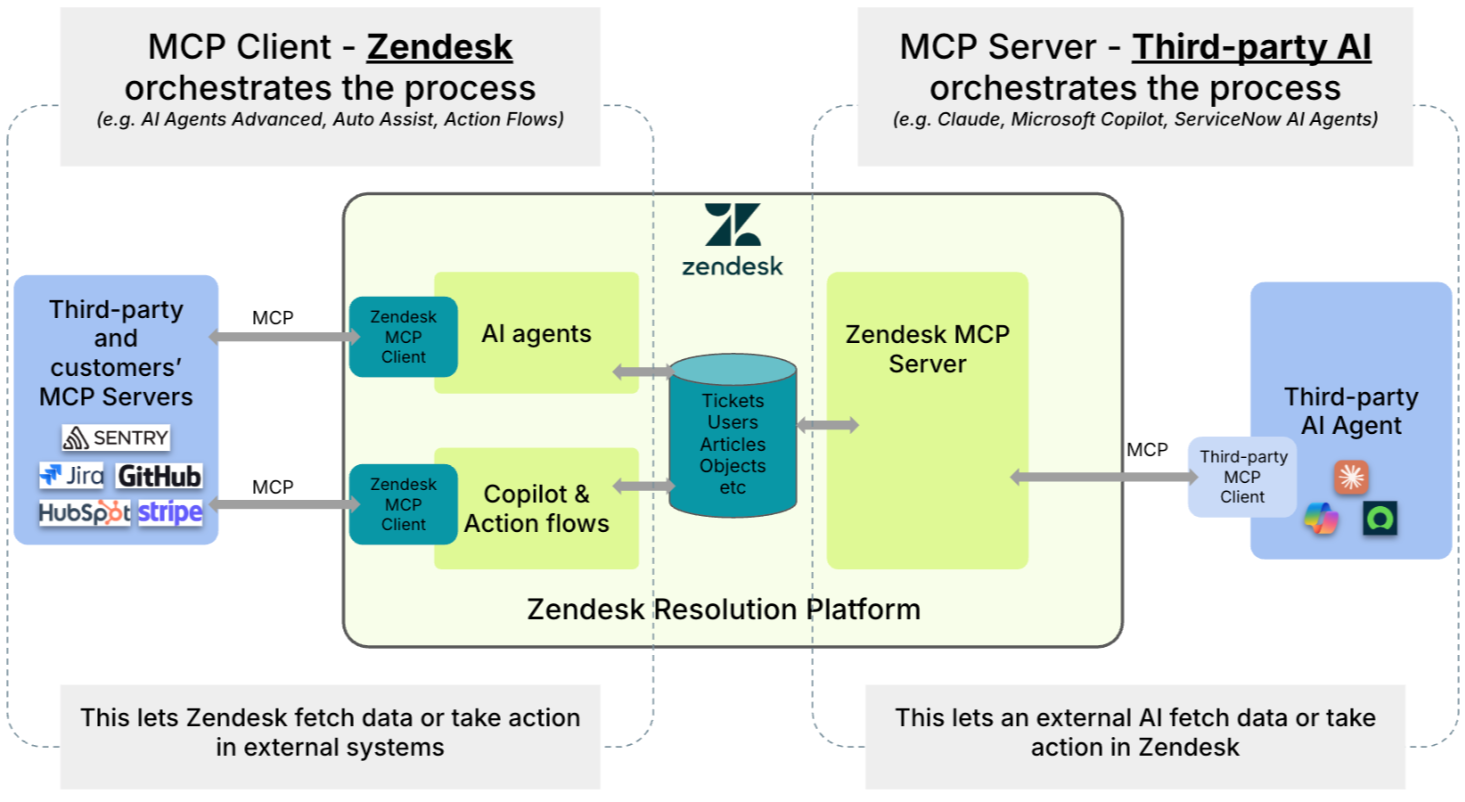
This article covers Zendesk acting as an MCP client. In this role, Zendesk connects to external MCP servers, discovers the tools they expose, and uses those tools in action flows and auto assist. In this model, Zendesk sends requests to another system to retrieve information or perform actions as part of a workflow. Zendesk can also act as an MCP server in other scenarios. In that role, Zendesk exposes tools or resources that third-party AI agents can use to access Zendesk data or perform actions in Zendesk.
The following diagram shows both MCP roles.
This article contains the following topics:
Considerations for using the MCP tools
Before you begin, keep the following in mind:
- Authentication
- OAuth is the only supported authentication method for MCP server connections. Only HTTP servers are supported. Stdio transport is not supported.
- Data residency and retention
- External MCP connections may transmit data outside your selected region.
- Step execution outputs are retained for seven days.
- Action credits
- MCP tool actions consume action credits when executed within an action flow. For details on monitoring usage, see Monitoring the usage of action credits and action flow activity.
- Connection and tool limits
- There are no limits to the number of MCP servers you can connect to your Zendesk account.
- Action builder paginates and retrieves up to 250 tools returned by an MCP server.
- You can manually refresh the tools list from the Connection page to get updates to existing tools, discover new tools, or remove deprecated ones. If an action tool changes because of a manual refresh, any action flow currently using that tool requires you to remove and re-add the tool to the flow.
Creating an MCP server connection
Admins can add MCP server connections. Connected MCP servers appear on the MCP connections page in Admin Center. When a server is connected, Zendesk automatically discovers up to 250 tools exposed by the MCP server. After discovery, the tools are listed on the Connection page where admins can explicitly select which ones to make available in the action builder.
You must be a Zendesk admin to create an MCP server connection.
-
In Admin Center, click
 Apps and integrations in the sidebar, then select Connections >
Connections.
Apps and integrations in the sidebar, then select Connections >
Connections.
- Click Add connection.
- Choose Connect to an MCP server.
- Under Basics, enter the connection's Name and Description.
- Click Next.
- In MCP server, enter the URL of your MCP server.
- Click Test URL to validate the connection to the MCP server.
- If prompted, enter the Client ID and Client Secret for the MCP server.
- When prompted, use the MCP server's authentication popup to complete the
OAuth authentication flow for the external service.
If your MCP server requires you to create an OAuth app in an external service, such as GitHub or HubSpot, when prompted for a Redirect or Callback URL, enter
https://zis.zendesk.com/api/services/zis/connections/oauth/callback. - Click Save.
- Once saved, view the Connection page to see the list of discovered tools. Use the checkboxes to choose which discovered tools to make available for your action flows.
Refreshing an MCP connection
If an MCP connection stops working because authorization has expired or been invalidated, you can reconnect it.
Use this when:
- The connection has expired due to inactivity.
- The user’s access to the external system has changed or been revoked.
- The connection needs to be reauthorized after credentials or permissions change.
You must be a Zendesk admin to create an MCP server connection.
To refresh an MCP connection
- In Admin Center, click
Apps and integrations in the sidebar, then select Connections >
Connections.
- Select the relevant MCP connection by clicking the name or opening the overflow menu and selecting Edit connection.
- Select Reconnect.
- Complete the OAuth flow again when prompted.
Examples of MCP servers
Here are some examples of MCP servers you can connect to. Many other vendors provide MCP servers, and you can also connect to your own organization's MCP server.
- MCP server URL: https://mcp.asana.com/v2/mcp
- Client details: Follow the directions at Create your OAuth app to generate a Client ID and Secret.
- MCP server URL: https://mcp.stripe.com
- Client details: Not required. The Client ID and Secret will be detected automatically when you test the connection.
- MCP server URL: https://api.githubcopilot.com/mcp/
- Client details: Follow the directions at Creating an OAuth app to generate a Client ID and Secret.
Using MCP tools in action flows
After you create an MCP server connection, the discovered tools are available in the action builder. MCP connectors appear under External actions and are identified by the connection name you provided and an MCP tag. For more information about action flows, see Understanding the action builder and action flows.
When the action flow runs, Zendesk calls the selected MCP tool on the external server using your configured inputs and returns the tool’s output for use in later steps. You can use a custom code step later in the flow to transform or extract specific fields from the output if necessary.
To add an MCP tool as a step in an action flow
- Open the action builder and create or edit an action flow.
- In the action builder, beneath an existing step, click the Add step icon
(
 ).
). - In the step sidebar, under External actions, click the menu options to select the connected MCP server and then the specific action.
- In the step sidebar, enter the required inputs for the selected action. See Providing inputs for actions and steps.
Troubleshooting
-
Servers with restricted access: Zendesk does not support servers that
restrict access by client. However, in some cases you may be able to ask the MCP
server owner to add the Zendesk MCP client to their allowlist. In that case, the
server owner may ask for the following details:
- Zendesk IP ranges for your account: https://yoursubdomain.zendesk.com/ips
- Zendesk MCP client redirect URL: https://zis.zendesk.com/api/services/zis/connections/oauth/callback
- PKCE (Proof Key for Code Exchange): MCP servers that use PKCE with the S256 challenge method are supported. Servers that only support the plain challenge method are not supported for security reasons.
- Execution timeout and rate limits: MCP tool calls are subject to a 30-second timeout. Long-running tool operations may time out before completing. For rate limits, see Considerations for using action flows.
-
Authentication: MCP servers that require no authentication aren't
supported. Zendesk's MCP client supports servers that implement OAuth 2.0 with
auto-discovery using the standard well-known endpoints.
To troubleshoot authentication issues with public MCP servers or set up your own organization's MCP server, try the following:
-
Initiate the handshake.When the MCP client first attempts to connect, the server responds with
401 Unauthorizedand includes a reference to a Protected Resource Metadata document in theWWW-Authenticateheader.HTTP/1.1 401 Unauthorized WWW-Authenticate: Bearer realm="mcp", resource_metadata="https://your-server.com/.well-known/oauth-protected-resource"This tells the client that authorization is required and where to retrieve the information needed to begin the authorization flow.
-
Discover the protected resource metadata.
The client fetches the Protected Resource Metadata document to learn about the authorization server, supported scopes, and other resource details.
Request:
https://your-mcp-server.com/.well-known/oauth-protected-resourceExample response (200 OK):
{"resource":"https://your-mcp-server.com","authorization_servers":["https://your-auth-server.com"],"scopes_supported":["mcp:read","mcp:write"]} -
Discover the authorization server.
The client discovers the authorization server's capabilities by fetching its metadata.
Request:https://your-auth-server.com/.well-known/oauth-authorization-serverThis endpoint may be hosted on the same domain as the MCP server if your OAuth server runs there.
Example response (200 OK):
{ "issuer": "https://your-auth-server.com", "authorization_endpoint": "https://your-auth-server.com/oauth/authorize", "token_endpoint": "https://your-auth-server.com/oauth/token", "registration_endpoint": "https://your-auth-server.com/oauth/register", "code_challenge_methods_supported": ["S256"], "token_endpoint_auth_methods_supported": ["client_secret_basic", "none"], "scopes_supported": ["mcp:read", "mcp:write"] } -
Register the client.
Once discovery is complete, the Zendesk client must be registered with your server's authorization system using one of the following methods:
- Pre-registered client: The client is already registered with the authorization server. You manually provide the client details to complete the authorization flow when creating the MCP connection.
- Automatic Registration (Dynamic Client Registration): Zendesk automatically attempts to register itself using standard web protocols. If the primary protocol fails, Zendesk automatically tries an alternate format (OpenID Connect) to complete the connection without your intervention.
- Manual Configuration (Backup): If Zendesk cannot automatically register with your server using either method, admins can manually enter all the required OAuth client details to establish the connection.
-
Initiate the handshake.