Summary: ◀▼
Turn on multi-recipient email tickets to create separate tickets for each support address in an email, helping teams handle multi-department requests. This feature supports various support address types and adds a shared ID for tracking related tickets. Be aware it increases ticket volume and supports up to 10 addresses per email. Notifications keep end users informed about multiple tickets created from their email.
By default, Zendesk creates one ticket for each incoming email support request, even if an end user adds multiple support addresses to the email. This may cause other teams copied on the email to miss out on the conversation.
Admins and agents in custom roles with permission to
manage channels and extensions can turn on the multi-recipient email ticket
workflow. This workflow creates multiple tickets when an inbound email with multiple
support addresses is sent to the same Zendesk account. For example, an email sent to
it@company.zendesk.com and hr@company.zendesk.com
creates two tickets: one assigned to the IT support address and another to HR support,
ensuring efficient collaboration on multi-department requests.
Multi-recipient email tickets can be created for all support address types—Zendesk support addresses, forwarded addresses, and external addresses added through a connector, such as the Microsoft Exchange connector.
Understanding multi-recipient email tickets
With multi-recipient email tickets turned on, Zendesk creates one ticket per unique support address found in the To or CC fields when an email is received. Each ticket is associated with the respective support address and brand to keep teams aligned with their support requests.
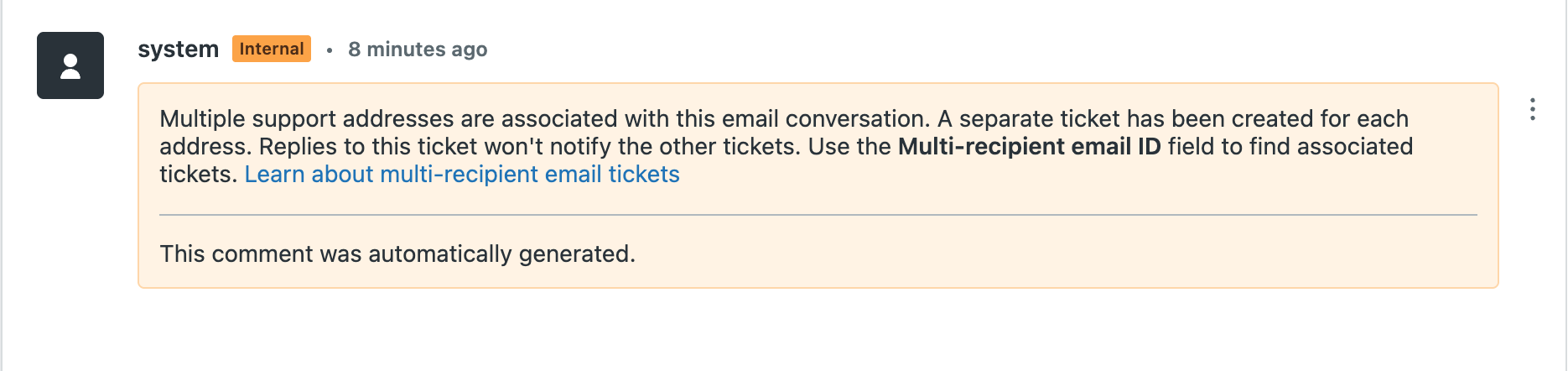
When Zendesk creates multi-recipient email tickets, an internal comment is added to each ticket so agents can identify the ticket as part of a multi-recipient email event.
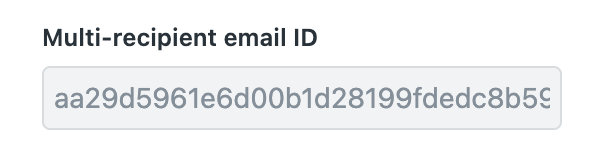
The Multi-recipient email ID field on each ticket shows the ID assigned to that conversation. Because this ID is shared across all tickets created from that email, agents can use it to find all tickets associated with the original request.
End users receive a notification email for each ticket so that they are aware that their email has created multiple tickets. When a user replies to an email, Zendesk continues the thread in the corresponding ticket.
If an end user adds a new support address to a ticket reply, a new ticket is created for that address. If an end user replies and adds a support address back into their reply that already has a ticket created in that specific conversation, that reply threads into the corresponding ticket.
Considerations
Consider the following before turning on multi-recipient email tickets:
- Multi-recipient email tickets create multiple tickets, which can significantly increase ticket and email volume in your Zendesk account.
- Up to 10 support addresses are supported per inbound email. If Zendesk identifies more than 10, tickets are created for the first 10 addresses alphabetically.
- BCC emails become suspended tickets with the suspension type recipient_address_not_in_to_cc.
- If an inbound email is suspended and then the suspended ticket is recovered, it won’t thread into the corresponding ticket created through the multi-recipient email ticket workflow.
- If an inbound email is missing necessary threading information to associate it with an existing multi-recipient email ID and ticket, a new ID and ticket is created.
- If a user replies to an email notification and adds additional support addresses to that reply, a new ticket is always created, even if the added support address already has a ticket with the same multi-recipient email ID.
Turning on multi-recipient email tickets
The multi-recipient email tickets feature is being released initially in an early access program (EAP). To participate in the EAP, you must turn on the feature in Admin Center. Then, add the Multi-recipient email ID platform field to your ticket forms.
To turn on multi-recipient email tickets
- In Admin Center, click
 Channels in the sidebar, then select Talk and email > Email.
 - In the Email settings section, select Multi-recipient email tickets EAP.
- Select Multi-recipient email tickets.
- Click Save.
To add the Multi-recipient email ID field to tickets
- In Admin Center, click
 Objects and rules in the sidebar, then select Tickets > Forms.
 - Click the Default Ticket Form to open it.
- In the Available ticket fields section, search for Multi-recipient email ID, then click the Plus sign (+) to add a ticket field to the form.
- Click Save.
- Repeat for any other forms your agents are actively using.
Turning off multi-recipient email tickets
When you turn off multiple-recipient email tickets, Zendesk reverts to the standard workflow, where one inbound email creates only one ticket.
To turn off multi-recipient email tickets
- In Admin Center, click
Channels in the sidebar, then select Talk and email > Email.
- In the Email settings section, deselect Multi-recipient email tickets EAP.
- Deselect Multi-recipient email tickets.
- Click Save.
To remove the Multi-recipient email ID platform field from tickets
- In Admin Center, click
Objects and rules in the sidebar, then select Tickets > Forms.
- Click the Default Ticket Form to open it.
- Click X next to Multi-recipient email ID to remove the ticket field from the form.
- Click Save.