Summary: ◀▼
The updated auto assist experience offers a guided setup wizard, confidence-based suggestion mode, and an improved composer that lets you type while suggestions generate. You can configure access, review AI-generated procedures, and monitor performance metrics like acceptance rate and ticket coverage. This helps you tailor auto assist to your team's needs and improve support efficiency with relevant, real-time AI suggestions.
The updated auto assist experience makes it easier to set up auto assist, use it on the right tickets, and see value faster. It includes guided onboarding, confidence mode, and an updated composer. After setup, you can review auto assist performance on the updated Auto assist page in Admin Center.
This article contains the following topics:
- What's included in the EAP
- Using the auto assist onboarding
- Reviewing auto assist performance
- Using the updated auto assist composer
Related articles:
What's included in the EAP
Your account must be enrolled in the EAP to access the updated auto assist experience in Admin Center and use the updated composer.
This EAP includes the following updates to auto assist:
- Streamlined onboarding: A guided setup flow that helps you configure auto assist, review AI-generated procedure drafts, and turn on suggestion modes.
-
Confidence mode: A new suggestion mode that generates suggestions only
when auto assist is confident they're correct. It learns in real time from agent
interactions and doesn't require the
agent_copilot_enabledtag. - Updated auto assist composer: An updated composer that lets agents continue typing while auto assist generates a suggestion in the background.
Using the auto assist onboarding
Use the setup onboarding to configure auto assist for your account. If you’ve already configured auto assist, you can use this onboarding to review your current auto assist setup.
-
In Admin Center, click
 AI in the sidebar, then select Agent copilot > Auto assist.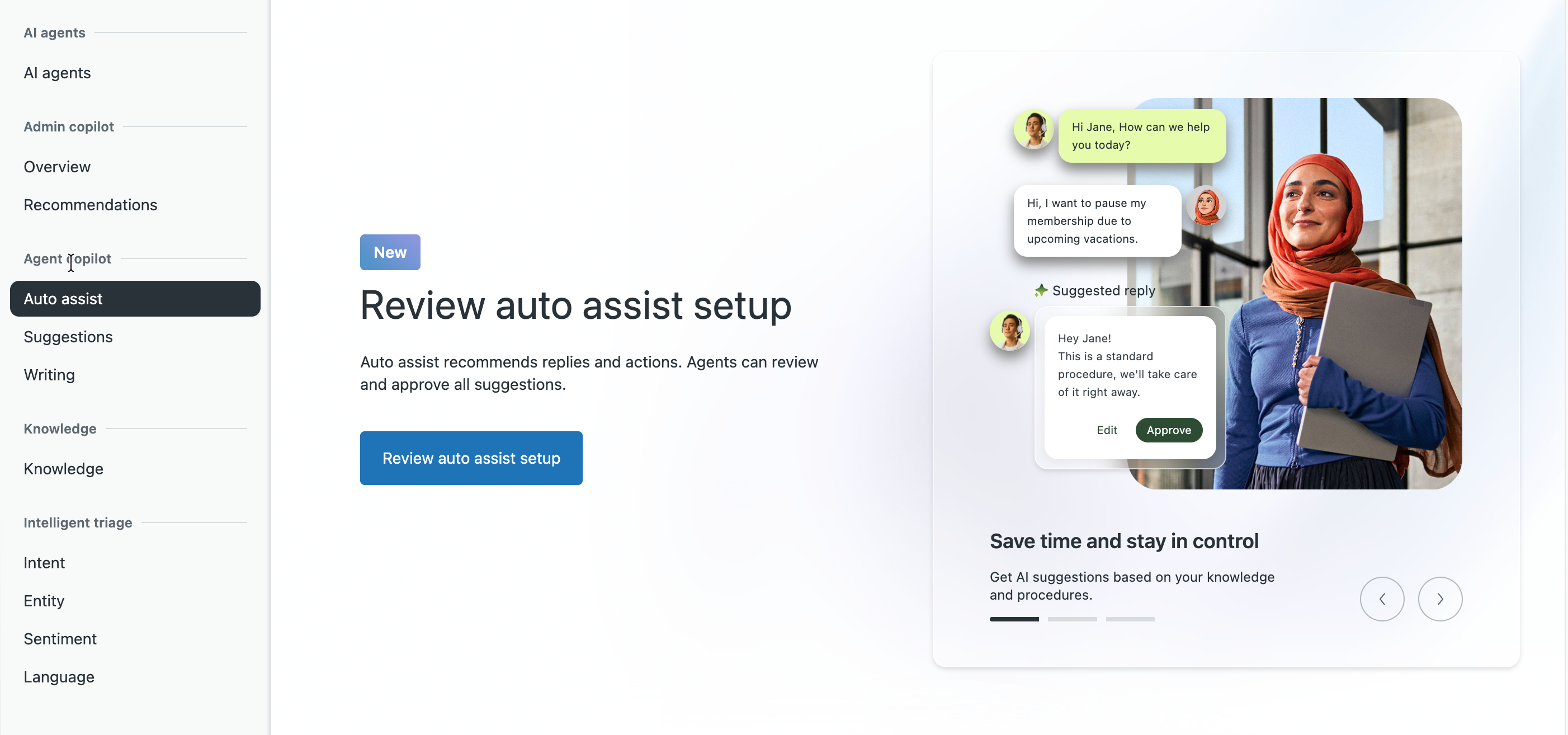
- Click Review auto assist setup. The onboarding includes the following steps:
Reviewing your sources
Auto assist uses knowledge sources and your ticket content to find resolutions. Review the sources currently available in your account.
To review your sources
- Review the sources listed in the onboarding.
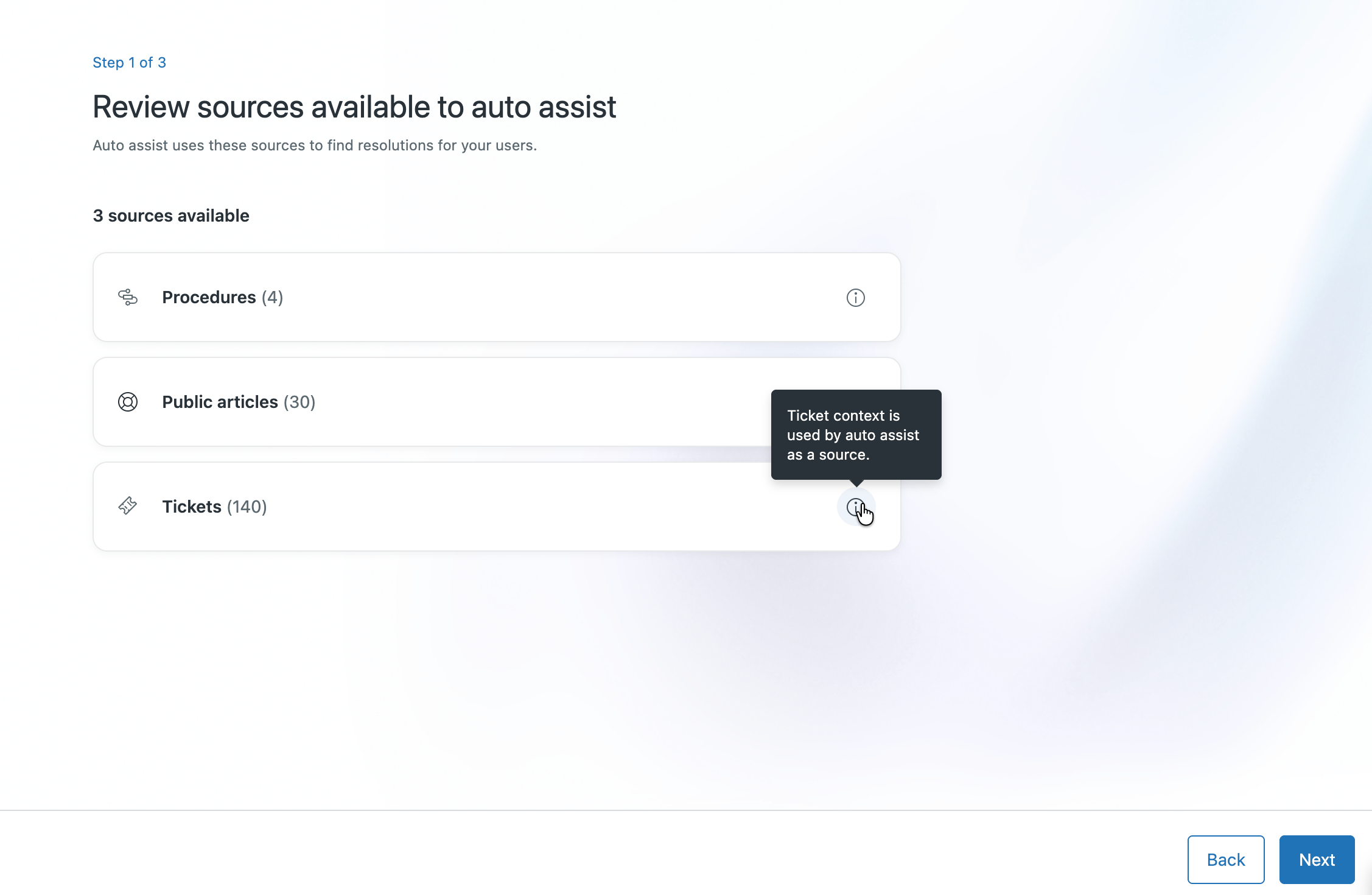
The more relevant sources available, the better auto assist suggestions will be.
Sources can include:
- Procedures: Step-by-step guidance written by admins that auto assist follows when suggesting replies. See Creating procedures for auto assist.
- Public articles: Help center articles published in your account.
- Tickets: Ticket content from your account, which auto assist can use when generating suggestions.
- Click Next.
Choosing access and suggestion modes
Choose which agents can use auto assist and how auto assist generates suggestions.
To choose access and suggestion modes
- In the Who has access menu, select the groups that should have access
to auto assist. By default, all groups have access.
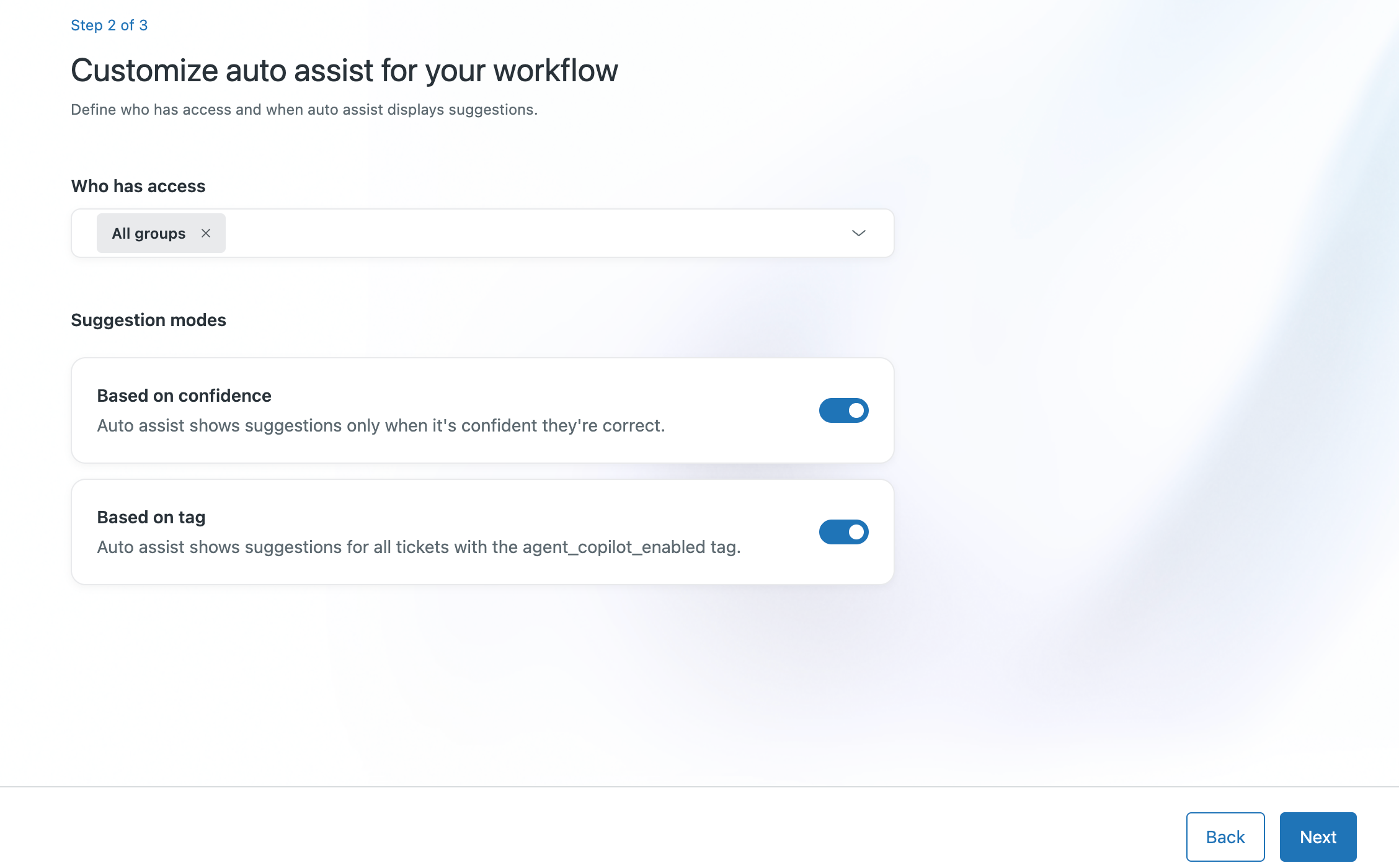
- Under Suggestion modes, turn on the suggestion mode or modes you want
to use. You can turn on one or both suggestion modes.
The available suggestion modes include:
- Based on confidence: Auto assist shows suggestions only when it's confident they're correct. It evaluates every ticket before generating a suggestion and learns in real time from how agents interact with suggestions. This mode doesn't require ticket tagging.
-
Based on tag: Auto assist shows suggestions for all tickets
with the
agent_copilot_enabledtag. This is the existing suggestion mode. See Turning on and configuring auto assist for information on setting up the tag.
Note: If you turn on both suggestion modes, tag-based mode continues to work for tickets with theagent_copilot_enabledtag and confidence mode applies to all other tickets. Keeping both on helps preserve your existing workflows while you evaluate confidence mode. - Click Next.
Adding procedures
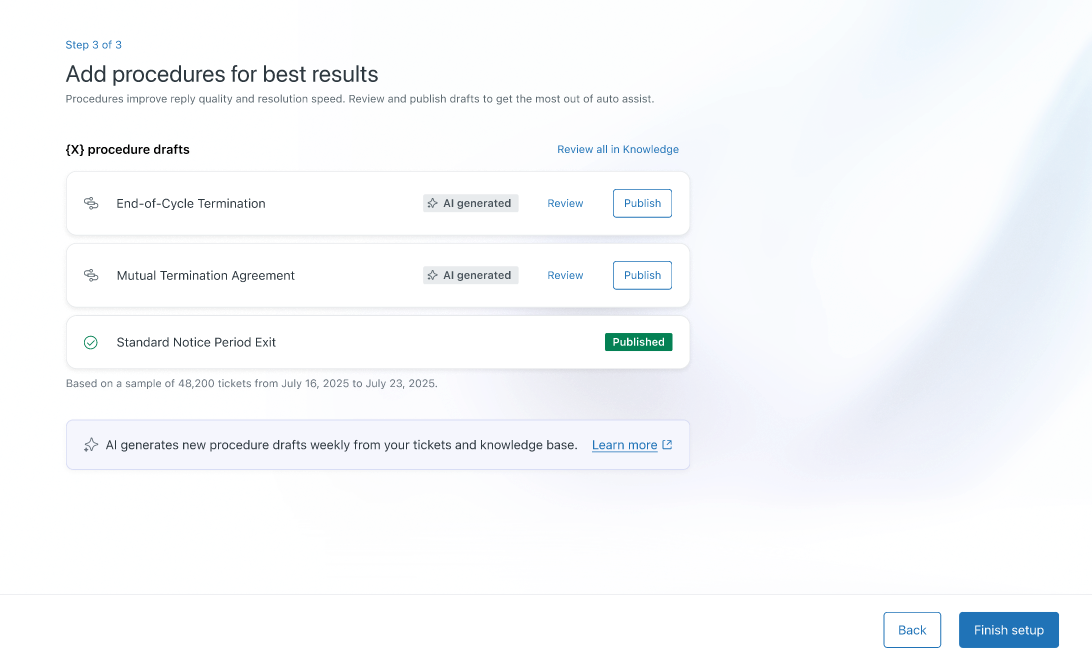
Review AI-generated procedure drafts based on a sample of your tickets, or create a procedure manually. Procedures improve reply quality and resolution speed.
To add procedures
- If procedure drafts are available:
- Click Review to open and review a draft in Knowledge admin.
- (Optional) Edit the draft as needed.
- Click Publish to make the procedure available for auto assist.
- Continue reviewing and publishing drafts, or leave a draft
unpublished to review later.
You can access all drafts from the Procedures page in Knowledge admin.
- If your account doesn't have enough ticket history and you don't see any
procedure drafts, click Create procedure to create a procedure
manually.
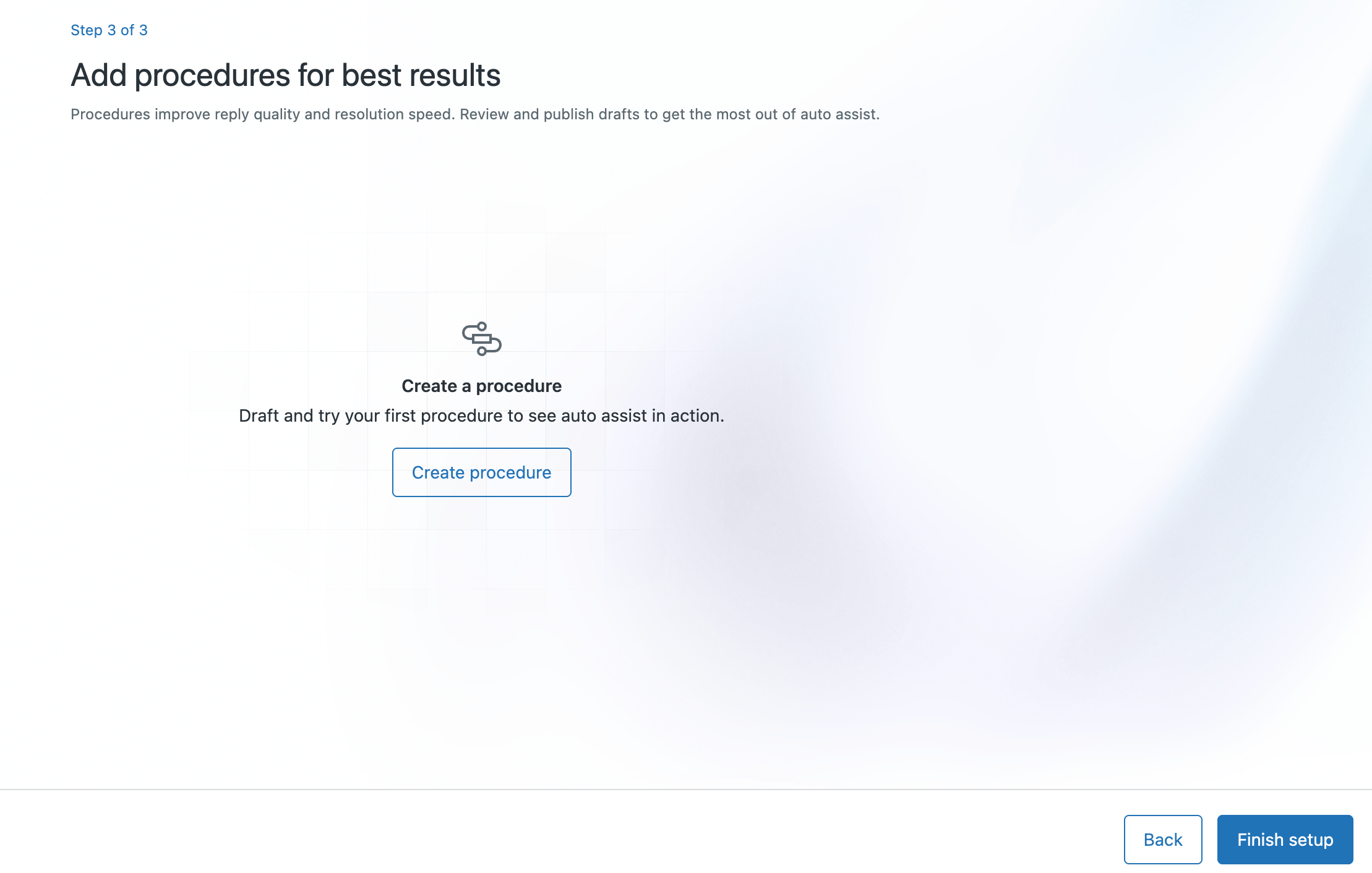
See Creating procedures for auto assist for more information.
- Click Finish setup.
The new Auto assist page opens.
Reviewing auto assist performance
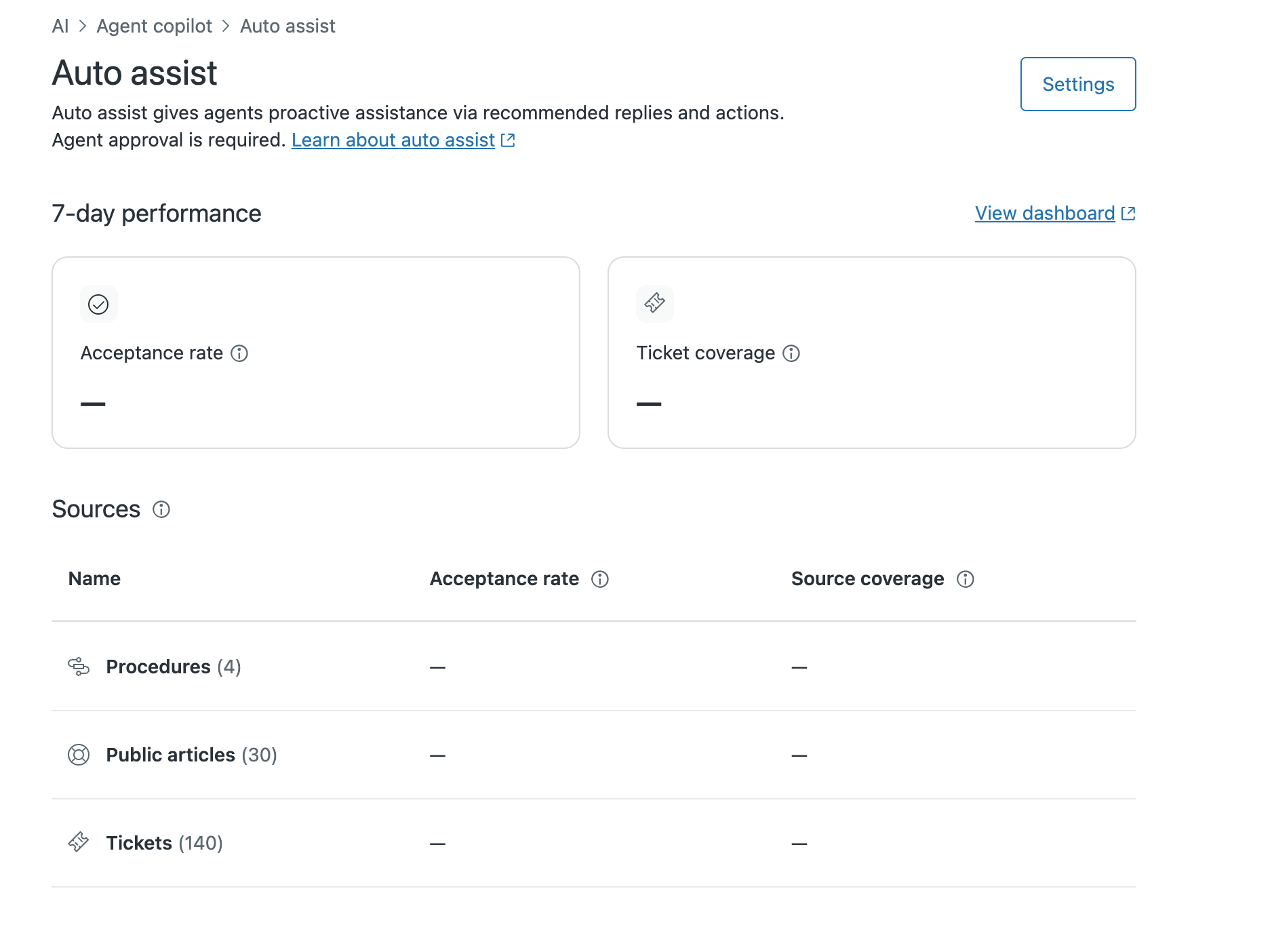
After setup, the Auto assist page gives you an overview of auto assist performance and the sources it uses.
To check auto assist performance
- From the updated Auto assist page in Admin Center, you can do the following:
- Review your 7-day performance data, which includes your acceptance rate (how often agents approve auto assist suggestions) and ticket coverage (the percentage of tickets where auto assist generated a suggestion).
- Click View dashboard to open the Explore analytics dashboard.
- Review your list of Sources available to auto assist, with acceptance rate and source coverage broken down by source type.
- Click Settings in the top-right corner to update your access or
suggestion modes.
Using the updated auto assist composer
The updated auto assist composer is available to all agents with permission to use auto assist.
To use the updated auto assist composer
- In the Agent Workspace, open a ticket.
- Start typing a reply, or wait for auto assist to generate a suggestion.
-
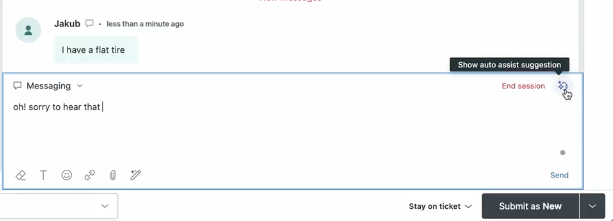
If you're typing a reply: Auto assist works in the background to
generate a suggestion. While a suggestion is being generated, the auto
assist icon in the upper-right corner of the composer displays three
animated dots. When the suggestion is ready, click the auto assist icon
in the upper-right corner of the composer.
-
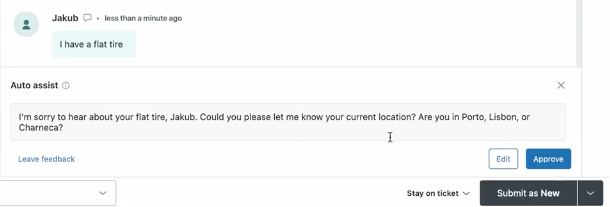
If you aren't typing a reply: The auto assist suggestion appears
automatically in the composer.
-
If you're typing a reply: Auto assist works in the background to
generate a suggestion. While a suggestion is being generated, the auto
assist icon in the upper-right corner of the composer displays three
animated dots. When the suggestion is ready, click the auto assist icon
in the upper-right corner of the composer.
- Review the suggestion, then click Edit or Approve.
For more information about reviewing and approving auto assist suggestions, see Using auto assist to solve tickets.