Summary: ◀▼
You can place outbound calls from the call console, an open ticket, or a user profile, and your status does not block calling. Calls can create a new ticket or attach to an existing one, and your phone settings plus routing profile control the calling line and whether the call rings in the browser or on your phone. You can also merge call tickets and call supported regions.
You can make outbound calls in Contact Center regardless of your status, be it online, offline, away, transfers only, or any custom status.
This article contains the following topics:
Considerations for making outbound calls
When you make an outbound call:
-
Your profile settings determine whether the phone call occurs in the browser or your phone. For more information, see Configuring voice preferences in Contact Center. If you configure your phone, then Zendesk makes a call to your phone before connecting you to the customer.
-
Your Amazon Connect routing profile determines the outbound line. If you want to make an outbound call and need to change the outbound line, contact your admin to set your routing profile accordingly.
-
By default, Amazon Connect supports outbound calling only to specific regions. If needed, ask your admin to configure additional regions.
-
If you make an outbound call without attaching it to an existing ticket, you can always merge the new ticket from the call with an existing ticket. For more information, see Merging tickets.
Making an outbound call from the call console
When you make a call from the call console, the call generates a new ticket.
To make an outbound call from the call console
-
In Support, click the call console icon (
 ) in the
top bar.
) in the
top bar. -
In the call console, enter the phone number you want to call using the dial pad or your keyboard.
The outbound line is determined by your routing profile in Amazon Connect.
-
Click Call when you are ready to initiate the phone call.
If you're using your own phone, Zendesk will call your number and then dial the recipient after you pick up.
Making an outbound call from an existing ticket
When you make a call from a ticket, by default, the call details are added to that ticket. You can initiate an outbound call from any ticket that isn’t closed, even if it wasn’t created by an incoming call.
To make an outbound call from an existing ticket
-
In Support, open the ticket you want to use to call the requester.
-
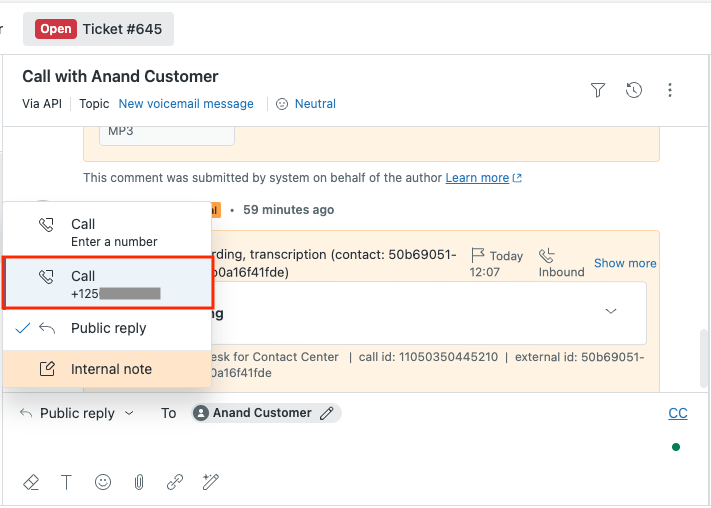
In the channel switcher menu of the message composer, click Call <number> or Call Enter a number.
-
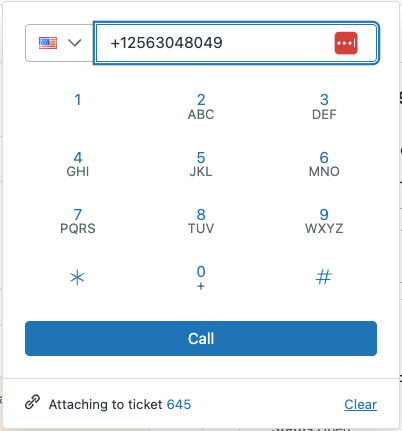
In the call console, confirm the number.
You can also edit the outgoing number.
The country code of the number will automatically change to match the number you’re calling.
- (Optional) Click Clear on Attaching to ticket <number> to
create a new ticket for the call.
This creates a new ticket.
-
Click Call when you are ready to initiate the phone call.
If you're using your own phone, Zendesk will call your number and then dial the recipient after you pick up.
Making an outbound call from a user profile
When you make a call from a user profile, the call details are added to a new ticket.
To make an outbound call from a user profile
-
In Support, open a user's profile.
-
Under Phone, click their number.
-
Select Call this number.
The call console opens with the user’s number.
-
Click Call when you are ready to initiate the phone call.
If you're using your own phone, Zendesk will call your number and then dial the recipient after you pick up.