Summary: ◀▼
Merge duplicate or related support tickets into a single ticket to keep an issue’s conversation together. You can choose whether merge comments are public or internal, but merges are permanent, and ticket fields from the closed ticket aren’t carried over. Tickets must be unsolved, and requester requirements depend on whether ticket CCs are enabled.
If needed, you can merge one or more tickets into another ticket. You might do this if you receive two support requests about the same issue from the same end user, for example. To merge a group of tickets into a single ticket, see Bulk merging tickets.
Agents can merge tickets by default. However, on Enterprise plans, agents in custom roles must be granted permission to merge tickets in their custom role.
Ticket merging rules
When you merge tickets, the following rules apply:
- Merges are permanent and can't be undone.
- The tickets must be less than Solved. You can merge an unsolved ticket into a Solved ticket. Doing this will not reopen the Solved ticket. In the case of custom ticket statuses, the tickets must have a status that belongs to a status category that is less than Solved.
- Merged tickets can't be shared with another Zendesk Support instance via Ticket sharing. If you unshare a ticket, it can be merged.
- If you have ticket CCs enabled:
- You can merge two tickets with different requesters. The requester of the ticket you close with the merge is added as a CC to the new ticket.
- If anyone was CC'd on an original ticket, they are also added as a CC on the merged ticket.
- If you don't have ticket CCs enabled, you can only merge two tickets if they are from the same requester.
- The most recent public comment from the ticket being closed with the merge appears in the merge window. You can choose to remove or edit the comment. Otherwise, the most recent public comment is included in the new ticket's comment with a link to the closed ticket. You can review previous comments in the closed ticket. No other comments appear directly in the new ticket.
- Ticket fields, including Tags, Type, Priority, and Status, aren't carried over from the ticket being closed with the merge. Only fields that are filled out in the new ticket are saved.
- The ticket that's closed with the merge has the tag closed_by_merge added.
- You can report on all tickets excluding tickets closed by merge based on the closed_by_merge tag (see Excluding tickets closed by merge). However, you can't produce reports based on the fields of the ticket that was closed by the merge.
- HTML formatting is preserved.
- AI agent tickets can’t be merged.
Merging one ticket into another
You can merge one or more tickets into another ticket. To merge a group of tickets into a single ticket, see Bulk merging tickets.
To merge one ticket into another ticket
- Open the ticket that you want to merge into another ticket.
- Click the Ticket options menu (
 ) in the upper right, then
select Merge into another ticket.

- In the Merge tickets panel, select the destination ticket in
one of the following ways:
- Enter a ticket number.
- Select one of the ticket requester's open tickets.
- Select one of your recently viewed tickets.
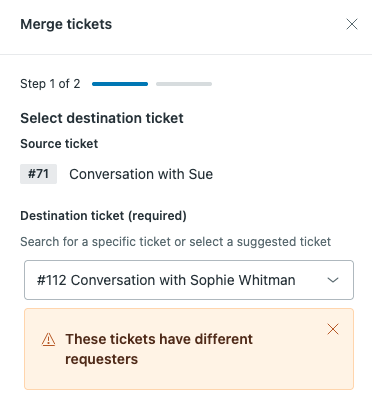
If you’re attempting to merge tickets from different organizations, brands, or requesters, a warning appears: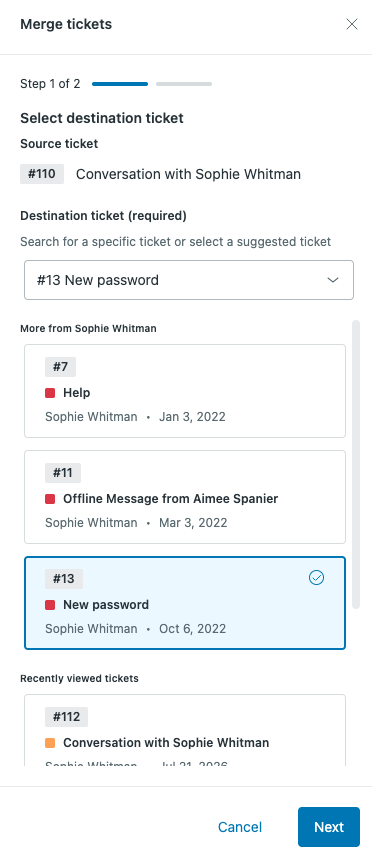
- Click Next. Note: There is a known issue where Markdown text might inappropriately render in merged ticket comments.
- Optionally, edit the merge comments that are added to each
ticket, and use the drop-down to select Public reply
to allow requesters to see the merge comment, or Internal
note to keep the comments restricted. Admins can
set the default
privacy for merge comments.
These comments support rich text formatting. If you remove all text from the comment box, the most recent comment from the merged ticket appears as the updated ticket comment.
- Click Merge tickets.
Be sure that you merge the correct tickets. Ticket merges are final and cannot be undone or reverted.
The ticket that was merged into another ticket is closed.
Article Q&A
Click to view
How do I merge one ticket into another?
Open the ticket you want to merge, select Ticket options > Merge into another ticket, and choose a destination by entering a ticket number, selecting one of the requester’s open tickets, or choosing a recently viewed ticket. Click Next, optionally edit the merge comments and choose Public reply or Internal note, then click Merge tickets. The ticket being merged is closed.
Why can’t I merge a ticket?
Tickets being merged must have a status less than Solved; an unsolved ticket can be merged into a Solved ticket, which won’t reopen it. Custom statuses must belong to a category less than Solved. Tickets shared with another Zendesk Support instance can’t be merged unless unshared, and AI agent tickets can’t be merged. Agents can merge by default, but Enterprise custom-role agents need permission in their role.
Can I merge tickets from different requesters?
If ticket CCs are enabled, you can merge tickets with different requesters. The requester of the ticket being closed and anyone CC’d on either original ticket are added as CCs to the merged ticket. If ticket CCs aren’t enabled, both tickets must have the same requester.
What happens to comments and fields when I merge tickets?
The most recent public comment from the ticket being closed appears in the merge window; you can edit or remove it. If included, it appears in the new ticket’s comment with a link to the closed ticket. Other comments remain available in the closed ticket. Fields such as Tags, Type, Priority, and Status aren’t carried over; only fields filled out in the new ticket are saved. HTML formatting is preserved.
Can I undo a ticket merge or report on the ticket that was closed?
No. Merges are permanent and can’t be undone or reverted. The ticket closed by the merge receives the closed_by_merge tag, which you can use to exclude those tickets from reports. You can’t create reports based on the fields of the ticket that was closed.