Summary: ◀▼
Use accordions to turn long articles into expandable sections that help users scan content, reduce scrolling, and focus on the details they need. You can add, reorder, move, or delete accordion sections in the article editor without code, making them a good fit for FAQs, troubleshooting, and optional guidance.
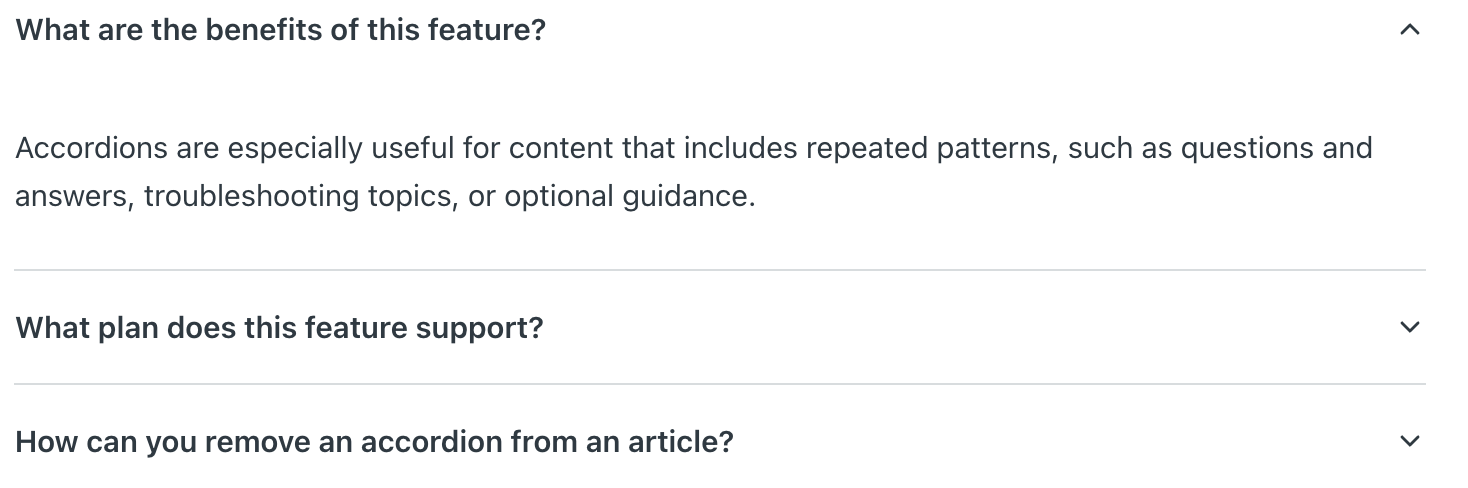
Accordions are collapsible sections that you can add to an article to organize content into expandable blocks. Accordions help users scan long content more quickly by showing section titles first, then allowing them to expand only the information they need.
Accordions are especially useful for content that includes repeated patterns, such as questions and answers, troubleshooting topics, or optional guidance. Instead of showing every section in full, accordions help reduce scrolling and make articles easier to scan.
You can use the accordion component in the article editor to create and manage accordions without having to add or edit code.
Creating accordions in the article editor
You can create accordions directly from the article editor toolbar without adding custom code. When creating accordions, carefully consider the titles you want to use for each section. Accordions work best when each section title is short, specific, and descriptive. Users should be able to understand what each section contains before expanding it.
- In help center or Knowledge admin, create a new article or edit an existing article.
- Place the cursor where you want the accordion to appear.
- Click the Article components button (
 ) on the article editor toolbar and
select Accordion.
) on the article editor toolbar and
select Accordion.The accordion component appears in edit mode.
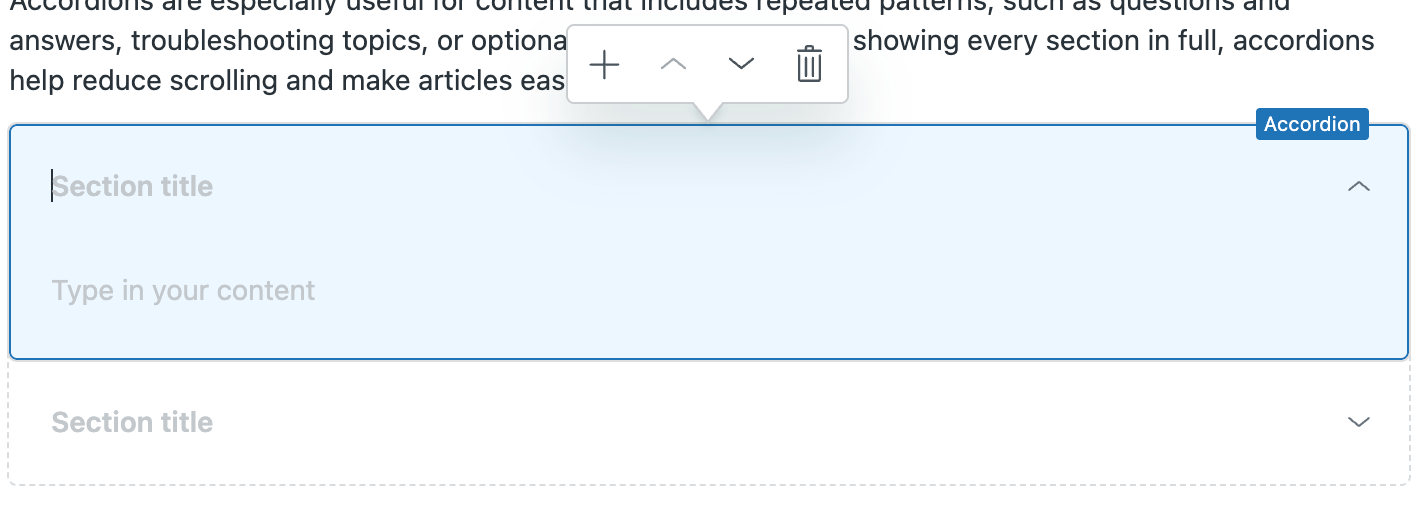
- Enter the following information:
- Section title: Text that appears in the article editor alongside the accordion expand/collapse arrow. Make this title clear and concise to help users determine whether they want to expand the related accordion.
- Content: Content that you want to appear when users expand the accordion. You can use the article editor tools to format text as you would in any other area of your article.
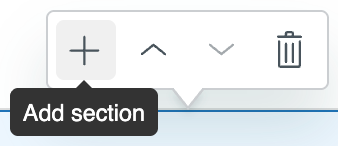
- Click the Add section icon (+) in the accordion toolbar to add a new
section to the accordion.
- Continue working with sections in the accordion until you're satisfied with
the layout and content.
If you want to:
-
Reorder sections within the accordion, click the Move
up (
 ) or Move down (
 ) icons in the accordion
toolbar for the section you want to move.
) icons in the accordion
toolbar for the section you want to move. -
Remove a section within the accordion, click the Remove icon
(
 ) in the accordion toolbar
for the section you want to move.
) in the accordion toolbar
for the section you want to move.
-
Reorder sections within the accordion, click the Move
up (
- Click Save.
Working with accordion components in the article editor
You can create as many accordion components as necessary in your help center article. Once you create an accordion component, you can move or delete the accordion, or add a line return before or after the accordion in the article editor.
To work with accordion components in the article editor
- In help center or Knowledge admin, edit an existing article that contains an accordion component.
- Hover over the accordion component in the article editor to expose the accordion
controls.

- If you want to:
-
Add a space between the accordion component and the previous line
or following line, click the return icon (
 ) above or below the
component.
) above or below the
component. -
Move the accordion component elsewhere in the article, click and
drag the handlebar icon (
 ) to a new location.
 -
Delete the accordion component, click the handlebar icon () to select the component, then
press Delete on your keyboard.
-
Add a space between the accordion component and the previous line
or following line, click the return icon (
- Click Save.