Summary: ◀▼
Callouts let you highlight important information in an article with a clear visual block, icon, and colored background. You can add Info, Warning, Error, or Tip callouts from the article editor, then move, space, or delete them as needed. Use callouts to draw attention to warnings, tips, reminders, and other key details without custom HTML.
Callouts are styled blocks of text that visually separate important information from the surrounding article text. They use a distinct style, including an icon and colored background, to help readers identify information that needs special attention. You can use them to highlight warnings, tips, reminders, or other key details so users are more likely to notice them.
Use callouts when you need to emphasize important information without relying on custom HTML or plain bold text. You can create callouts directly from the article editor toolbar without using custom code
The article editor supports Info, Warning, Error, and Tip callout types.
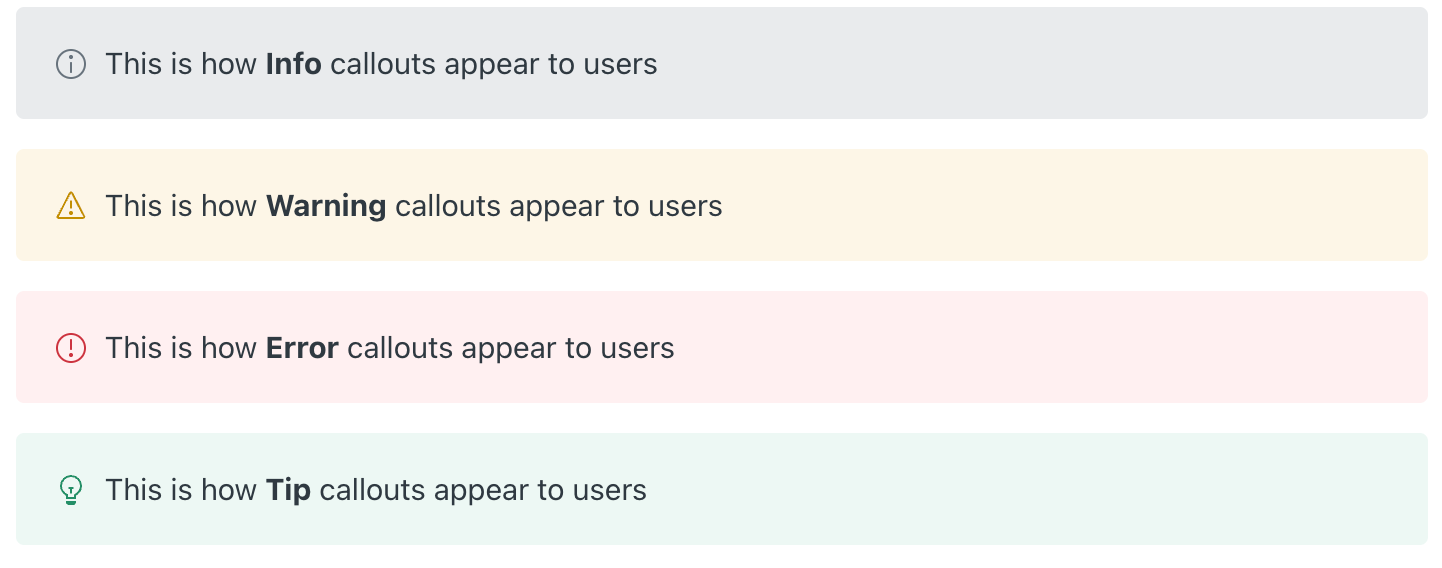
This article contains the following topics:
Creating callouts in the article editor
Create a callout when you want to emphasize important information in a visually distinct block.
Before you begin, decide what type of message you want to highlight. For example, use a warning-style callout for cautionary information or a tip-style callout for helpful guidance.
Callouts are most effective when used sparingly. If too many callouts appear in the same article, they become less noticeable and can make the article harder to read.
- In help center or Knowledge admin, create a new article or edit an existing article.
- Place the cursor where you want the callout to appear.
- Click the Article components button (
 ) on the article editor toolbar and
select Callout.
) on the article editor toolbar and
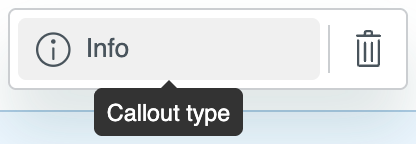
select Callout.The callout component appears as an Info type callout in edit mode.

- To change the callout type, click in the Callout type field, then
select a new type from the list (Info, Warning, Error, or Tip).
- Type the content of your callout message in the text field.
- Click Save.
Working with callouts in the article editor
Once you create a callout component, you can move or delete the callout, or add a line return before or after the callout in the article editor.
To work with callout components in the article editor
- In help center or Knowledge admin, edit an existing article that contains a callout component.
- Hover over the callout component in the article editor to expose the
controls.

- If you want to:
-
Add a space between the callout component and the previous line
or following line, click the return icon (
 ) above or below the
component.
) above or below the
component. -
Move the callout component elsewhere in the article, click and
drag the handlebar icon (
 ) to a new location.
 -
Delete the callout component, click the handlebar icon () to select the component, then
press Delete on your keyboard.
-
Add a space between the callout component and the previous line
or following line, click the return icon (
- Click Save.