Summary: ◀▼
Live call transcription gives you a real-time text transcript during voice calls, with speaker labels, timestamps, and auto-scrolling updates. You can review what’s been said, search for keywords or phrases, switch transcription language during the call, and check details without interrupting the customer. It also supports multilingual transcription for common languages.
You can use the transcript to review what has been said and search for details to check information during the call without interrupting the conversation. You can also use real-time suggestions during the call, see Using real-time AI suggestions for voice calls.
To use live transcripts during an ongoing call
-
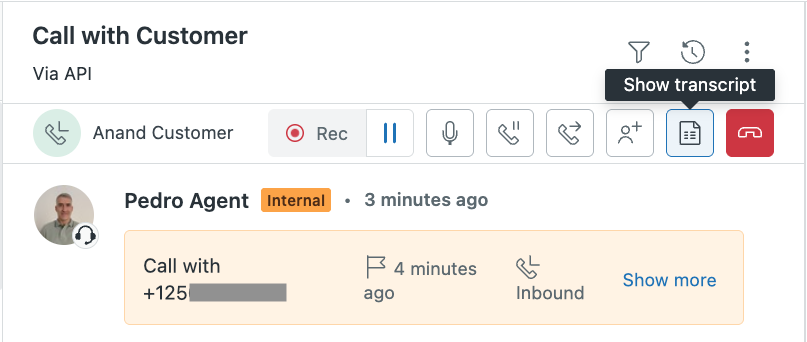
In the ticket call controls, click Show transcript (
 ).
).The transcript panel opens in the ticket, below the controls, showing the most recent part of the conversation and updates automatically as the conversation continues.
-
Click the expand icon (v) in the upper-right corner of the transcript panel to access the whole conversation.
The transcript auto-scrolls to show the latest conversation. - (Optional) Scroll up and down to review the whole conversation.
- (Optional) Click Scroll to latest at the bottom of the panel to access the current conversation.
-
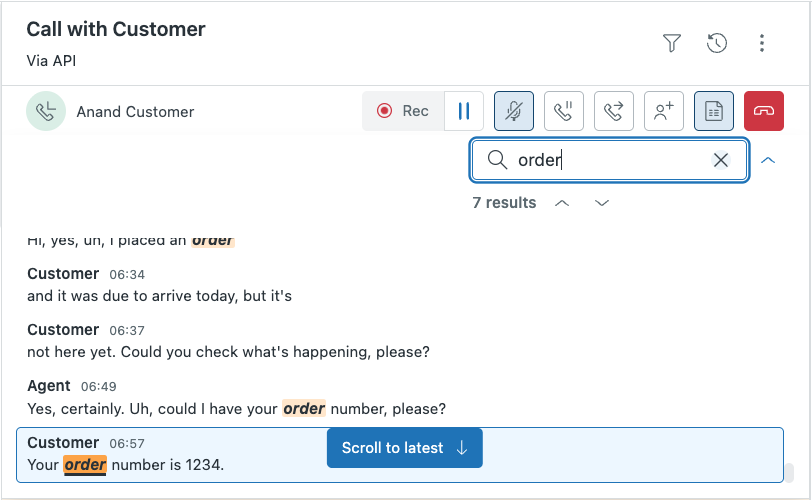
To find a specific topic, search in the upper-right corner of the transcript panel and enter a keyword or phrase.
It's a case-insensitive search that supports partial matches. This allows you to jump to relevant parts of the conversation and check specific details. For example, information about an "account", "order" or "error message".
The transcript highlights all instances of the search term. If there are multiple matches, use the arrows to move between matches.
- (Optional) In the language menu, select the language you want to use for
transcription.
The transcript language defaults to your Zendesk profile language. You can change the language during an active call to match the language the customer is speaking. The transcript uses the new language for ongoing transcription. Previously transcribed text is not retranscribed.
You can also select the multilingual language option to seamlessly switch between the following languages only: English, Spanish, French, German, Hindi, Russian, Portuguese, Japanese, Italian, and Dutch.
- Click Hide transcript () to close the
transcript panel.
Ending the call also closes the transcript panel.