Summary: ◀▼
Two-factor authentication adds a security layer by requiring a passcode after signing in, reducing unauthorized access risks. You can require it for team members and end users who sign in with email and password. It supports authenticator apps, email, or SMS for passcodes. You can track usage with a 2FA status report for admins and agents. It can be turned off anytime if no longer needed.
Two-factor authentication is an added security layer that requires users to verify their identity after signing in using a passcode, reducing the risk of unauthorized access. You can require two-factor authentication, or each user can set up two-factor authentication for their own use.
Two-factor authentication applies to users who sign in to your Zendesk using Zendesk authentication (email and password). It's not available for users who sign in using third-party authentication, such as Google authentication services, JWT, or SAML. However, these users might still be able to use third-party two-factor authentication, such as Google 2-Step Verification, if you're using Google authentication.
Zendesk recommends turning on two-factor authentication to help protect against potential situations that could result in an admin or agent account being compromised, such as a leaked password. If you require two-factor authentication, it's a good idea to periodically generate a 2FA status report to track who's using two-factor authentication to access their Zendesk account.
Important considerations before turning on two-factor authentication
- On trial accounts, agents can’t receive passcodes by text message. If you’re turning on two-factor authentication for a trial account, agents must use email or an authenticator app to get their codes. (Text message delivery isn’t supported for end users to receive passcodes on any account type.)
- You can use two-factor authentication on the Zendesk website or with the Zendesk iOS or Android apps. However, the Zendesk REST API doesn't currently support two-factor authentication. See Using the API when SSO or two-factor authentication is enabled in the developer documentation.
- Requiring two-factor authentication does not impact API calls that are using an API token.
Requiring two-factor authentication on the account
You can require two-factor authentication for all team members, all end users, or both user types. Once this setting is turned on, users will be required to set up two-factor authentication the next time they sign in. Users see the following dialog after entering their email and password.
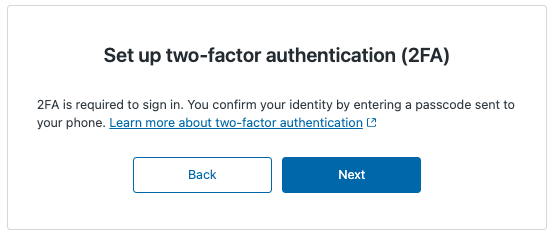
The two-factor authentication wizard guides users through the process, which includes options for how they'd like to receive a passcode: authenticator app, email, or SMS.
- For admins and agents: Using two-factor authentication to sign in to Zendesk Support
- For end users: Accessing help center with two-factor authentication
When you require two-factor authentication, users are prompted for a passcode every time they sign in.
To require two-factor authentication
- In Admin Center, click
 Account in the sidebar, then select Security > Advanced.
 - Click the Authentication tab.
- Select the options that apply:
- Require two-factor authentication (2FA) for team members
- Require two-factor authentication (2FA) for end users
- Click Save.
Tracking who's using two-factor authentication
You can generate a 2FA status report, in the form of a CSV spreadsheet, listing all the admins and agents in your account and whether or not they're using two-factor authentication. It's a good idea to do this periodically if you require two-factor authentication. This option is not available to track end users.
To generate a 2FA status report
- In Admin Center, click
Account in the sidebar, then select Security > Advanced.
- Click the Authentication tab.
- Click Generate 2FA status report.
- Check your Zendesk email. You should get an email shortly with a link to download the spreadsheet.
Turning off two-factor authentication
You can turn off two-factor authentication if you no longer want to require it on your account. After you turn it off, users will no longer be required to enter a passcode when signing in, unless they have turned on two-factor authentication for themselves in their profile.
- For agents: Turning off two-factor authentication
- For end users: Turning off two-factor authentication
To turn off two-factor authentication
- In Admin Center, click
Account in the sidebar, then select Security > Advanced.
- Click the Authentication tab.
- Deselect the options that apply:
- Require two-factor authentication (2FA) for team members
- Require two-factor authentication (2FA) for end users
- Click Save.