Summary: ◀▼
Workforce management automations help you manage agent activities by automating tasks like clocking out agents who forget, correcting timesheets, and sending notifications for schedule mismatches. You set conditions based on agent status, task, and time duration, triggering actions such as clocking out, ending the day, or sending messages. These automations reduce manual work and improve adherence to schedules and labor policies.
Zendesk Workforce management (WFM) automations are designed to streamline repetitive tasks. Automations allow you to manage certain agent activities automatically, such as ending agents' days when they forget to clock out.
Similar to Zendesk automations, WFM automations perform an action when the conditions you define are met. Automations can reduce your manual workload and increase efficiency and accuracy.
This article contains the following sections:
Related articles
About WFM automations
Similar to Zendesk automations, WFM automations perform actions when the conditions you define are met. WFM automations are focused on managing agent activity.
Some examples of automation uses include:
- Correcting recorded time if agents forget to clock out for the day.
- Moving agents from a task or workstream to a general task or untracked time.
- Ending the workday for agents who forget to clock out.
- Sending a notification message when an agent is working on a task that doesn’t match their schedule.
By setting up automations, managers are freed up from performing the repetitive tasks related to correcting agent timesheets.
Structure of a WFM automation
WFM automations have a set structure. You can think of the structure as an if statement. For example:
If an agent is [Clocked in] to [task] for over [20m] then [clock out
                        agent]
The structure of a WFM automation consists of:
- A Run event, that determines when the automation activates. The
default event is Clocked into, but it can be changed to Early
to, Late to, or Out of adherence.
The Clocked into event means that the automation will run after a specified duration since an agent clocks into a task, status, or workstream. These automations can be used, for example, to notify managers when agents have been working on a task for too long, such as handling calls for over two hours, and switch agents to a different task, such as following up on pending tickets or participating in training activities.
The Early to and Late to events consider the agent’s adherence to their scheduled start and end times. The Early to event runs on a specified duration before an agent’s scheduled start or end time. The Late to event runs after a specified duration beyond an agent’s scheduled start or end time.
These automations can be used, for example, to remind agents that they have clocked in earlier than expected, or to prompt them to clock out if they are working beyond their scheduled shift, such as when handling extended customer calls. They can also be used by managers to promote adherence to labor policies by preventing unauthorized overtime and undertime, while improving agent compliance through automated corrective actions.
- One or more tasks (this can be any of your workstreams, unified agent
statuses, or general tasks), or a condition (End day or Start day) that the
event is related to.
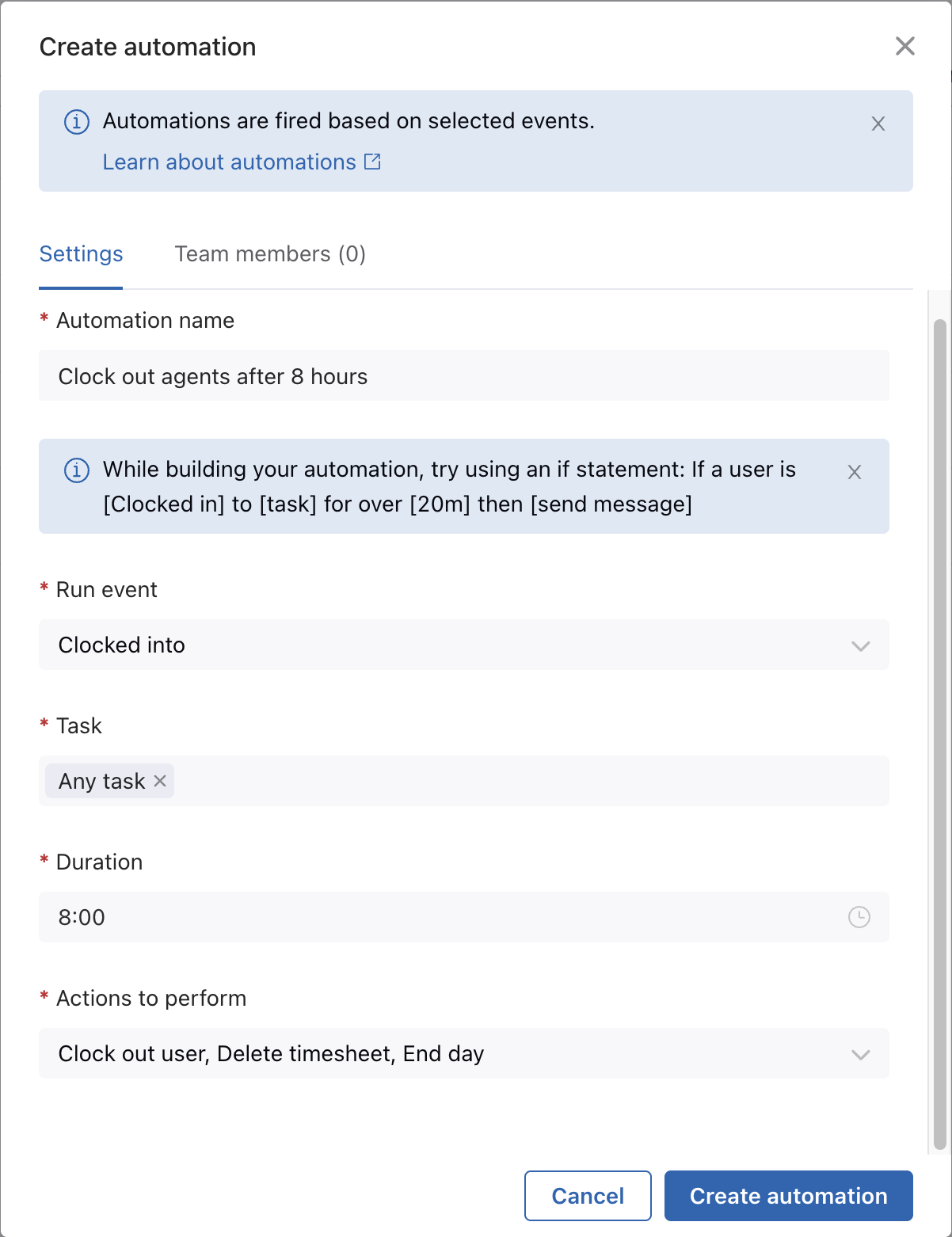
- A set duration. This measures the minimum time (in minutes) an agent
must be clocked into a task, unified agent status, or workstream for the
automation to run. The Early to event runs on the specified duration
(in minutes) before an agent’s scheduled start or end time. The Late
to event runs after a specified duration beyond an agent’s scheduled
start or end time.
Duration also measures the minimum time (in minutes) that an agent is out of adherence before the system sends a push notification message to their Agent Workspace in Zendesk Support.
- The actions that the automation will perform. Choose from the
following predefined actions:
- Clock out user, Delete timesheet, End day : This involves removing the agent's activity from both the agent activity page and related reports.
- Clock out user, End day .
- Send a message. The users you select will receive a push notification in their Agent Workspace in Zendesk Support.
- Shift user to general task
-
Shift user to untracked timeNote: Shift user to general task and Shift user to untracked time are not available when unified agents status synchronization is turned on in your account.
- The team members the automation applies to. Automations can target all team members in an account or only a selected group.
How WFM automations work
Similar to Zendesk automations, WFM automations execute actions when defined conditions are met. The conditions for a WFM automation consist of the specified event that runs the automation, a task, and a duration of time.
When these conditions are met, the corresponding action is performed for the designated agents.