Verified AI summary ◀▼
Enable unified agent status synchronization for Workforce Management to streamline agent availability across channels. This feature maps agent statuses to workstreams, enhancing real-time accuracy in adherence, utilization, and reporting. It replaces general tasks with unified statuses for better tracking and insights. Admins or those with permissions can activate or deactivate this synchronization to suit operational needs.
Unified agent statuses are part of omnichannel routing and allows agents to control availability for email, voice, and messaging from a single menu in the Agent Workspace. With Zendesk Workforce Management (WFM) unified agent status synchronization, WFM synchronizes agent statuses and activity data directly from Zendesk’s omnichannel routing.
Unified agent status synchronization with WFM allows admins and users in custom roles with permissions to map agent statuses to specific workstreams. This eliminates the need for agents to update their availability in two systems and improves real-time accuracy in adherence, utilization, and reporting. You can calculate adherence and track activities using agent statuses configured in omnichannel routing instead of general tasks.
This article contains the following topics:
- Considerations for turning on unified agent status synchronization with Zendesk WFM
- Turning on unified agent status synchronization for Zendesk WFM
- Turning off unified agent status synchronization for Zendesk WFM
Related articles
Considerations for turning on unified agent statuses synchronization with Zendesk WFM
Make sure you understand how synchronizing unified agent statuses with Zendesk WFM affects WFM features and metric calculations.
Specifically, when unified agent statuses are synchronized with WFM:
- Instead of using the WFM time tracker agents should set their unified agent statuses in the Agent
Workspace. At the end of their shift, they should log out of Zendesk Support or close
their computer, unless an end day automation is in place.When agents start working on a ticket, Zendesk WFM automatically starts tracking their time and attendance. However, if their day starts with a status that does not include working on tickets, they must still manually start their day by clicking Start day using the WFM time tracker.
- General tasks become unavailable in WFM. However, historical general task data remains available.
- Instead of general tasks, WFM uses unified agent statuses for adherence and occupancy calculations, real-time dashboards, agent activity reporting, and public API data streams. Adherence and occupancy data refreshes automatically every few minutes in near real time. Also see Best practices for unified agent status synchronization with Zendesk WFM.
- You’ll need to update your schedule and shift settings to replace general tasks with unified agent statuses. If necessary, republish your schedule.
- When using unified agent statuses, adherence is calculated
as:
scheduled activity vs. agent’s unified status + ticket activity- In adherence: An agent is considered in adherence when their active unified agent status is mapped to a workstream they are scheduled to work on. For example, if an agent is scheduled for Workstream A and is either working on a Workstream A ticket or in a status mapped to Workstream A, the agent is considered in adherence. The agent is also considered in adherence if the agent is online but not working (idle time).
- Out of adherence: If the agent is in a status not mapped to their scheduled workstream or working on the wrong ticket, the agent is considered out of adherence. The “Offline – sign out” status is also excluded from adherence.
-
Adherence rate percentage is calculated
as:
ratio of time in mapped activities vs. scheduled time -
Idle time replaces untracked time, offering more precise time
tracking and better insight into agent availability versus productivity.
Idle time duration is available in the Agent activity page, in the User summary for the agent. It can also be calculated by exporting agent activity and summing status durations for Online, Away, and Transfers only entries without ticket activity.
- Without UAS: Untracked time appears when agents are logged in but no activity is recorded.
-
With UAS: Agent status is always known, so untracked time becomes idle time
in specific statuses, such as Online, Away, and Transfers only.
Idle time availability is determined by the status type in Admin Center.
- Productive versus unproductive classification: Each status is classified as productive or unproductive based on business rules and WFM configuration. For example, Away - Lunch can have routing enabled, which means it counts as idle time, but it can still be configured as unproductive. See Mapping unified agent statuses in WFM.
-
Occupancy percentage is calculated as:
Ticket time + Productive status time) / (Ticket time +Idle time - Unpaid status time) -
Utilization percentage is calculated as:
(Ticket time + Idle time - Unpaid status time) / (Total time - Unpaid status
            time)
It’s the percentage of paid time that agents are logged in and either working or available to work: Logged paid time / Paid time.
- The Agent status page provides real-time visibility of
who is online, offline, and idle. Data refreshes every 10 seconds, giving supervisors near
real-time insights into:
- Who is currently online or offline
- Which workstream each agent is working on
- How long agents remain in each status or activity
- Whether they are adhering to their scheduled workstreams
- The Agent activity page provides detailed, intraday visibility of what agents worked on and when.
-
Only the following automations are available when WFM is using unified agent statuses:
- Send message: Send in-app or Slack notifications to agents or supervisors.
- End day automation: Automatically end the agent’s day after a defined period of inactivity.
- Task creation, status switching, or time-tracking automations are not available under the unified agent status with Zendesk WFM synchronization. If needed, create new WFM automations that use unified agent status data.
- If you use the Zendesk time tracker Chrome extension to map external URLs to general tasks, you'll need to remap them to unified agent statuses.
Turning on unified agent status synchronization for Zendesk WFM
When configured to synchronize unified agent status data, WFM exclusively uses that data instead of general tasks.
You must be an admin or have a custom role with permission to activate unified agent status synchronization for Zendesk WFM.
To turn on unified agent status synchronization for Zendesk WFM
- If you haven’t already, set up and configure omnichannel routing in Admin Center.
- In Workforce management, click
 Settings in the sidebar, then select Account settings.
 - On the General tab, scroll to Unified agent status synchronization and
select Agent status synchronization.
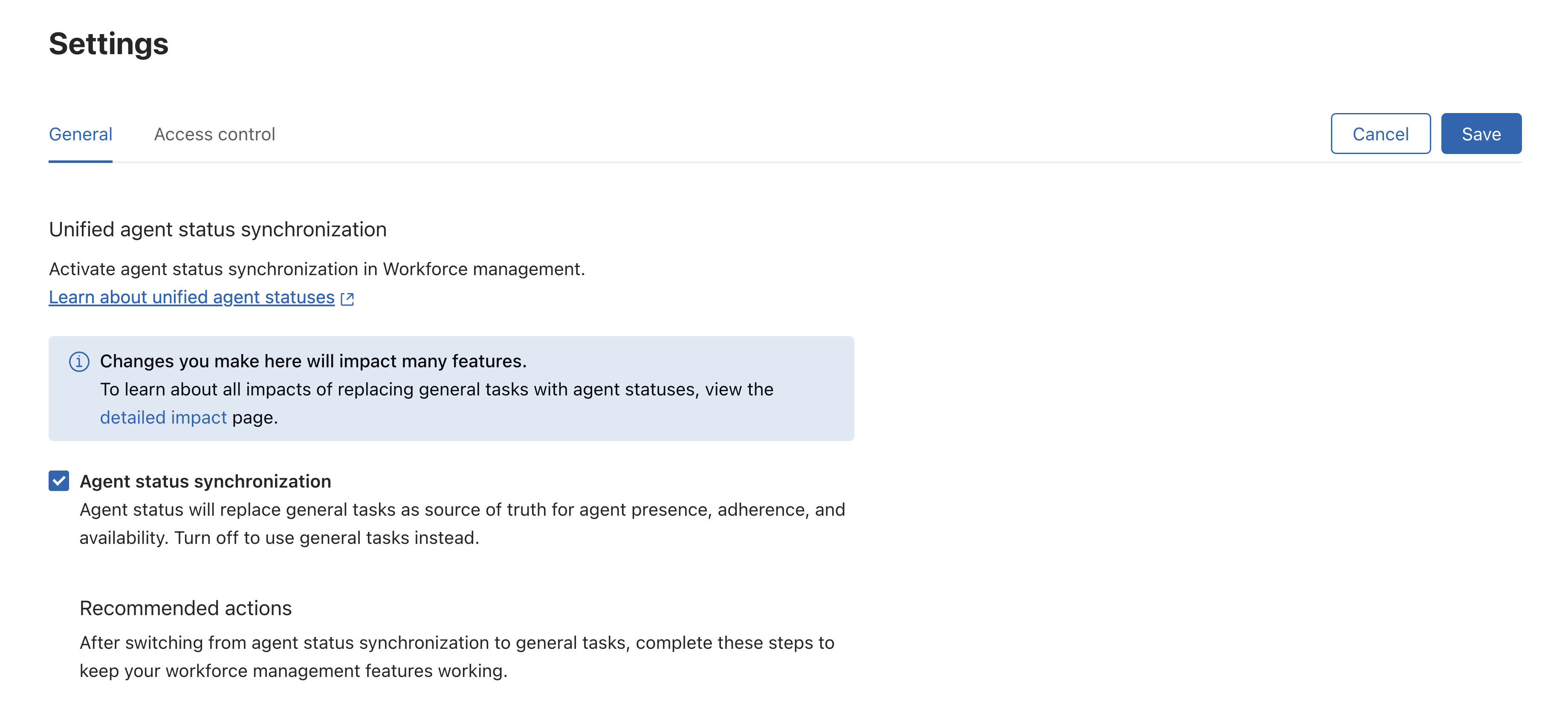
- Click Save.
- In the confirmation dialog, review and confirm that you understand the main impacts of turning on the unified agent
status synchronization with Zendesk WFM and your required actions.
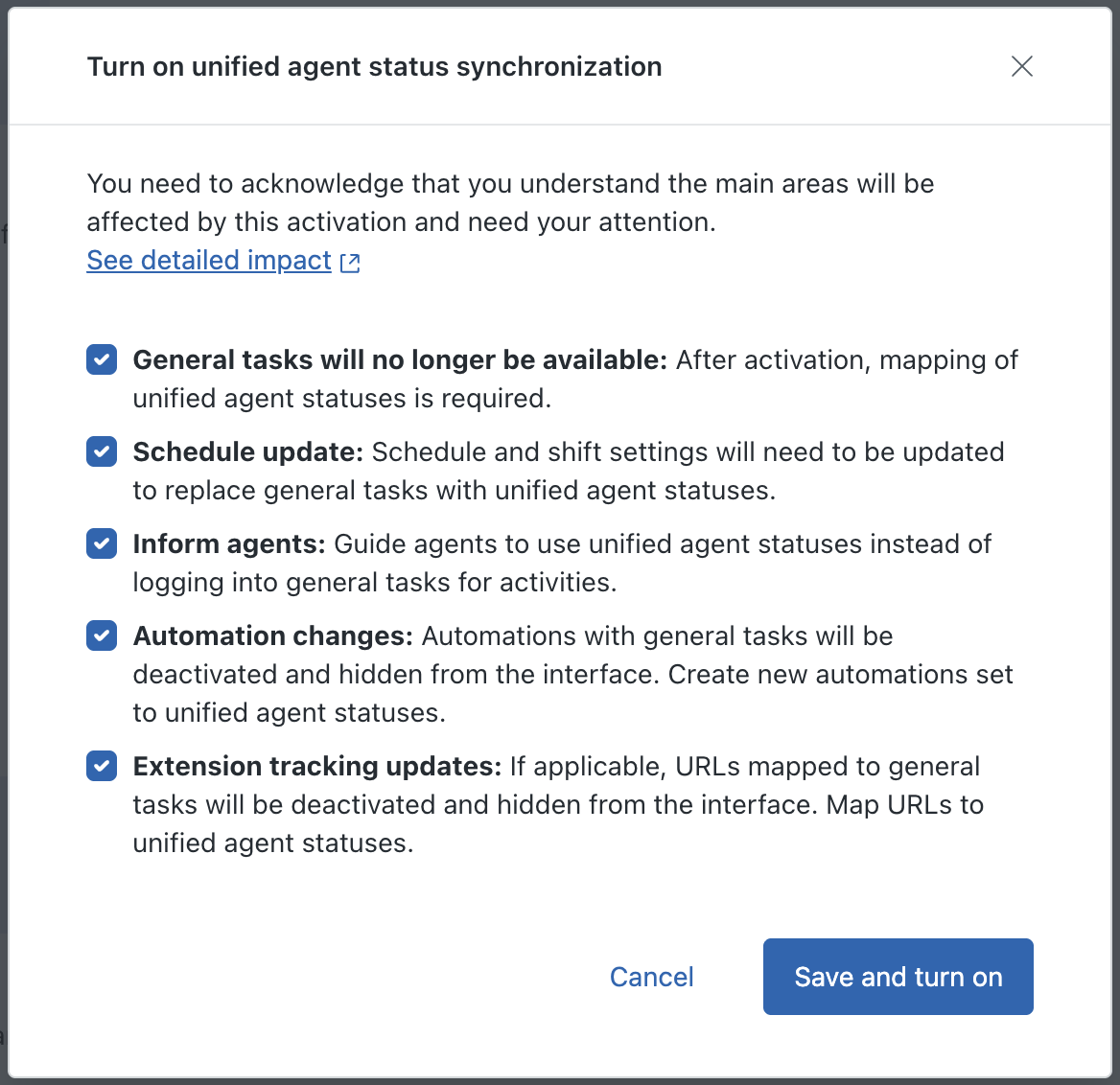
- Click Save and turn on.
Your changes are saved and may take up to five minutes to become visible.
- Map your WFM workstreams to unified agent statuses for adherence.
Turning off unified agent status synchronization for Zendesk WFM
When unified agent status synchronization is turned off, WFM reverts to exclusively using general tasks data. Historical unified agent status data remains visible, but is not used for new activities.
Untracked time replaces idle time, and general tasks data is used for adherence and occupancy calculations, real-time dashboards, agent activity reporting, and public API data streams.
You must be an admin or have a custom role with permission to turn off unified agent status synchronization for Zendesk WFM.
To turn off unified agent status synchronization for Zendesk WFM
- In Workforce management, click
Settings in the sidebar, then select Account settings.
- On the General tab, scroll to Unified agent status synchronization,and
deselect Agent status synchronization.
- Click Save.
- In the confirmation dialog, review and confirm that you understand the main
impacts of turning off the unified agent status synchronization for Zendesk WFM and your
required actions.
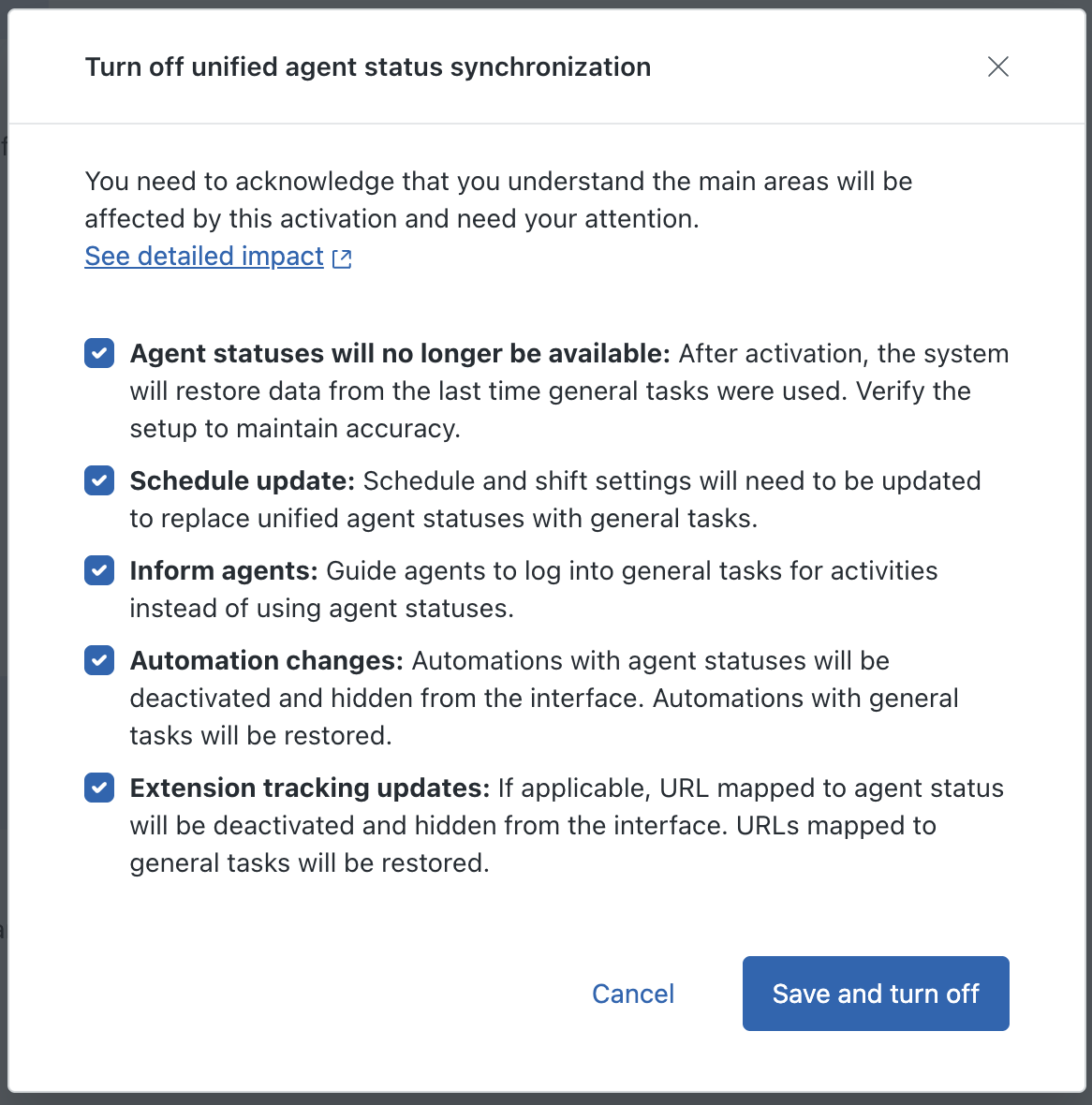
- Click Save and turn off.
Your changes are saved and may take up to five minutes to become visible.
- Verify that your general tasks are correctly set up.