Verified AI summary ◀▼
Mapping unified agent statuses in WFM allows you to streamline workflows by connecting workstreams to agent statuses. This setup aids in calculating schedule adherence and tracking activities. You can define statuses as paid or productive time, influencing occupancy rate calculations. Customize statuses for tasks like meetings or breaks to optimize agent time without manual updates, enhancing efficiency and reporting accuracy.
Synchronizing unified agent status for Zendesk WFM allows agents to set a single status and admins to calculate adherence and track activities based on unified agent status data. This approach simplifies workflows and improves reporting accuracy.
After turning on synchronization, you must map your WFM workstreams to your unified agent statuses. Connecting workstreams to the status ensures that the workstreams’ activities are also taken into consideration when calculating the agent’s schedule adherence.
Align with other stakeholders in your organization on which workstreams you want to map to agent statuses.
For example, select the workstreams for meetings or breaks if the agent will be away from Zendesk. Setting the workstreams associated with a status helps you optimize your agents' time by reducing the number of actions they need to perform. They won't need to update their status manually, which improves efficiency.
If necessary, review and manage the unified agent statuses available to your agents.
Admins can also define whether the agent status is counted as paid time or productive time.
If the status is counted as paid or productive time, it’s included when calculating the occupancy rate.
There are certain scenarios where you’ll want to define a status as productive time. For example, if an agent works on social media management outside of Zendesk, you can create a status for that type of work and track it as productive time.
Note that all productive time statuses are included in paid time.
However, not all unified statuses need to be defined as productive time. Unproductive time is a standard part of customer support work. Activities and tasks such as attending training or meetings could be considered unproductive but still count as paid time. While they’re necessary activities, they aren’t the core focus of an agent’s job. You may also want to define a “lunch” status as unpaid time.
To map unified agent statuses in WFM
- In Workforce management, click
 Settings in the navigation bar, then select Agent statuses mapping.
 - Under All statuses, click the name of the status you want to map to WFM
workstreams.
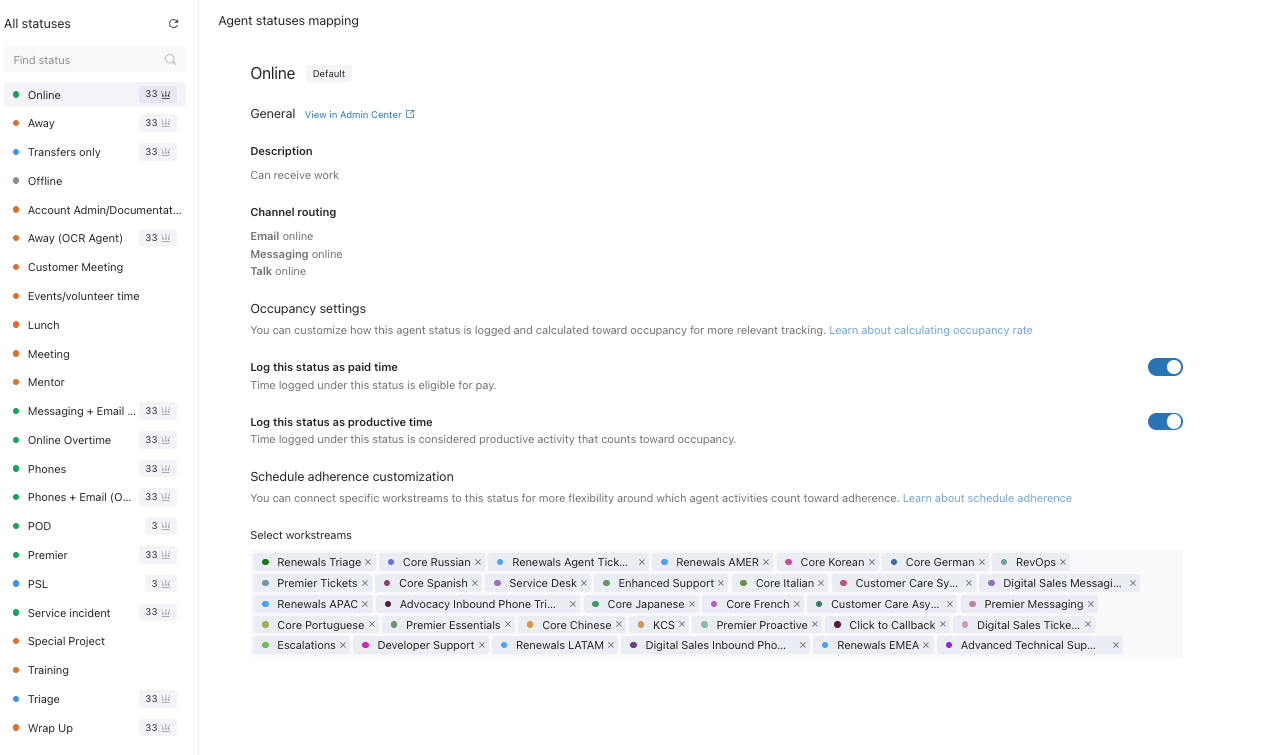
- (Optional) Under Occupancy settings, click the Log this status as paid time toggle to include the status in paid time when calculating agents’ occupancy rates.
- (Optional) When logging the status as paid time, click the Log this status as productive time toggle to include it as productive time when calculating agents’ occupancy rates.
- Under Schedule adherence customization select the workstreams you want to map to the status.
- Click Save.