Verified AI summary ◀▼
Use Workforce Management to view your schedule, clock in and out, and request time off or shift trades directly within the platform. Access your team's schedule to see who you can trade shifts with or who you'll work with. These features help you manage your workday and schedule changes without needing to switch platforms.
Zendesk Workforce management (WFM) helps your organization take a data-driven approach to planning and scheduling, which means that your schedules will be more predictable and you’ll also experience less disruption day-to-day. Your manager will be able to better anticipate and plan for seasonal ticket surges, preventing unexpected overload for you and your teammates.
As an agent, you use Zendesk WFM to view your schedule, clock in and out, and request schedule changes. However, your interactions with it are minimal. Zendesk WFM displays directly within Zendesk Support, allowing you to view and access it while you work.
Where to find Zendesk WFM
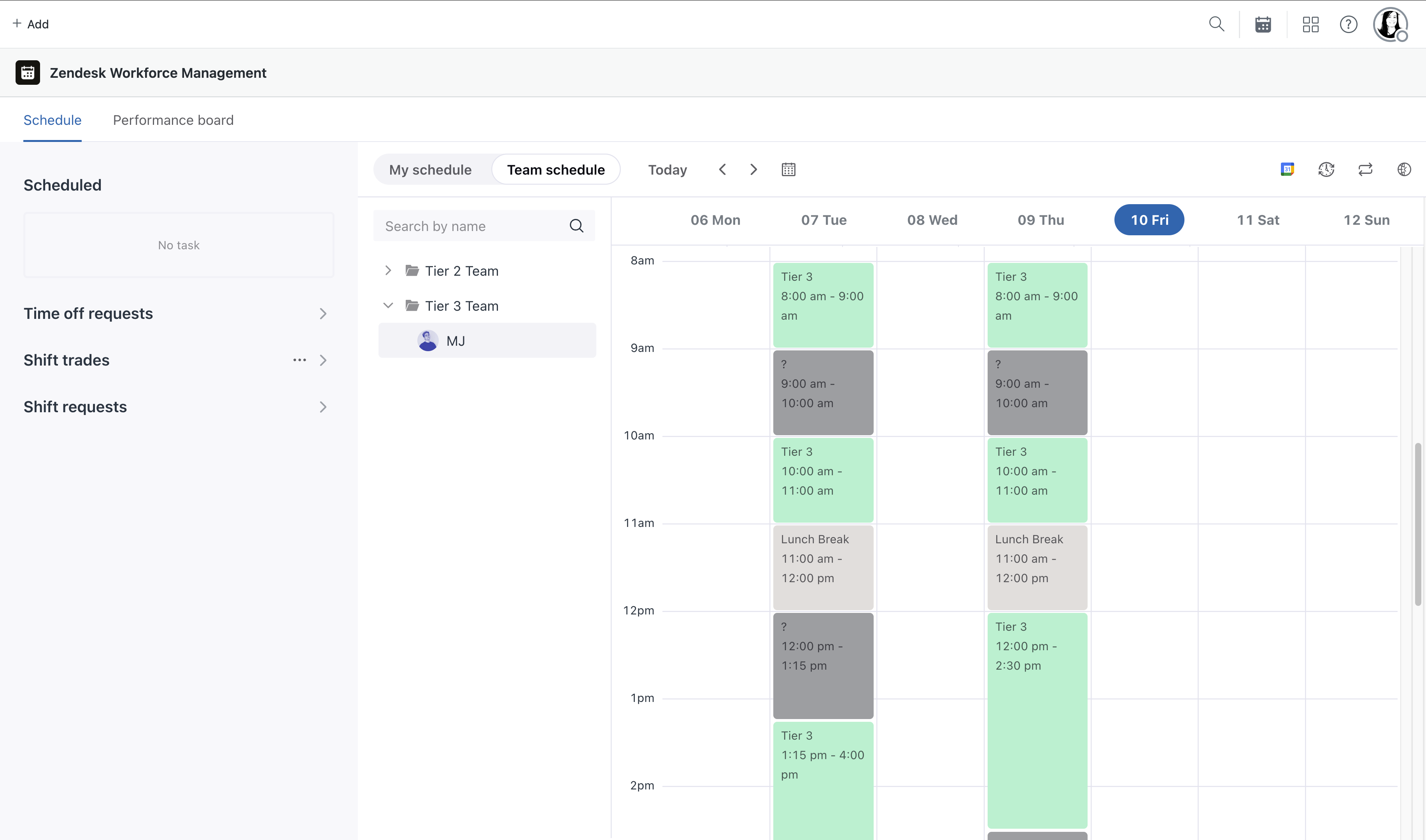
After your admin gives you access, you’ll see the Zendesk WFM ( ) icon in two areas of Zendesk Support:

- Track your time from the top navigation bar.
- Access your schedule from the sidebar.
For more information, see Accessing and navigating your agent schedule.
Starting and ending your day
When you start working on a ticket, Zendesk WFM automatically tracks your time and attendance. However, if your day starts with a status that doesn’t include working on tickets, you must manually start your day by clicking Start day using the WFM time tracker icon in the top navigation bar and then set your unified agent statuses in the Agent Workspace.
If unified agent status synchronization is turned off for your WFM account, click the icon in the top navigation bar so the WFM time tracker appears. You can start your day here if your schedule starts with non-ticketing work, such as a meeting. If your day starts with ticketing work, Zendesk WFM automatically starts tracking your time and you don't need to clock in.
When you transition from ticketing to a general task, such as a break or a team meeting, clock into the general task from the time tracker. Your input helps inform your managers’ data and reporting and ensures that they have a full view of how your time is spent.
At the end of the shift, log out of Zendesk Support or close your computer if you're using unified agent statuses in the Agent Workspace.
If you’re using the WFM time tracker, logging out of or closing Zendesk Support doesn't clock you out, so make sure that you clock out from the time tracker by clicking End day.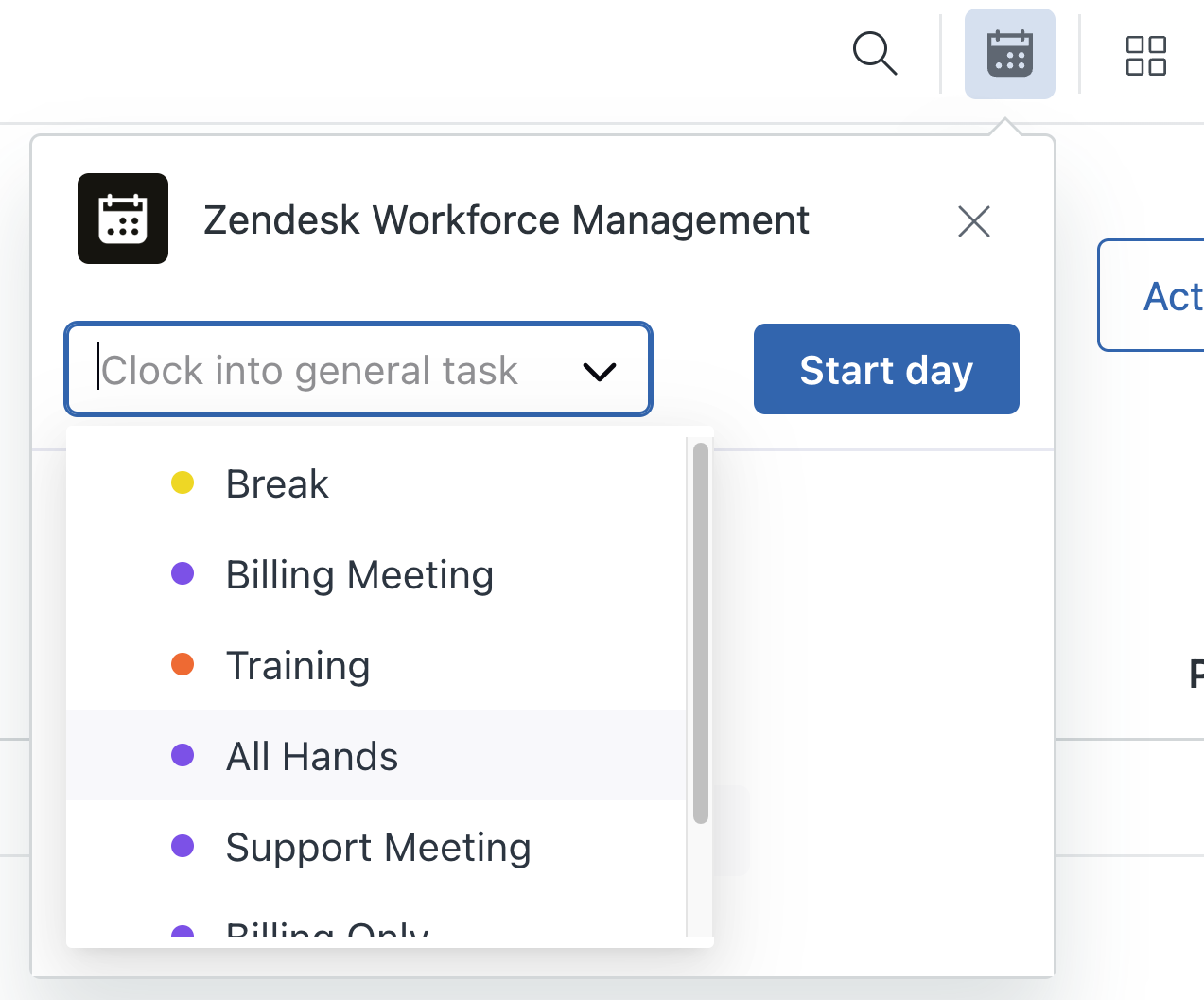
At the end of the shift, clock out from the time tracker by ending your day. Logging out of or closing Zendesk Support doesn't clock you out so make sure that you end your day here.
For more information about tracking your time, see Starting and ending your day in the Zendesk WFM time tracker.
Requesting time off and shift trades
Zendesk WFM gives you visibility into your schedule and helps you request schedule changes. There's no need to log into another platform to make these requests. Request changes directly from your schedule within Zendesk Support.
Time off requests
Click the time off requests icon ( ) within your schedule to request schedule changes. Your manager will have
defined a few common time off reasons, which you can select when making your request.
You'll also have the option to add a comment.
) within your schedule to request schedule changes. Your manager will have
defined a few common time off reasons, which you can select when making your request.
You'll also have the option to add a comment.

Your manager will see your request in their schedule view and receive an email notification with each request. They’ll approve, deny or respond with comments.
For more information, see Requesting time off.
Shift trades
You may have the option to request a shift trade from a peer if you prefer a change in shift. For example, if you want to start and end your Mondays later.
In your schedule, request to trade shifts with either a specific agent or send your request to a shift pool.

The other agent(s) are notified and they can take your shift or not. You may receive such a request from a fellow agent, which you can accept or deny.
Your manager can also see you and your teams' list of shift trades.
For more information about how to request and respond to shift trades, see Trading shifts with other agents.
Viewing your team’s schedule
If team schedule view has been activated by an admin, you can also see who you can trade a shift with, or who you will be working with in the course of any day or week.
To view your team members’ schedules, click the Team schedule button in the top bar.
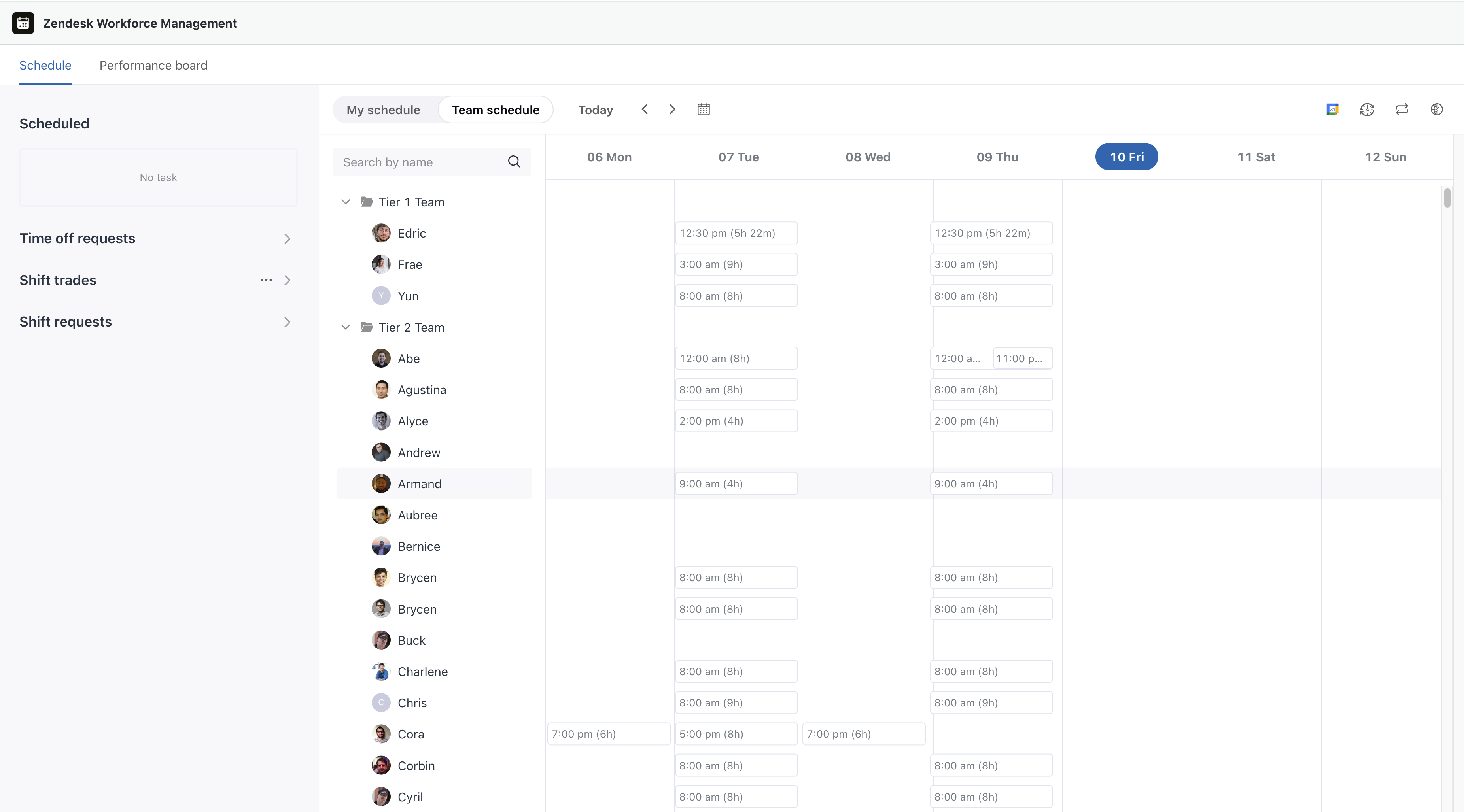
You can see an indication of open and pending shift trades, so you know which of your colleagues are currently involved in a trade.
Hovering over any shift badge shows you the duration, and the start and end times of the shift.
Time-off days are highlighted in red.
Click any agent to see the details of their schedule.