Summary: ◀▼
You can create multiple-choice quizzes to assess support skills, onboard new team members, and target specific workspaces. Add text or images to questions, mark one or more correct answers, duplicate quizzes to make changes, and save drafts before publishing. After publishing, you can’t edit a quiz, but you can delete it and track results on the leaderboard.
Use Zendesk QA quizzes to assess and improve your support team’s skills and knowledge, and to help onboard new team members. You can create customized quizzes for specific workspaces.
After sharing a quiz with your agents, you can view and monitor quiz results on a leaderboard. See Viewing and managing quizzes.
This article contains the following topics:
Creating quizzes
Admins, workspace managers, and leads can create quizzes. All quizzes are multiple choice.
Quizzes are specific to workspaces. Any team member in the workspace can take the quiz, but users can take each quiz only once. They can’t take the same quiz again in another workspace. A quiz made available to “all workspaces” isn’t available to workspaces created after the quiz is published.
Quiz questions can include text and images, but answers are text only. A question can have more than one correct answer, in which case the participant must select all of them to be marked correct.
After a quiz is published, it can’t be modified. However, it can be deleted. Admins and workspace managers can delete any published quiz. Workspace managers and leads can delete a published quiz only if they created it.
- In Quality assurance, click
 Coaching in the sidebar.
 - Click Quizzes.
- Click + Quiz.
- Enter a Quiz title and, optionally, a Description.
- Under Quiz access, select one or more workspaces you want the quiz to be available in.
- Enter the text of the first question.
- (Optional) If you want to include an image in the question, click the image
icon (
 ) to add an image in PNG, GIF, WEBP, or
JPG format.
) to add an image in PNG, GIF, WEBP, or
JPG format. - Under Options, add each of the potential answers and click the checkbox next to the answers that are correct.
- To add another question, click Add question, or click the duplicate
question icon (
 ) on a previous question to use a copy
of it as a starting point.
) on a previous question to use a copy
of it as a starting point. - To make changes to a question, perform one of the following actions:
- To reposition a question within the quiz, click the up (
 ) or down icon (
 ).
). - To remove a question, click the remove icon (
 ).
). - To reposition an option within a question, use the grabber icon (
 ) to manually reorder the
options.
) to manually reorder the
options. - To remove an option within a question, click the delete icon (x) next to the option you want to remove.
- To reposition a question within the quiz, click the up (
- Click Preview to preview your quiz.
- Click Save as draft to save it without publishing or click
Publish to share the quiz with your team.
When you save as a draft, you can edit and publish your draft quiz later. Once you publish a quiz, you can’t modify it. Draft quizzes and published active quizzes are available on the Quizzes page.
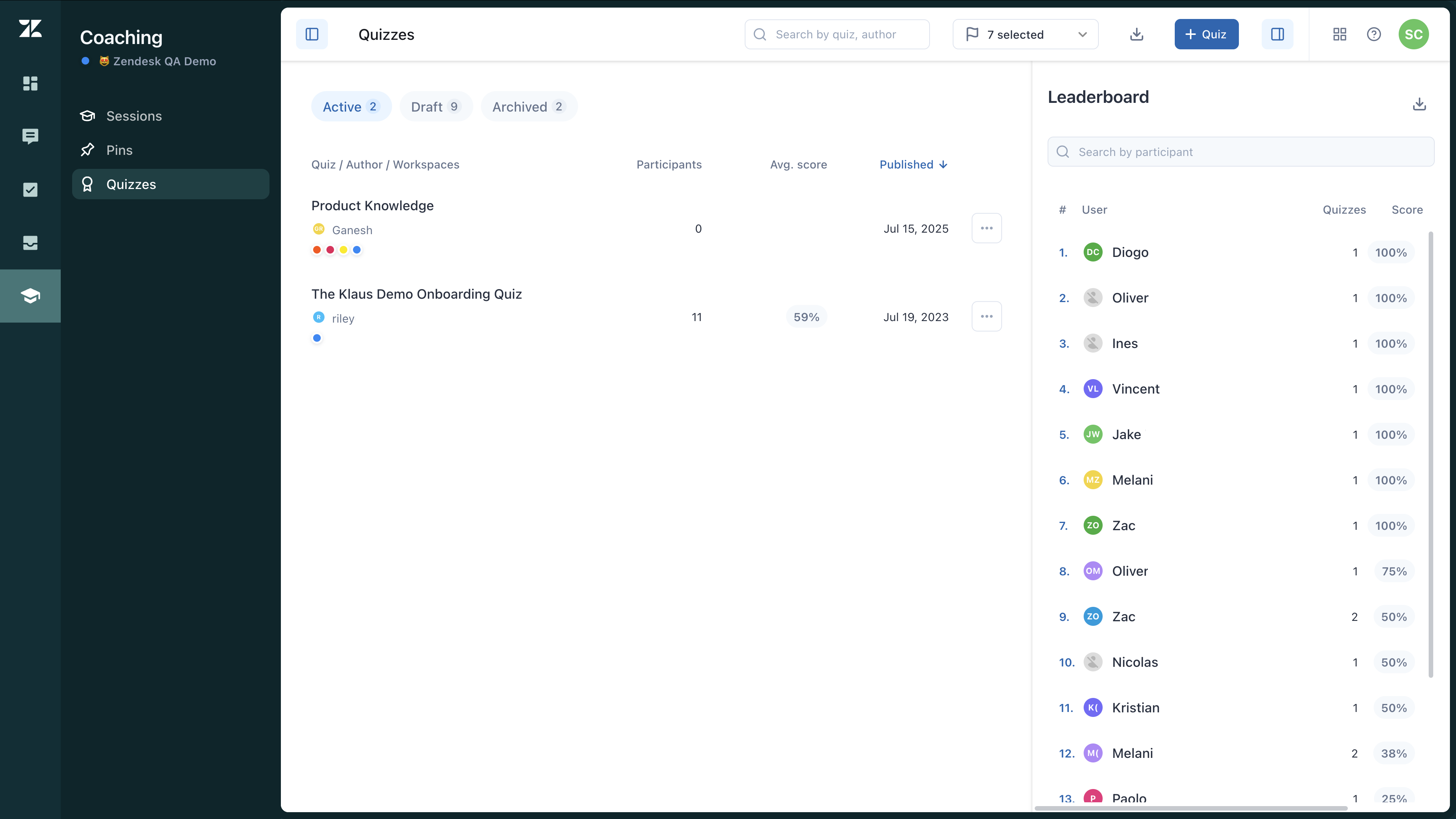
Duplicating quizzes
You can’t update a quiz after it’s been published and shared. This includes changing which workspaces it’s available in. If you need to make changes to a quiz, create a duplicate and modify it.
To duplicate a quiz
- In Quality assurance, click
Coaching in the sidebar.
- Click Quizzes.
- Click the options menu icon (
 ) next to the quiz you want to
duplicate, then select Duplicate.
) next to the quiz you want to
duplicate, then select Duplicate.A copy of the quiz appears.
- Modify the copy, then click Preview to preview the quiz.
- Click Save as draft to save it without publishing or click
Publish to share the quiz with your team.
The quiz is available under Coaching > Quizzes.
Editing a draft quiz
If you have saved a quiz as a draft, you can edit it. You cannot edit quizzes that are published and active.
To edit a draft quiz
- In Quality assurance, click
Coaching in the sidebar.
- Click Quizzes.
- Click the Draft tab at the top of the quizzes list.
- Make changes as needed.
- Click Preview to preview your quiz.
- Click Save as draft to save it without publishing or click
Publish to share the quiz with your team.
Remember that once you publish a quiz, you can’t modify it.