Summary: ◀▼
You can view quiz results to track responses, average scores, question breakdowns, leaderboard rankings, and individual answers. You can export quiz data as CSV for analysis, and you can archive quizzes to stop new responses while keeping results available. Admins, leads, workspace managers, and agents each have access based on role and workspace, making quiz management and performance tracking easier.
Admins, leads, and workspace managers can create quizzes in Zendesk QA. You can view details about each team member’s performance, monitor results on a leaderboard, and export quiz data for tracking or analysis. When you no longer need a quiz to be active, you can archive it.
Agents can access quizzes in their workspaces. They can see their own results, but not the answers given by other agents.
This article contains the following topics:
Viewing results for a quiz
Admins can view the results of any quiz after the first participant responds. Workspace managers and leads can also view results, but only for quizzes in their workspaces.
Agents can access quizzes in the workspace where the quiz was created. They can see their own results, but not the answers given by other agents.
To view quiz results
- In Quality assurance, click
 Coaching in the sidebar.
 - Click Quizzes.
- Click the quiz to see its results.
- Use the flag (
 ) menu to filter responses by
workspace, as needed.
) menu to filter responses by
workspace, as needed. - On the quiz results page, you can view the following:
- Responses: Number of times the quiz has been completed.
- Average score: Average percentage score for all completed quizzes.
- Overview: Quiz content with a response count for each question option.
- Leaderboard: Score rankings for team members who have completed the quiz.
- Individual: Specific responses for the selected team member.
Exporting a quiz
You can export quiz results as a CSV file to take a closer look.
- Overview of questions and answer options
- Results by individual
- Metadata about the quiz
If you want to export all quizzes, you can do so from the Quizzes page.
To export information about a specific quiz
-
In Quality assurance, click
Coaching in the sidebar..
- Click Quizzes.
- Click the quiz you want to export information about.
- Click the options menu icon (
 ) and select Export.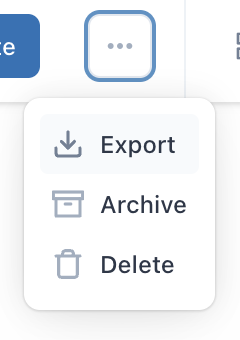
Removing a quiz
Admins and workspace managers can remove a quiz by archiving or deleting it.
It’s a good idea to archive quizzes instead of deleting them. Team members can no longer take an archived quiz, but you can see responses and republish the quiz if needed.
- In Quality assurance, click
Coaching in the sidebar.
- Click Quizzes.
- Click the options menu icon () next to the quiz you want to archive
and select Archive.
Alternatively, you can delete the quiz to permanently remove it. If you archive the quiz, it will still be available in the archived section of the Quizzes page.