Verified AI summary ◀▼
Access assignment tasks to manage and evaluate conversations based on set criteria and goals. You can view tasks, filter and sort them, and get an overview of assignment details. If needed, reassign, replace, or remove conversations, with options varying by role. This flexibility helps you address team availability and maintain assignment goals effectively.
Assignments in Zendesk Quality Assurance (QA) are recurring tasks that consist of sets of conversations assigned to reviewers or sets of reviews assigned to evaluators based on specific criteria and predefined goals.
Workspace assignments and assignment cycles help you evaluate and improve performance with a structured framework for measuring outcomes against established goals.
This article describes how to access, rate, reassign, replace, or remove assigned conversations and reviews in Zendesk QA.
This article contains the following topics:
Viewing assignment tasks
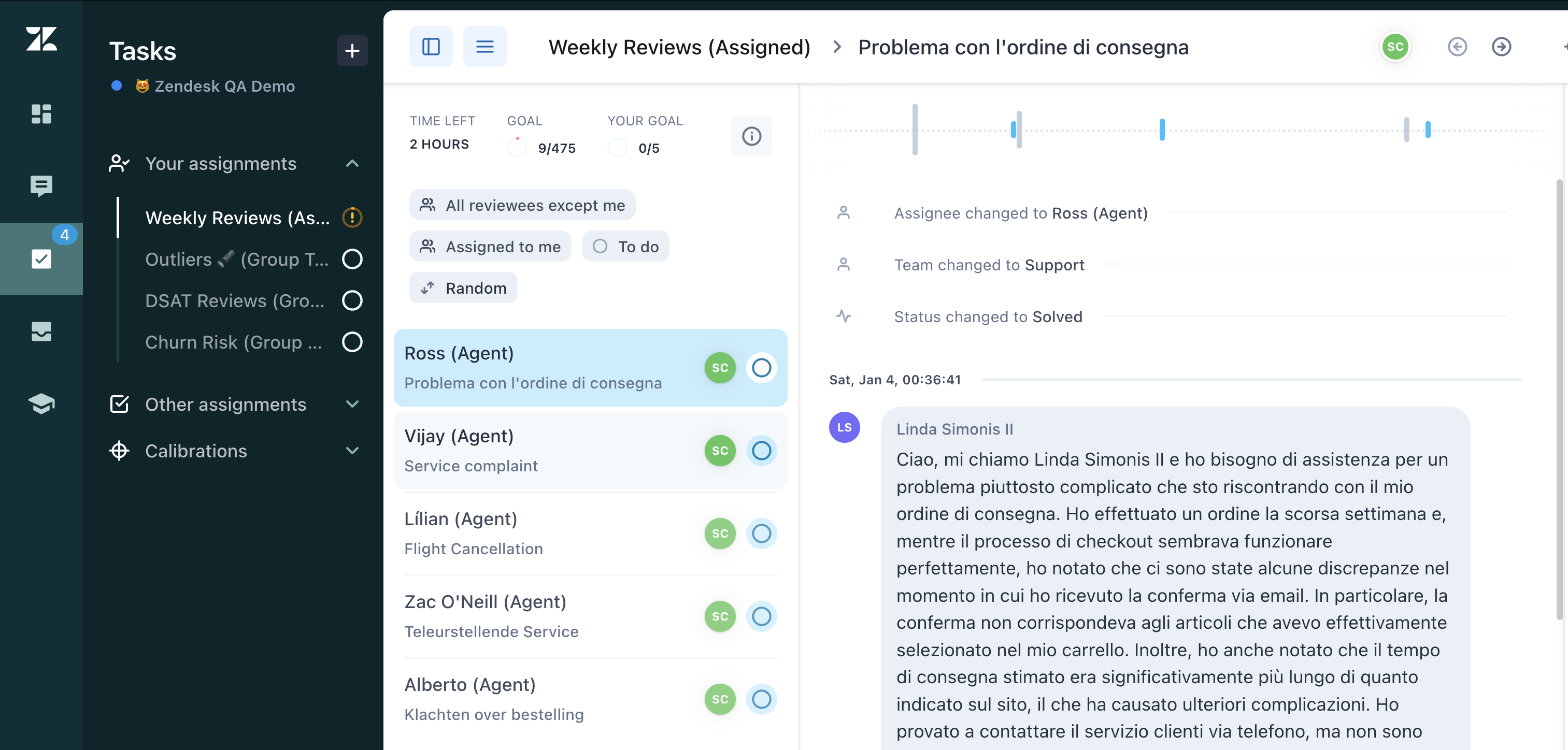
Assigned reviews are accessible from the Tasks panel.
Admins, workspace leads, managers, and reviewers can view assignment tasks.
To view assignment tasks
- In Quality assurance, click
 Tasks in the sidebar.
 - Expand one of the following options:
- Your assignments: View a list of your assignments.
- Other assignments: View a list of all other assignments if you are an admin, workspace lead, or manager.
 Tip: When using the Zendesk QA browser extension to access a conversation, the name and goal of the assignment are displayed only when navigating directly from the assignments view.
- Select between Agent QA or Reviewer QA and click an assignment to open the
list of conversations assigned to it.
For each assignment you can view the following details:
- Time left: Remaining time to complete the assignment.
- Goal: Total assignment goal.
- Your goal: Your individual goal when reviewing a specified number of conversations from a shared pool.
- (Optional) Filter or sort the assignments.
- To filter by reviewee, click All reviewees (default). Other options are: All reviewers except me and individual users who are being reviewed.
- To filter by assignment task status, click To do (default). Other options are: Draft, Done, Removed.
- To sort the list, click Random (default). Other options are: Newest, Oldest, Recently updated, Recently replied, Most replies, and Least replies.
Filters and sorting selections are applied to the list immediately.
- (Optional) For an overview of the assignment task, click the information icon (
 ) above the conversation list. This is also a
shortcut for editing an assignment.
) above the conversation list. This is also a
shortcut for editing an assignment. 
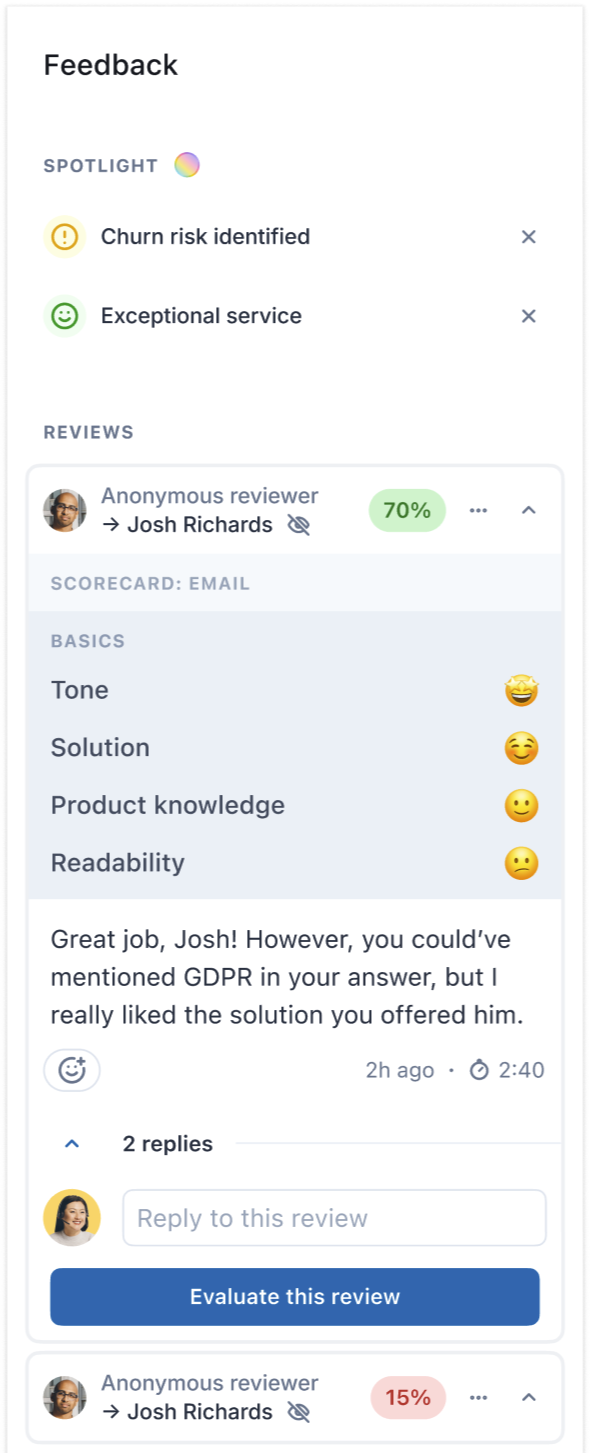
- Open a conversation, then click Review or Evaluate this review to start
grading the conversation or review. See Grading conversations.
Replacing conversations in an assignment
If the replacing conversations setting is turned on, reviewers can skip the provided conversation and select a different one to review from the list that matches the filter.
To replace a conversation
- Open the list of assignment tasks.
- Click an assignment conversation to open it.
- Click Feedback on the navigation bar on the right side.
- Click the options menu (
 ) next to the review and select Replace
conversation.
) next to the review and select Replace
conversation.
- Enter the reason for replacing or removing the conversation.
- Click Replace.
Reassigning conversations in an assignment
Reviewers can reassign conversations from other reviewers to themselves, but they cannot reassign their own assigned conversations to other users. Workspace managers, leads, and admins can also reassign conversations to other users.
To reassign a conversation
- Open the list of assignment tasks.
- Click an assignment conversation to open it.
- Click Feedback on the navigation bar on the right side.
- Click the options menu () next to the review and select one of the following
options:
- Reassign conversation to me
- Reassign to other user
- (Optional) If you're reassigning a conversation to another user, select a new reviewer from the dropdown list.
- Click Reassign.
Removing conversations from an assignment
If the replacing conversations setting is turned on, reviewers can remove a conversation from the pool. This option is available only to workspace managers, leads, and admins.
To remove a conversation
- Open the list of assignment tasks.
- Click an assignment conversation to open it.
- Click Feedback on the navigation bar on the right side.
- Click the options menu () next to the review and select Remove
conversation.
- Enter the reason for removing the conversation.
- Click Remove.