Summary: ◀▼
AI-generated ticket summaries help you quickly understand a ticket by recapping public comments, current status, key actions, and important context. You can also include internal notes for more complete ticket context, and store summaries in ticket fields for reporting, views, macros, business rules, and API use. You can turn the feature on or off and limit access by group.
AI-generated ticket summaries recap the public comments that have been added to a ticket so far, helping agents get up to speed and respond to customers more quickly. Internal notes can optionally be included in ticket summaries as well so that critical internal context is provided to your agents.
This article contains the following topics:
- About ticket summarization
- Turning ticket summaries off or on
- Including internal notes in ticket summaries
Related articles:
About ticket summarization
Ticket summaries provide a concise recap of all public comments and internal notes added to a ticket. They highlight the main problem, customer expectations, actions taken, outcomes, and current status. Summaries also include critical details such as root cause, business impact, deadlines, or important internal insights, as well as any conversation the user had with an AI agent before being transferred to a human agent.
By default, the summarization feature includes all of a ticket's public comments, but you can also include internal notes so that agents are informed of internal details, such as troubleshooting steps taken and messages to peers. This allows agents to quickly get up to speed by viewing a single summary of up to 100 words.
Keep in mind that side conversations are not included in the summary.
You can find information about supported languages for the ticket summarization feature in the Zendesk language support article.
About ticket summary fields
AI-generated ticket summaries are stored in ticket fields whenever an agent manually refreshes a summary. The field captures the most recent summary in the language in which it was created.
- To learn more about ticket summary fields: See About additional ticket fields for the Copilot add-on.
- To access ticket summary fields: You can view your ticket fields in Admin Center.
- Reports: Include ticket summaries as an attribute in your reports and dashboards. Ticket summary fields are available across all Support datasets.
- Views: Add ticket summaries as columns in your views.
-
Placeholders: Use the syntax
{{ticket.ticket_field_<field ID>}}to insert summaries into macros or business rules. For example,{{ticket.ticket_field_93959395943}}.You can find the summary Field ID by viewing your ticket fields.
- API: Retrieve ticket summaries via the Ticket Fields API and mapping the ticket summary fields.
Turning ticket summaries off or on
The ticket summarization feature is turned on by default. You can turn ticket summaries off or on in Admin Center and select which groups have access.
To turn ticket summaries off or on
- In In Admin Center, click
 AI in the sidebar, then select Agent copilot > Writing tools.
- Scroll down to Ticket context, then select or deselect Summarize
conversations.
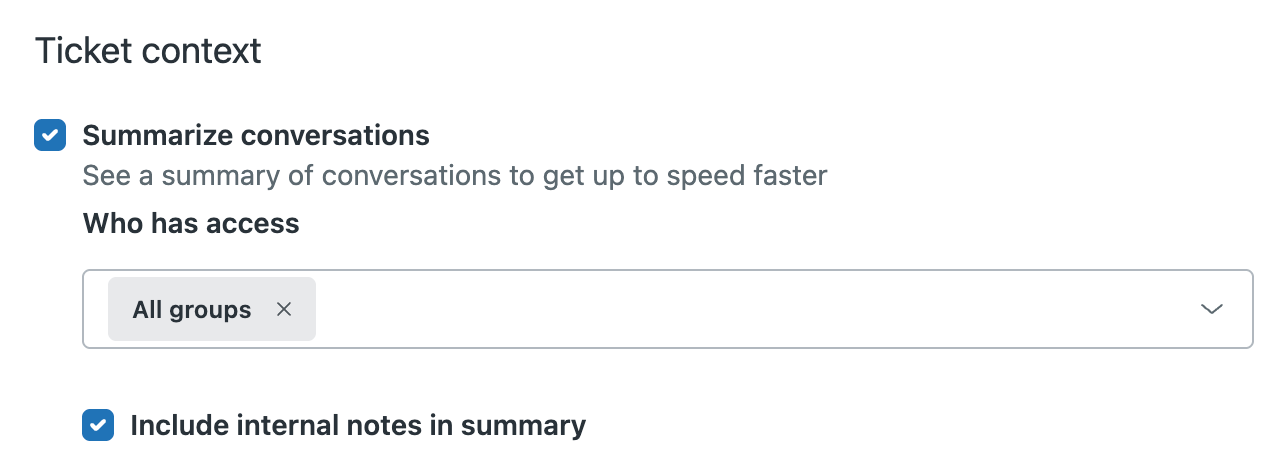
- In the Who has access field, search for and select the groups that should be able to use the ticket summary feature. By default, all groups have access.
- Click Save.
Including internal notes in ticket summaries
You can configure the ticket summarization feature to include internal notes in addition to public comments.
Key ticket information is often shared in internal notes. For example, troubleshooting details, messages to peers, escalation updates, investigation actions, blockers, and more. Including internal notes allows ticket summarization to provide more comprehensive summaries and reduces the risk of agents missing important details.
To include internal notes in ticket summaries
- In Admin Center, click
AI in the sidebar, then select Agent copilot > Suggestions.
- Scroll down to Ticket context and make sure Summarize conversations
is turned on.
- Select Include internal notes in summary.
- Click Save.