Summary: ◀▼
Review and edit AI agent system replies to customize messages for greetings, feedback, fallback answers, errors, and escalations. You can view replies for messaging and email agents and update their dialogues or procedures to control conversation flow. Available system replies vary by agent type and AI configuration.
In an AI agent, system replies are designed to deliver specific types of messages at different points in a conversation with a customer. For example, there’s a system reply for the AI agent’s first message to the customer, a system reply for collecting feedback at the end of the conversation, and more.
Related article:
About system replies
System replies are automatically created for any AI agent you create. Like other replies you create, each system reply is associated with a:
- Use case that detects what a customer is asking about.
- Dialogue or procedure that determines the conversation flow between the AI agent and the customer.
Which system replies an AI agent contains depends on whether it’s a messaging AI agent or an email AI agent:
System replies in messaging AI agents
| System reply | Description | Contains a preconfigured dialogue or procedure? |
|---|---|---|
| Collect BSAT reply | What the AI agent should say at the end of a conversation to collect feedback from a customer about their experience. See Collecting AI agent satisfaction (BSAT) ratings for AI agents. | Yes (Dialogue) |
| Default reply | What the AI agent should say when no relevant use case is detected and a generative reply can't be produced. | No |
| Escalation reply | What the AI agent should say when escalating a conversation to a human agent. | Yes (Dialogue) |
| Failed escalation reply | What the AI agent should say when the conversation can't be successfully escalated, such as when no human agents are available. Not available for email AI agents. | No |
| Technical error reply | What the AI agent should say when a technical issue occurs. This might be the result of an error from the AI agent itself or an integration, such as an error when connecting to an external API. | No |
| Generative replies reply / uGPT reply (Zero-training AI agents only) | When no relevant use case is detected, the AI agent replies with an AI-generated message. | Yes (Dialogue) |
| Knowledge reply (AI agents with agentic AI only) | When no relevant use case is detected, and the customer asks a non-small-talk question, the AI agent searches available knowledge sources to generate an answer. If no relevant knowledge is found, the AI agent informs the customer that it can’t answer their question. See Customizing the Knowledge reply in an AI agent with agentic AI. | Yes (Procedure) |
| No message | What the AI agent should say when the customer's message is empty or doesn't provide any information. | No |
| Unsupported language reply | What the AI agent should say when the customer’s language isn't recognized. See Configuring language detection for AI agents. | No |
| Welcome reply | What the AI agent should say to greet the customer at the beginning of the conversation. See Customizing the welcome reply in AI agent conversations. | No |
System replies in email AI agents
The table below describes the available system replies for email AI agents.
| System reply | Description | Contains a preconfigured dialogue or procedure? |
|---|---|---|
| Escalation reply | What the AI agent should say when escalating a conversation to a human agent. | Yes (Dialogue) |
|
Knowledge reply (AI agents with agentic AI only) |
When no relevant use case is detected, and the customer asks a non-small-talk question, the AI agent searches available knowledge sources to generate an answer. If no relevant knowledge is found, the AI agent escalates the request. See Customizing the Knowledge reply in an AI agent with agentic AI. |
Yes (Procedure) |
|
Welcome reply (AI agents with agentic AI only) |
Allows for pre-conversation logic (such as conditionals based on parameters or segments, actions, API integrations, or escalations) to run before the AI agent takes over the email conversation. See Customizing the welcome reply in AI agent conversations. |
No |
Viewing all system replies
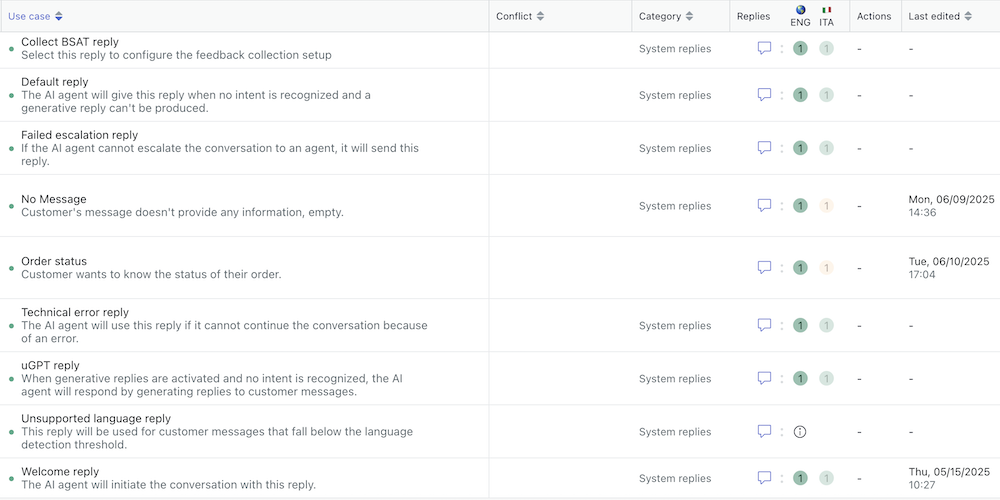
You can view a list of all system replies.
- In the AI agents workspace, select the AI agent you want to work with.
- Click
 Build in the sidebar, then select Knowledge > Use
cases.
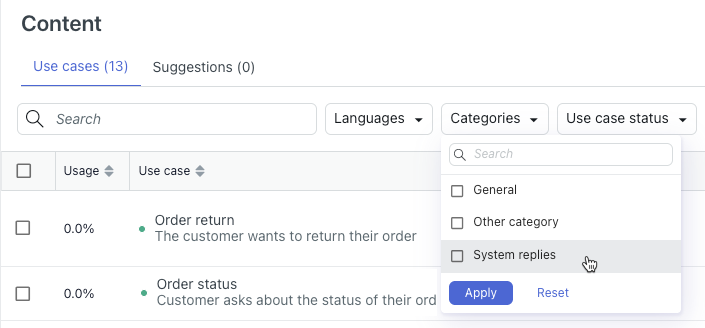
- Click the Categories filter, select System replies, and click
Apply.
The list is filtered to show only system replies.
Editing a system reply
Even though the system replies are created for you, you still need to review and edit their associated dialogues to ensure these default messages say what you want them to say.
How you edit a system reply depends on whether your AI agent uses zero-training or agentic AI:
Editing a system reply in a zero-training AI agent
All system replies in zero-training AI agents use a dialogue to control the conversation flow.
- In the list of system replies, click the system reply you want to edit.
- Select the Replies tab.
- Select the reply for the language you want to edit.
- Click Edit dialogue.
The dialogue builder opens.
- Update the system reply's dialogue as needed.
For help, see Creating conversation flows in the dialogue builder for AI agents.
Editing a system reply in an AI agent with agentic AI
Most system replies in AI agents with agentic AI use a dialogue to control the conversation, but some system replies (such as the Knowledge reply) use a procedure.
To edit a system reply in an AI agent with agentic AI
- In the list of system replies, find the system reply you want to edit.
- In the Reply method column, click one of the following options:
-
Dialogue and then select the language you want to edit
The dialogue builder opens.
-
Procedure
The procedure builder opens.
-
Dialogue and then select the language you want to edit
- Update the system reply’s dialogue or procedure as needed.
For more information, see Creating a new dialogue or Creating generative procedures.
Article Q&A
Click to view
What are system replies in an AI agent, and how are they set up?
System replies are automatically created for each AI agent and provide specific messages at different points in a customer conversation. Each is associated with a use case that detects what the customer is asking about and a dialogue or procedure that controls conversation flow.
Which system replies can I use in messaging and email AI agents?
Messaging AI agents can include Collect BSAT, Default, Escalation, Failed escalation, Technical error, Generative replies (zero-training only), Knowledge (agentic AI only), No message, Unsupported language, and Welcome replies. Email AI agents include Escalation, Knowledge (agentic AI only), and Welcome (agentic AI only). Failed escalation replies aren’t available for email. For agentic AI, a Knowledge reply searches available knowledge when no use case matches a non-small-talk question; if nothing relevant is found, it tells the messaging customer it can’t answer, or escalates the email request.
How do I find and view all the system replies for an AI agent?
In the AI agents workspace, select the AI agent. Click Build in the sidebar, then go to Knowledge > Use cases. Open the Categories filter, select System replies, and click Apply.
How do I edit a system reply in a zero-training AI agent?
Open the system reply from the system replies list, select the Replies tab, choose the language you want to edit, and click Edit dialogue. Update the dialogue in the dialogue builder. Zero-training system replies use dialogues.
How do I edit a system reply in an AI agent with agentic AI?
Find the reply in the system replies list and use the Reply method column. Click Dialogue and select the language to open the dialogue builder, or click Procedure to open the procedure builder. Update the dialogue or procedure as needed. Most agentic system replies use dialogues, while some, such as the Knowledge reply, use a procedure.