Search rules let you define which knowledge sources (or parts of knowledge sources) an AI agent should use in different situations when creating AI-generated answers to questions from your customers.
You must be a client admin to configure search rules.
This article contains the following topics:
- About search rules
- Creating a search rule
- Adding a search rule to a procedure
- Adding a search rule to a dialogue
- Editing the default search rule
Related articles:
About search rules
In the AI agents workspace, a default search rule is already configured for you. This default rule is configured so that the AI agent searches all articles from all imported knowledge sources when sending an AI-generated answer to a customer.
However, you can create additional search rules to customize which knowledge sources are searched in specific scenarios. For example, you can create search rules based on article titles, locales, labels, and segments to customize the conversational experience.
When you create a search rule, you can specify which segments should trigger it. You can also add the rule to a procedure or dialogue later. During a conversation with a customer, the search rule is applied when either of the following is true:
- A conversation’s session data matches the segment specified in the search rule.
- The conversation reaches the point in a procedure or dialogue where the search rule was added.
In either of these scenarios, the AI agent searches only the knowledge sources configured in your rule when forming its AI-generated reply.
Without a specific search rule applied, the default search rule is applied, which searches all knowledge sources unless you've configured it differently.
Creating a search rule
Search rule control which knowledge sources your AI agent should use to create an AI-generated answer in a specific situation.
To create a search rule
- In the AI agents workspace, select the AI agent you want to work with.
- Click
 Content in the sidebar, then select Search rules.
 - Click Create search rule.
The Create search rule window opens.
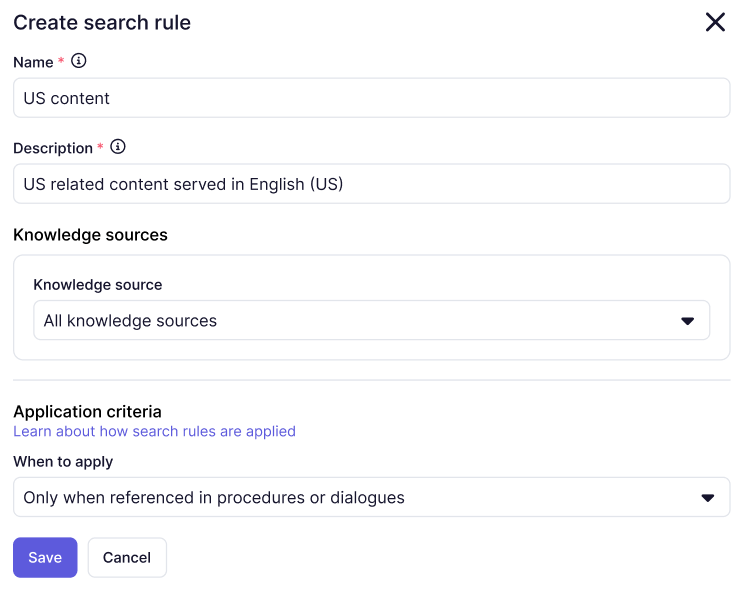
- In Name, enter a descriptive name for your search rule.
This name appears only on the Search rules page to help you recognize and maintain your rules.
- In Description, add a description for the rule to help you remember what it’s for and to allow the AI to understand the purpose of the rule.
- In Knowledge source, select a knowledge source that you’ve previously imported.
- (Optional) If you want this rule to search only a subset of the selected
knowledge source:
- Select Set filter criteria.
- Leave Match ALL conditions selected, or else select Match
ANY conditions to determine how the rule’s conditions should
be evaluated.Note: It's important to make sure your conditions make logical sense together. If you select Match ALL conditions but your conditions conflict, no results will be returned.
- In Select a parameter, select Article, Locale,
or Labels.
If your Zendesk account was created before March 10, 2026, the Article parameter doesn’t exist and you see a URL parameter instead.
Note: Search rules based on labels don't work for Confluence knowledge sources. - In Equals, select one of the available operators:
Equals, Does not equal, Contains,
Includes any, Includes all, or Includes
noneNote: If you’re creating a search rule based on an article, use Equals or Does not equal. If you're creating a rule based on a single label, use Contains. If you're creating a rule based on multiple labels, use Includes any, Includes all, or Includes none.
- In Add value, enter the actual language and title, locale, or
article label (based on the parameter you selected above) that you
want the rule to evaluate.
If you see the URL parameter, enter the actual URL as the value.
- (Optional) Click Add condition and repeat the previous three
steps to add a new condition to filter the search rule.
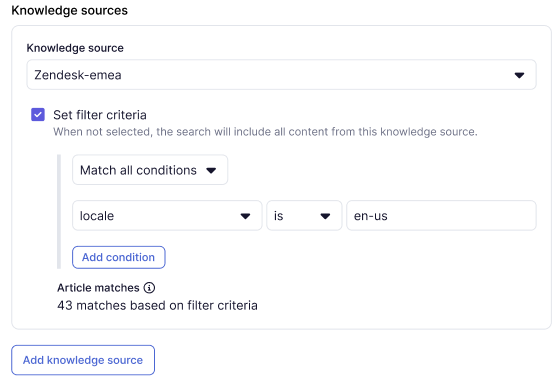
- (Optional) Click Add knowledge source and repeat steps 7–8 to add and configure another knowledge source for this search rule.
- Under Application criteria, in When to apply, select one of the
following options:
- Only when referenced in procedures or dialogues: The search rule applies only when it’s been specifically referenced in a procedure or dialogue.
- When ALL segments match or when referenced: The search rule applies when it matches all of the segments you select in the next step, or when it’s been specifically referenced in a procedure or dialogue.
- When ANY segment matches or when referenced: The search rule applies when it matches any of the segments you select in the next step, or when it’s been specifically referenced in a procedure or dialogue.
- If you selected When ALL or When ANY above, click Apply to segments and
select which segments should trigger the search
rule.
If a conversation’s session data matches one of the selected segments, the search rule is applied to any AI agent response that uses generative replies or agentic AI.
- Click Save.
- (Optional) Add your search rule to a procedure or dialogue following the steps below.
Adding a search rule to a procedure
You can add your search rule to a procedure to determine which knowledge sources your AI agent should use when providing an AI-generated answer.
To add a search rule to a procedure
- Open the procedure you want to add a search rule to.
- In the free-text box, enter text describing when your search rule should be applied.
- Specify the search rule by entering a forward slash (/) and selecting Share
knowledge answer with search rule.
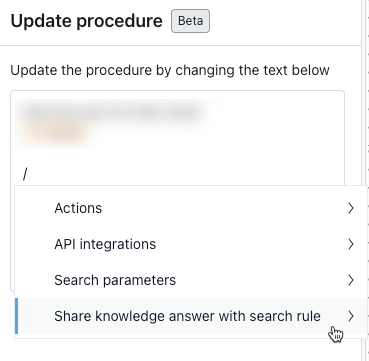
- Select the search rule you want to apply.
- Click Update procedure.
Adding a search rule to a dialogue
You can add a search rule to a dialogue to determine which knowledge sources your AI agent should use when providing a generative reply.
Search rules must be added to a Generative replies block within a dialogue.
To add a search rule to a dialogue
- Open the dialogue builder for the dialogue you want to add a search rule to.
- Select the Generative replies block where you want the search rule to apply.
- Toggle Use default search rule off.
- In Select rule, select the search rule you created.
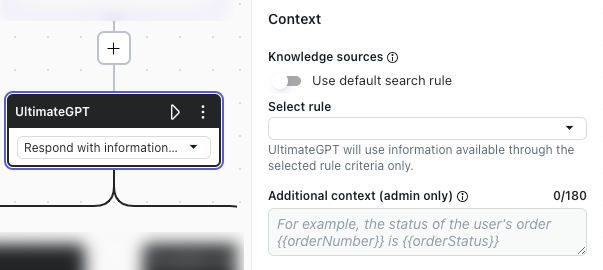
- Click Publish.
Editing the default search rule
A default search rule exists for your AI agent already. This rule is configured to use all imported knowledge sources.
You can’t delete the default rule, but you can edit it if you want to configure a different default behavior. For example, you can edit it to use one specific knowledge source as the default.
Because the default search rule controls the AI agent’s default search behavior, it doesn’t have to match any segments or be added to a procedure or dialogue.
To edit the default search rule
- In the AI agents workspace, select the AI agent you want to work with.
- Click
Content in the sidebar, then select Search rules.
- To the right of the Default (Default) search rule, click the options menu
(
 ) and select View.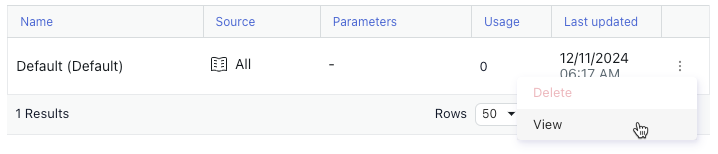
- In the Edit rule pane, configure the default search rule as desired.
For help, see Creating a search rule.