Summary: ◀▼
You can quickly create a new help center with up to 40 articles using recent ticket data and generative AI. This feature analyzes solved tickets from the last 90 days, groups common customer issues, and generates article titles and categories based on your business description and customer needs. Generated articles are saved as drafts for review and editing before publishing, helping you build or refresh your help center content.
Over time, the best strategy for building a solid foundation for effective self-service is to create and maintain a quality help center. However, if you don't yet have a help center, or if your help center is incomplete or out of date, you can use your ticket data and generative AI to quickly create a new help center with up to 40 articles.
About creating help center content using ticket data and generative AI
Generated help center content is based on your support ticket data from the last 90 days, a description of your business, and common customer questions or recurring issues they might have. Tickets used as an input to creating your help center must meet the following criteria:
- Solved or closed status
- Created in the past 90 days
- Originating in web form or email channels
- Brand corresponding to the brand where the help center will be built
- Up to 50,000 tickets per brand
- Public (end-user facing) tickets
All personally identifiable information (PII) is automatically redacted. Tickets that meet this criteria are summarized and grouped by common customer issues or pain points, then combined with information you provide about your business and customer issues to generate a help center hierarchy. The help center hierarchy contains the article titles and categories of your help center and is displayed in the preview pane. You can review the hierarchy and regenerate it, if necessary.
Creating help center content using ticket data and generative AI
You can use this feature to create one help center for each brand in your account. This means that if you launch this feature and create a help center for a brand in your account, you cannot use this feature to create another help center for that brand.
- If you:
- Don't have a help center, in the product tray, select Knowledge, then click Generate a new help center. If you don't see that option, click Knowledge admin.
- Have an existing, outdated help center, in Knowledge admin, click
Settings (
 ) in the sidebar, then click Get
started in the banner at the top of the page.
) in the sidebar, then click Get
started in the banner at the top of the page. - Have multiple brands and want to create a help center for an existing brand, in Admin Center > Account > Brand management > Brands, select a brand, then click the Actions menu. Select Turn on Knowledge, then click Generate a new help center.
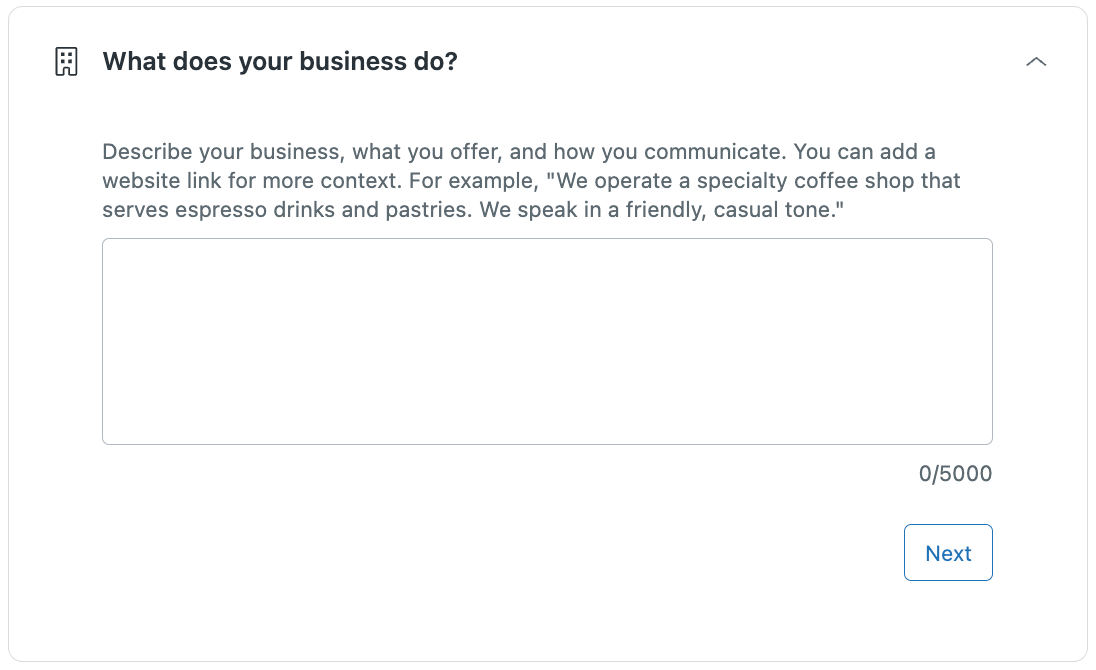
- In the What does your business do? section, enter text describing
your business, then click Next.
Be as descriptive as possible and include a company website, as it can be used to obtain additional details about your business and products.
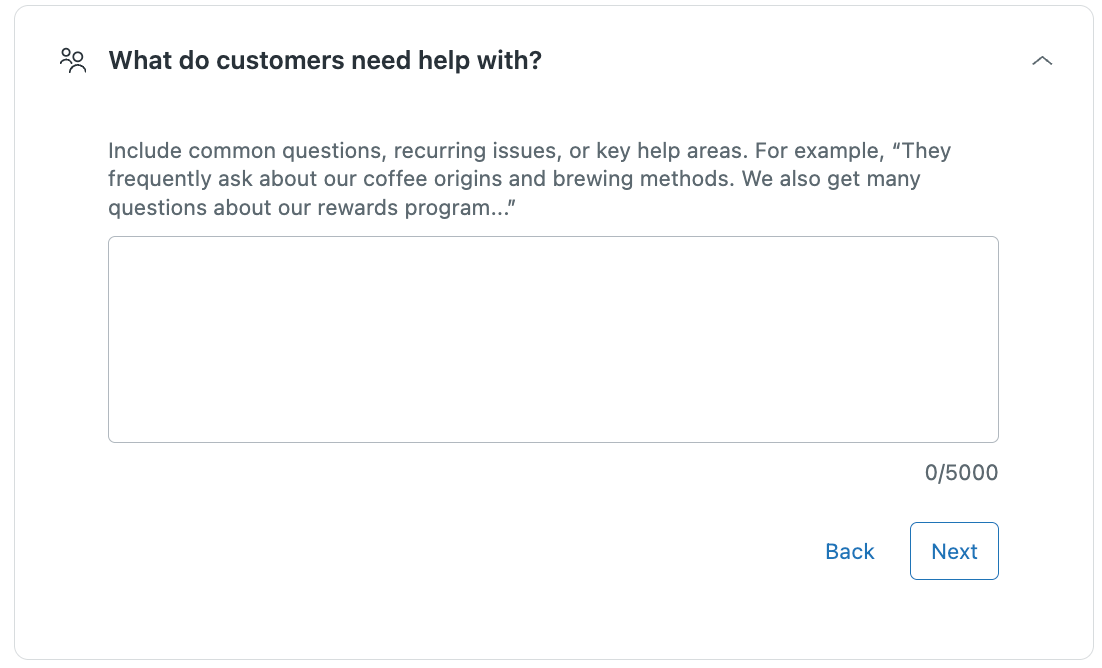
- In the What do customers need help with? section, enter text
describing the common issues or key help areas that your customers need,
then click Next.
Be as descriptive as possible.
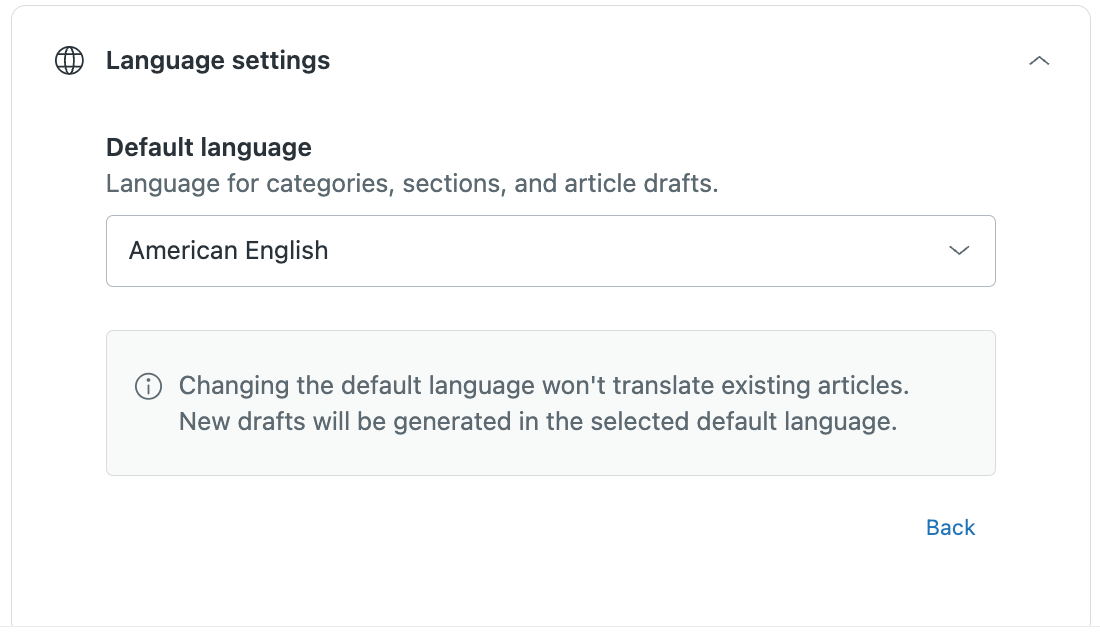
- In Language settings, select the default language you want to use for
generated categories, sections, and article content.
Articles, categories and sections will be generated in this language/locale, regardless of the ticket/input language.
- Click Generate preview.
Your new help center hierarchy appears in the right-side pane. The preview includes up to 40 proposed articles that address the most common challenges your customers face.
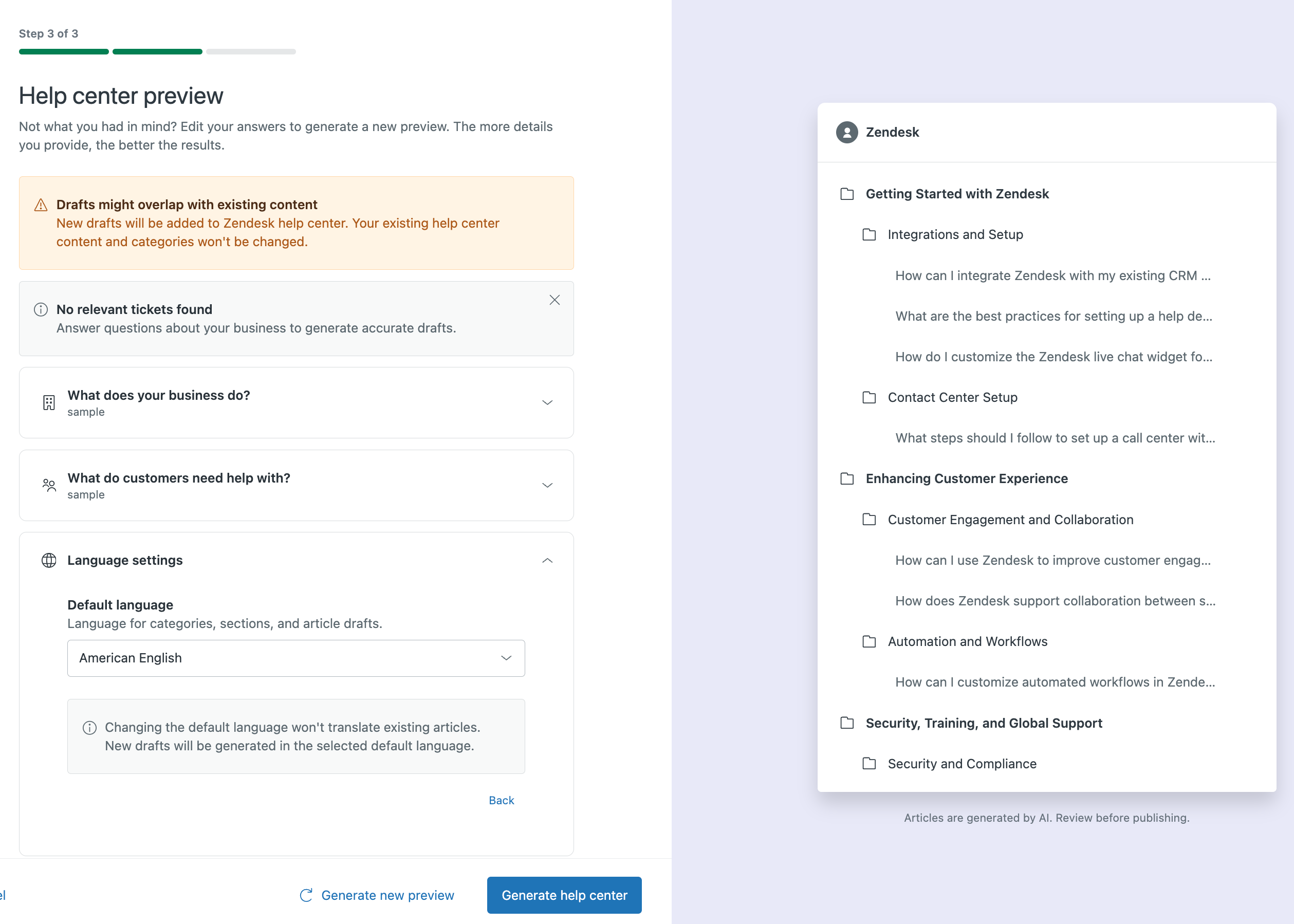
- Preview the proposed help center architecture to evaluate whether it accurately reflects your help center goals.
- (Optional) Edit the business and customer information fields, then click
Generate new preview to regenerate the help center
architecture.
You can generate up to 10 new previews.
- Click Generate help center.
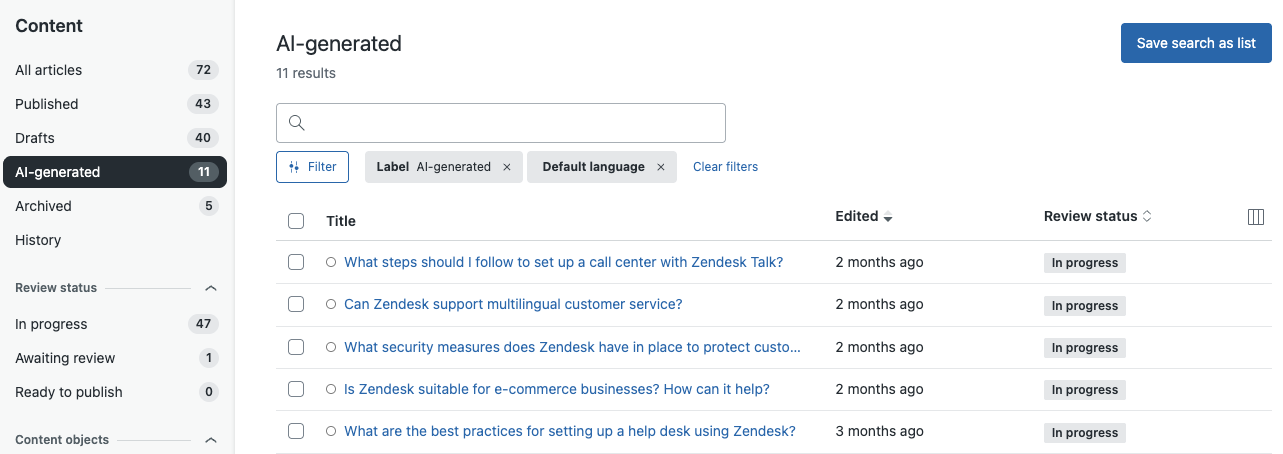
Articles are generated and saved as drafts in the AI-generated article list. Admins and agents with permission can review and edit the articles prior to publishing.