Summary: ◀▼
Admins can manage entity synonyms and classification settings to improve intelligent triage. You can add up to 30 synonyms for an entity value, make matching values get extracted on new tickets, choose how detected values update the related ticket field, turn entity highlighting on or off for agents, and detect misspelled values. This helps enrich tickets and route requests with more context.
Entity classification, part of intelligent triage, automatically captures specific pieces of information from incoming tickets and messaging conversations — such as product names, order numbers, or location details.
You can use this information to enrich tickets with actionable details and give agents helpful context about each request. You can also incorporate classified entity values into your workflows to automatically update ticket fields and more precisely route or prioritize tickets.
This article describes how admins can manage and edit existing entities, including adding synonyms and configuring classification settings. To set up entity classification, see Classifying unique information in tickets with entities.
This article contains the following topics:
Related articles:
Adding synonyms to entity values
Adding synonyms to entities helps intelligent triage classify more variants of entity values. For example, “Order ID” as a synonym for “Order number”.
Every time one of the synonyms appears in the ticket, it’s highlighted and the corresponding entity value will be extracted if those settings are activated.
To add synonyms to entity values
- In Admin Center, click
 AI in the sidebar, then select Intelligent triage > Entity.
 - Click the entity you want to edit.
- Click the options menu icon (
 ) for a value name, then click Edit
synonyms.
) for a value name, then click Edit
synonyms.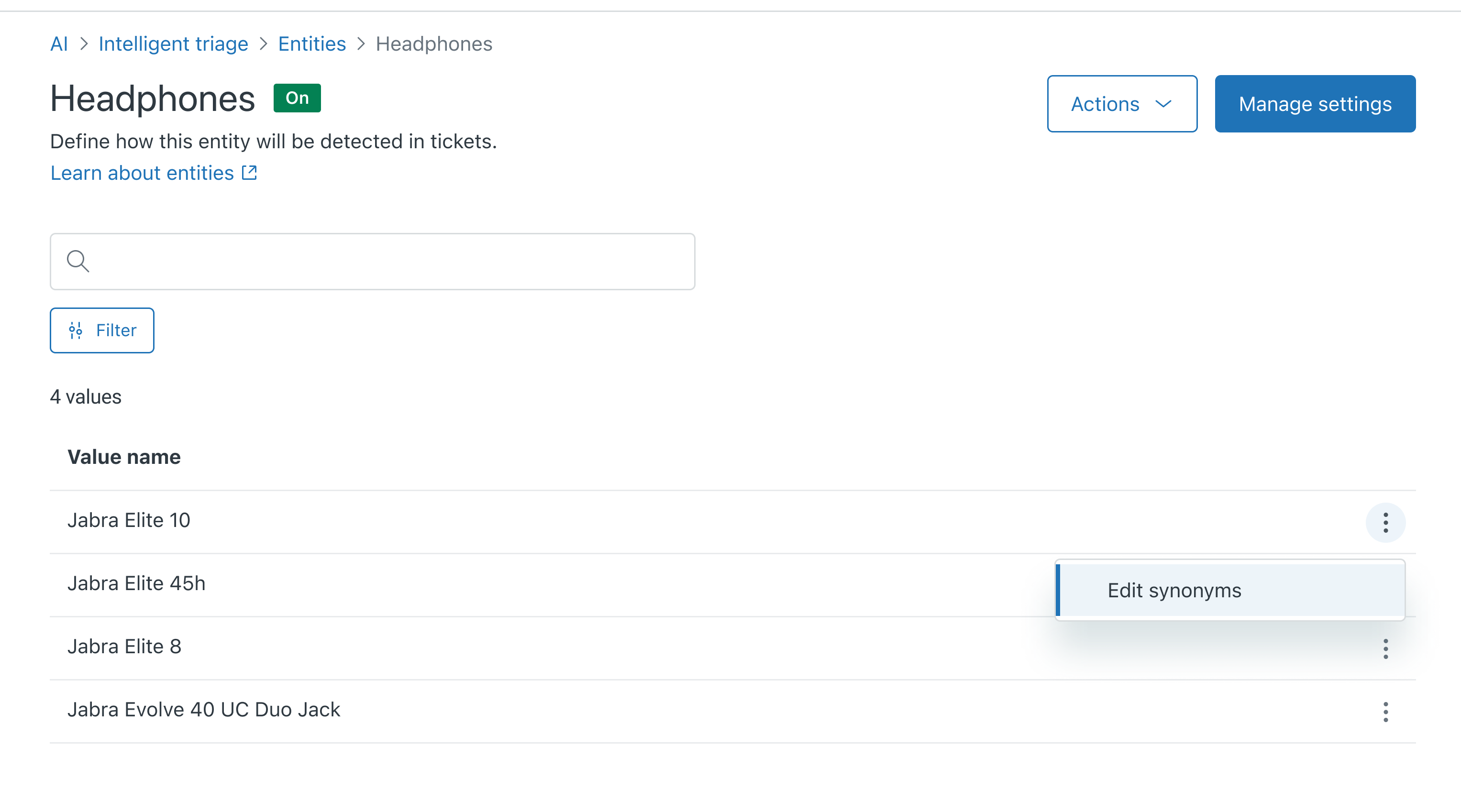
- Enter synonyms for the value, then click Save.
You can add up to 30 synonyms.
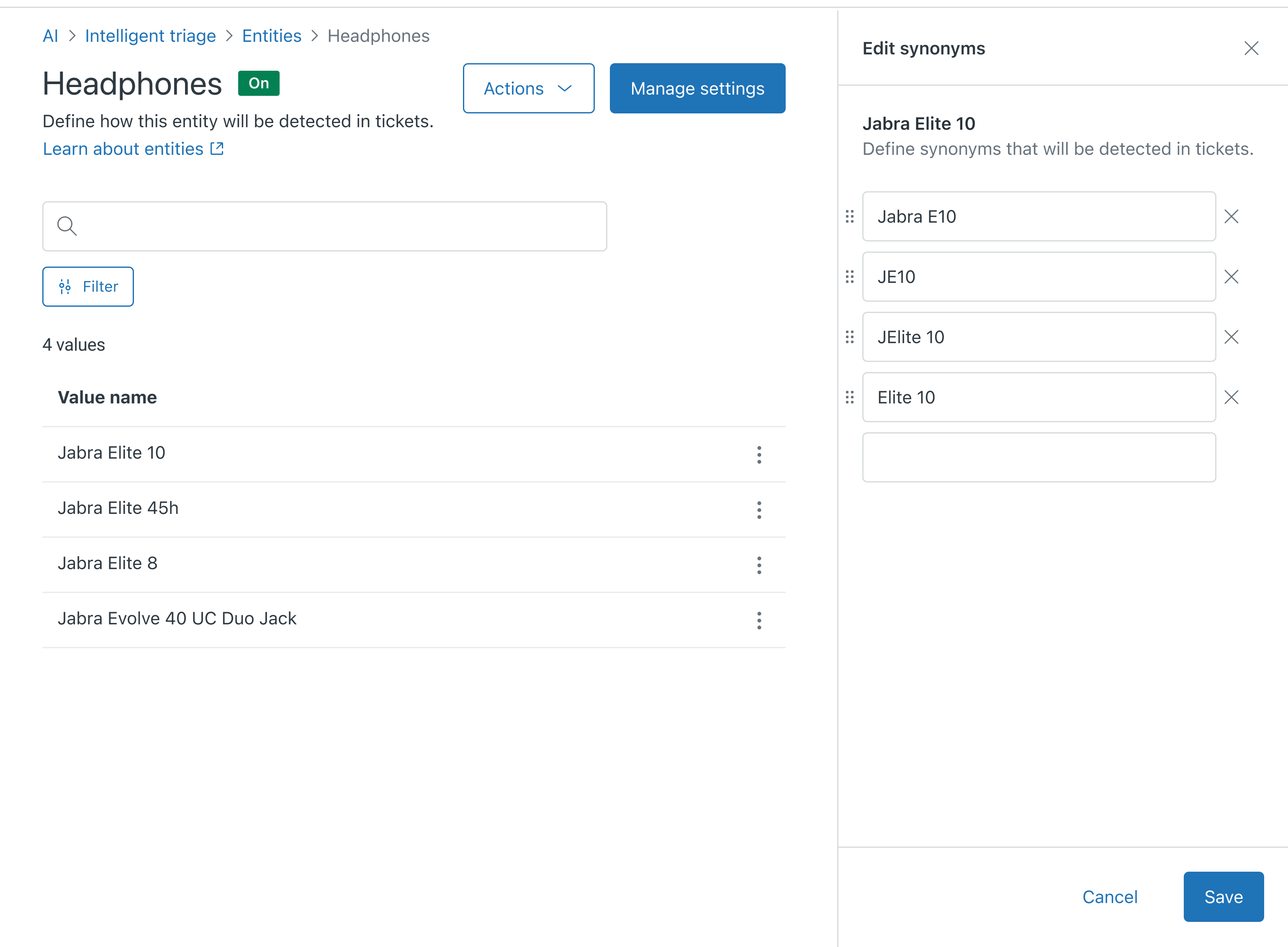
The synonyms are added and appear under the value name in the list.
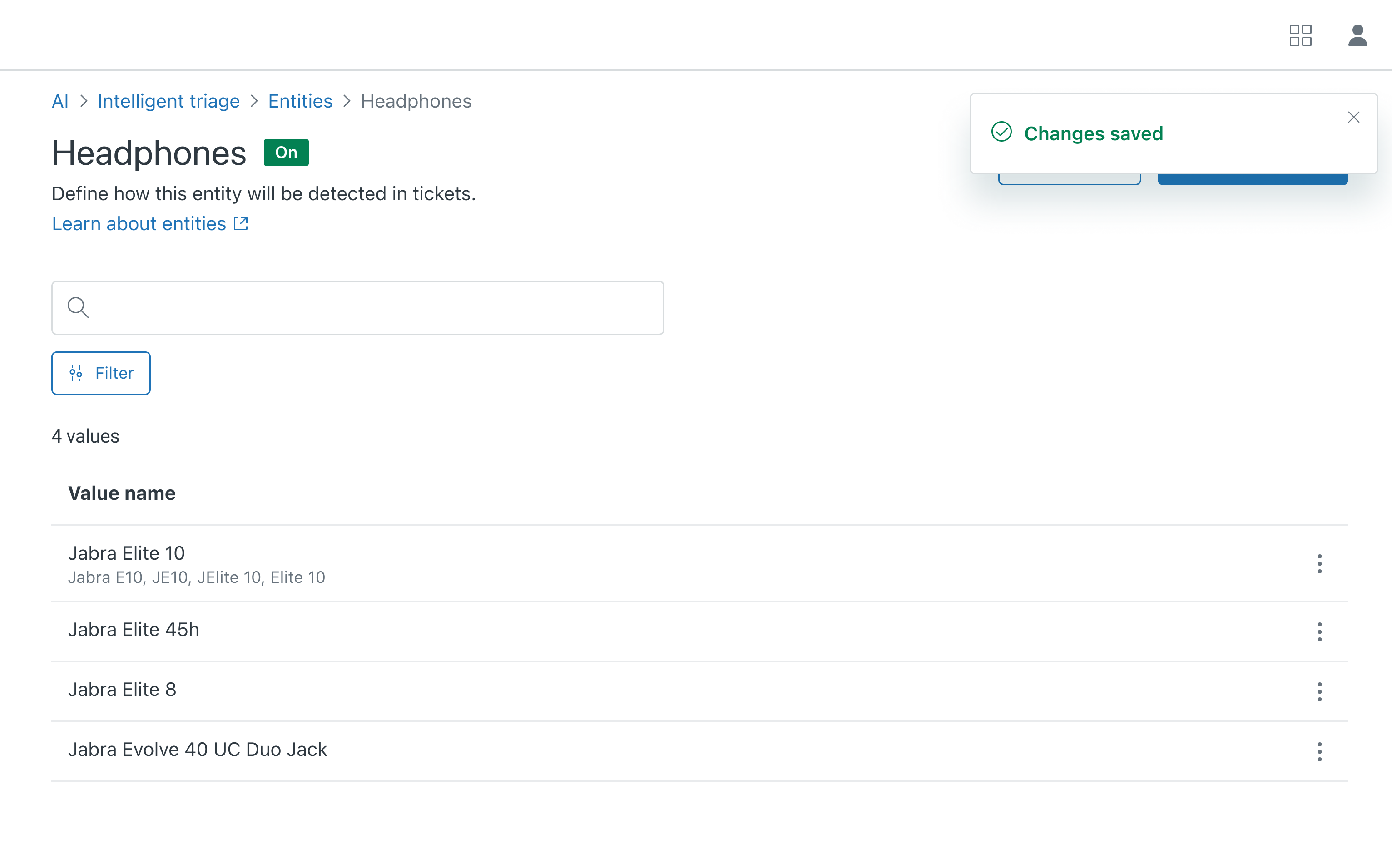
- Click Save.
The synonyms you added are classified on new tickets.
Editing entity ticket field update behavior and highlighting
You can edit entities to configure how the custom ticket field associated with the entity is updated based on ticket comments or messages. You can also edit whether entity values are highlighted in tickets and messaging conversations.
To edit an entity
- In Admin Center, click
AI in the sidebar, then select Intelligent triage > Entity.
- Click an entity, then click Manage settings.
- Under Update ticket field with detected values, update the behavior
of the ticket field associated with the entity custom field by selecting one
of the following options:
- Don’t update ticket fields
- Values in first message only
- Values in subsequent messages only
- Values in all messages
- (Drop-down only) If you selected any option except Don’t update ticket fields, select Replace existing ticket field value if the new value in the ticket field should overwrite the old value. Otherwise, the ticket field will not be updated if it already has a value.
- Under Agent tools, select or deselect Highlight entity values in all messages. When this option is selected, agents can take action on highlighted entities.
- Under Detection settings, select or deselect Detect misspelled values.
- Click Save.