Summary: ◀▼
You can turn off topic, sentiment, and language detection for intelligent triage, or disable or delete an entity field so it no longer appears in tickets. This helps you control AI ticket classification, reduce unwanted ticket highlighting, and keep classified data aligned with your support workflow.
Intelligent triage uses AI to automatically classify new customer support tickets by topic, sentiment, language, and entities, such as product names.
By default, intelligent triage topic, sentiment, and language settings are turned on. This article describes how admins can turn off these settings in Admin Center. If you've configured entity classification, you can turn off or delete an entity so that it's no longer classified in tickets.
This article contains the following topics:
Related articles:
Turning off intelligent triage settings
By default, topic, sentiment, and language settings are all turned on. You can turn off any of these settings individually in Admin Center. For more information about these classifications, see Automatically classifying tickets with intelligent triage.
To turn off topic, sentiment, or language settings
- In Admin Center, click
 AI in the sidebar, then select Intelligent triage > Topic.
 - Click Manage Settings.
- Deselect the Detect checkbox.
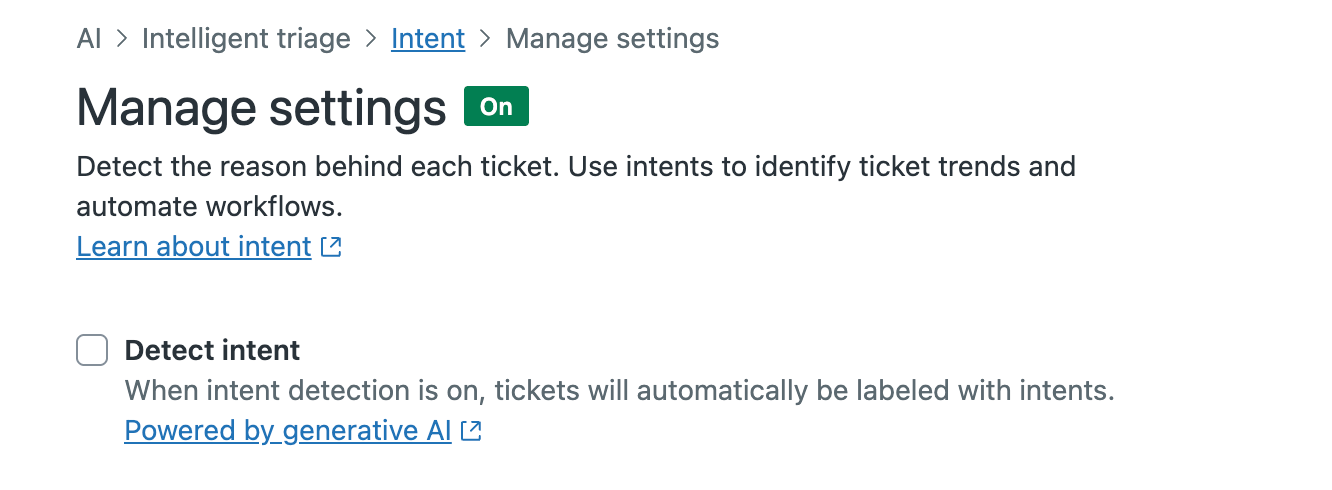
- Click Save.
Turning off or deleting an entity
If you no longer want an entity to be classified in tickets, you can either turn off entity classification or delete the custom field associated with the entity. In both cases, entity-related highlighting is removed from all tickets, including tickets that were created while the entity was active.
To turn off entity classification for a custom field
- In Admin Center, click
AI in the sidebar, then select Intelligent triage > Entity.
- Click the entity you want to turn off.
- Under Update ticket fields with detected values, select Don't update ticket fields.
- Deselect Highlight entity values in all messages.
- Click Save.
To delete a custom field associated with an entity
- In Admin Center, click
AI in the sidebar, then select Intelligent triage > Entity.
- Click the options menu (
 ) for the entity you want to delete.
 - Click Delete.
- Click Delete to confirm.