If you've imported a knowledge source, your AI agent can use that information to provide conversational, AI-generated answers to the questions your customers ask. These types of AI-generated answers are known as generative replies.
There are several settings you can configure that affect the behavior of these generative replies.
This article contains the following topics:
Sending a waiting message before generative replies
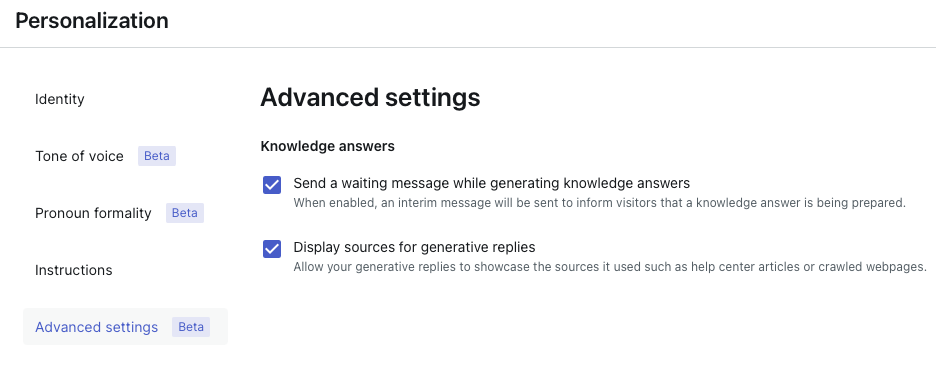
You can choose whether to display a waiting message to a user when an AI agent is generating a reply based on a knowledge source. By default, this option is turned on.
The waiting message itself is generated by AI, meaning it varies each time it’s sent and can’t be prescribed. However, the phrasing is affected by the AI agent's persona and instructions.
To configure whether a waiting message is sent
- In the AI agents workspace, select the AI agent you want to work with.
- Click
 Content in the sidebar, then select Advanced settings.
 - Deselect or select Send a waiting message while generating knowledge
answers.
Displaying sources for generative replies
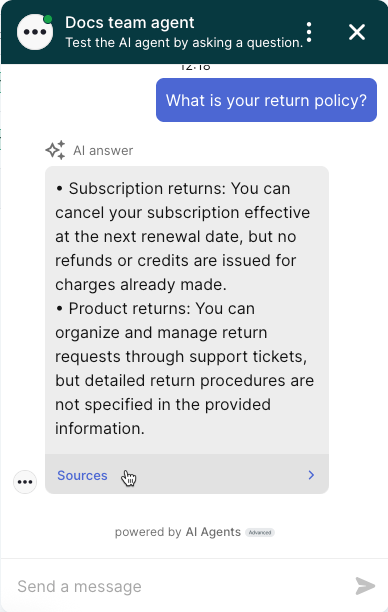
You can choose whether the AI agent shows the customer the sources it used to generate a reply based on a knowledge source. By default, this option is turned on.
The sources are included as the last part of the AI agent's message. Customers can click Sources to see links to the articles the AI agent used to generate its answer.
To display sources for generative replies
- In the AI agents workspace, select the AI agent you want to work with.
- Click
Content in the sidebar, then select Advanced settings.
- Deselect or select Display sources for generative replies.