Summary: ◀▼
You can respond to open disputes by rejecting them or accepting them with comments, which helps explain review decisions and build trust. If you accept a dispute, you can also partially accept it by changing some scores or updating the reviewee. Reviewers can respond to their own disputes, while admins, workspace managers, and leads can respond to any dispute.
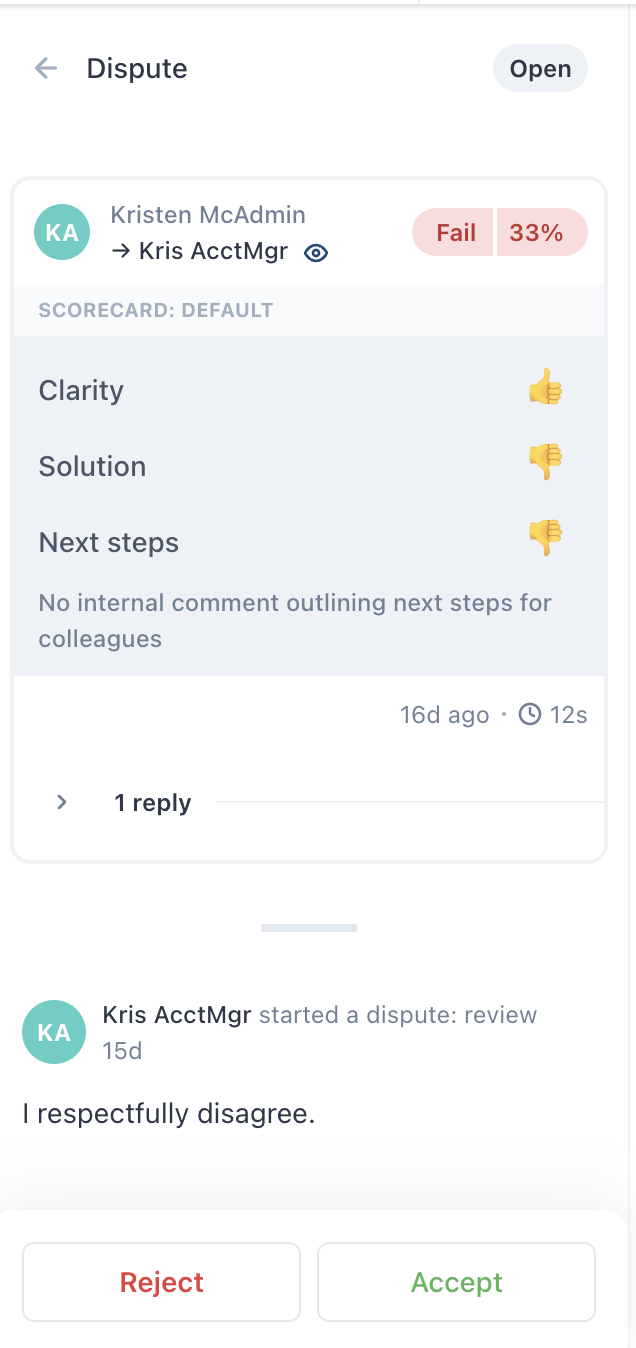
After a team member disputes a review to register their disagreement with it, the dispute recipient has the opportunity to respond. They can explain the review or reconsider it. Responding to disputes supports transparency and builds trust.
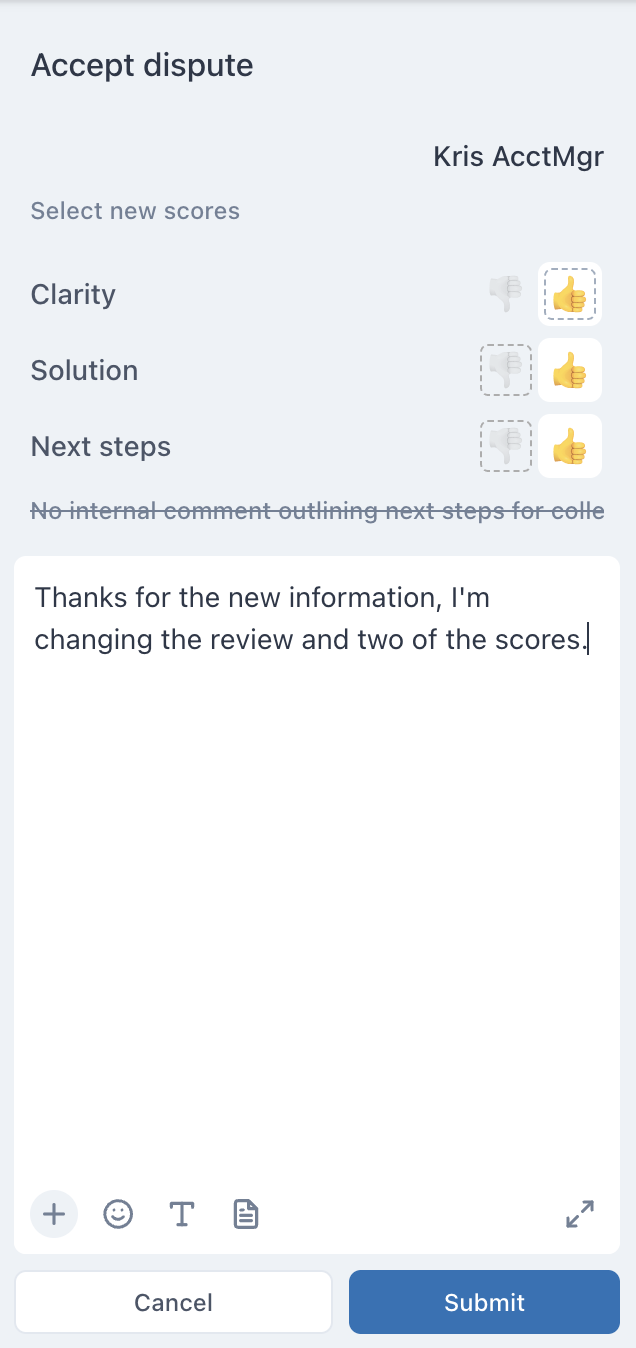
The recipient can respond to the dispute by rejecting or accepting it and providing comments. If they accept a dispute, they also have the option to change only some of the suggested scores. In that case, the dispute is marked as partially accepted. Only open disputes (not already rejected or accepted) can be responded to.
Reviewers can respond to disputes assigned to them. Admins, workspace managers, and leads can respond to any dispute.
To respond to a dispute
- In Quality assurance, click
 Activity in the sidebar.
 - Under Disputes, click Received.
- Click the dispute you want to respond to.
- Select your response:
- Click Reject to reject the dispute.
- Click Accept to accept or partially accept the dispute.
- If you accept a dispute, you might need to provide more information:
- If you partially accept a review dispute, update scores as needed.
- If you accept a wrong reviewee dispute, select a new reviewee.
- Enter a comment to explain your response.
- Click Submit.
Both you and the dispute creator receive notifications.