Account admins can give agents the ability to use AI to automatically translate ticket conversations, if they choose, by activating the feature in Admin Center. For information on how AI translation works, see Understanding conversation translation. For information about how agents can use AI translation after it is turned on, see Translating conversations in the Zendesk Agent Workspace. You can find information about supported languages for conversation translations in the Zendesk language support article.
This article includes the following topics:
Turning on conversation translation for agents
To turn on conversation translation
- In Admin Center, click
 Objects and rules in the sidebar, then select Tickets > Settings.
 - Click Comment options for agents to expand it.
The translation settings appear.
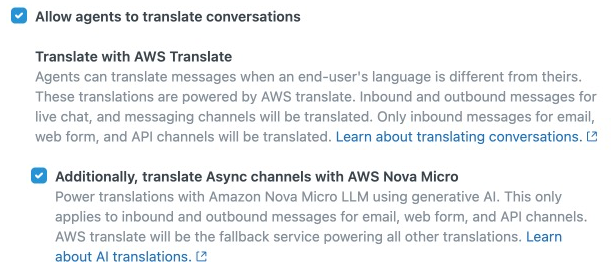
- In Allow agents to translate conversations select one or both of these options depending on which channels you want to include for automatic AI translations.
- Translate with AWS translate: Turns on translations for incoming and outgoing messages on live chat and messaging channels. It also turns on translations for outgoing email. web form, and API channels.
- Additionally, translate async channels with AWS Nova Micro: Turns on translations for both incoming and outgoing messages on email, web form, and API channels.
- Click Save.
Agents can now choose to automatically translate messages for the channel types you specified.
Turning off conversation translation for agents
To turn off conversation translation
- In Admin Center, click Objects and rules in the sidebar, then select Tickets > Settings.
- Click Comment options for agents to expand it.
- In Allow agents to translate conversations, deselect on or both of these options.
- Translate with AWS translate
- Additionally, translate async channels with AWS Nova Micro
Deselecting Translate with AWS translate automatically turns off conversation translations for all channel types.
- Click Save.