The automation potential report is a powerful tool that shows you how to leverage AI agents to automatically answer customer questions. The report analyzes your last 90 days of ticket data and provides insights on how you can increase your ticket automation rates.
Specifically, the automation potential report shows you areas where you:
- Already have help center content that could be leveraged by a new AI agent to automatically answer customer questions.
- Need to create help center content to allow an existing AI agent to answer customer questions.
From the report, you can quickly jump to creating a new AI agent or enhancing an existing one, guiding you through the automations step by step.
You must be an admin to view the automation potential report.
This article contains the following topics:
Turning the automation potential report on or off
In most accounts, the automation potential report is turned on by default. However, you can turn it off or back on at any time.
To turn the automation potential report on or off
- In Admin Center, click
 AI in the sidebar, then select AI agents > AI agents.
 - Click View automation potential.
- Click Manage settings in the top-right corner.
- Select or deselect Enable automation potential.
- Click Save.
Viewing the automation potential report
You can view the automation potential report in Admin Center. The report’s results are segmented by brand, as you can have only one AI agent per brand. Within each brand's report, you can see the predicted automation potential calculated based on a subset of tickets in your account.
To be included in the subset used for calculation, tickets must meet all of the following criteria:
- Requester is an end user
- On one of the following channels: Web form, Email, Web service (API), Web Widget, and messaging channels (including native Zendesk messaging, WhatsApp, Facebook Messenger, Instagram DM, and more)
- In a Closed or Solved status
- Ticket is public (no private tickets) and is in a public group (no private groups)
- Solved in the last 90 days
However, note that not all tickets that match this criteria have a topic detected. This can be due to a lack of similarity to other topics (one-offs), tickets containing a mix of topics, and tickets that were excluded due to lack of content quality. These restrictions help focus the report on recurring patterns where automation can make the biggest impact.
The results of the automation potential report refresh every week, with new tickets that meet the criteria above added to the results.
You might not see report results if you’ve opted out of Zendesk AI features or if your account is a trial account, has fewer than 90 days of data, or doesn’t have enough relevant ticket data in the last 90 days.
If a previously active account goes through a period of time without enough ticket data to generate new insights, the last generated report appears for up to 90 days.
To view the automation potential report
- In Admin Center, click
AI in the sidebar, then select AI agents > AI agents.
- Click View automation potential.
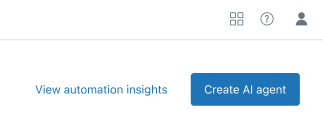
The automation potential report appears.
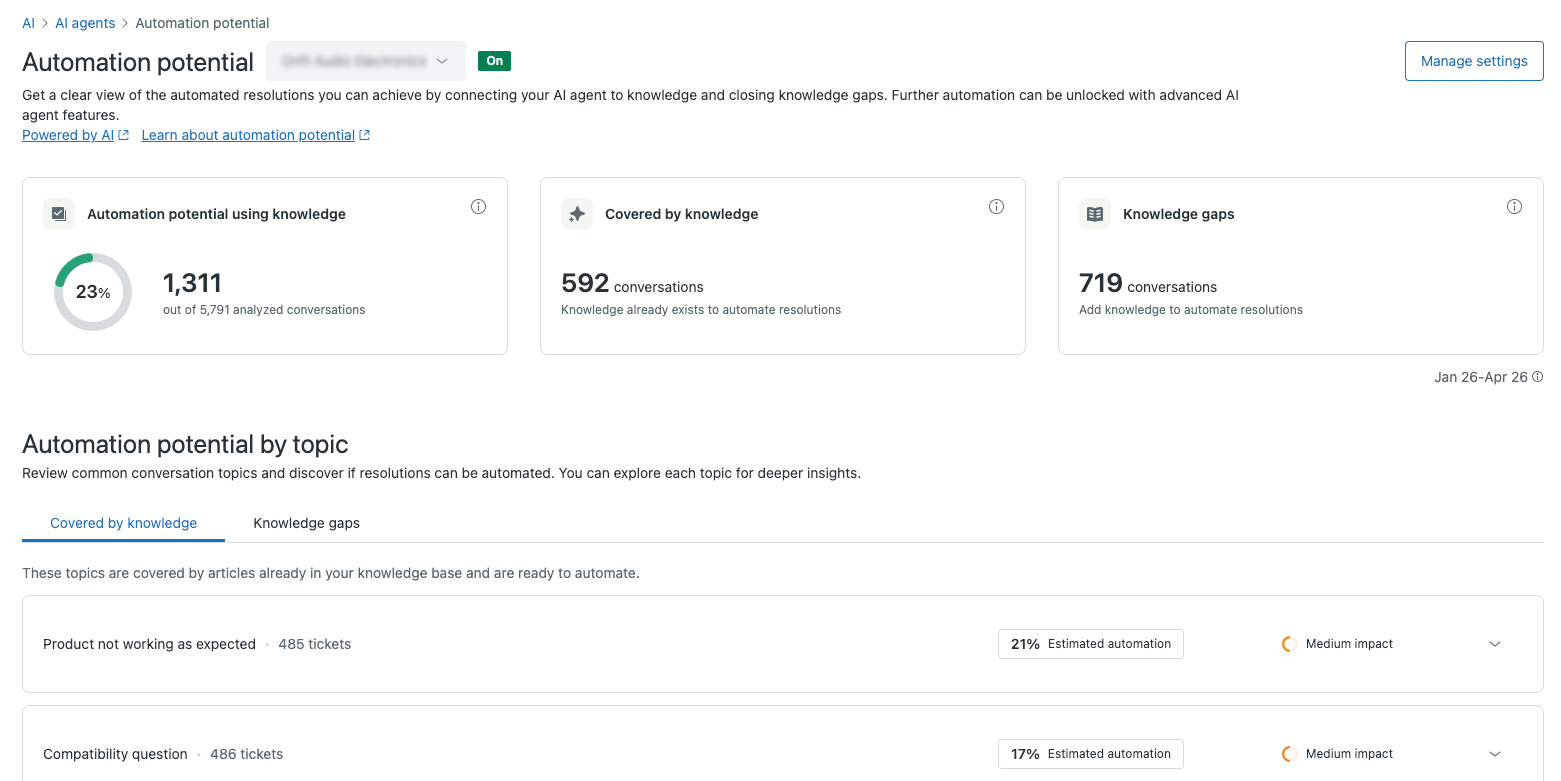
- (Optional) Use the brand selector to the right of the report name to select the brand you want to view information for.
- Review the report’s information:
- The following high-level metrics include:
- Automation potential using knowledge: The percentage and number of tickets that could be automatically resolved using knowledge sources connected to an AI agent. This estimate is drawn from an analysis of your tickets by a specially tuned large language model (LLM) that assesses ticket topics for automatability, complexity, and agent effort, and then assigns an estimated score based on how automatable those tickets are likely to be.
- Covered by knowledge: The number of tickets that could be automatically answered based on information you already have in your help center.
- Knowledge gaps: The number of tickets that couldn't be automatically answered based on information currently in your help center.
- The Automation potential by topic section includes the following
tabs that explore the topics your customers are submitting tickets
about and whether you can handle these automatically.
- Covered by knowledge: This tab shows the topics customers are asking about that can be automated right away based on information you already have in your help center. See Viewing customer questions that could be answered by an AI agent.
- Knowledge gaps: This tab shows the topics customers are asking about that can’t currently be answered based on information in your help center. See Automatically generating help center articles to close knowledge gaps.
- The following high-level metrics include:
Viewing customer questions that could be answered by an AI agent
In the automation potential report, the Covered by knowledge tab shows topics, grouped into similar categories, where you already have articles in your help center that an AI agent could use to automatically answer your customers’ questions. From this tab, you can quickly create a new AI agent that can answer customer questions on these topics, increasing your automation rates.
To view customer questions that could be answered by an AI agent
- In Admin Center, click
AI in the sidebar, then select AI agents > AI agents.
- Click View automation potential.
- Select the Covered by knowledge tab.
- Click a category to expand it and review its information.Tip: Categories are marked as high, medium, or low impact based on their estimated automation rate. For the biggest benefit, prioritize high-impact categories.
Here, you can see how many tickets your customers submitted that matched this category. You can also see the estimated automation rate for this category specifically.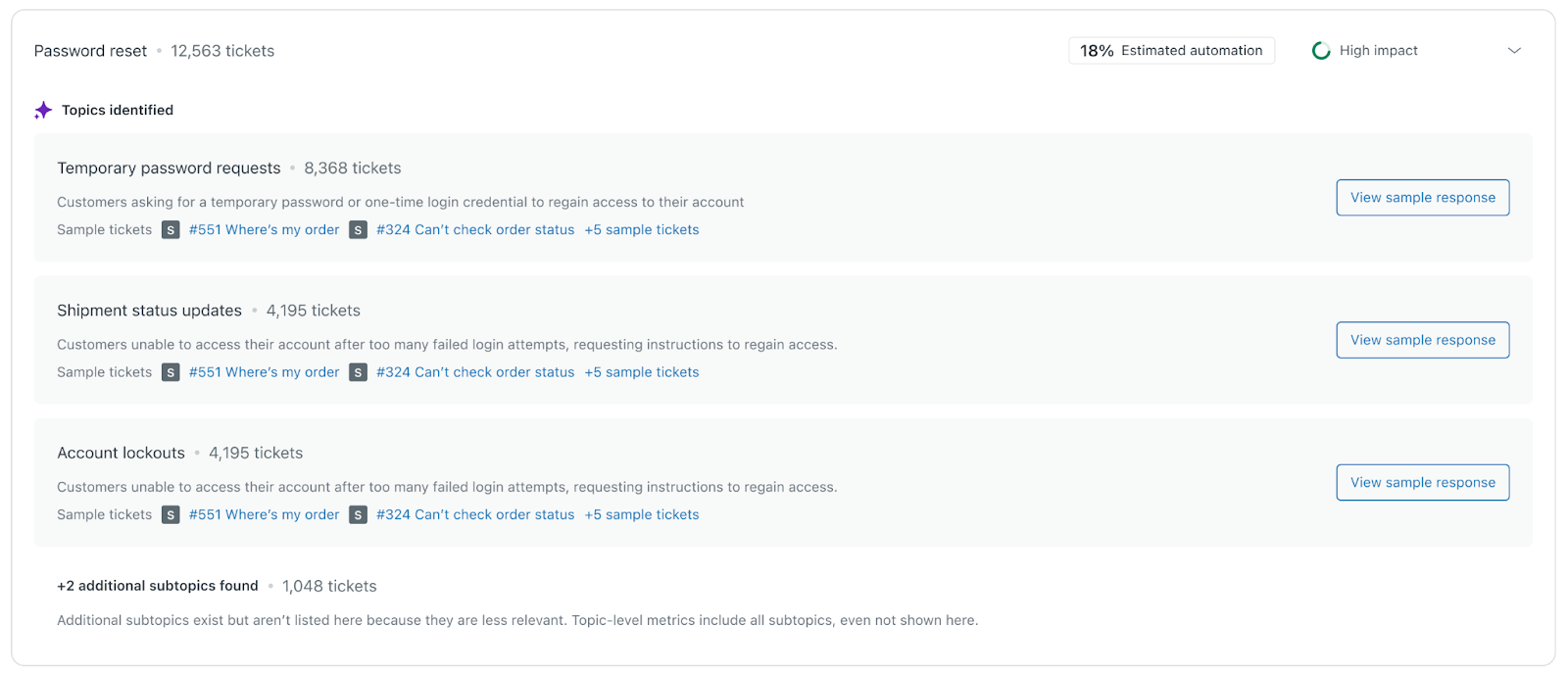
Within the category, you can see individual topics that you already have help center articles about, which could be used by an AI agent to answer customer questions about these topics. You can also see example tickets related to this category, which you can open to confirm that the topic and the conversation in the ticket match.
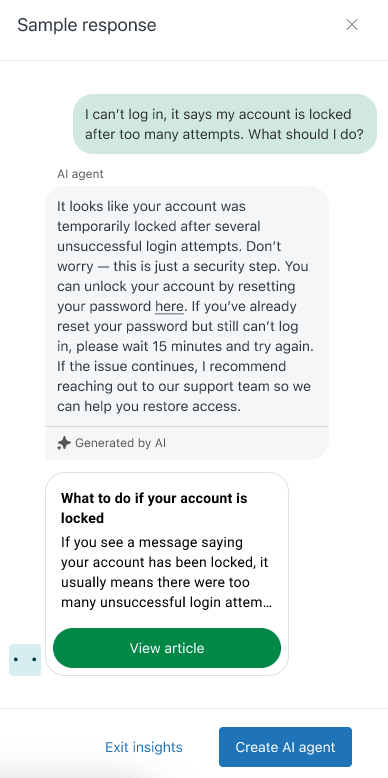
- Hover over a topic within the category and click View sample
response.
A panel on the right appears, showing how an AI agent could use your existing help center content to answer a hypothetical question from a customer about this topic.
- Repeat the step above for as many topics as you want to view sample responses for.
- Click Create AI agent to create a new AI agent.
After the AI agent is published, your new AI agent can use your existing help center content to generate answers to customer questions about any of the topics, across all categories, identified in the automation potential report.
Automatically generating help center articles to close knowledge gaps
In the automation potential report, the Knowledge gaps tab shows topics, grouped into similar categories, where you don’t currently have any help center articles that the AI agent can use to answer customer questions about the topic. From this tab, you can quickly create articles using generative AI to fill these gaps and automate future tickets on these topics.
To automatically generate an article to close a knowledge gap
- In Admin Center, click
AI in the sidebar, then select AI agents > AI agents.
- Click View automation potential.
- Select the Knowledge gaps tab.
- Click a category to expand it and review its information. Tip: Categories are marked as high, medium, or low impact based on their estimated automation rate. For the biggest benefit, prioritize high-impact categories.
Here, you can see how many tickets your customers submitted that matched this category. You can also see the estimated automation rate for this category specifically.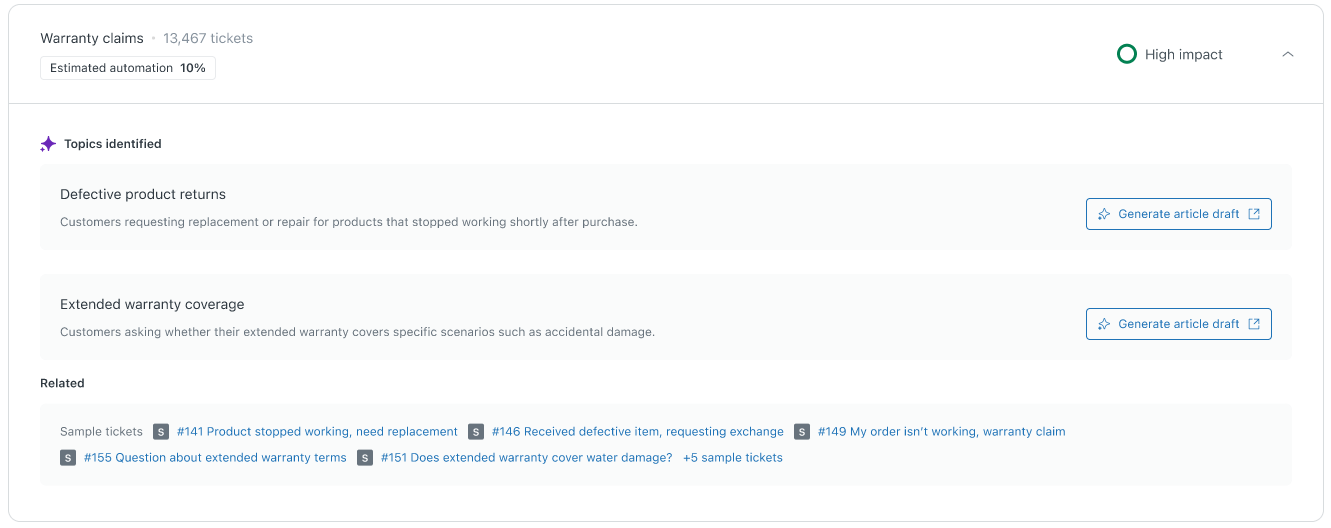
Within the category, you can see individual topics that would benefit from a help center article. You can also see example tickets related to this category, which you can open to confirm that the topic and the conversation in the ticket match.
- Hover over a topic you want to create a help center article for and click
Generate article draft.
You’re taken to the article editor in Knowledge, where the draft of an article is automatically generated for you based on your ticket data from the last 90 days.
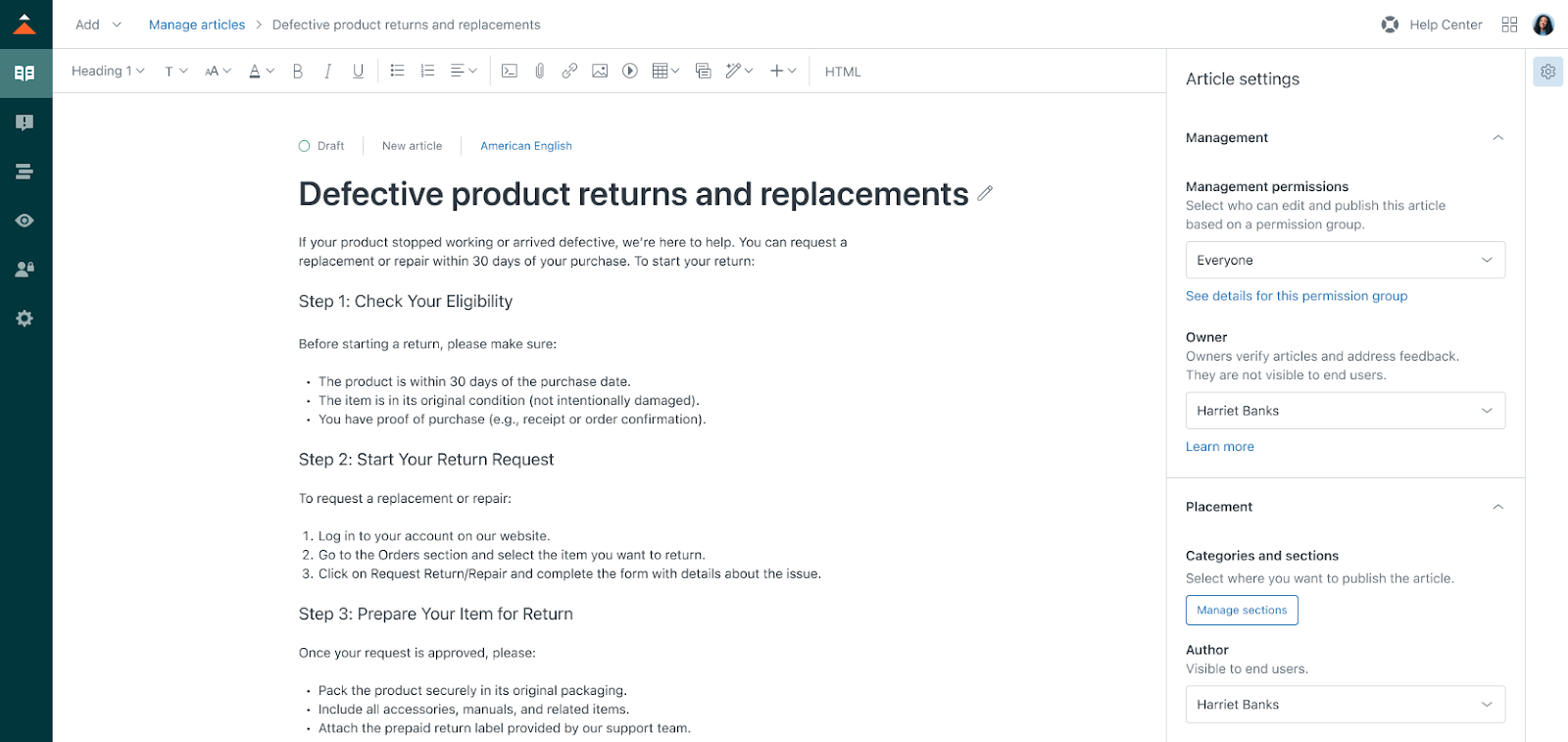
- Review the content of the article and edit it as necessary.
-
Configure the article’s settings,
including its viewer permissions and placement within your help center.Note: If you restrict the article’s viewer permissions, see Using restricted help center content in AI agent responses for information on how the AI agent can use its content in responses to customers.
- Save and publish the article.
After the article is published, your AI agent can begin using it to generate answers to customer questions after it has been reindexed by your help center, which usually takes a matter of minutes.