Summary: ◀▼
Admin copilot is an AI assistant that helps you manage your support environment by providing weekly insights on performance trends, personalized recommendations for improvements, and conversational assistance to create or update workflows and configurations. It supports multiple languages, allows safe testing of changes, and helps you monitor account health to optimize support operations and resolve issues proactively.
Admin copilot is a proactive AI assistant designed to help Zendesk admins streamline operations and optimize their environment. You can save time by using admin copilot to spot potential issues before they escalate, assist in the creation of new workflows, and resolve inefficiencies across your setup.
Admin copilot works for multiple languages. See Zendesk language support by product.
Watch the demo video below to see admin copilot in action:
"Admin copilot: The only proactive AI assistant built for admins (1:41)"
This article contains the following topics:
- Understanding admin copilot
- Managing access to admin copilot conversational assistance
- Using admin copilot
- Testing admin copilot changes
- Best practices for admin copilot
Understanding admin copilot
Latest insights
Admin copilot provides proactive weekly insights that identify key trends and potential risks within your Zendesk account. This feature monitors critical performance data over a seven-day period, highlighting significant changes such as increases in ticket resolution times, fluctuations in the median number of reopens, or shifts in ticket reply volume.
You can click any specific insight to open it with conversational assistance, where you can ask admin copilot follow-up questions to investigate the underlying causes.
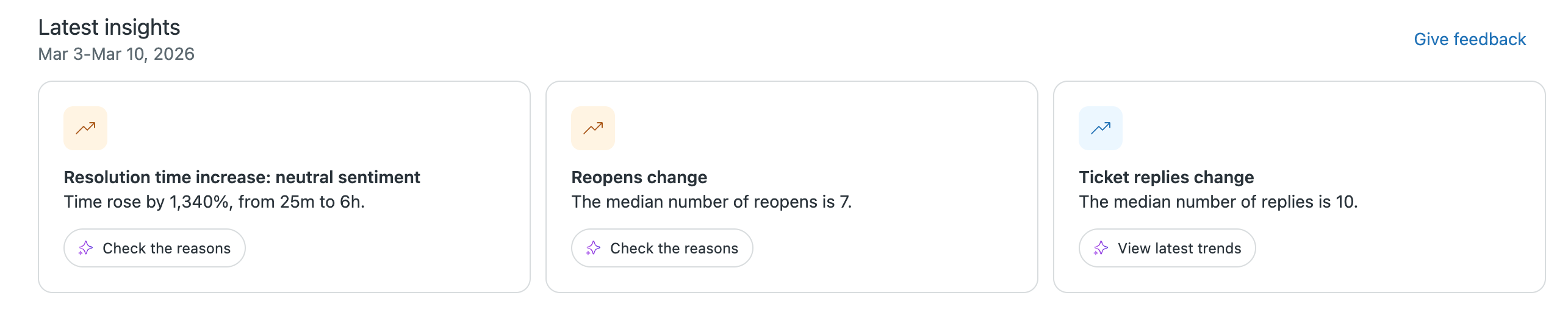
Additionally, you can provide feedback on these insights to help refine future accuracy and relevance. By surfacing this data automatically, the tool helps you address account health issues before they escalate.
See Understanding your latest insights to learn more.
Top recommendations
Admin copilot surfaces your top recommendations to help you focus on the most impactful changes first. These personalized, AI-powered suggestions are prioritized based on your account's specific needs, such as improving resolution times by routing tickets to specific groups or performing essential account maintenance like deleting duplicate triggers.
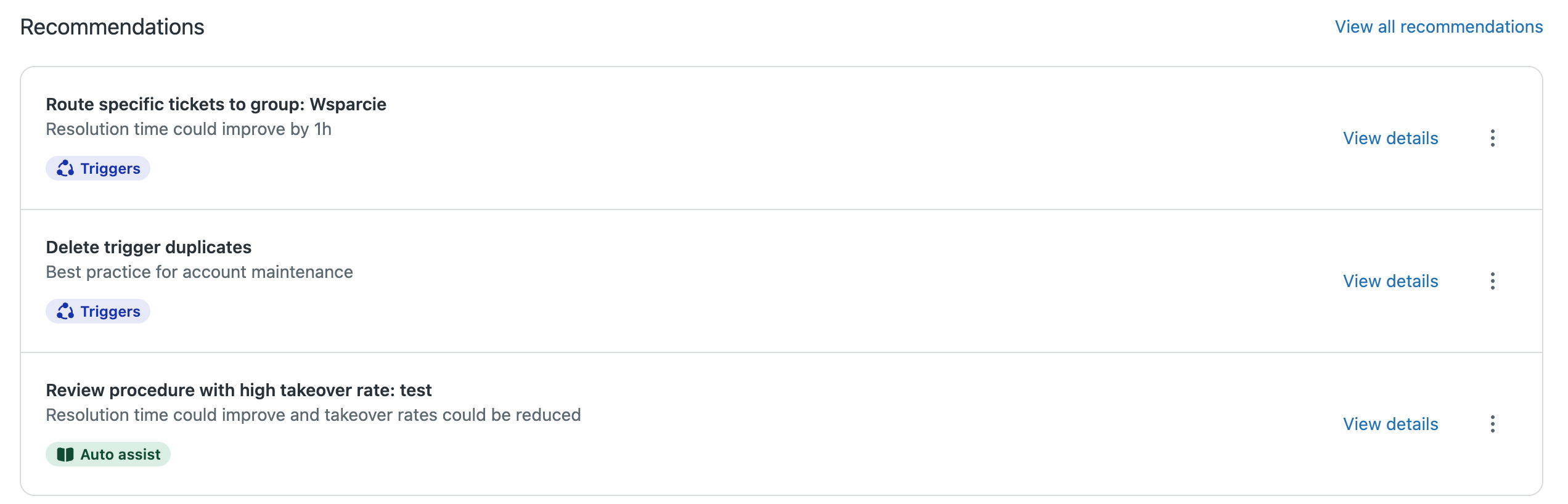
See Understanding admin copilot recommendations to learn more.
Conversational assistance
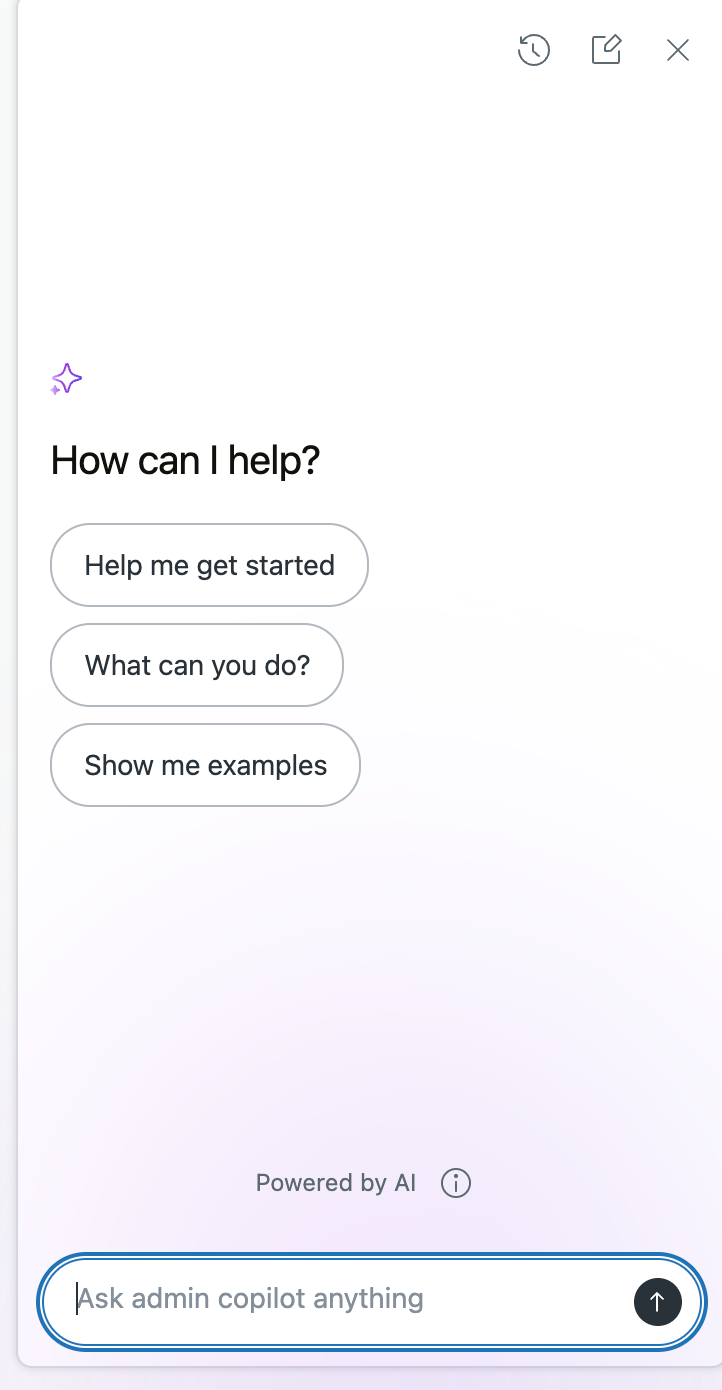
Admin copilot provides conversational assistance that helps you manage your Zendesk operations. You can ask admin copilot questions about your Zendesk configuration, request guided instructions for complex tasks, or investigate the specific data points surfaced in your latest insights. Admin copilot can reference Zendesk help center articles to provide accurate, documentation-based answers when you ask questions about your account setup or Zendesk features. Quick prompts are also included to help you get started with conversational assistance.
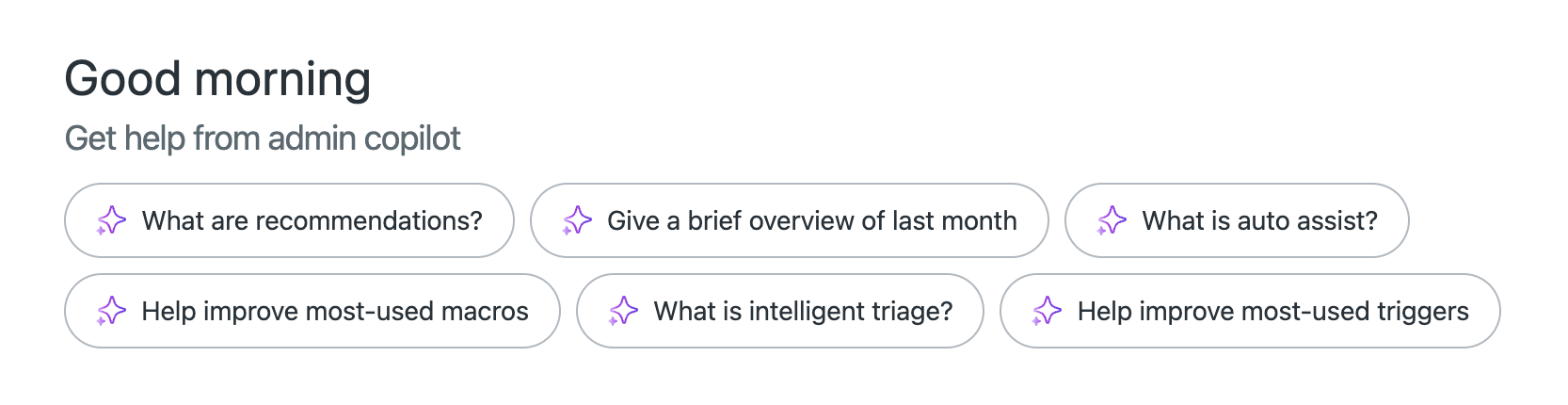
When you click a quick prompt, recommendation, or insight from the Overview page, it opens a conversation with admin copilot, where you can ask follow-up questions or approve AI-generated changes. This ensures you remain in full control, as admin copilot provides a detailed preview for your review before any updates are applied to your account.
Conversational assistance is turned on by default. See Managing access to admin copilot conversational assistance to control access.
What you can do with conversational assistance:
- Manage workflows: Create, update, or delete triggers, automations, SLA policies, and more.
- Configure resources: Set up or modify users, user fields, organizations, groups, brands, ticket fields and forms, action flows, custom objects, custom statuses, and skills.
- Optimize workspaces: Build or refine views and agent workspaces.
-
Ask questions and troubleshoot: Ask questions about your Zendesk
setup, review account configurations, or do root cause analysis on
challenges you’re facing in your current workflows.
Managing access to admin copilot conversational assistance
Conversational assistance allows you to converse with admin copilot and update resources. All admins in your account can use it to ask questions about your Zendesk setup, create and update configurations, and investigate account insights.
Conversational assistance is turned on by default. When turned off, admins can't converse with admin copilot or access quick prompts. Admin copilot insights and recommendations aren't affected by this setting.
To manage access to conversational assistance
- In Admin Center, click
 AI in the sidebar, then select Admin copilot > Admin Copilot.
 - Select or deselect Allow conversational assistance.
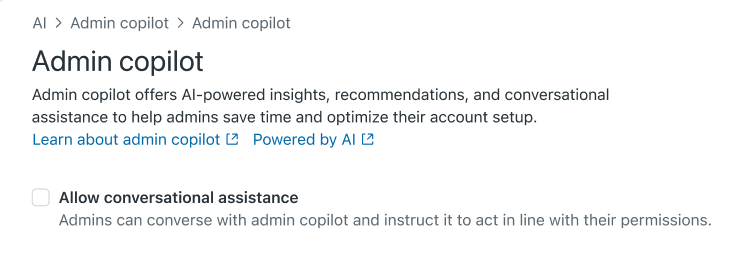
- When selected, admins can converse with admin copilot and instruct it to act in line with their permissions.
- When deselected, conversational assistance and quick prompts are turned off for all admins in your account.
- Click Save.
Using admin copilot
Get started with admin copilot from Admin Center Home. You can also access admin copilot from any page in Admin Center.
- In Admin Center, click
 Home in the sidebar.
There are several ways you can start using admin copilot. Choose the option that best suits your needs:
View latest insights
Scroll to the Latest insights section on the Home page.
Click the action button on a card to respond to the insight. When you click a quick prompt such as Check the reasons or How to improve it, a conversation opens in admin copilot.
See Understanding your latest insights to learn more.
Review your top recommendations
Scroll to the Top recommendations section on the Home page.
Click a recommendation to view details about the identified issue and the proposed solution. A preview of the changes opens in admin copilot.
See Understanding admin copilot recommendations to learn more.
Use conversational assistance
You can open and start using admin copilot conversational assistance in different ways:- Click a quick prompt at the top of your Admin Center
Home page. To see the full list of available suggestions,
click the expand icon.
Quick prompts are dynamic suggestions that help you get started with common tasks or educational queries.
When you click a prompt, a conversation opens in admin copilot.
- Click the admin copilot () icon in the top navigation bar
on any page in Admin Center to start a
conversation.
Enter a prompt or click one of the predefined quick prompts in admin copilot.
- Click a quick prompt at the top of your Admin Center
Home page. To see the full list of available suggestions,
click the expand icon.
- Depending on which prompt you selected or text you entered in admin copilot,
the response you see will differ:
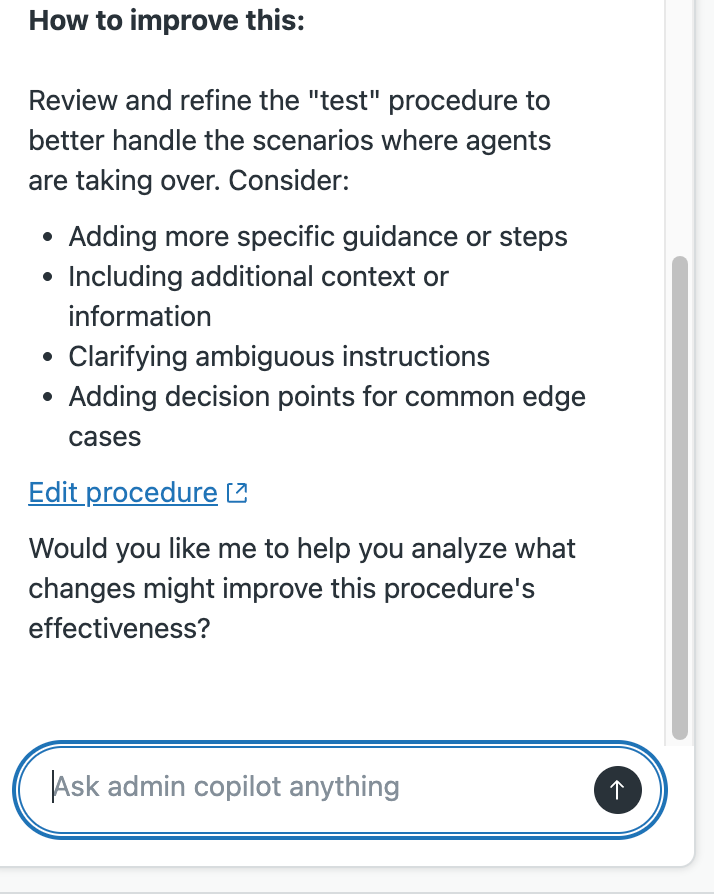
- If admin copilot suggested changes or improvements, then review its
suggestion. You can ask for more information or navigate directly to
the resource to update it.
- If you’re creating, updating, or deleting a resource, such as a
trigger or user, review the preview. You can click View
payload to see additional information.
Click Approve or enter text in admin copilot to continue prompting.
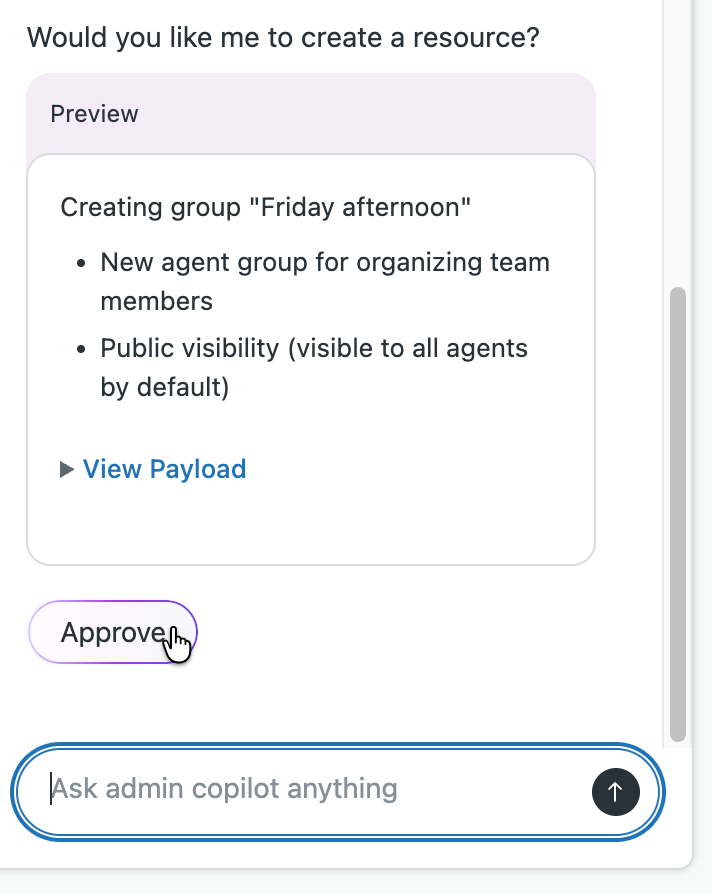
Note: When you use admin copilot to update a resource, it’s reflected in the audit log and shows your name as the user who caused the event. - If admin copilot suggested changes or improvements, then review its
suggestion. You can ask for more information or navigate directly to
the resource to update it.
Managing admin copilot conversations
You can access your account’s past conversations. Both your conversations and conversations created by other admins in your organization are saved.
To manage your account’s conversations, you can rename, download, or delete them.
To manage admin copilot conversations
- In any Admin Center page, click the admin
copilot () icon in the top navigation bar.
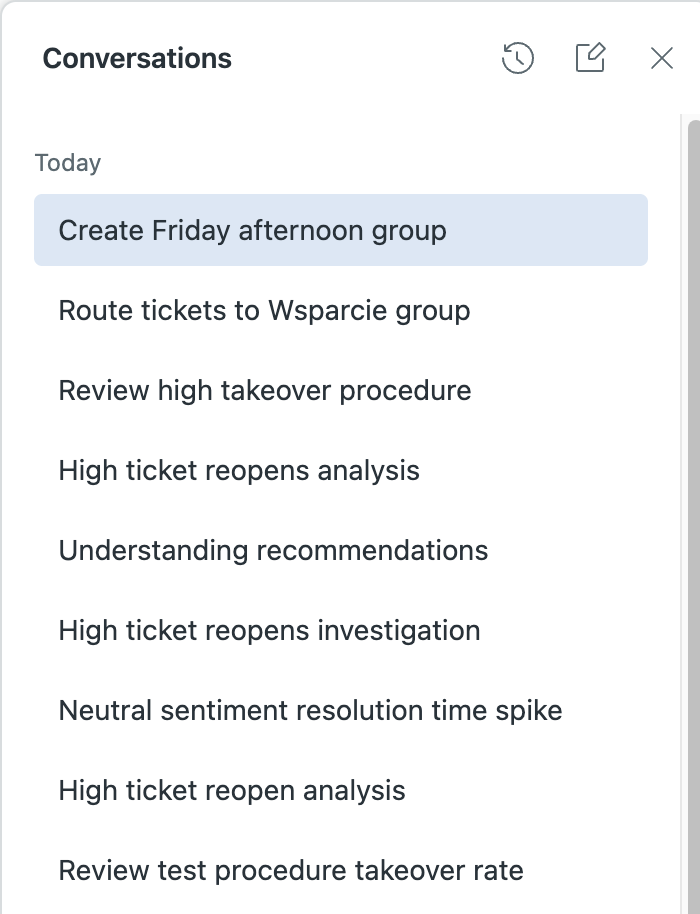
- To access past conversations, click the Conversation history (
 ) icon.
 - Click a conversation to open it.
- To manage conversations, you can do the following:
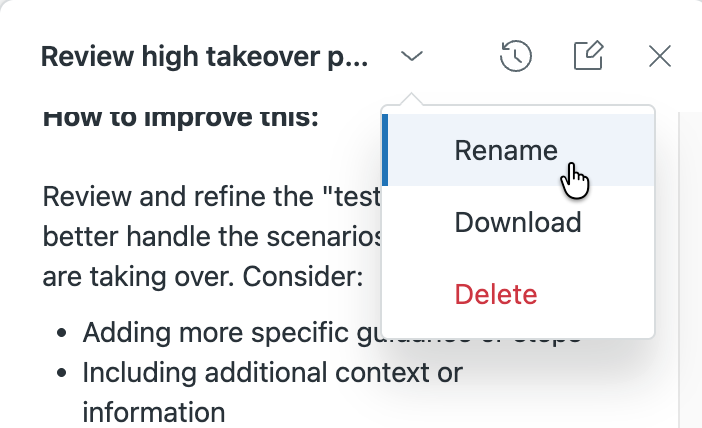
- To rename the conversation, click the drop-down arrow at the top,
then click Rename.
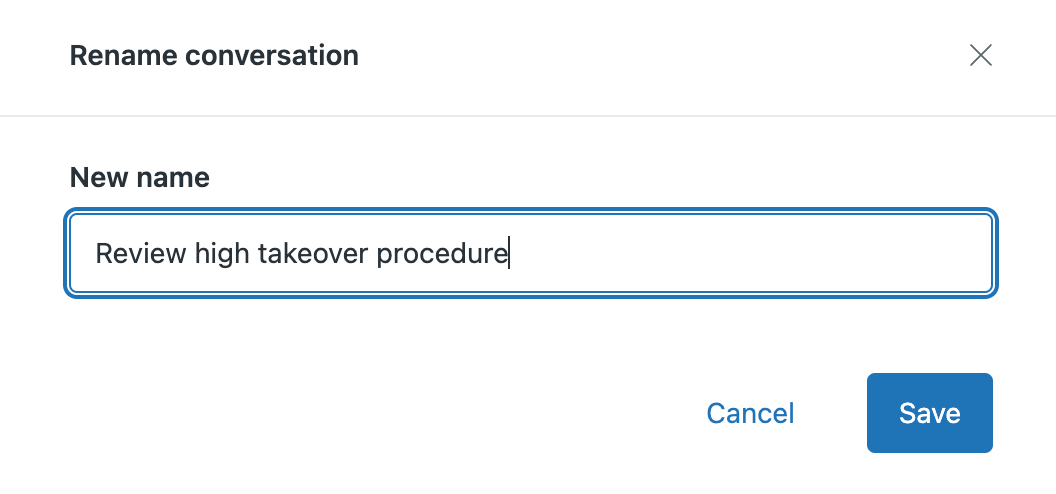
In the Rename conversation dialog window, enter a name then click Save.
- To download the conversation, click the drop-down arrow at the top,
then click Download.
The conversation downloads in JSON format.
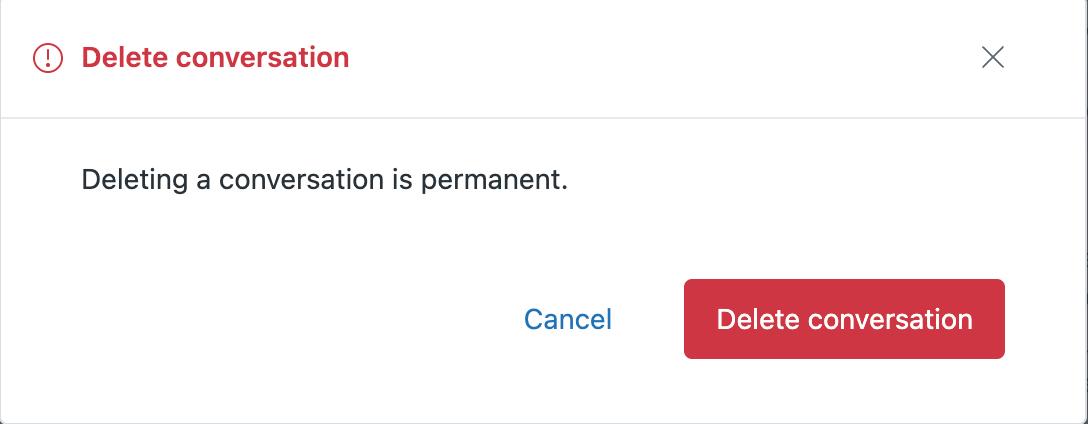
- To delete the conversation, click the drop-down arrow at the top,
then click Delete.
In the dialog, confirm the deletion by clicking Delete conversation.
- To rename the conversation, click the drop-down arrow at the top,
then click Rename.
Testing admin copilot changes
Admin copilot always provides a detailed summary of proposed changes and requires your approval before executing them. To ensure your account remains stable, follow one of the testing workflows below based on your plan type.
(Enterprise plans only) Testing changes in your sandbox
You can test changes safely in a sandbox, then deploy or restore them as needed.
- Create a sandbox snapshot to capture your current configuration. This serves as a clean version for comparison and restoration.
-
Use admin copilot to
make changes in your sandbox.
Review the proposed changes and approve them in your sandbox environment.
- Validate how the workflow behaves in real scenarios. Check your routing, ticket forms, SLAs, triggers, or any object you modified. See Inspecting sandbox and production account configurations.
- Compare sandbox changes to your snapshot by using the snapshot viewer to understand exactly what changed.
- If you're satisfied with the results, deploy the updated configuration
to production.
If you need to undo the changes, restore the sandbox snapshot you created.
(Professional plans) Testing changes in production
For accounts without a sandbox, you can create a production snapshot before making any changes. Use the snapshot as a reference point and fallback version.
- Create a production snapshot before starting any work.
-
Use admin copilot to
make changes in production.
Apply the changes incrementally by approving changes one by one after reviewing the summary in the chat interface.
- Compare your updated production setup with your snapshot to identify exactly what changed.
- If needed, manually revert any changes by using the audit log to identify specific
updates.
You can then manually reverse those changes by editing or deleting objects.
Best practices for admin copilot
To get the most out of admin copilot, use it as a partner to fix, build, and improve your account configuration. While admin copilot can perform actions on your behalf, you’ll always be in control. You must preview and confirm any changes before they’re applied.
- Optimize performance and resolve issues: Use your account's latest insights to identify performance trends and risks. You can then use admin copilot to investigate the source of these trends, such as asking why tickets are breaching SLAs this week, to determine the best path forward.
- Define clear workflow goals and metrics: When building new resources or updating configurations, describe your specific business intent and target metrics to admin copilot. Sharing goals such as reducing resolution times or building SLAs for VIP customers ensures admin copilot creates triggers and macros that align with your performance objectives.
-
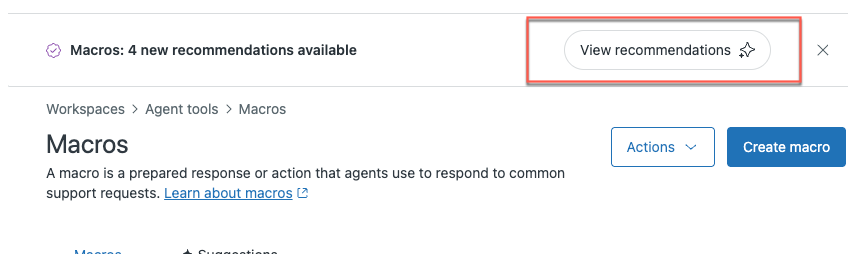
Act on opportunities for improvement: Make optimization a habit by
reviewing your top recommendations for high-impact wins. You can also use
contextual recommendations that appear on specific pages, such as triggers
or views, to improve your configurations and remove inefficiencies as you
work.
- Test and validate changes safely: Implement updates gradually and, whenever possible, apply changes in a sandbox environment first to ensure new logic does not conflict with existing workflows. See Testing admin copilot changes.
- Observe long-term impact: After admin copilot executes an action, use your latest insights or ask admin copilot to monitor how those changes influence your account health over time. This allows you to see whether the updates are successfully moving your performance metrics in the right direction.