When using action flows, it's important to monitor your usage so you can plan and budget accordingly.
Monitoring your account's usage of action credits
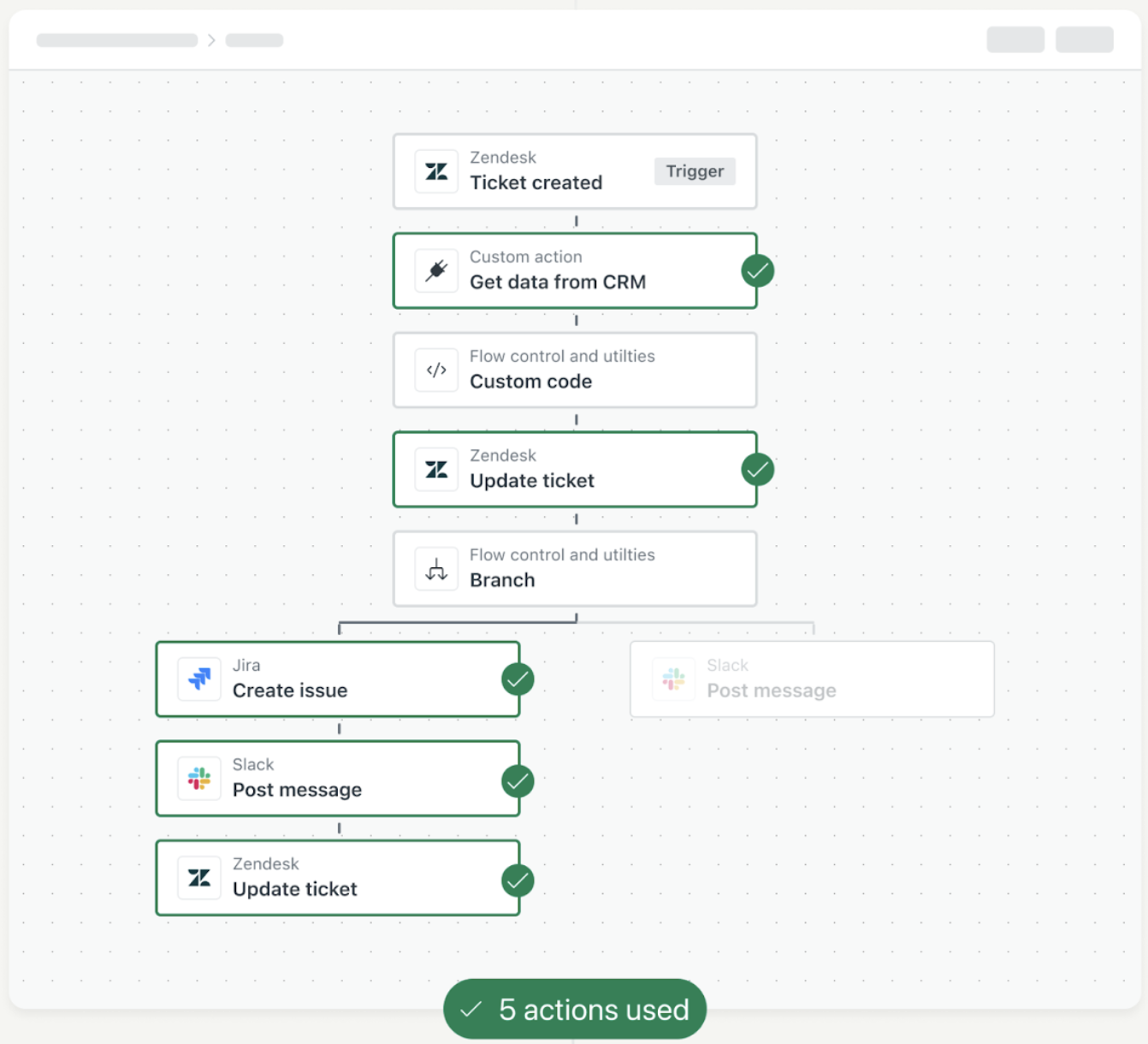
Actions are steps or operations performed by action flows that create, read, update, or delete something in Zendesk or a connected external system. Action credits are the unit of measurement used to calculate your usage of actions. Action credits are consumed primarily by external actions and custom actions.
- All action flow triggers
- All flow control and utility steps, such as branch and custom code steps
- All actions within action flows initiated by the Run on demand
trigger (Copilot add-on and AI agents only)Note: Actions performed when testing action flows, or by Copilot or AI agents, don't consume action credits.
- All Zendesk actions related to assets, Jamf Pro actions, and Microsoft Intune actions
- Suite Team and Growth and Support Team plans include 40,000 actions per month or 480,000 annually.
- Suite Professional and Support Professional plans include 100,000 actions per month or 1,200,000 annually.
- Suite Enterprise and Support Enterprise plans include 225,000 actions per month or 2,700,000 annually.
- Suite Enterprise Plus plans include 400,000 actions per month or 4,800,000 annually.
Email notifications are sent when you've used 80% of your action credits and again when you've used 100% of your action credits.
If you find you're exceeding these limits and want to continue using action flows, contact Zendesk Customer Support or your sales representative to purchase the Action credits add-on in units of 100,000 actions.
Viewing your action usage
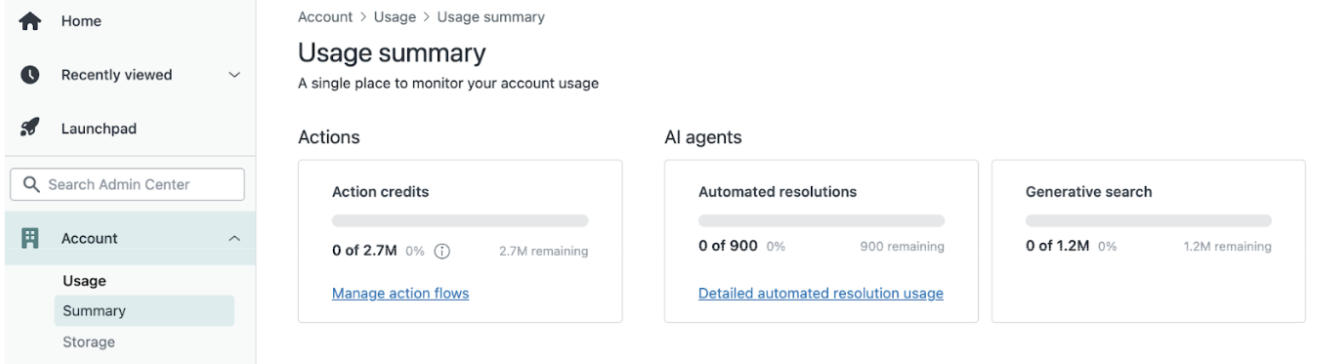
Admins can view the Usage Summary page to monitor your account's use of action credits. Additionally, you can see action flow-specific usage on the action flow list.
- In Admin Center, click
 Account in the sidebar, then select Usage > Summary.
 - Refer to the Actions box for the number of action credits used
and remaining per month.
Monitoring action flow activity
Action flows are user-defined integrated workflows that perform actions in Zendesk and external systems, but are managed entirely from within Zendesk. After you create an action flow, you can monitor its performance through a 7-day rolling record of action flow activity. See Viewing the integrations log.
- In Admin Center, click
 Apps and integrations in the sidebar, then select Integrations >
Logs.
Apps and integrations in the sidebar, then select Integrations >
Logs. - Click on a row to view more detailed information about a log entry.Within the log, action flow entries are labeled with Action Flows as the product column. When viewing an action flow log entry, the following details are available:
- workflow_name: The name of the action flow.
- trigger: The name of the event that initiated the action flow.
- step_executions: An array of steps that were completed successfully, in the order they occurred.