Add-on | Zendesk Contact Center
After installing the Contact Center app, you need to connect it to your Zendesk account. This connection allows Contact Center to integrate with Zendesk, particularly with Support, to create tickets automatically when a customer calls you.
You'll need a Zendesk API key to complete these steps, see Generating API tokens.
You can also follow these steps to update the API token only. Typical scenarios include to comply with security policies and to troubleshoot integration issues.
To connect Contact Center to your Zendesk account
- In Contact Center, click Admin
Settings from the Agent Status menu.
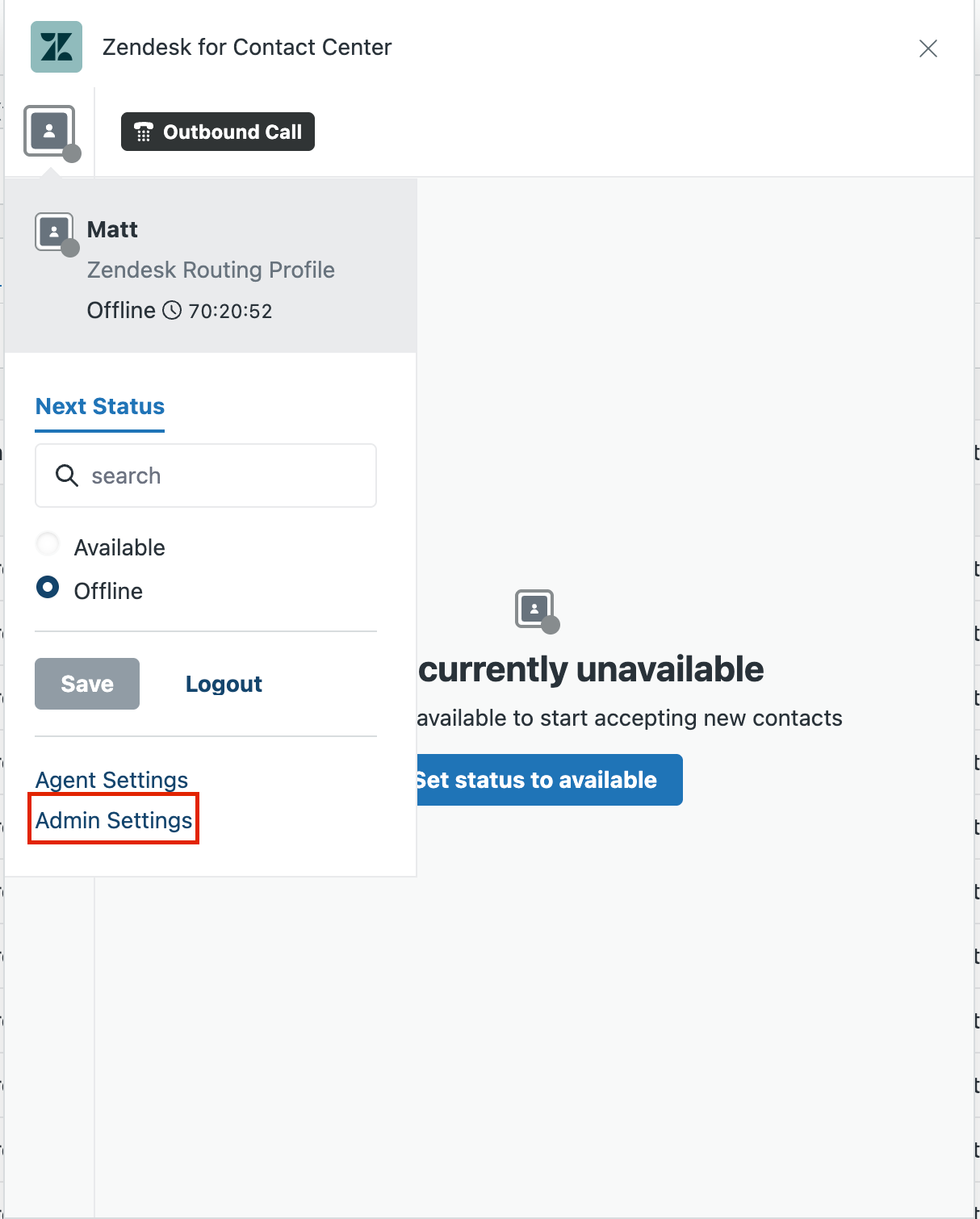
- (Optional) If you are troubleshooting the connection, take note of the settings in Standard Settings, Agent Status, Contact attributes, and Brands & Queues for review after the token update to ensure everything is retained.
- Click
 Zendesk settings in the sidebar, then select Standard Settings >
Your Zendesk Account.
Zendesk settings in the sidebar, then select Standard Settings >
Your Zendesk Account. - In Your Zendesk Account, click
 Edit to access the connection details.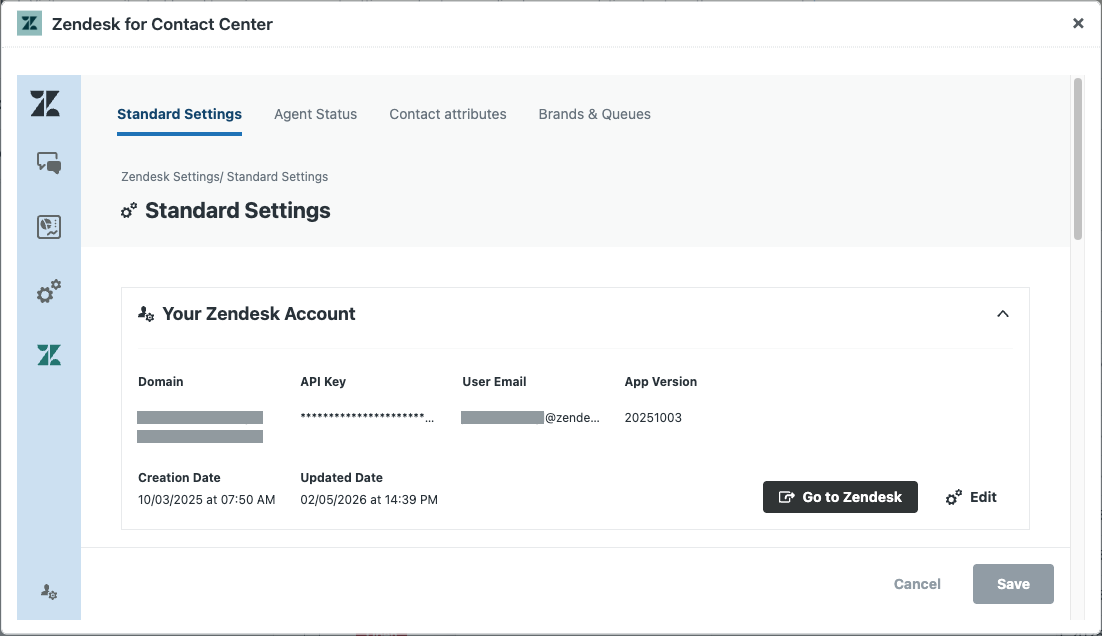
- In Connection Details, enter an API key and the email address of the user who
generated the key.
To generate an API key, see Generating API tokens.
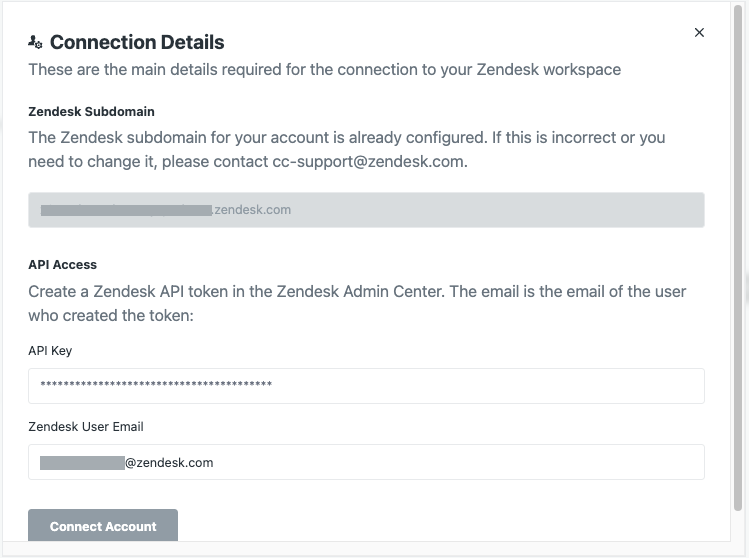
- Click Connect Account.
The Contact Center app and your Zendesk account are now connected.
To test the connection, see Testing Contact Center. To configure the integration, see Configuring the Contact Center integration with Support.