The Knowledge reply is one of the default system replies in a messaging AI agent with agentic AI. This reply is triggered during a conversation between a customer and an AI agent when no relevant use case is detected based on the customer’s question. When this happens, the AI agent searches the available knowledge sources to generate an answer. If no relevant knowledge is found, the AI agent informs the customer that it can’t answer their question.
This article contains the following topics:
Understanding the default Knowledge reply procedure
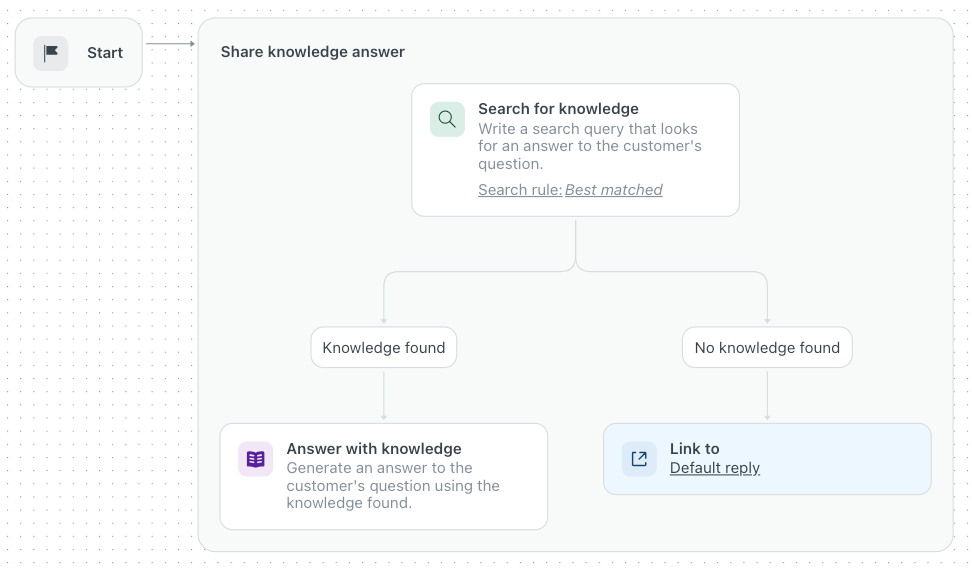
The Knowledge reply uses a generative procedure as its reply method. By default, the procedure is populated with a simple procedure map that includes a Search for knowledge block with two branching conditions:
- Knowledge found: When knowledge is found, the AI agent sends an AI-generative answer to the customer.
-
No knowledge found: When no knowledge is found, the AI agent falls back
to the Default reply.
Customizing the Knowledge reply procedure
While the default Knowledge reply procedure works out of the box, you can customize it to better suit your business needs.
Some common customizations you might want to make include:
- Sending a waiting message
- Asking a follow-up question
- Escalating after repeated knowledge search attempts
To customize the Knowledge reply procedure
- In the AI agents workspace, select the AI agent you want to work with.
- Click
 Content in the sidebar, then select Use cases.
 - In the list of use cases, find the Knowledge reply row.
- In the Reply method column, click Procedure.
The procedure builder opens.
- Edit the procedure as necessary.
For more information on working with the procedure builder, see Creating generative procedures.
- Click Publish procedure.
Sending a waiting message
You can customize the Knowledge reply procedure to have the AI agent send a waiting message to the customer before searching the connected knowledge sources.
To add a waiting message
- Open the Knowledge reply procedure for editing.
- In the procedure builder’s free-text field, enter text similar to the
following:
- Add a Generate answer block before the Search for knowledge block to acknowledge the customer’s question and set expectations (for example, “One moment while I check that for you.”).
- Click Update procedure.
- Verify that the procedure map looks the way you expect.
If not, repeat the previous two steps until it does.
- To make your changes live, click Publish procedure.
Asking a follow-up question
You can customize the Knowledge reply procedure to have the AI agent ask a follow-up question after delivering a knowledge answer to make sure the customer’s issue has been resolved.
To add a follow-up question
- Open the Knowledge reply procedure for editing.
- In the procedure builder’s free-text field, enter text similar to the
following:
- After the knowledge answer is shared, add an Ask question block to confirm whether the customer is satisfied with the answer. If the customer says “no,” route to another knowledge search, a clarifying question, or escalation.
- Click Update procedure.
- Verify that the procedure map looks the way you expect.
If not, repeat the previous two steps until it does.
- To make your changes live, click Publish procedure.
Escalating after repeated knowledge search attempts
You can customize the Knowledge reply procedure to have the AI agent escalate the conversation to a human agent if it’s unable to generate an answer based on the connected knowledge sources after multiple tries.
To escalate after repeated knowledge search attempts
- Open the Knowledge reply procedure for editing.
- In the procedure builder’s free-text field, enter text similar to the
following:
- Trigger an action to track how many times the Knowledge block returns No answer found. Then perform Check condition on that count and, if it’s greater than 2, perform Escalate to immediately.
- Click Update procedure.
- Verify that the procedure map looks the way you expect.
If not, repeat the previous two steps until it does.
- To make your changes live, click Publish procedure.