Summary: ◀▼
Agentic analytics is an EAP that gives you AI-driven service analytics in plain language, with cited answers, report building, and prebuilt analytical apps. You can use analyst copilot to investigate trends, create dashboards, diagnose root causes, and share summaries without BI expertise. Access depends on your role and permissions, and your data stays protected by account-based access controls.
Agentic analytics is a complete service analytics experience that replaces manual reporting with autonomous, AI-driven analysis. You ask questions in plain language and receive cited, grounded answers with no technical or business intelligence expertise required.
Agent analytics runs on a unified data foundation; a single, trusted source of truth, and context graph, a system of compounding intelligence that captures every analysis and gets smarter over time.
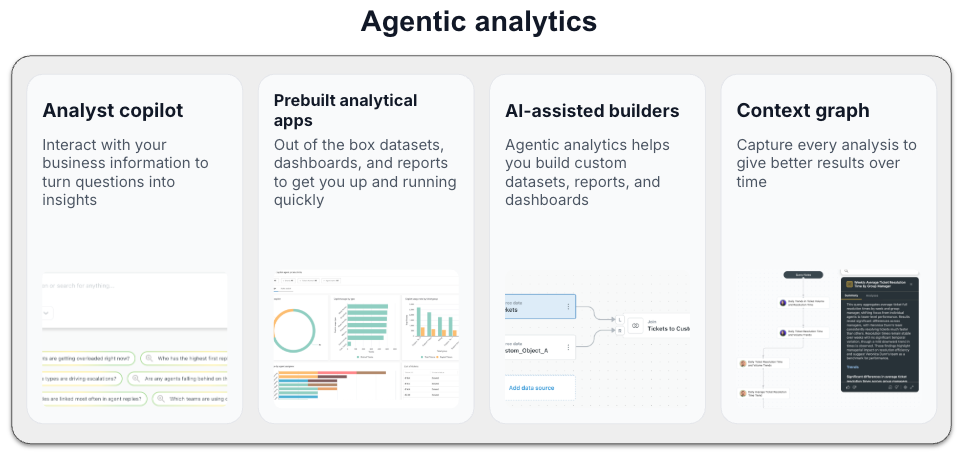
- Analyst copilot: An always-on AI analytics assistant purpose-built for customer and employee service. Provide prompts or questions in plain language and get cited, statistically validated answers, with narrative explanations, root cause diagnosis, and recommended next steps. Use it to investigate trends, build reports, and share executive-ready summaries. Analytics copilot is where you'll do most of your work.
- Prebuilt analytical apps: Give teams a unified view of customer and employee service use cases out of the box. Each app bundles the datasets, dashboards, and reports needed for common use cases, such as support, so customers can get to answers faster without starting from scratch.
- AI-assisted builders: Analyst copilot includes tools to help you create datasets, reports, and dashboards.
- Context graph: A system of compounding intelligence that remembers every analysis, meaning better results over time.
Watch the following video for an introduction to creating reports using analyst copilot with agentic analytics:
Agentic analytics: Analyst copilot [3:13]
This article contains the following topics:
Related articles:
Signing up for the agentic analytics EAP
You must be added to the EAP before you can start using agentic analytics. You can find details about how to apply on this community page.
Opening analyst copilot
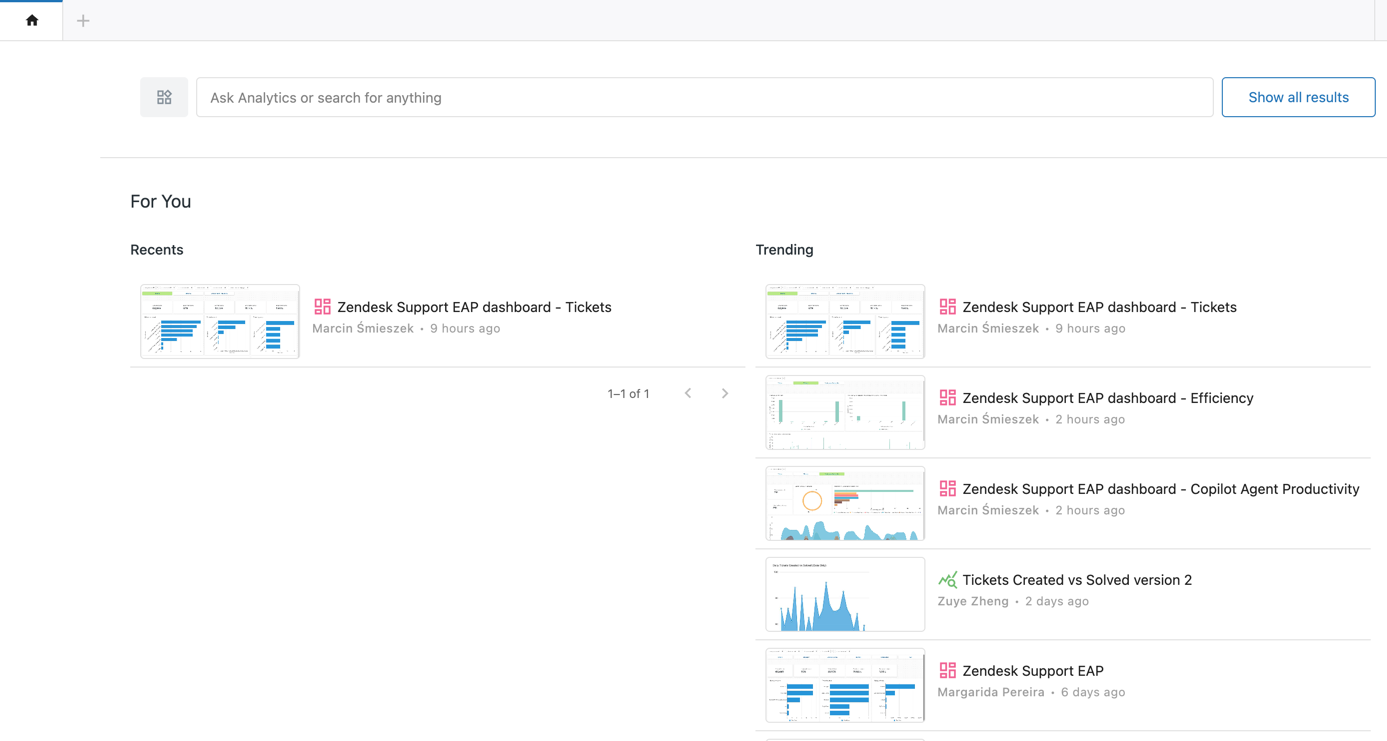
If you’ve signed up for the agentic analytics EAP, you’ll see a new page in Analytics where you can access analytics copilot, the place where you'll do most of your work.
To access analyst copilot
- In Analytics, click Analyst copilot
(
 ) in the sidebar.
The Analyst copilot reporting home page opens.
Frequently asked questions
In this section, you'll find some frequently asked questions about agentic analytics.
-
Who can use agentic analytics?
Access to agentic analytics projects is defined at the group level. If you have Analytics permissions in Admin Center based on your role, these permissions also apply to agentic analytics. See Setting up agentic analytics.
-
Can I use my existing Explore dashboards?
You can't import Explore dashboards, but similar information will become available in agentic analytics.
-
Is my data safe?
Yes. Agentic analytics applies your account’s permissions and roles for all data access, ensuring security and privacy by design.
-
Where can I find help?
In-app links and documentation guide you through basic and advanced features. Look for built-in tooltips for quick assistance as you explore each dashboard or feature.
-
How can I provide feedback to Zendesk?
You can give feedback, ask questions, or help others in our EAP community group.
-
I need more support. Where can I find it?
If your Zendesk admin can't help, contact Zendesk customer support.