Summary: ◀▼
You can pause your account for up to three months if you have monthly payments and under $20,000 ARR. During the pause, your data and settings stay intact, and charges are on hold. You can’t work on tickets or receive new ones, but you can switch plans, cancel, or reactivate anytime. Pausing helps manage temporary business changes without losing account information.
As an alternative to cancelling your account, Zendesk allows eligible customers to pause their account for up to three months. You must be the account owner to pause an account. Only accounts with less than $20,000 ARR and monthly payments can be paused.
Pausing can be useful for customers who are in the process of changing their payment method or experiencing a temporary downturn in their business. When you pause your account, you retain your data, settings, and account status without incurring any charges.
This article contains the following sections:
About pausing an account
When you request a pause to your account, your account will be paused at the start of your next billing cycle. You can continue using all your features until then. You must be the account owner to pause an account.
If you have an eligible online assisted or self-service account, you can pause your account from the Subscription page in Admin Center. If you have a managed account, contact Zendesk Sales to request a pause.
- You and your agents won’t be able to work on any ticket and ticket auto replies are turned off.
- Your customers will not be able to submit tickets by email, web forms, or other channels.
- Your data, settings, and account information will stay safe and secure.
- Your subscription charges will be on-hold for three months. Your charges will automatically reactivate after three months.
- You can always reactivate your account anytime during the pause. Charges will start again right away.
- You can pause once every 12 months.
- While your account is paused, you can still update your account to cancel your subscription or switch your plan type.
Pausing an account
When you pause your account, the pause starts at the beginning of your next billing cycle. The pause remains in effect for 90 days. Your account will automatically revert back to a paid account after 90 days. You can also cancel a pause to reactivate your account.
To pause an account
-
In Admin Center, click
 Account in the sidebar, then select Billing > Subscription.
A summary of your current plan appears.
- Click Manage to manage your subscription.
- Click Remove products or cancel account at the bottom of the Manage subscription
page.

A Pause or cancel products page appears with a Pause Zendesk section.

- Click Pause account.
A message appears with a description of what happens when you pause your account. It includes the pause start and end dates.
- Click Confirm pause to start the countdown.
Your account will be paused at the start of the next billing cycle. You can continue using all your features until then.
To remind you that a pause is pending, you’ll see a banner at the top of your screen. It includes the date when your account will be paused and when your account will automatically reactivate.

When your account is actually paused, you’ll see a banner at the top of your screen to remind you about the pause. It includes the date when your account will automatically reactivate.

Your admins and agents will see similar banners, but without the Cancel pause or Reactivate account buttons.
While your account is paused, you have three options:
- You can switch to a different plan. See Switching plans
- Cancel your account. See Canceling your account. When you cancel a paused account, the cancel happens immediately at no extra charge.
- Or, when you’re ready, reactivate your account. See Canceling a pause to reactivate your account
Switching plans
If you want to lower your costs, consider switching plans to a less expensive plan type.
To switch plans
- In Admin Center, click
Account in the sidebar, then select Billing > Subscription.
- Click Manage to manage your subscription.
- Click Remove products or cancel account at the bottom of the Manage
subscription page.
- Click Switch plans.

A model appears with a description of the switch and how it impacts the price of your account.
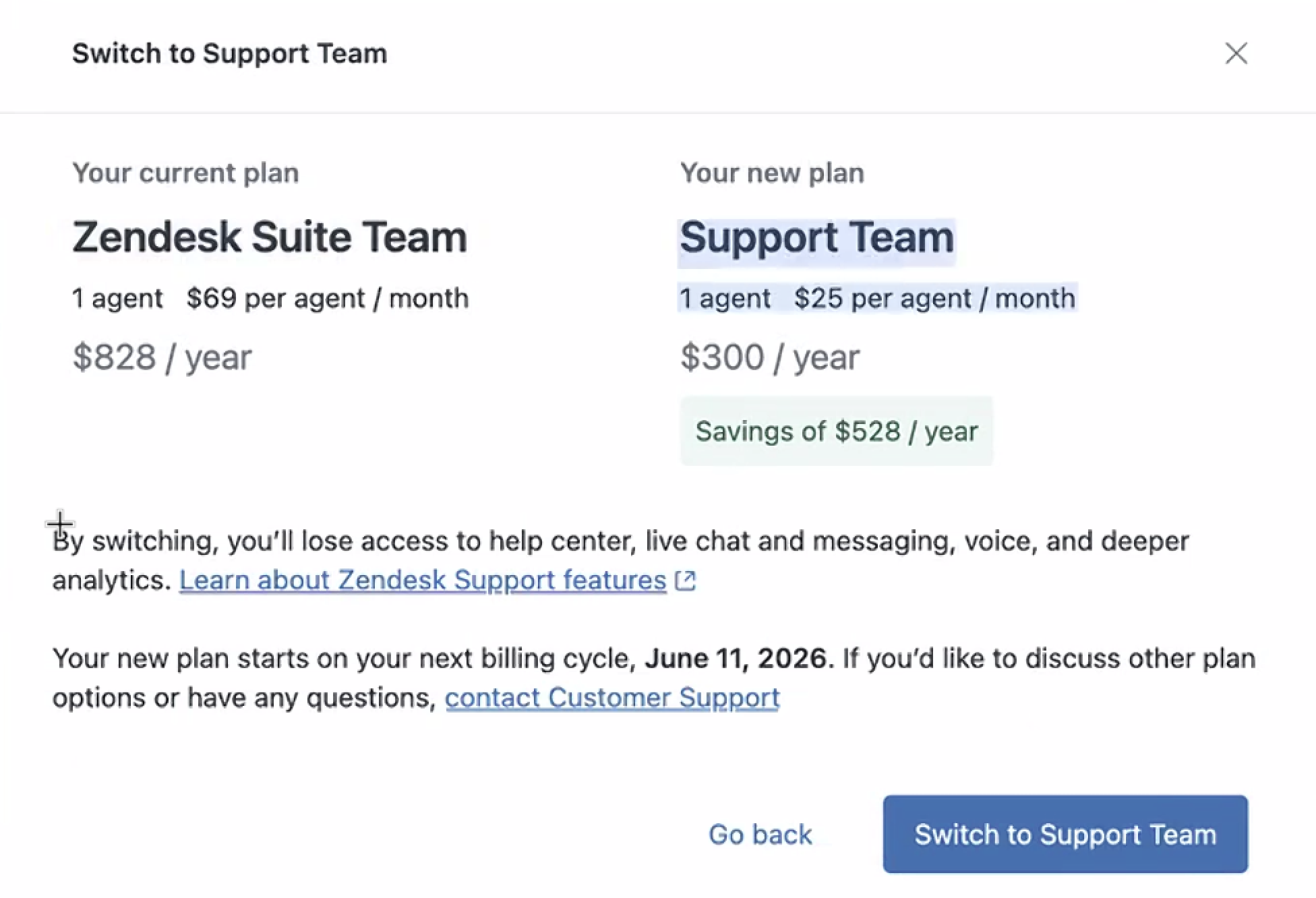
- Click to confirm the switch.
When you switch plans, your account is reactivated automatically with the new plan.
If you switch plans in the middle of a billing cycle, you’ll be charged a prorated amount for the remaining days in the cycle. The prorated amount is based on your current subscription cost. When the next billing cycle starts, billing will continue with the cost of the new, less expensive plan.
Canceling a pause to reactivate your account
You can cancel a pause at any time during the three month period that your account is paused. When you cancel a pause, billing charges will start right away. You can also cancel a pause after the pause has been scheduled but hasn’t started.
To cancel a pause
- In Admin Center, click
Account in the sidebar, then select Billing > Subscription.
- Click Manage to manage your subscription.
- Click Remove products or cancel account at the bottom of the Manage
subscription page.
- Click Reactivate account, then confirm the reactivation.

If your pause has been scheduled but hasn’t started, you’ll see a Cancel scheduled pause button instead of a Reactivate account button.

When your pause has been cancelled, you’ll see a confirmation message.

If you reactivate your account in the middle of a billing cycle, you’ll be charged a prorated amount for the remaining days in the cycle, then billing will resume as usual