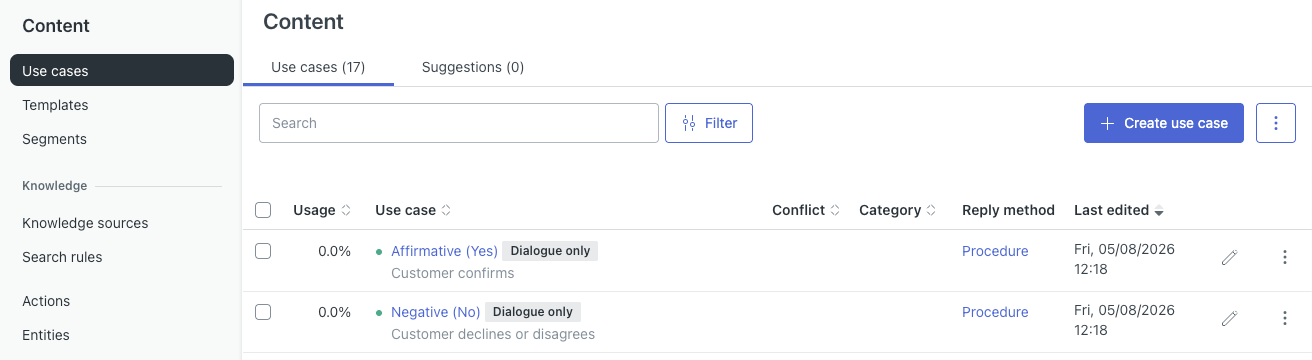
After you create a use case, you can restrict it so that it can be used only inside of a dialogue. These use cases, called dialogue-only use cases, are triggered only inside dialogue flows and cannot be triggered during general conversation, such as when an AI agent is providing AI-generated answers.
This article contains the following topics:
Related articles:
About dialogue-only use cases
The dialogue-only option is essential for use cases that represent customer responses within a specific dialogue context, not standalone requests—for example, use cases such as "Affirmative (Yes)” and "Negative (No).”
The following conversation is an example of what happens when a use case is not marked as dialogue-only:
- [Inside a dialogue about ordering a camera]
- AI agent: “Would you like to learn more about each camera model?”
-
Customer: “Yes.”
- This response matches an “Affirmative (Yes)” use case that was created for the AI agent, but was not marked as dialogue-only.
- The use case has no configured reply, so the AI agent reverts to generative AI to provide a response.
- The only information sent through the AI agent’s generative AI response process is the customer’s “Yes,” which doesn’t provide enough context to generate a useful answer. This interrupts and breaks the conversation flow.
- AI agent: “I couldn't find an answer to that.”
However, with a dialogue-only use case, the same conversation might proceed as follows instead:
- [Inside a dialogue about ordering a camera]
- AI agent: “Would you like to learn more about each camera model?”
-
Customer: “Yes.”
- This response matches the “Affirmative (Yes)” use case within the current dialogue’s context.
- The AI agent can then continue the dialogue flow using the customer’s affirmative response with the proper context.
In this example conversation, the “Affirmative (Yes)” use case now triggers only when it makes sense—inside a dialogue where “yes” has a clear meaning.
Common dialogue-only use cases
The following are examples of use cases that, if you choose to create them, should be marked as dialogue-only in order to preserve conversational flows:
- General confirmations
- Name: Affirmative (Yes)
- Purpose: Matches customer confirmations, such as “Yes,” “Sure,” “Correct,” “That’s right,” and so on.
- Reason for request: Customer confirms
- Why it should be dialogue-only: Without context, “yes” is meaningless to the AI agent and can’t be used to produce a useful answer.
- General rejections
- Name: Negative (No)
- Purpose: Matches customer rejections or disagreements, such as “No,” “Not that,” “That’s wrong,” and so on.
- Reason for request: Customer declines or disagrees
- Why it should be dialogue-only: Like the affirmative, “no” without context is meaningless to the AI agent and can’t be used to produce a useful answer.
Configuring a dialogue-only use case
You can configure a use case so that it can be used only inside of a dialogue.
To configure a dialogue-only use case
- In the AI agents workspace, select the AI agent you want to work with.
- Click
 Content in the sidebar, then select Use cases.
 - Click the use case you want to configure.
The use case details page opens.
- Click Actions in the top-right and select Use only in
dialogues.
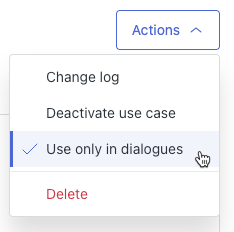
Your changes are automatically saved.
On the Use cases page, a Dialogue only badge appears next to the name of the use case.