You can use brand filtering to limit the conversations that end users see in the
messaging Web Widget to the current brand. This helps reduce confusion by showing only
the conversations that are relevant to the brand the end user is currently
using.
Note: This feature is currently only available for the messaging Web Widget.
It is not currently available for mobile or social messaging channels.
This article includes the following topics:
About filtering by brand
Brand filtering is part of the multi-conversations setup. If multi-conversations isn’t turned on for your account, the brand filtering setting doesn’t appear.
Requirements
To use the brand filtering feature, your account must:
Considerations when using brand filtering
Consider the following when using brand filtering:
- End users see only the conversations associated with the current brand.
- Conversation lists show only conversations for that brand. If an end user switches between brands, they see a different filtered conversation list for each brand.
- New conversations stay associated with the correct brand.
- The brand filter is only applied to the 100 most recent conversations across all brands. If an end user has older conversations for a brand outside that limit, those conversations don’t appear in the filtered list.
- If you are migrating brands from SunCo SDKs to the messaging Web Widget or SDKs, brand filtering will only apply to the migrated brands; your existing SunCo SDK experience will not be affected.
Turning on brand filtering
You can turn on brand filtering when you configure multi-conversations in Admin Center. If multi-conversations is already turned on, you can edit the existing settings to enable brand filtering.
To turn on brand filtering
- In Admin Center, click
 Channels in the sidebar, then select Messaging and social >
Messaging.
Channels in the sidebar, then select Messaging and social >
Messaging. - At the top of the page, click Manage settings.
- Under Web Widget and Mobile SDKs, expand Multi-conversations.
- Expand Brand filtering.
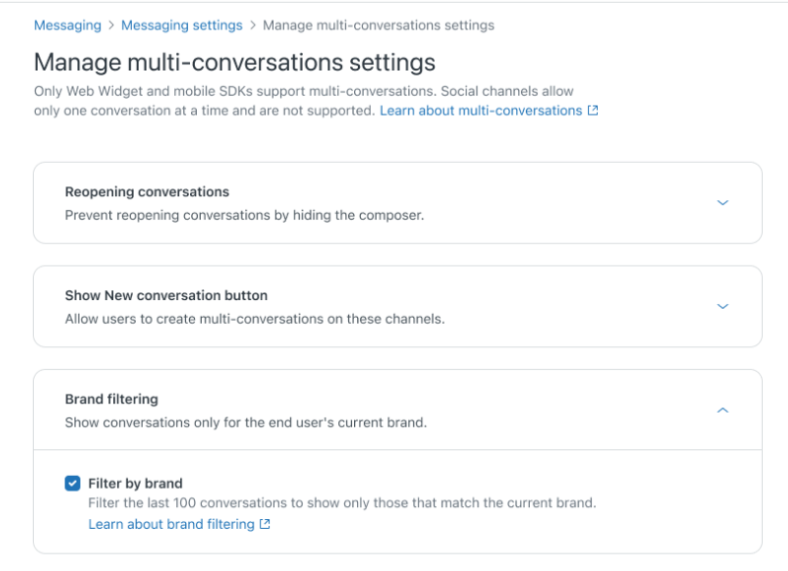
- Select Filter by brand.
- Click Save settings.