Summary: ◀▼
Workforce activity tracking helps you monitor agent activity in real time across email, messaging, and voice channels. It provides insights like average handle time and activity breakdowns, enabling better management of team performance. You can view, filter, and manage agent tasks without manual status updates. The feature is free to try and can be turned on or off anytime to evaluate workforce management capabilities.
Zendesk Workforce Management (WFM) is an AI-driven operational tool that helps support teams optimize staffing by predicting ticket volume and automating agent schedules. By analyzing historical Zendesk data, it generates precise forecasts to ensure the right number of agents are available at the right times. Beyond scheduling, it provides managers with real-time visibility into agent activity and adherence, tracking whether team members are working on assigned tasks or taking breaks. Agents are also empowered to manage their own time through shift-swapping and paid time off (PTO) requests directly in the Zendesk interface.
Workforce activity tracking includes essential features, such as agent activity tracking and performance metrics, at no additional cost, so admins can evaluate workforce management capabilities.
This article covers the following topics:
About workforce activity tracking
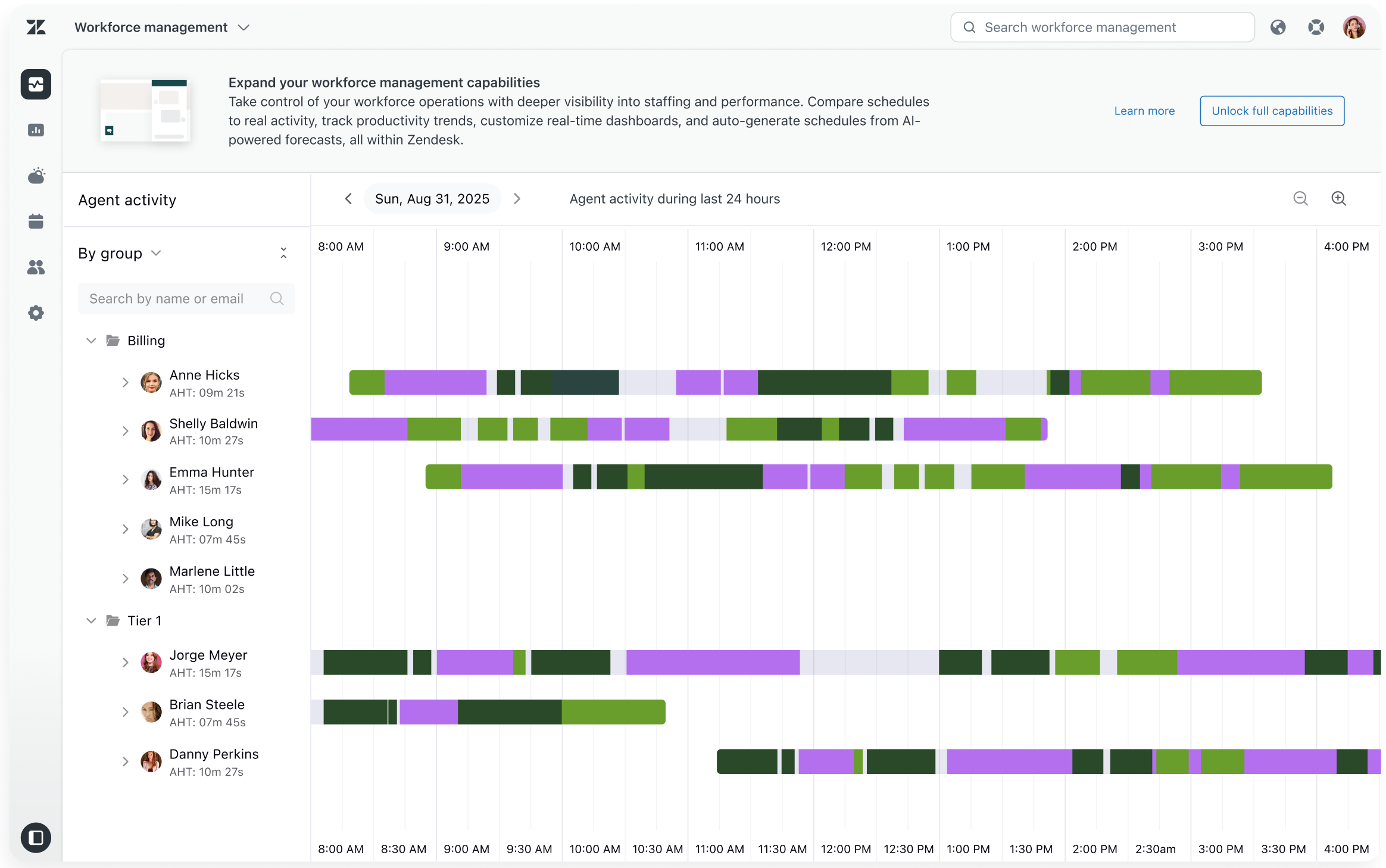
Workforce activity tracking lets admins track agent activity in real time and view scheduled activities over time to help keep work aligned with planned workflows. It includes the core performance indicator average handle time (AHT), which helps measure efficiency.
- Messaging
- Voice
This information is available to admins for 24 hours. Workforce activity tracking doesn’t store historical data, and this information isn’t available to other roles.
Specifically, admins can use the following features:
-
Real-time agent activity: Monitor what agents are working on as
it happens. Get instant visibility into team activity with real-time dashboards
and live insights.Note: Unlike agent activity tracking in WFM, this information is available to admins for only 24 hours. Workforce activity tracking doesn’t store historical data or make this information available to other roles.
- Tracking by group and agent: View activity aggregated by group or drill down into individual agent performance. This includes both Zendesk default groups and custom groups in your account.
- Agent activity management: Add, edit, and delete agent activities. Note that adding, editing, and deleting agent activity tasks is restricted to the past 31 days.
Agents won't need to update their status manually because the system automatically handles activity tracking, which improves efficiency.
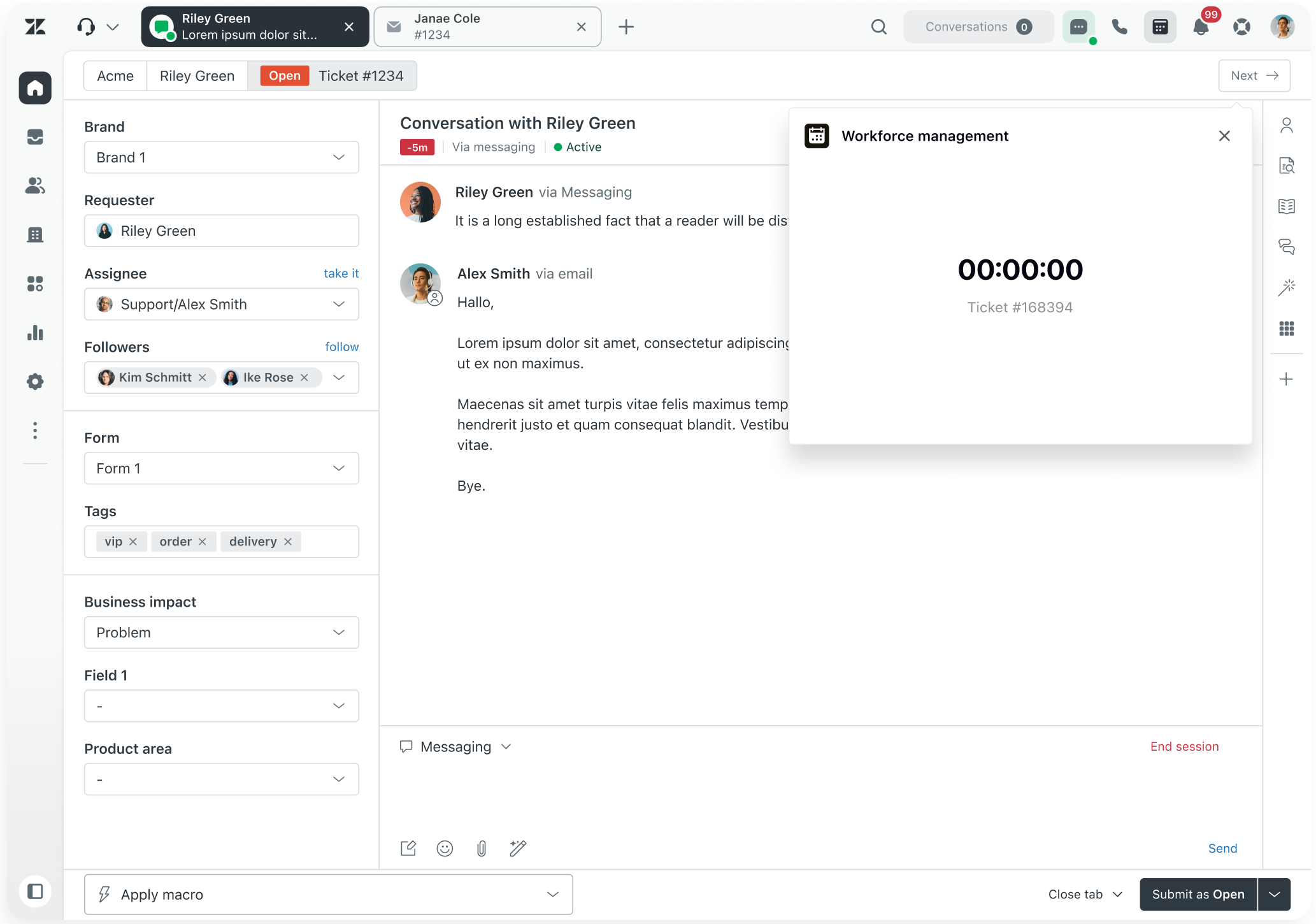
In Support, by clicking the Workforce Management icon ( ) in the top-right corner, agents
can open the time tracker to view the ticket number and time spent on
that task.
) in the top-right corner, agents
can open the time tracker to view the ticket number and time spent on
that task.
Getting started with workforce activity tracking
To get started viewing your agents’ activity on tickets translated into workstreams, turn on activity tracking.
To turn on workforce activity tracking
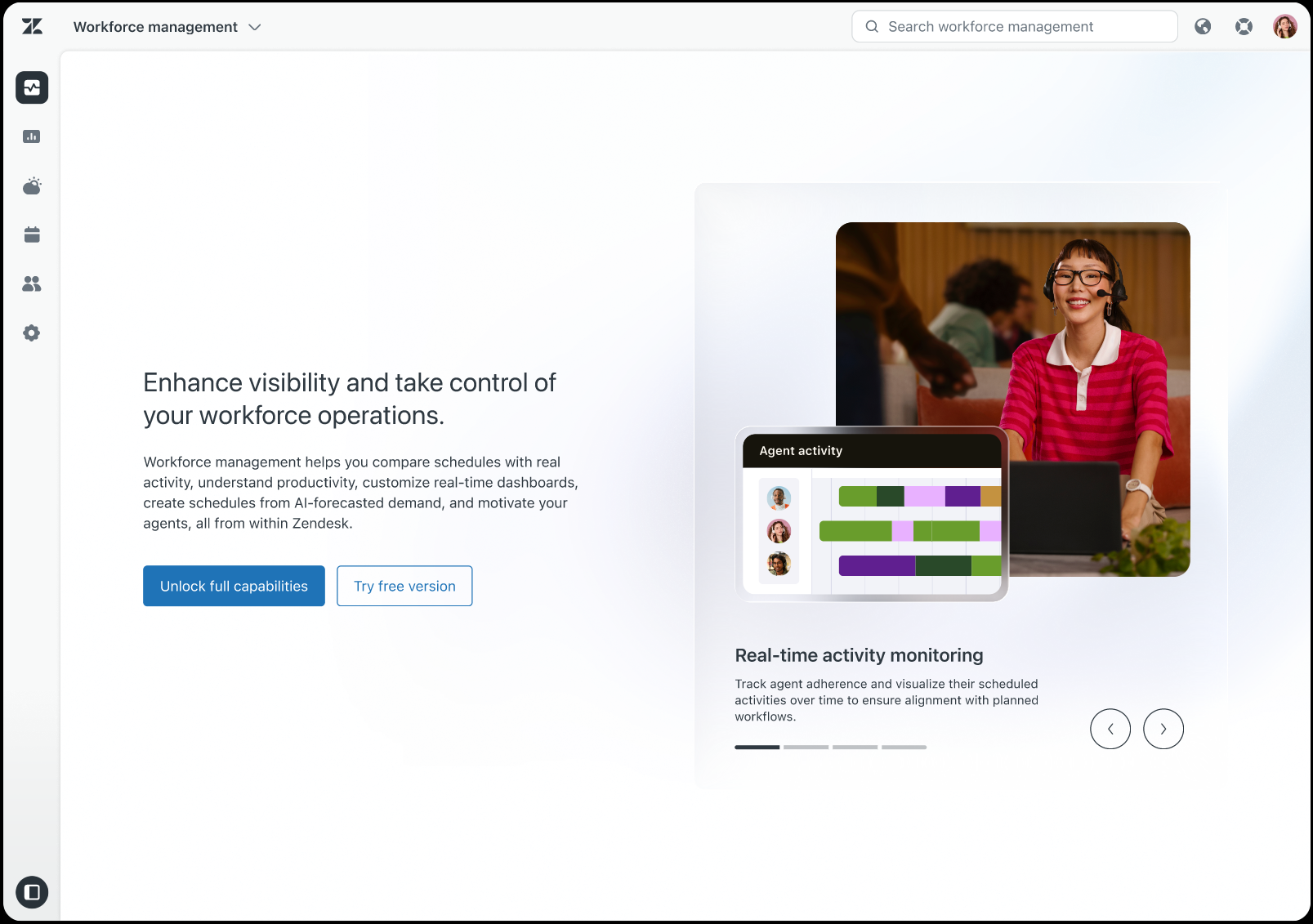
- Click the Zendesk product menu in the top bar, then select Workforce management.
- Click Try free version.
- Select Track agent activity.
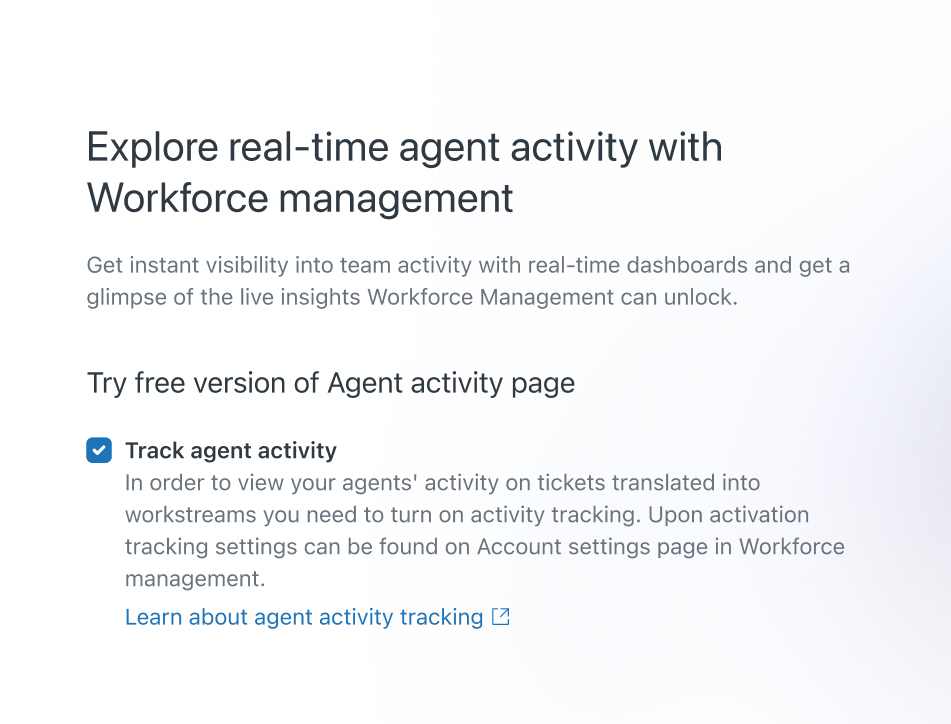 Tip: After activation, you can turn off workforce activity tracking at any time by deselecting agent activity tracking on the Account settings page in WFM.
 - Click Save and start.
You’re automatically directed to the WFM Agent activity page, where your agents’ activity starts synchronizing.
Using workforce activity tracking
After your agents’ activity is synced, you can start using the Agent activity page to do the following:
- Monitor your agents’ activity and view what they’ve been working on. To learn more, see Monitoring agent activity in WFM.
- Filter the page by group, agent name, email address, date, or folder.
To learn more, see Viewing and filtering agent activity in
WFM.Important: Unlike agent activity in WFM, Workforce activity tracking includes both Zendesk default groups and custom groups in your account.
- Open tickets related to an agent's activity.
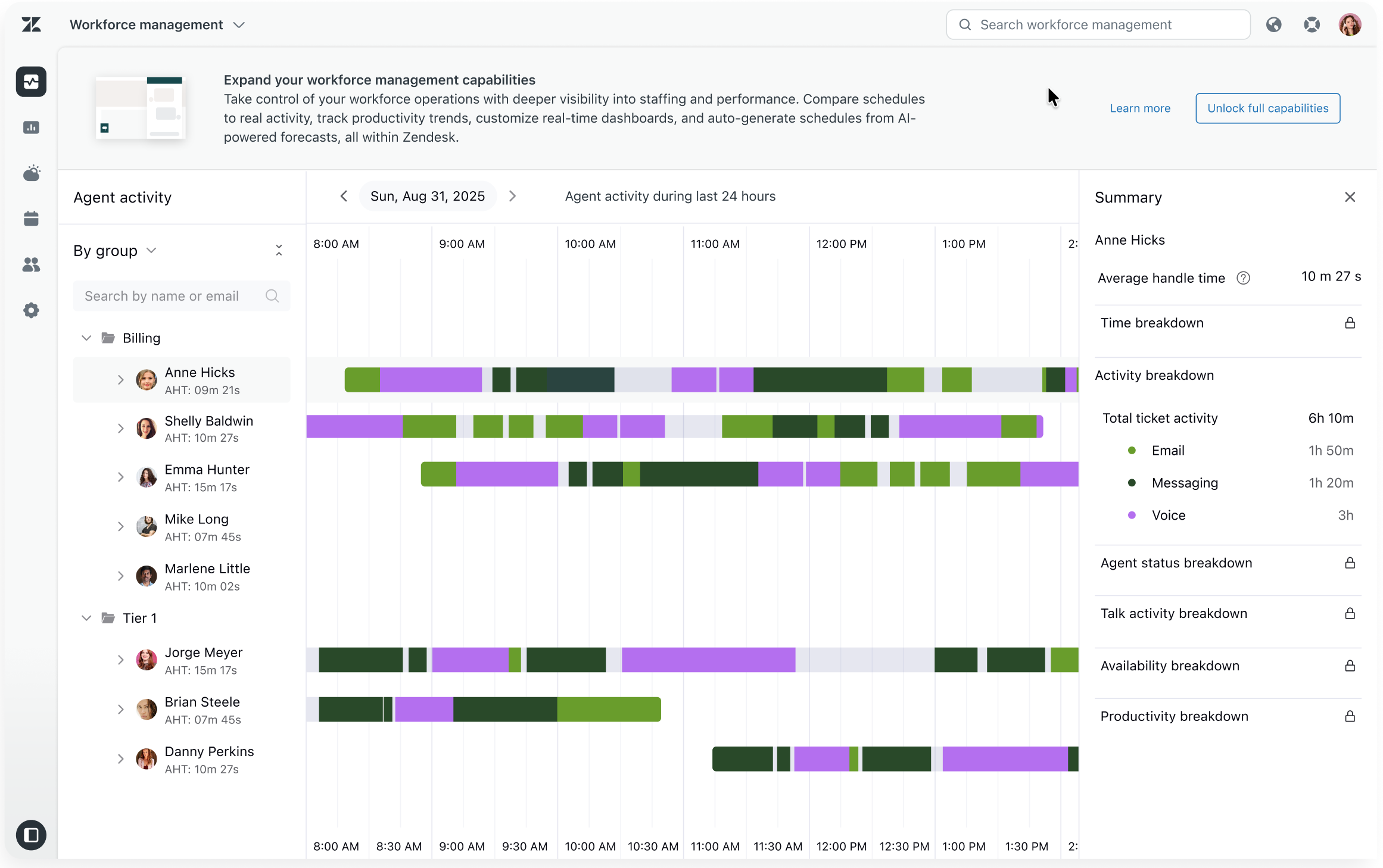
- View an agent's AHT and the activity breakdown by channel in the summary panel.
To view an agent’s activity using workforce activity tracking
- In Workforce management, click
 Monitoring in the sidebar, then select Agent activity.
 - Click the name of the agent whose activity you want to view.
The agent’s activity details expand.
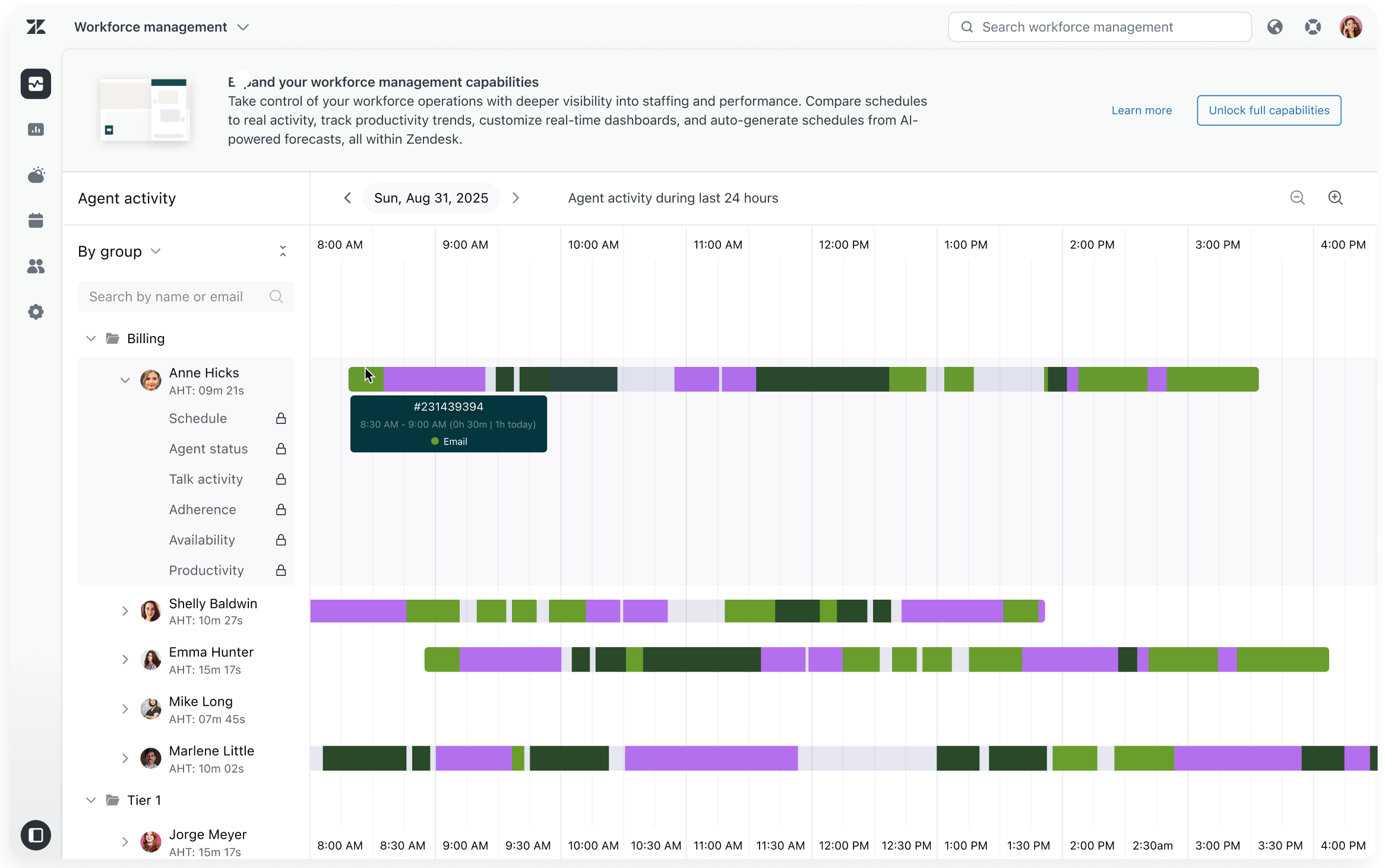
- Hover over an entry to view additional information, such as the channels or task the agent is working on and the ticket ID.
- Click the agent activity task to open the associated ticket in Zendesk Support.
- Use the summary panel on the right to view the agent’s AHT and activity
breakdown across email, messaging, and voice.
Turning off workforce activity tracking
After activation, you can turn off agent activity tracking in Account settings in WFM. However, doing so means synced activity is lost, agent activity tracking stops, and the Agent activity page is hidden.
You can still reactivate workforce activity tracking, but you’ll need to sync agent activity again.
To turn off agent activity
- In Workforce management, click
 Settings in the sidebar, then select Account settings.
 - Deselect Track agent activity.
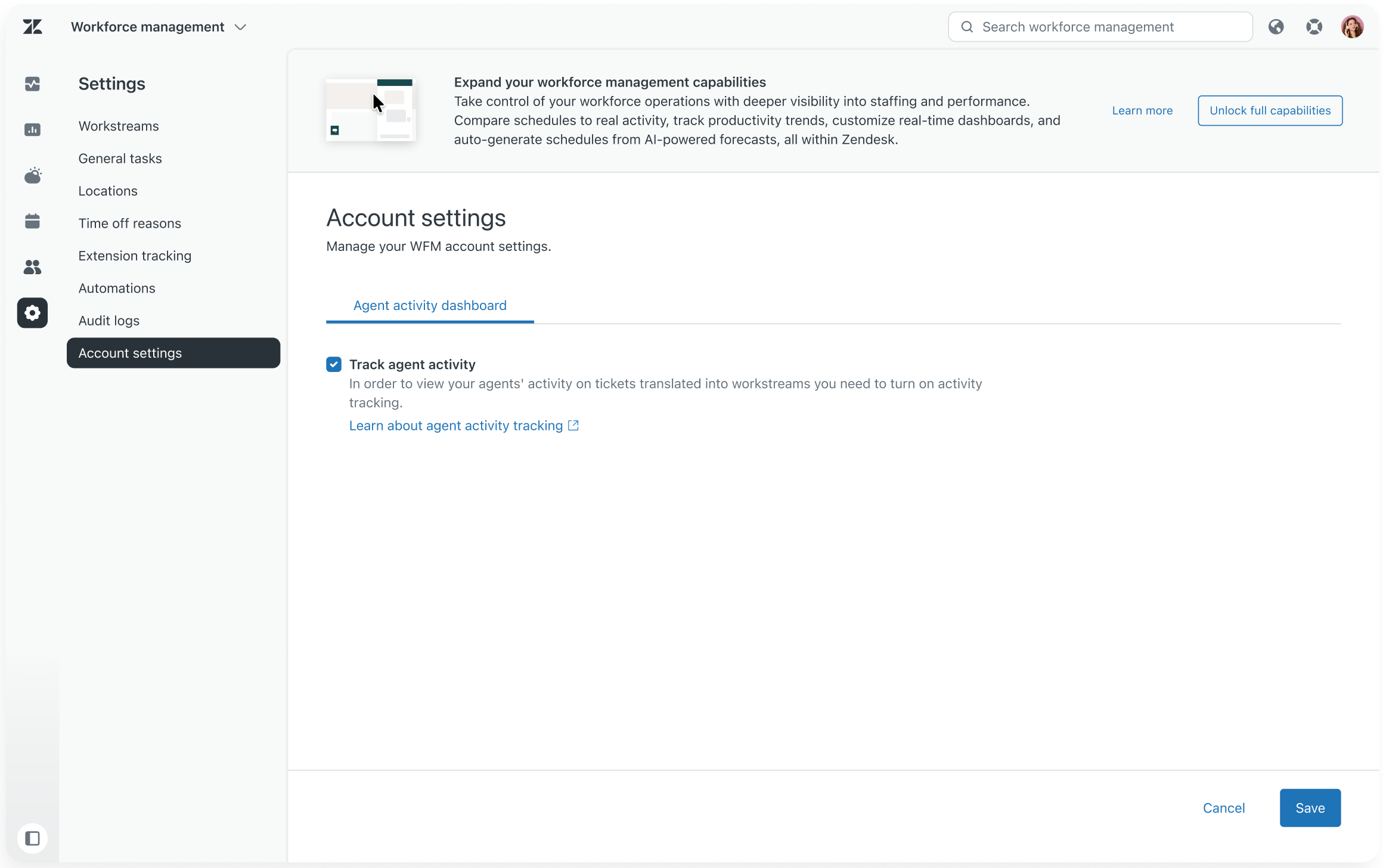
- Click Save.