This feature is currently in an Early Access Program (EAP). You
can sign up for the EAP here.
Analyst copilot lets you enter a natural-language prompt to create a report. If you need more control, or want to add more advanced features, you can create a report using report builder using the dimensions and measures in one of your datasets.
To create a report using a prompt
- In Analytics, click the Analyst copilot icon
(
 ) in the sidebar.
 - Click the prompt type icon (
 ) to choose the prompt type you want from the
following:
) to choose the prompt type you want from the
following:- Analyze data: Uses existing memories to create the report. This prompt type is suitable for most users.
- In-depth exploration: Uses existing memories and deeper analysis to create the report. This can be useful for more detailed analysis to discover the reasons behind your results.
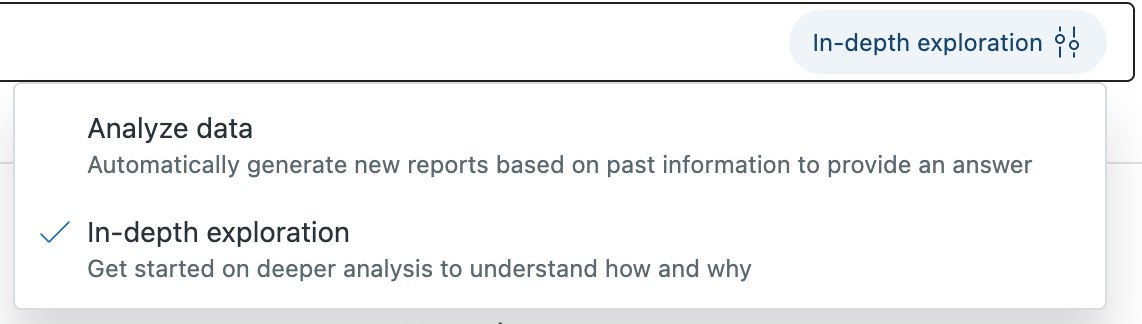
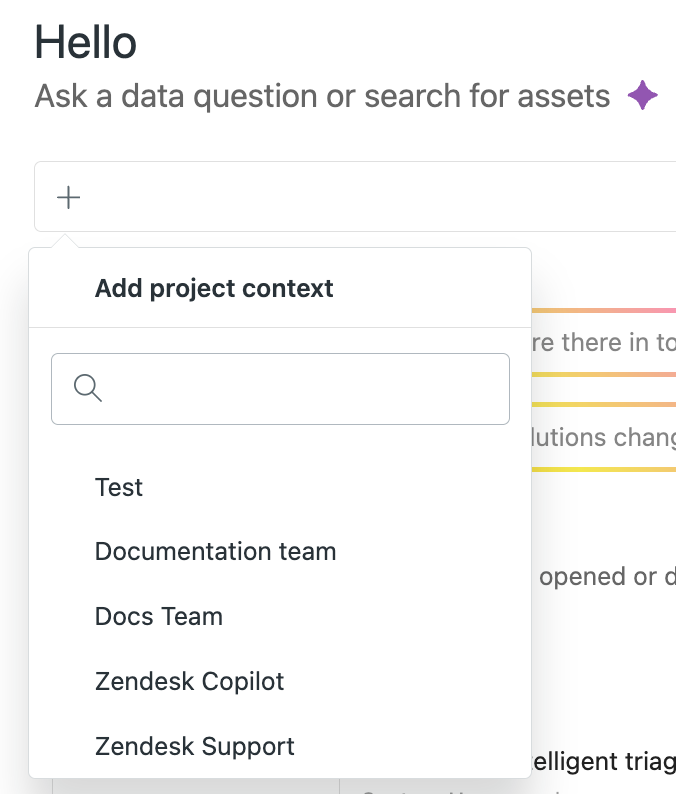
- You can restrict your prompt to only use data and memories from a particular project. To do this, click the add project
context icon (+), then select the project you want to scope your prompt
to.
- Enter your prompt, then press Enter.
For example, “What’s happening with my tickets?”
 Tip: For prompt ideas, see Using natural language prompts to create analyst copilot reports.
Analyst copilot returns an answer and relevant memories.
- Click an item in the Sources panel to see what information that was used
to create the report.
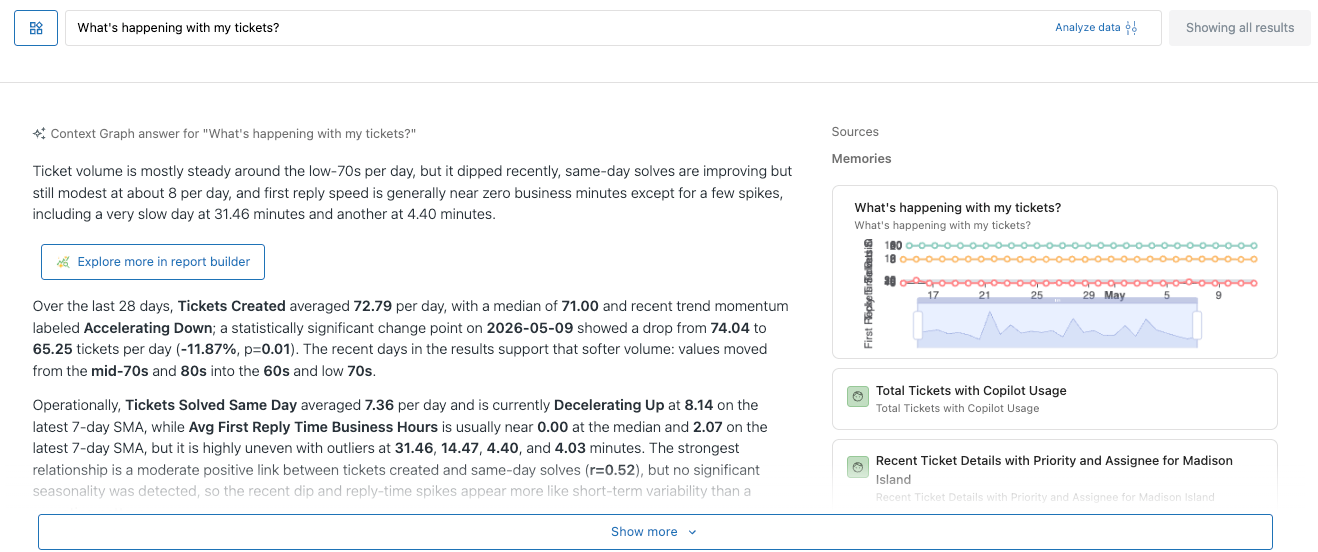
Below your report, you’ll see a list of assets (reports, dashboards, and datasets) related to your question.
- If you want to make changes or additions to the report, click Explore more in report builder. For help with report builder, see Creating analyst copilot reports using report builder.
If analyst copilot does not have sufficient information or memories to create the report, no answer or memories appear.