Summary: ◀▼
You can manage ticket notification settings to control alerts for messaging and email ticket activities, @mentions, and reopened tickets. These controls help you customize how you receive updates on ticket conversations and collaboration activities.
This article includes the following sections:
Opening the Notifications page
To open the Notifications page
-
In Admin Center, click
 Workspaces in the sidebar, then select Notifications > Notifications.
Notifications settings appear.
- In the Events section of the page, make changes as needed, then click Save.
See Selecting your notification settings for details.
Selecting your notification settings
Notification settings you can turn on or off include:
- Messaging activity
- New activity in messaging tickets assigned to you: Receive a notification when messaging tickets assigned you are updated. This setting is on by default.
- Email activity
- New activity in tickets assigned to you: Receive a notification when email tickets assigned to you are updated. This setting is off by default.
- Collaboration
- When mentioned in a ticket: Receive a notification when you are added as an @mention in a ticket. This setting is on by default.
- Reopened tickets
-
New activity in solved tickets: Receive a notification when there
are new updates to solved chat and messaging tickets assigned to you or that
include you as an @mention.
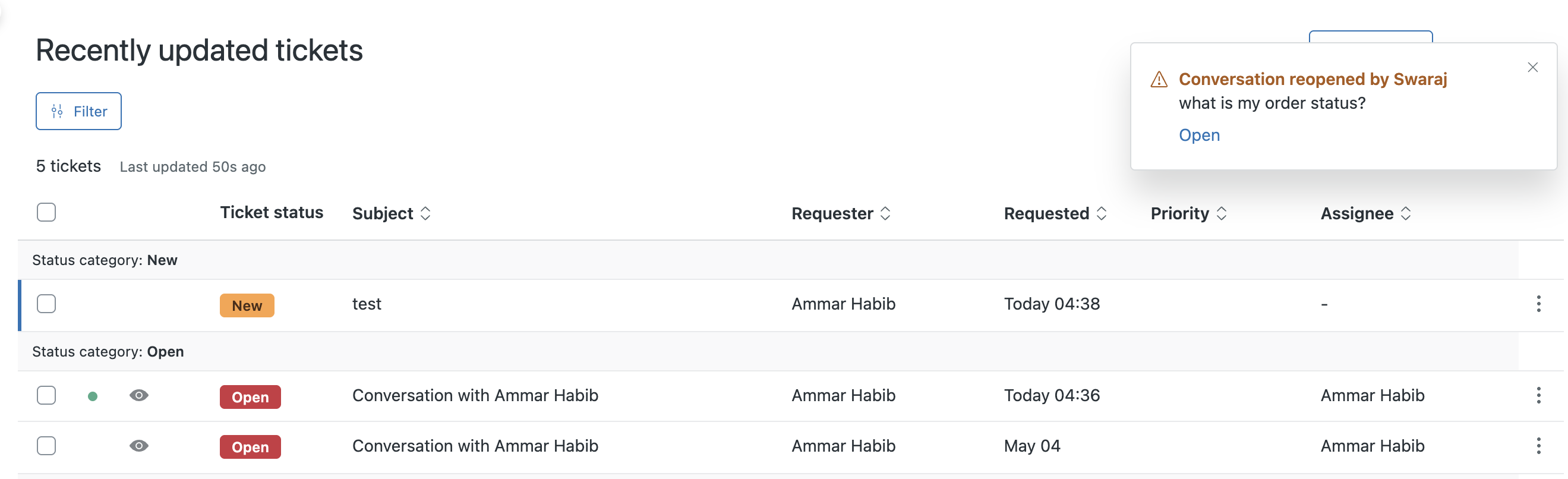
- Keep notifications persistent: If you turn on notifications for reopened tickets, you can also choose whether to keep notifications persistent.
-
New activity in solved tickets: Receive a notification when there
are new updates to solved chat and messaging tickets assigned to you or that
include you as an @mention.
Keeping notifications persistent
The notification settings for reopened chat and messaging tickets include the option to keep notifications persistent. When you turn on this setting, the notification alert message (growl) that you see in the browser remains until you dismiss it.
Restoring the default notification settings
If you make changes to the settings page that you don’t want to keep, you can update the page to restore the default settings.
To restore the default notification settings
- In Admin Center, click
Workspaces in the sidebar, then select Notifications > Notifications.
- Click Reset to default.
The page updates to show the default settings.
- Click Save.