When you can't answer calls, there's built-in voicemail. When customers leave a voicemail, a ticket is created with the voicemail attached. Additionally, you can optionally transcribe the voicemail right into the ticket.
Customers can leave a voicemail of up to two minutes in length.
This article contains the following topics:
Considerations for voicemail
If you don’t actively monitor voicemail on a line, consider turning voicemail off to prevent customers from leaving messages that won’t be reviewed. If you disable voicemail, make sure your greeting doesn’t instruct callers to leave a message. See Managing greetings when voicemail is off.
For example, lines used primarily for outbound calls are often not monitored for voicemail. For those lines, turning voicemail off helps avoid unattended messages.
Configuring voicemail settings
- In Admin Center, click
 Channels in the sidebar, then select Talk and email > Talk.
 - Select the Lines tab.
- Click the line you want to edit voicemail settings for, then select the Voicemail tab.
- Configure the settings you need from the following table:
Setting Description Voicemail Turn voicemail on or off. By default, voicemail is on. For details, see Managing greetings when voicemail is off below. Greeting (voicemail on) Select the greeting that customers hear when voicemail is on. This option is shown only when voicemail is on. Greeting (voicemail off) Select the greeting that customers hear when voicemail is off. This option is shown only when voicemail is off. For details, see Managing greetings when voicemail is off below. If voicemail is off, make sure to use a greeting that doesn't instruct customers to leave a message. For details on creating greetings, see Creating a custom greeting.
Transcribe voicemails? Convert voice messages to text and add them to the ticket conversation. The language support for voice messages and call recordings is the same. Delete voicemails Automatically delete voicemails after the selected amount of time or select Never to always keep voicemails. Although voicemails get deleted from a ticket, any associated transcriptions aren't deleted.
Managing greetings when voicemail is off
When you disable voicemail for a number, customers won't have the option of leaving a message. Accordingly, greetings that usually prompt customers to leave a message need to change when voicemail is off.

Available agents greeting
The default Available agents greeting, which is located in the Settings tab of each number, prompts customers to press 1 to leave a message. When you disable voicemail for a number, Zendesk automatically updates the Available agents greeting for when voicemail is off to a version without the prompt for customers to leave a message (the voicemail off greeting).
If you disable voicemail for a number, the voicemail off greeting is played when callers connect. If the caller presses 1 while this message is being played, the message will restart.
The Available agents greeting only applies to group routing. If you have IVR on, the available agents greeting won't be played. See Routing incoming calls to groups of agents and Routing incoming calls with IVR.
If you want to change the Available agents greeting to a custom version without the prompt for customers to leave a message, you can create your own version (see Managing outgoing greetings) and then manually change it yourself following the steps below.
To manually change the Available agents greeting for a number to a custom version
- In Admin Center, click
Channels in the sidebar, then select Talk and email > Talk.
- Select the Lines tab.
- Click on the line you've disabled voicemail for that you want to edit.
- In the Settings tab, select your customized version in the Available agents greeting (voicemail off) field.
Managing voicemail settings with business hours applied
- Voicemail
- Greeting (voicemail on)
- Greeting (voicemail off)
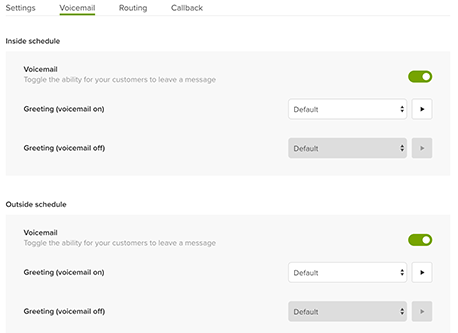
For details, see Routing calls based on business hours.