Verified AI summary ◀▼
Admins and agents can suspend end users who disrupt operations or spam your organization. Suspended users can't sign in, and their requests go to the Suspended tickets view. You can unsuspend users to restore access. Identify suspended users by the "Suspended" tag on their profile and in the Suspended users list. Manage suspensions to maintain a focused support environment.
Admins and agents with permission can suspend end users who hassle team members or spam your organization, post repetitive content, send unsolicited or abusive messages, or otherwise take agents’ time and focus. Suspended end users can no longer sign in to Zendesk, and any new support requests you receive from them are delivered to the Suspended tickets view.
Suspended users are flagged as such in your account. If needed, you can unsuspend users to restore their previous sign-in credentials and access privileges.
This article discusses the following topics:
- Suspending an end user
- Unsuspending an end user
- Identifying suspended users
- Viewing suspended messaging users
Related articles:
Suspending an end user
If an agent’s role allows them to suspend users, they can do so within a ticket in Agent Workspace or from the end user’s profile.
When an end user is suspended, the impact on their account, and on active tickets and conversations, can vary depending on where they are suspended, the channel through which they are suspended, and more. See Understanding and managing end-user suspension for more information.
This section includes the following topics:
Suspending an end user in a ticket
Agents can suspend users in a ticket in the Agent Workspace.
To suspend an end user in a ticket
- In the ticket interface in Agent Workspace,
click the Ticket options menu (
 ).
). - Select Suspend user.

- Select a reason for suspending the user and
enter an optional description.

- Click Suspend user.
- Refresh or reload your browser page to ensure the Suspended tag is applied across the UI.
Suspending an end user from their profile
Agents can suspend end users from their user profile in Zendesk Support.
- Open an end user's profile using one of the
following methods in Support:
- Click the Search icon (
 ),
then search for the end user you want to
view.
),
then search for the end user you want to
view. - Click the tab for the ticket requester's profile in a ticket.
- Click the end user's name on the customer page.
- Click the Search icon (
- Click the user options menu in the top right,
then select Suspend.

- Select a reason for suspending the user and
enter an optional description, then click
Suspend user.
- Refresh or reload your browser to ensure the Suspended tag is applied across the UI.
Unsuspending an end user
You can unsuspend users from their profile page or from the Suspended users list.
To unsuspend a user from their profile page- Open an end user's profile using one of the
following methods in Support:
- Click the Search icon (),
then search for the end user you want to
view.
- Click the tab for the ticket requester's profile in a ticket.
- Click the end user's name on the customer page.
- Click the Search icon (
- In the upper left corner of the profile page,
click Unsuspend.

The end user is immediately unsuspended. There may be a delay before conversations can proceed as usual.
To unsuspend a user from the Suspended users list
- In Support, click the Customers icon (
 ) in the sidebar.
 - Click Suspended users in the left sidebar.
- Click the Options menu () and select
Unsuspend.

The end user is immediately unsuspended. There may be a delay before conversations can continue.
Identifying suspended users
All suspended end users are included on the Suspended users list on the Customers page.
You can also identify suspended users in the following ways:
- The Suspended tag appears on their user
essentials card.

- The User suspended status is indicated in the
upper left corner on the end user's profile page.
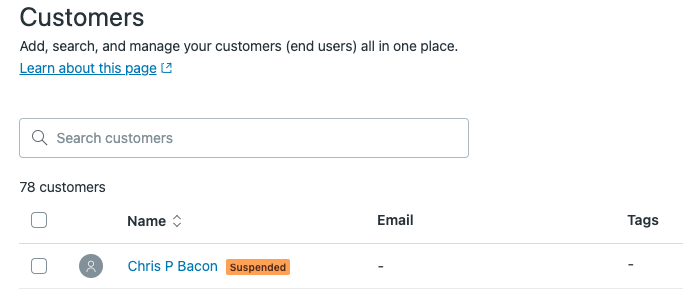
- The Suspended tag appears next to their name on
the Customers list.
Viewing suspended messaging users
You can view all users that have been suspended on the Suspended users list.
To view the Suspended users list
- In Support, click the Customers icon () in the sidebar.
- Click Suspended users in the left sidebar.

From the Suspended users list, you can unsuspend a user, and perform other management tasks.
To view the Suspended users list
- In Support, click the Customers icon () in the sidebar.
- Click Suspended users in the left sidebar.