The web crawler lets you crawl and index external content for use wherever you use external content in your Zendesk account without developer resources. You can set up multiple crawlers to crawl and index different content in the same or different websites. You can also crawl a list of specific URLs without having to crawl an entire site.
This article describes how to review, edit, and delete web crawlers from the web crawler list in your help center search settings.
This article covers the following topics:
Edit and review web crawlers
You can review and edit your configured web crawlers to troubleshoot current errors, test your site map or domain, change current settings, or download the latest crawl status report csv file.
To review and edit your web crawlers
-
In Knowledge admin, click Settings (
 ) in the sidebar.
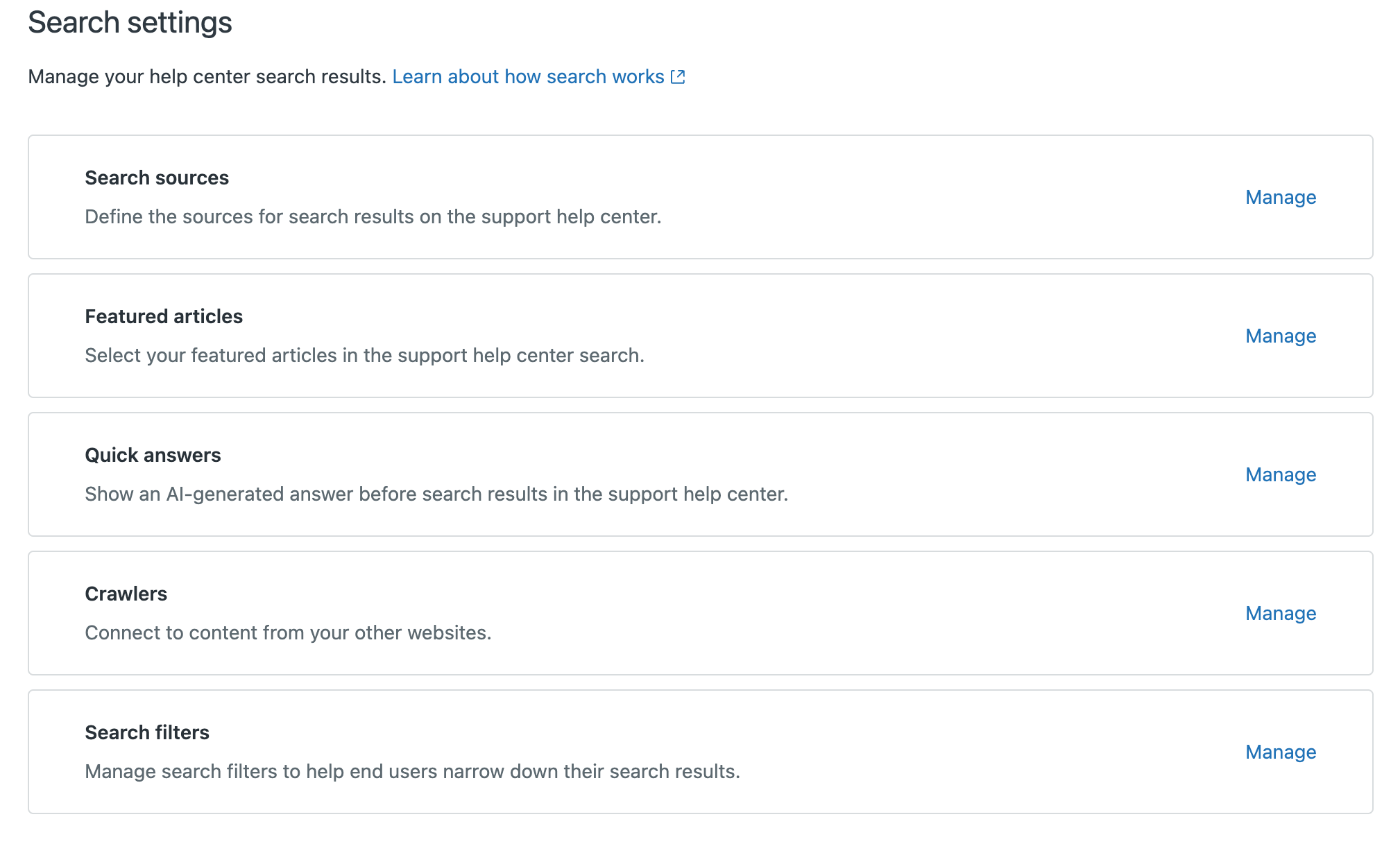
- Click Search settings.
- Under Crawlers, click Manage to view a list of your current
web crawlers and their status.
- On the Crawlers page, click the options menu (
 ) on the web crawler you want to view and select
Edit.
) on the web crawler you want to view and select
Edit.
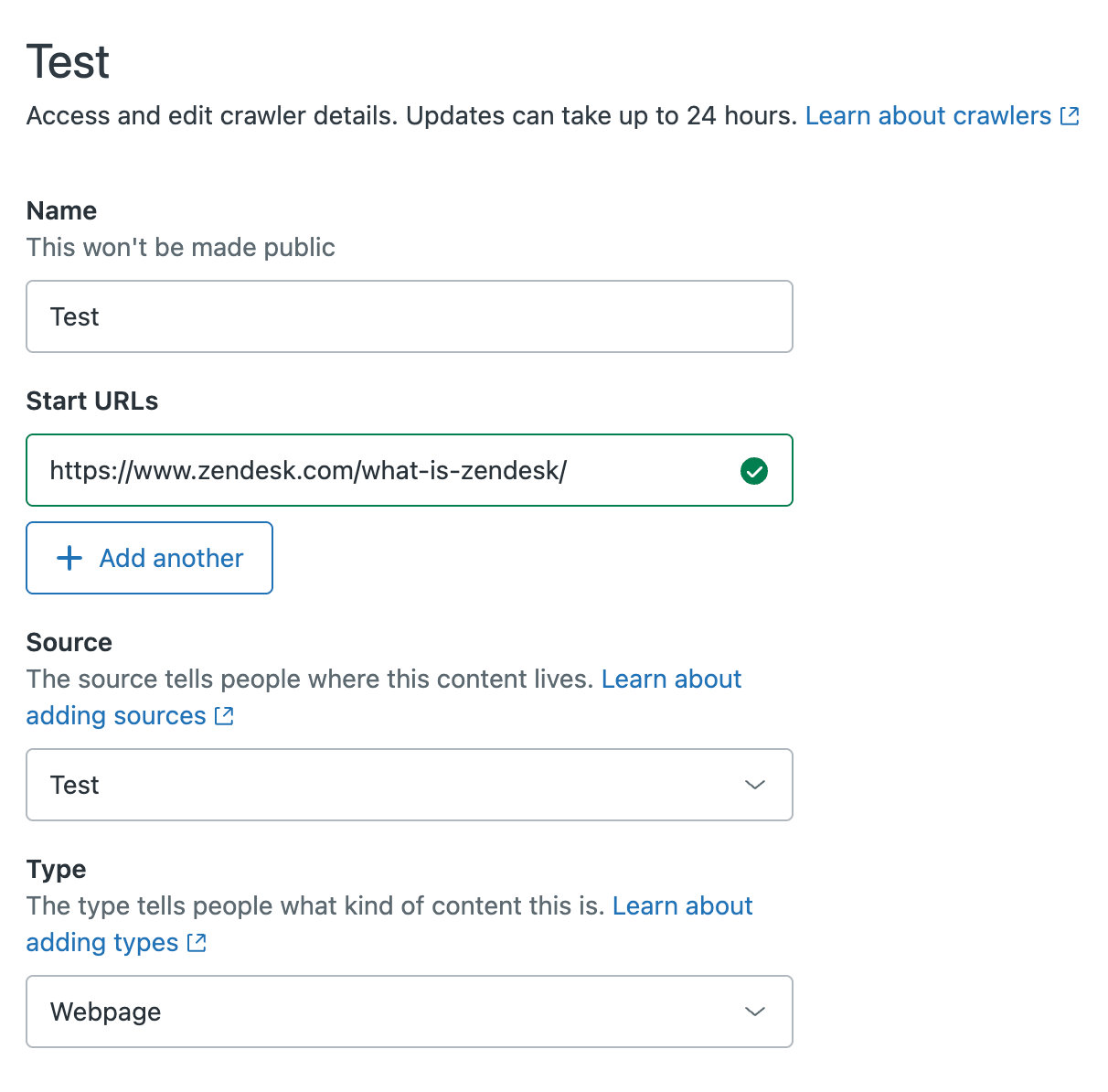
- Review and edit any of the current web crawler settings. See Setting up the web crawler.
The example below shows the settings page if you add a single Start URL to crawl during setup. Based on your configuration, this view may vary.
- Click Save to save your changes and return to the web crawler list. The web crawler is now pending and will run within 24 hours using the new settings.
Delete web crawlers
To delete your web crawlers
-
In Knowledge admin, click Settings () in the sidebar.
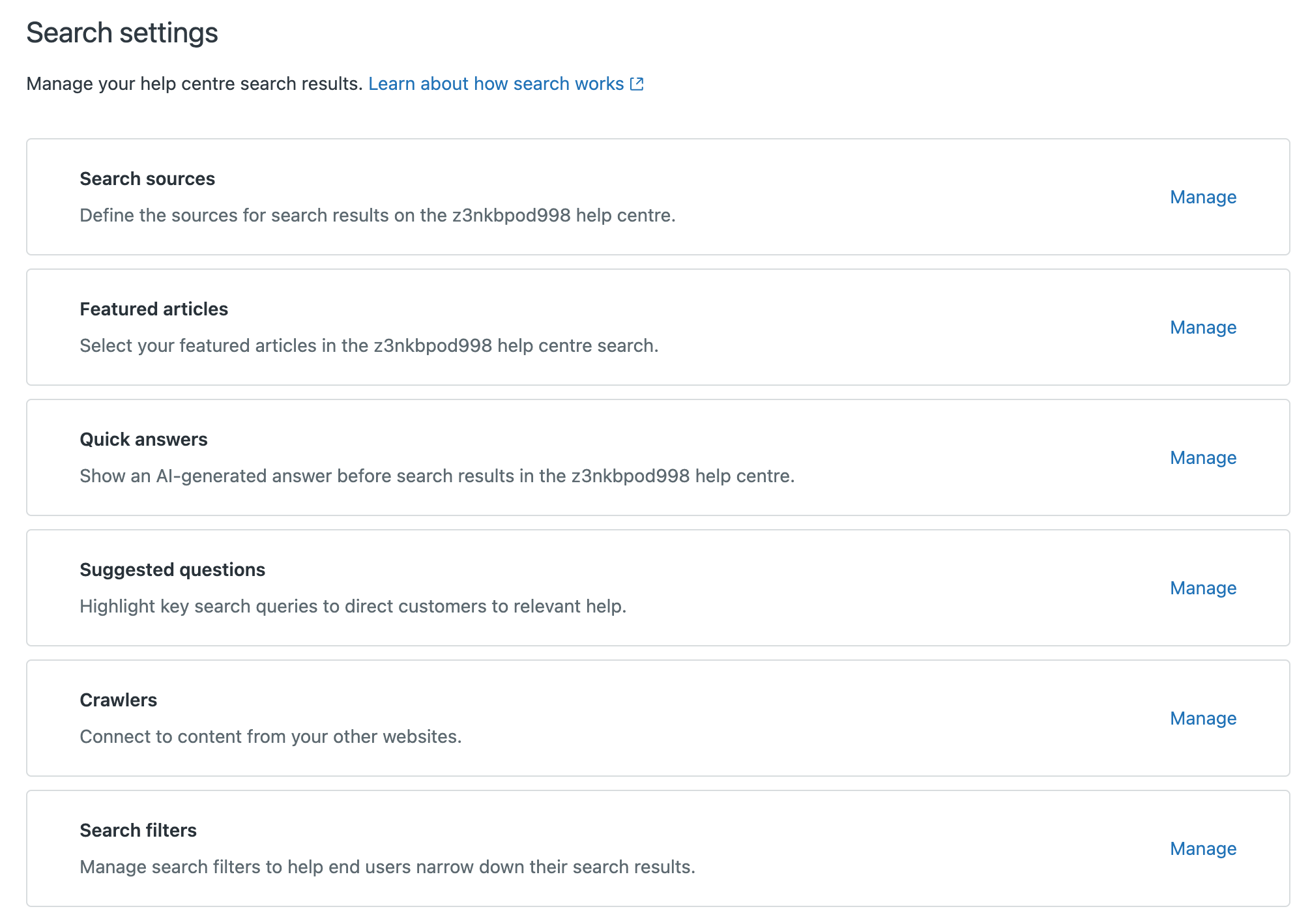
- Click Search settings.
- Under Crawlers, click Manage to view a list of your current
web crawlers and their status.
- On the Crawlers page, click the options menu () on the web crawler you want to remove and
select Delete.
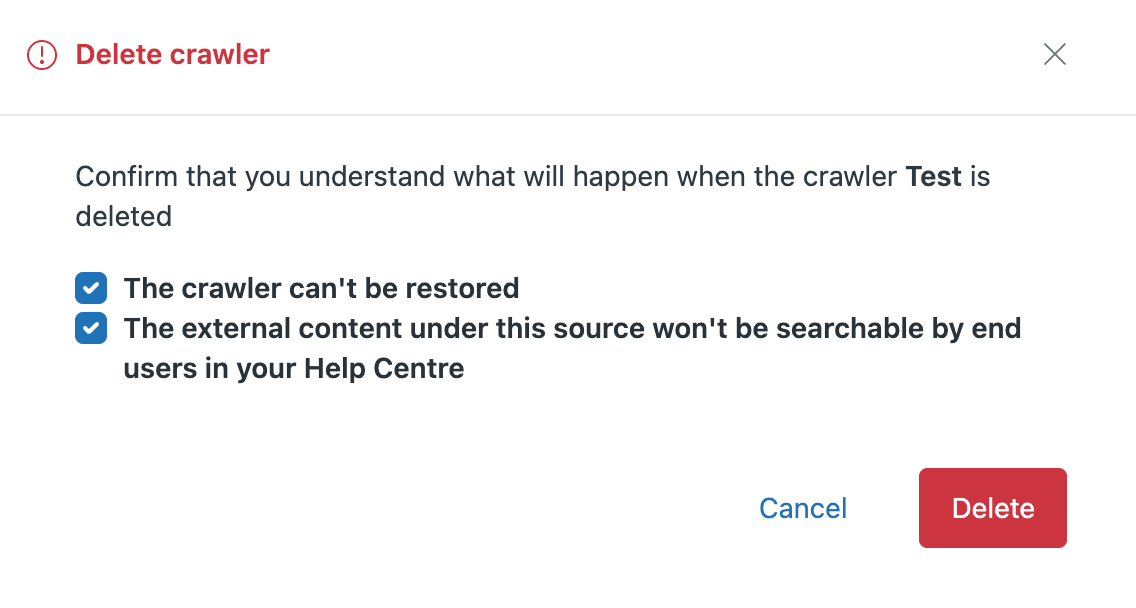
- Review the delete confirmation message and select the check boxes to
indicate you understand the consequences of deleting the crawler. When you
are finished, click Delete.