Summary: ◀▼
The content blocks list lets you view all content blocks in your knowledge base, check when they were last edited, and see which articles use them. You can open a content block to review related articles before editing, then update the master content block so changes appear everywhere it’s used. It’s useful for managing shared content, content block editing, and article consistency.
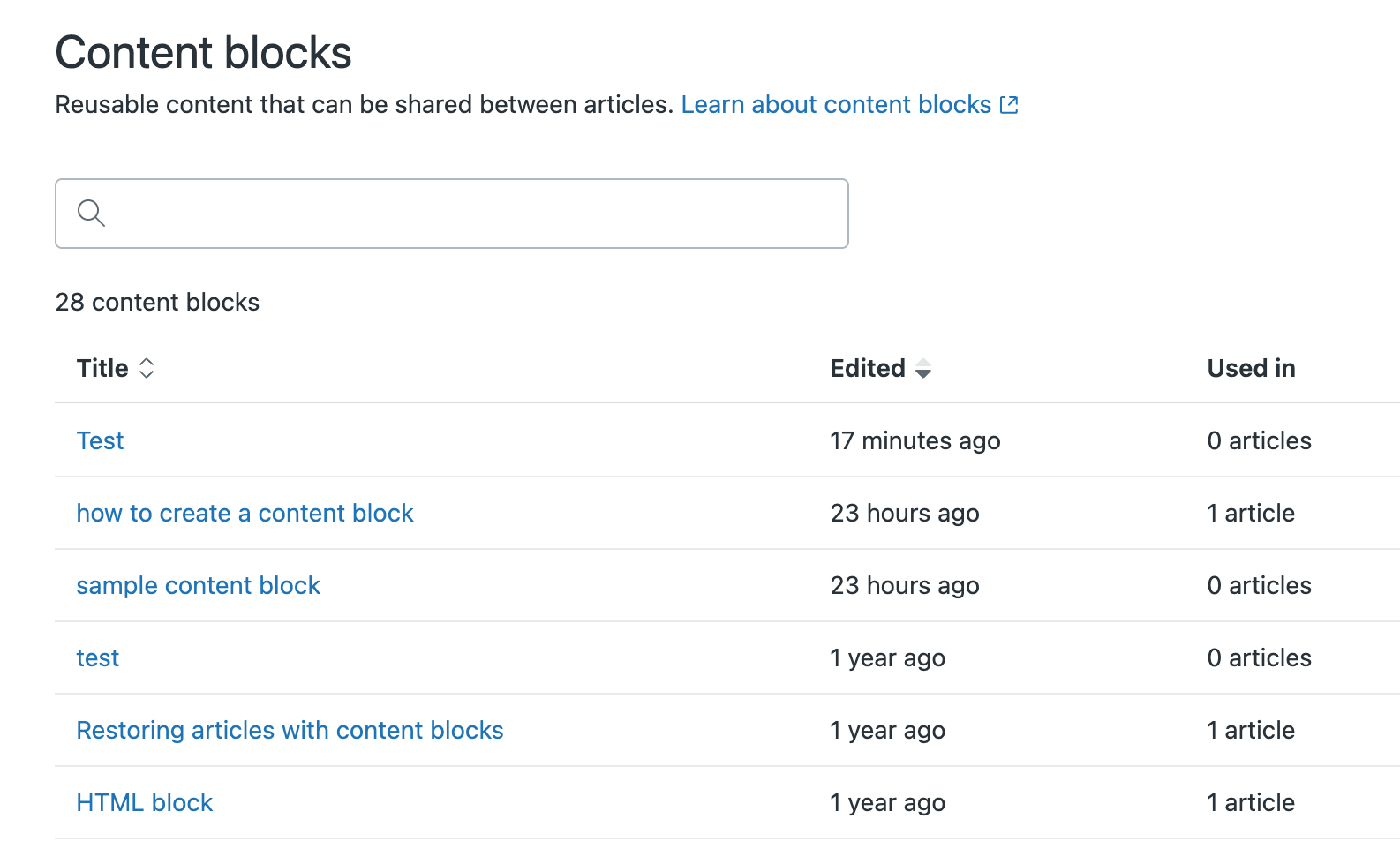
The content blocks list provides an overview of all content blocks in your knowledge base. You can use this list to view the content blocks, when they were last edited, and in how many articles they are being used. You can also click into content blocks in this list to view more detailed information and edit the content block.
This article covers the following topics:
Accessing the content blocks list
You must be a Knowledge admin or an agent with permissions to access the content blocks list.
To access the content blocks list
- In Knowledge admin, click Manage articles
(
 ) in the sidebar.
 - Under Content objects, click Content blocks.
A list of all content blocks in your account appear.
Viewing a content block
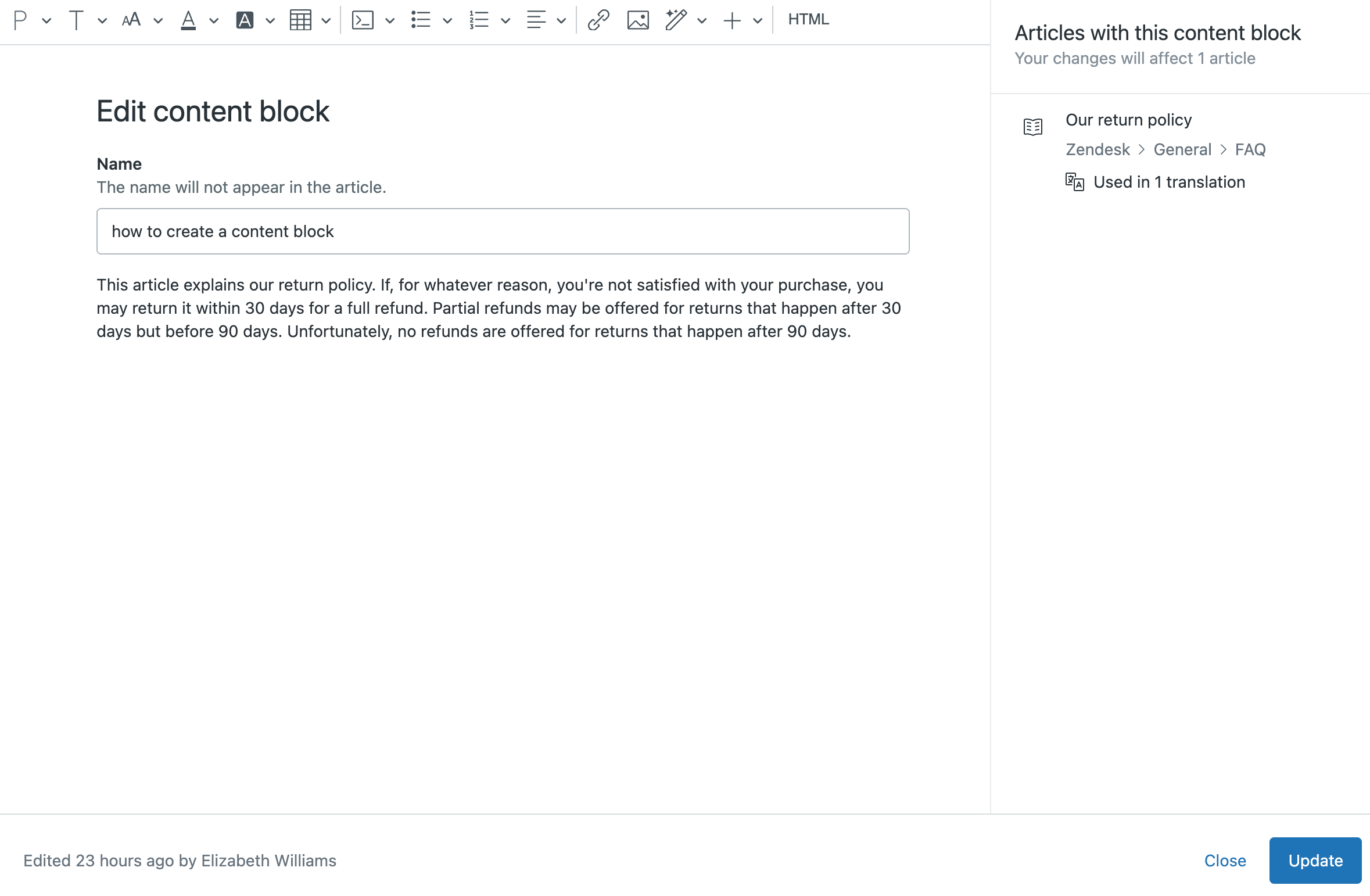
Any changes you make to the content block will affect articles in which it appears. For this reason, it's important to view the list of related articles before editing and updating the content.
To view a content block
- In Knowledge admin, click Manage articles
() in the sidebar.
- Under Content objects, click Content blocks.
- From the content blocks list, click the content block that you want to view.
The content block opens in the content block editor. The pane at right lists the articles that contain this content block. Any changes to the content block will affect the listed articles.
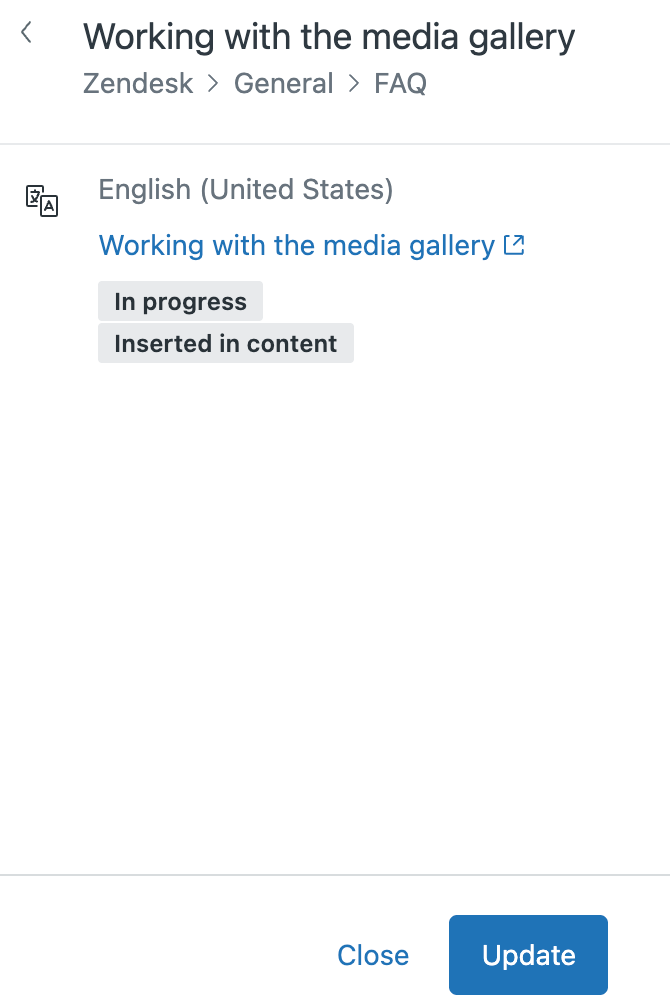
- Click any of the listed articles to open the article details.
Click the article link to open the article in the article editor, where you can work with the placed content block.
Editing a content block
When you're editing content blocks from the content blocks list, you're editing the master version of a content block that doesn’t have any context of the articles that it is inserted in. Therefore, you cannot link a content block to a heading in an article that the content block is in. However, you can link a content block to other articles in the help center.
Before editing a content block, be sure that you want the changes you are making to appear in all of the articles in which it's placed. See Viewing a content block.
- In Knowledge admin, click Manage articles
() in the sidebar.
- Under Content objects, click Content blocks.
- From the content blocks list, click the content block that you want to edit.
The content block opens in the content block editor. For detailed information about using the content block editor, see Editing content blocks.