Verified AI summary ◀▼
Manage custom hashtags in QA comments to easily track and report on tagged conversations. You can view usage statistics with the comment hashtag filter and decide if team members can create new hashtags. This helps in organizing and analyzing specific interactions without navigating through all conversations.
Location: Zendesk QA > Settings > Users, bots, and workspaces
This article describes how to manage custom hashtags added to comments in Zendesk QA. Using custom hashtags helps you find conversations with specific tags later and report on them in the dashboards. You can also review the usage statistics to see how often each hashtag is used by using the Comment hashtag filter in conversations.
To manage hashtags
- In Quality assurance, click your profile icon in the top-right corner, then select Users, bots, and workspaces.
- Under Workspaces, click the name of the workspace you want to manage hashtags for.
- Click Hashtags.
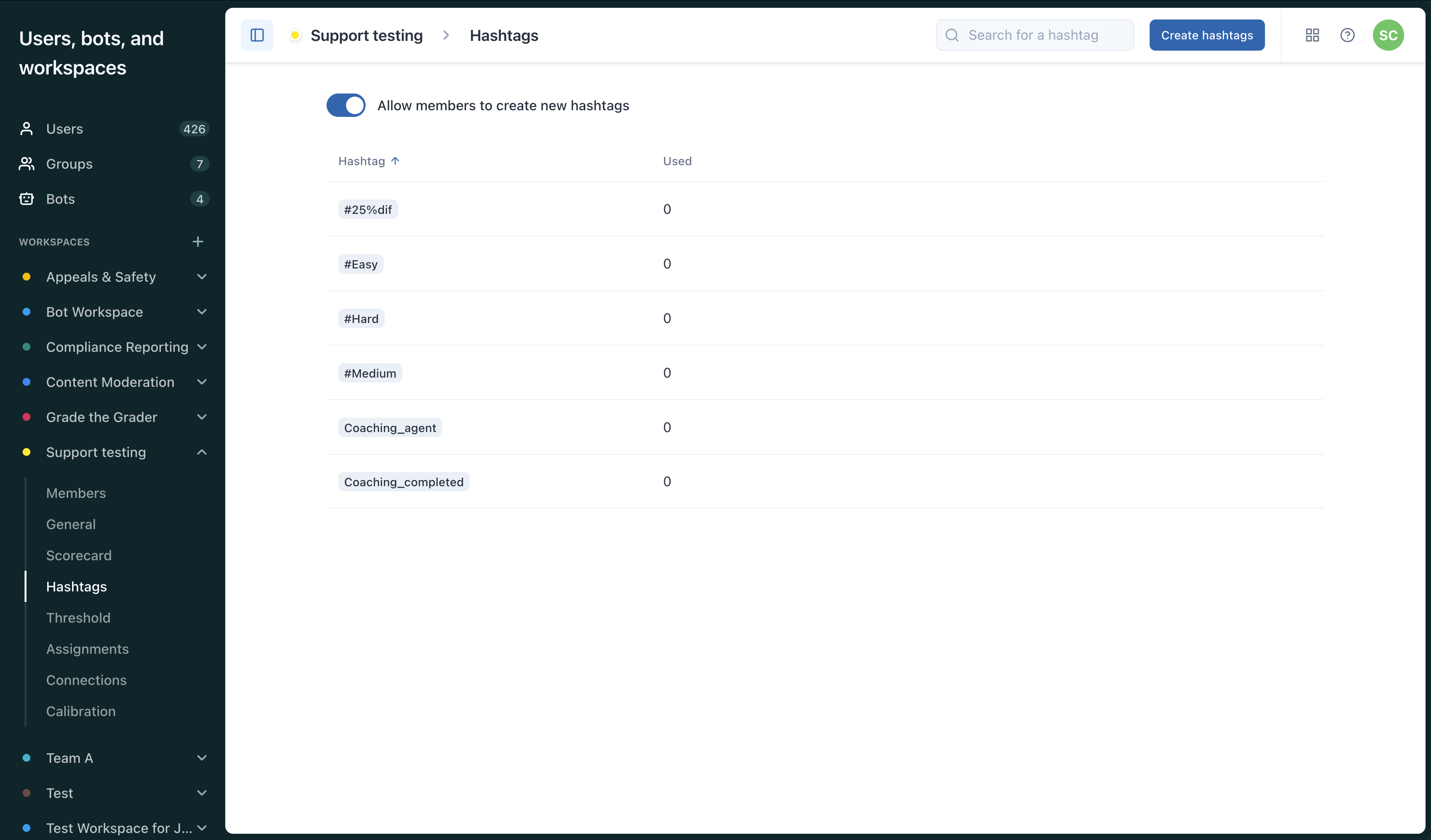
- (Optional) Click Create hashtags to add new hashtags. Separate hashtags with commas or line breaks then click Create hashtags again.
- (Optional) To restrict team members from creating new hashtags, click the Allow members to create new hashtags toggle to the off position.