Verified AI summary ◀▼
Auto assist, powered by AI, helps you resolve tickets faster by suggesting replies, actions, and macros based on ticket content. You can review, edit, or approve these suggestions, and follow admin-provided instructions to solve tickets. Auto assist adapts to your conversation style and can perform pre-approved actions automatically, allowing you to focus on more complex tasks and close tickets more consistently.
Auto assist is an AI-powered assistant that helps you solve tickets faster. Using a large language model (LLM), auto assist understands the contents of submitted tickets and makes suggestions on how to solve them.
When you’re working on tickets, suggestions made by auto assist appear in the place where the composer would otherwise exist. These suggestions can be replies that you can send to the customer, other actions that auto assist can execute for you, or macros that you might already use regularly. However, you’re generally in control and must accept auto assist suggestions, though some low-risk actions may run automatically.
Auto assist may also provide instructions written by your admin that are relevant to your conversation. These instructions are steps you should follow to solve the ticket.
With auto assist, you spend less time on repetitive tickets, solve tickets in a more consistent way, and ultimately close more tickets.
This article contains the following topics:
- Understanding auto assist suggestions
- Reviewing and editing an auto assist suggestion
- Following instructions provided by auto assist
- Taking over from auto assist suggestions
Related articles:
Understanding auto assist suggestions
Auto assist provides different types of support based on your admin’s configuration. Understanding how these suggestions work and what you can do will help you manage your tickets more efficiently:
- Suggested replies: You can edit the wording and formatting before sending a suggested reply. Suggested actions can be removed, or you can take over the ticket to perform a different one. New auto assist suggestions may appear when you're editing a suggested reply and the ticket is updated in any way. For example, if the end user sends another reply.
- Suggested macros: You can also edit the wording, formatting, and remove all actions from a suggested macro before approving and applying it. Keep in mind that the auto assist composer doesn't support internal notes or attachments but suggested macros may contain these. If you approve a suggested macro with an attachment it'll be sent to the end user but you won't be able to preview it.
-
Manual instructions: The instructions
auto assist suggests are different
from other auto assist suggestions. Auto assist doesn't generate
the
instructions it shows to you. They're written by your admin.
So instead of
reviewing and approving as you would with another auto assist
suggestion, you'll
perform the steps manually and mark them complete when you're
done.
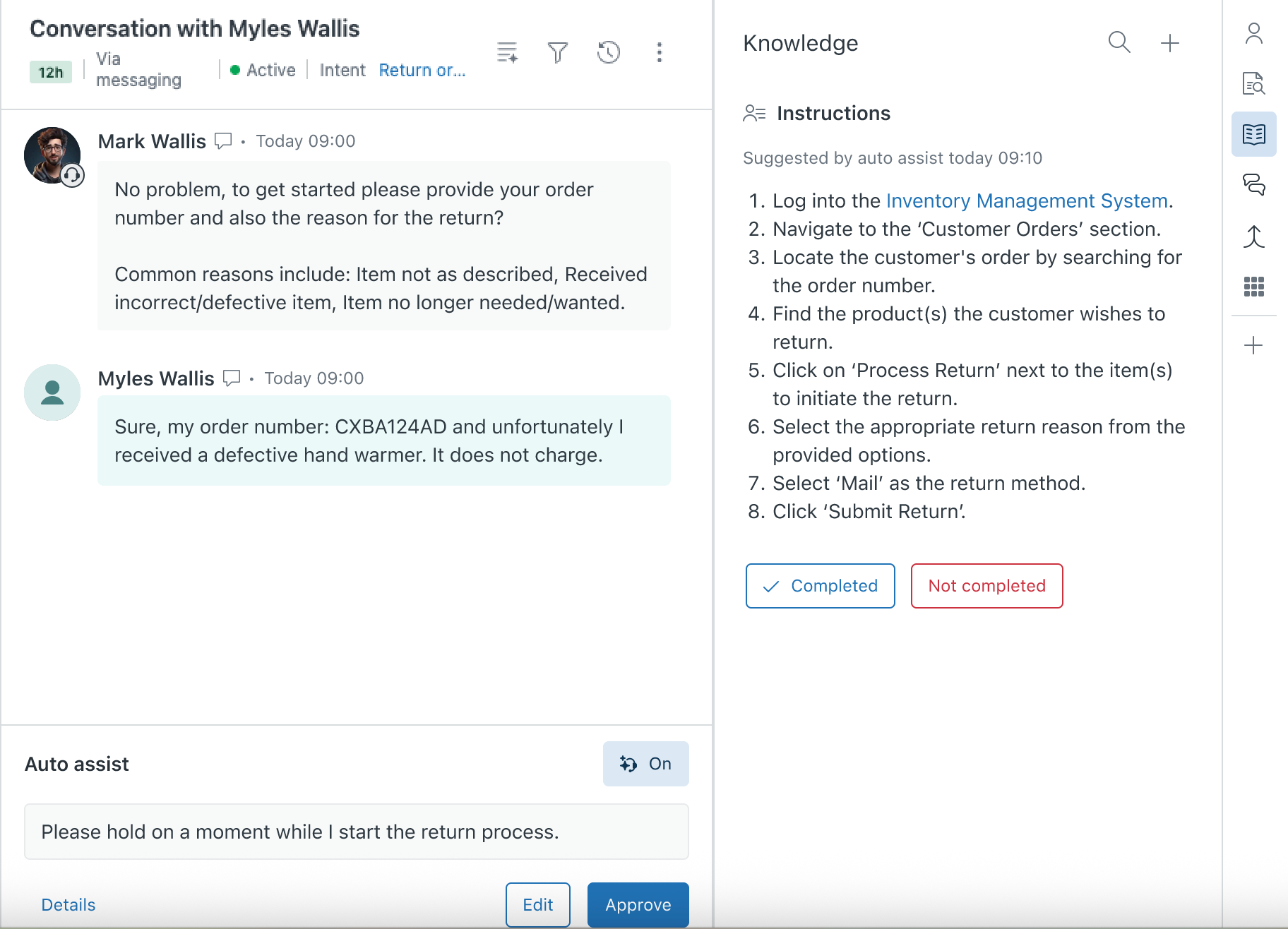
For example, say you're working on a ticket for a product return. Auto assist suggests a reply asking for the user's order number and other information, which you approve. The user replies with the information and then auto assist provides instructions on how to log into your internal inventory management system and submit the return.
- Tone and style: Auto assist adapts its suggested text responses to match the tone and writing style of your conversation with an end user.
-
Pre-approved actions: Your admin
may have pre-approved certain actions so
that they can be performed automatically by auto assist and help
you save time.
Pre-approved actions are typically actions that gather information,
such as
checking an order's shipping status, or actions that are regularly
accepted by
you and other agents. Actions that update data, such as refunding
an order,
still require your approval before being performed in most cases.
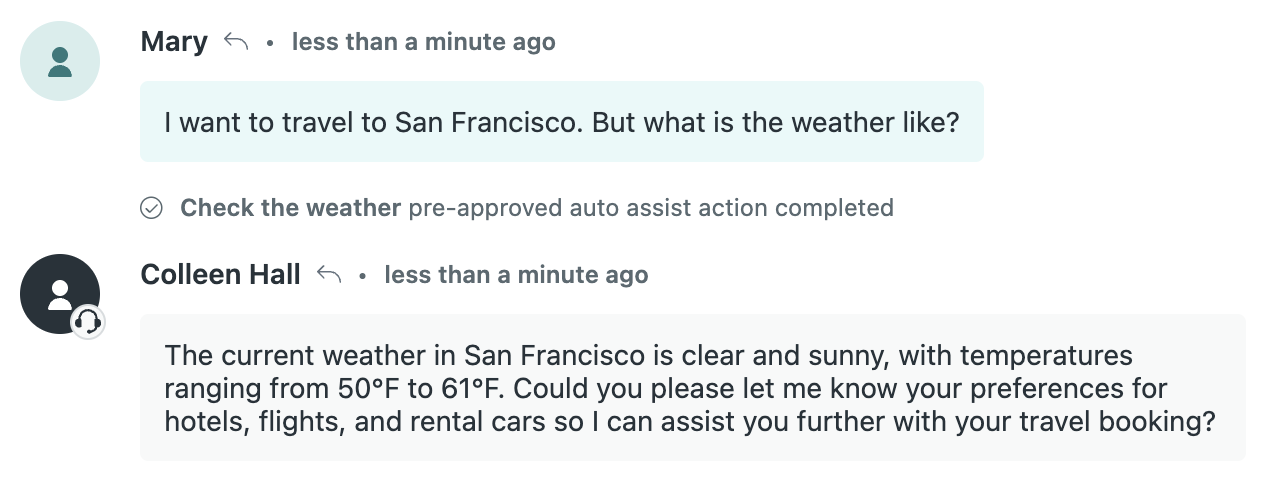
When auto assist automatically performs an action, you'll see a log of the action in the ticket's conversation, clearly marked and not attributed to you. See Understanding pre-approved actions to learn more.
Reviewing and editing an auto assist suggestion
You can review and edit auto assist suggestions before accepting them.
To review and edit an auto assist suggestion
- In the Agent Workspace, open a ticket.
-
In the ticket, review the suggestion in the
Auto assist panel.
Depending on the suggestion, you can do the following:
Tip: Hover your mouse over the info icon (
 )
to see why auto assist generated the
suggestion. If you have permission, you can also
view the source
used to generate the suggestion.
)
to see why auto assist generated the
suggestion. If you have permission, you can also
view the source
used to generate the suggestion.
-
If the suggestion is what you want to send or the
action is what you
want to perform, click Approve.

-
If the suggestion needs to be edited, click
Edit to update
the wording or
edit the formatting
by
clicking the T icon
at the bottom of the comment
field.

All formatting tools are available for auto assist suggestions on the email channel except for lists. On the messaging channel, indents and tables aren’t available.
Click Cancel edit to return to the unedited suggestion.
Actions can't be edited.
If the ticket is updated while you're editing a suggestion, then new suggestions may be available. Click View suggestions to review the new suggestions.
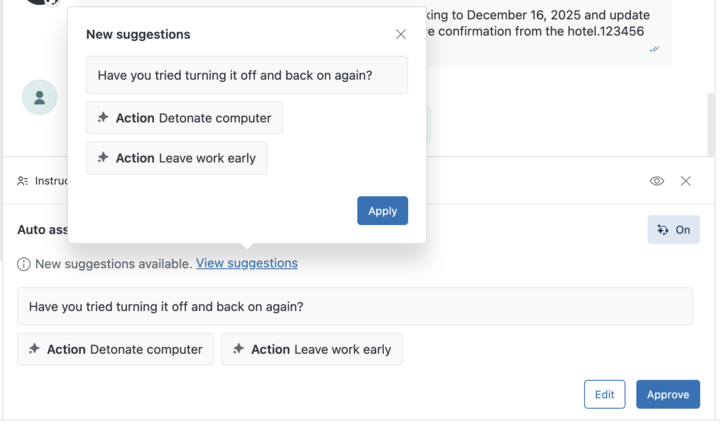
Click Apply to approve the suggestion and overwrite the previous suggestion you were editing.
-
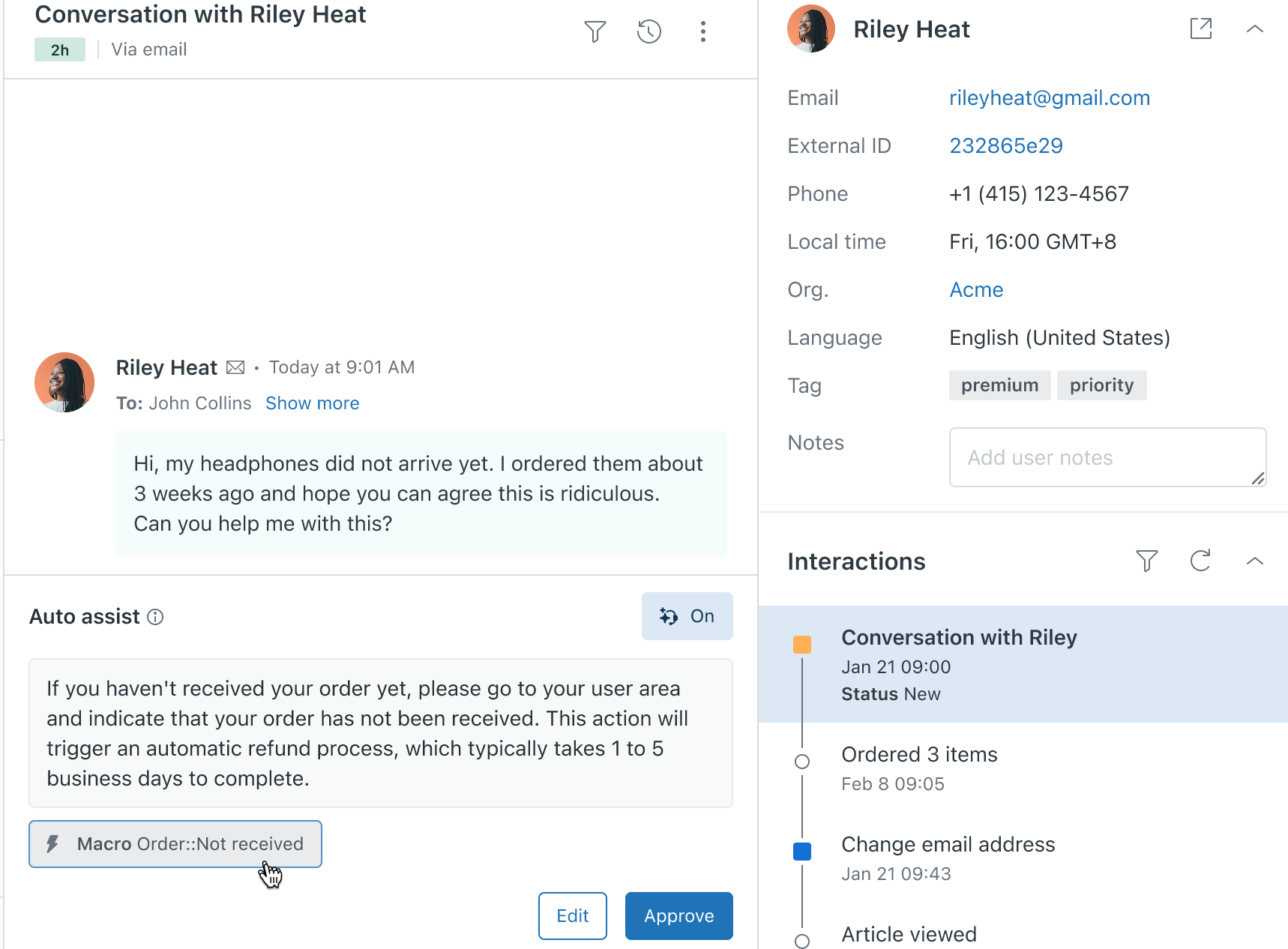
If the suggestion is a macro, click its name to open
a
preview
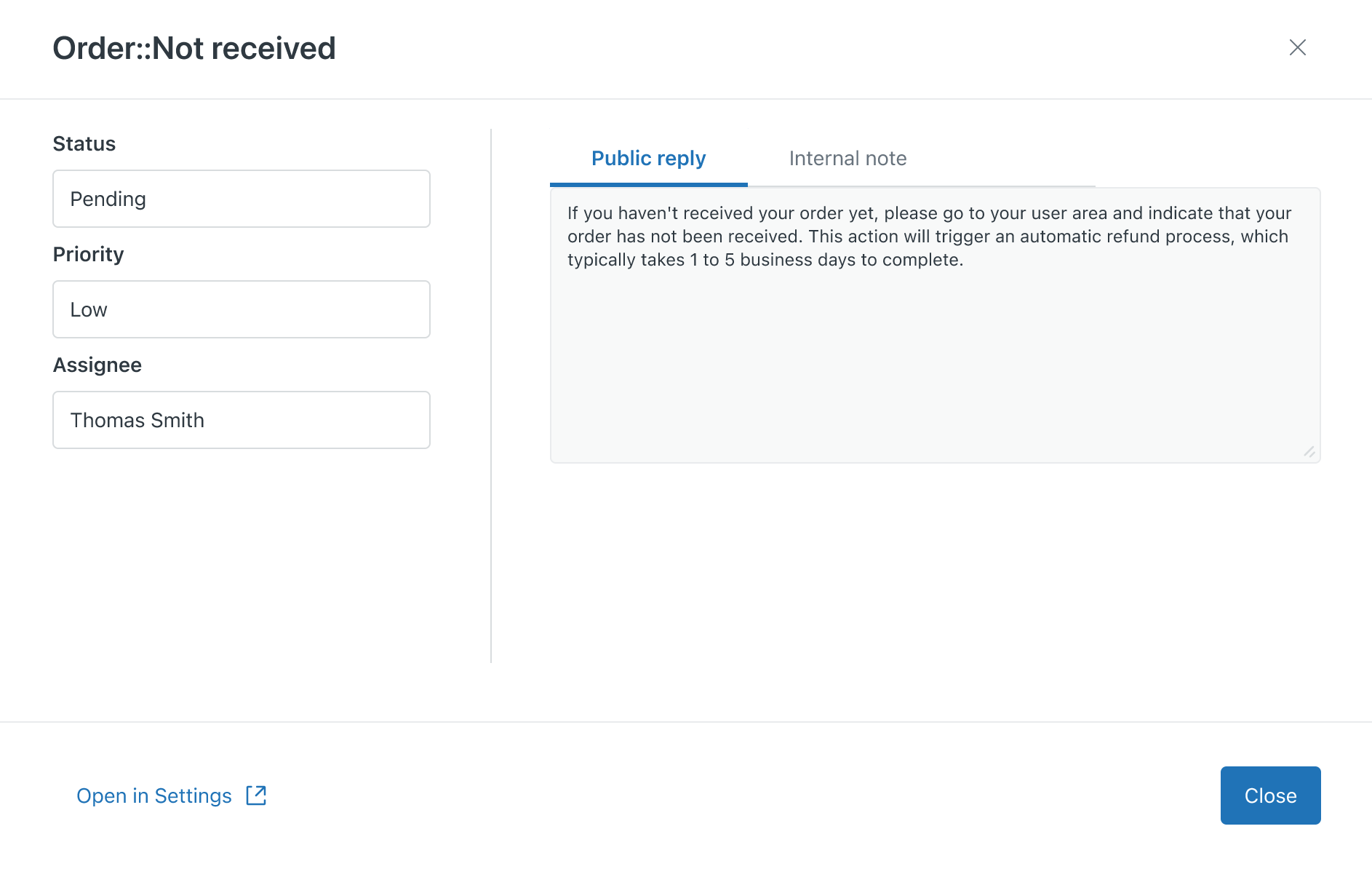
The macro's preview shows any ticket property actions it'll perform and its public reply. You can make changes in the Agent Workspace if needed.
-
If the suggestion is an action and you don't want
to perform the
suggested action, click the X on the action to remove
it. Or,
take over from auto
assist
instead.

-
If the suggestion isn't helpful, click
Leave
feedback.
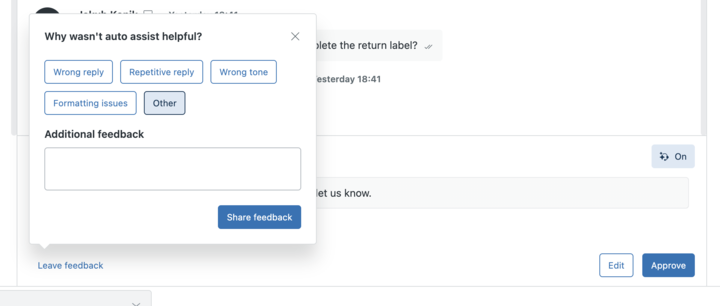
Select one of the predefined feedback options or click Other and enter your feedback. Then, click Share feedback.
Your feedback helps improve the quality of auto assist's suggestions.
-
If the suggestion is what you want to send or the
action is what you
want to perform, click Approve.
-
When you're done, click Save,
and then Approve.
The message is sent under your name, and any actions taken are performed under your name. You can view approved replies and actions in the ticket's events.
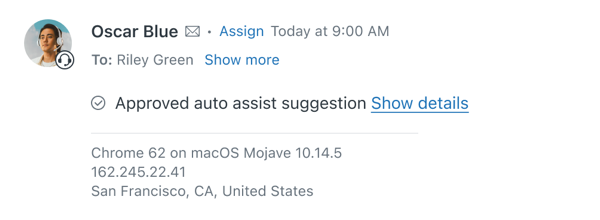
Auto assist provides a new suggestion after every customer response.
Viewing sources for auto assist suggestions
If you have the appropriate permission, you can view the source auto assist used when generating a suggestion.
Sources are displayed when suggestions are based on procedures or public help center articles. Suggestions can be generated from other sources, but these sources aren't displayed in auto assist's rationale.
- In the Agent Workspace, open a ticket.
- In the ticket, review the suggestion in the Auto assist panel.
-
Hover your mouse over the info icon ().
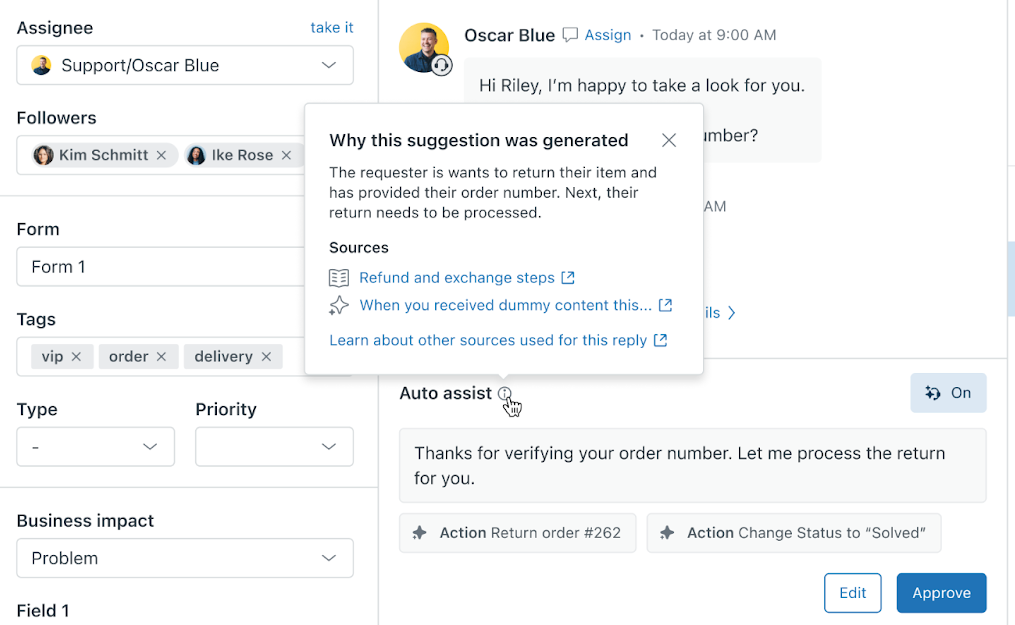
Auto assist displays its rationale and, if the suggestion was generated from a procedure or help center article, the source.
Procedures are marked with a star icon, and articles with a book icon.
- (Optional) Click the title of the source to open it.
Following instructions provided by auto assist
If your admin has written instructions that are relevant to your ongoing conversation, auto assist may show them to you so that you can follow them to help solve the ticket.
- In Agent Workspace, open a ticket.
-
Above the Auto assist panel, hover your mouse over the provided
Instructions for an overview.
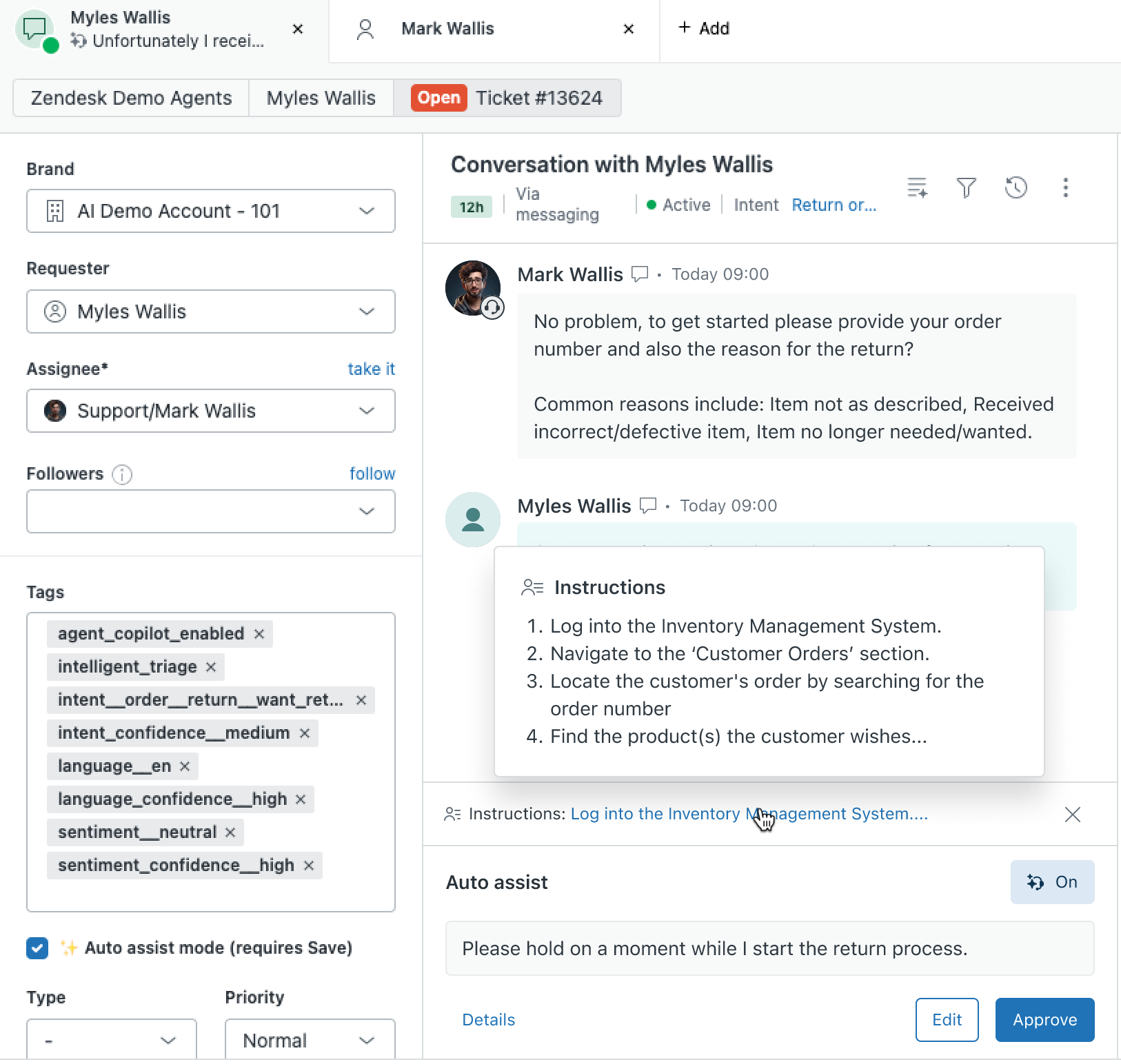
Auto assist might also suggest a reply. Click Approve to accept the suggestion and send the reply.
-
Click the instructions to open them in the Knowledge panel.
-
Perform the steps and click Completed
when you're done.
If you try to complete the steps but can't, click Not completed.
If the instructions are irrelevant, you can ignore them and don’t need to click anything.
- Continue the conversation with the user.
Taking over from auto assist suggestions
If you don’t want to receive help from auto assist on a ticket, you can take over and interact with the ticket as you normally would.
To take over from auto assist suggestions
- In Agent Workspace, open a ticket.
-
In the Auto assist panel, click the auto assist icon (
 )
to toggle auto assist suggestions
off.
Note: You can reply with a macro without turning auto assist off.
)
to toggle auto assist suggestions
off.
Note: You can reply with a macro without turning auto assist off. -
Compose messages in the Agent
Workspace
as normal.
If you want to return to the auto assist suggestions, click the auto assist icon (
)
again.
