Verified AI summary ◀▼
The merging suggestions feature helps you identify tickets that can be merged with the one you're working on, based on submissions by the same requester within a two-week window. You can merge these directly from the context panel, provided they belong to the same brand. Admins can enable or disable this feature and control group access through the Admin Center.
The merging suggestions feature identifies tickets that could be merged with the ticket the agent is currently working on. These suggestions appear in the context panel within a ticket.
This article contains the following topics:
Related articles:
About merging suggestions
Merging suggestions are available from Related tickets in the context panel. Based on the ticket an agent is viewing, the panel displays tickets submitted by the same requester two weeks before and after the current ticket was created.
For example, if Requester A submitted multiple tickets on the 25th, 26th, and 28th of the month, and an agent opened the ticket from the 26th, merging suggestions would show Requester A’s tickets from the 25th and 28th.
Additionally, merging suggestions are shown only if the tickets are in the same brand.
From the context panel, agents can merge tickets from the same requester. Merging tickets from the context panel follows the same rules as described in Merging tickets with one exception: When merging via the context panel, the selected tickets will be merged into the currently open ticket.
For more information on the agent workflow, see Merging related tickets based on suggestions.
Turning merging suggestions on or off
Admins can turn merging suggestions on or off in Admin Center and choose which groups have access. By default, this feature is turned on.
To turn merging suggestions on or off
- In Admin Center, click
 AI in the sidebar, then select Agent copilot > Suggestions.
 - Select Suggest tickets to merge.
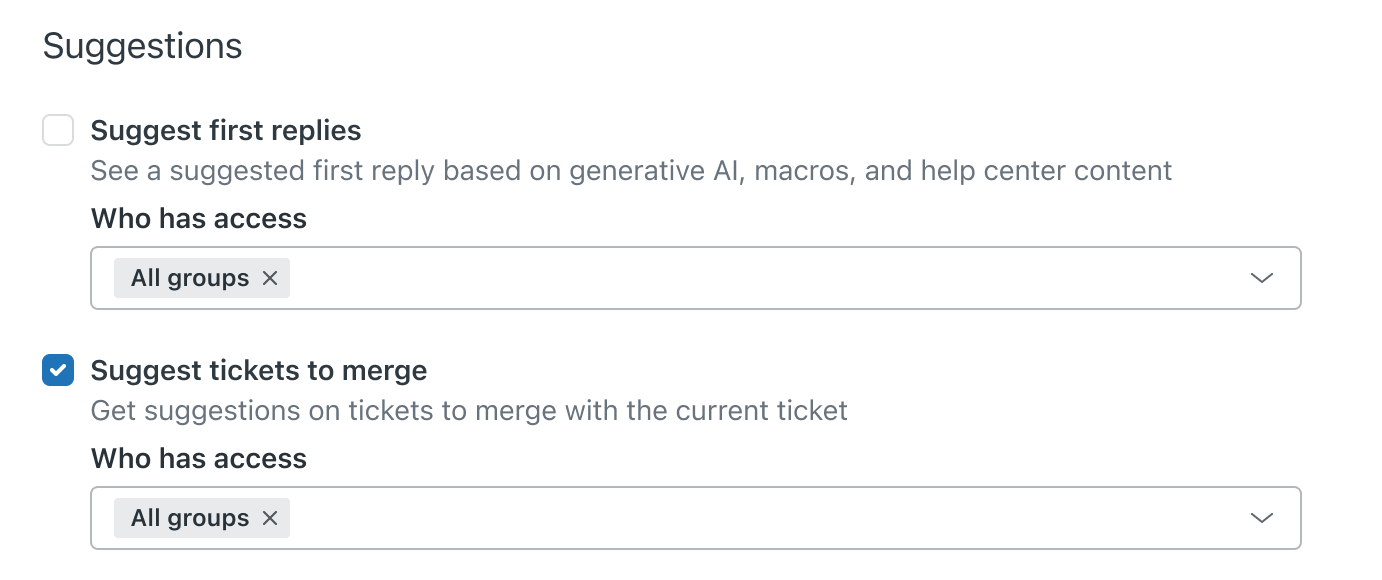
- In the Who has access field, search for and select the groups that should be able to use the merging suggestions feature. By default, all groups have access.
- Click Save.