Summary: ◀▼
Add and manage supported languages so your AI agent can respond to customers in their language. Activate a language before use, and ensure it has active replies for dialogue-based responses. You can duplicate replies for translation, choose a voice locale, set one active language as the default for customers with unknown locales, and edit language settings as needed.
This article contains the following topics:
- Adding a supported language to an AI agent
- Activating an added language
- Setting an AI agent’s default language
- Editing an added language
Related articles:
Adding a supported language to an AI agent
Adding a supported language to an AI agent means it can use that language (once activated) to respond to customers during conversations. For dialogue-based responses, an active reply must also exist for that language.
To add a new language
- In the AI agents workspace, select the AI agent you want to work with.
- Click
 Settings in the sidebar, then select Languages.
- Click Add language.
- In Languages, select the language you want to add.
- In Icon, select the icon for the new language.
- If the AI agent already has well-built replies in another language that can
be translated and reused in the language you’re adding:
- Select Duplicate replies from another language
(recommended).
For AI agents that don’t have reusable replies, such as brand-new AI agents, keep this option deselected.
- Select the language you want to copy replies from.
- Select Duplicate replies from another language
(recommended).
- (Voice only) In Locale, select a locale to determine the AI agent’s
vocabulary and accent.
For example, if you add French as a supported language, you can choose a locale of France or Canada. The locale affects the AI agent’s phrasing, word choice, spelling conventions in transcripts, and spoken pronunciation during conversations.
- In Locale ID, enter the same locale information you maintain in your
CRM (for example, de_DE, germany, or DE).
You can add multiple values separated by commas.
Note: Locale values are case sensitive and require an exact match, so make sure at least one of the values you enter matches the locale value from your CRM exactly. For messaging AI agents integrated with Sunshine Conversations (the default messaging integration), locales should be formatted similar to the following examples: en-US, zh-CN - Click Add.
A "New language added" dialog appears.
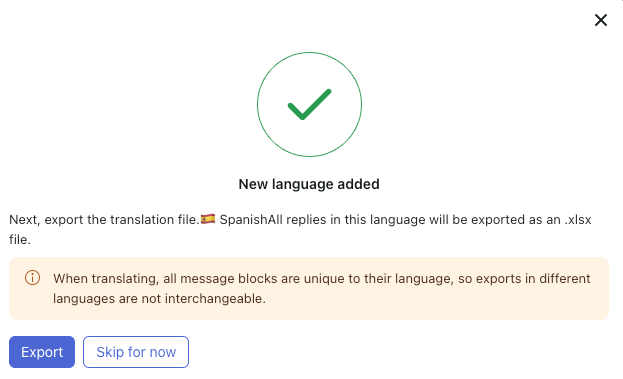
- If you opted to duplicate replies earlier in these steps, click
Export to get a file for translation.
If you didn’t, click Skip for now.
Your language is added. You can continue to add more languages, or else begin building dialogues for the new language.
Activating an added language
An added language must be activated before an AI agent can use that language to respond to customers. Activating a language publishes all active replies for that language, so make sure those replies are ready to be seen by customers before you do this.
To activate a language
- In the AI agents workspace, select the AI agent you want to work with.
- Click Settings in the sidebar,
then select Languages.
- Find the language you want to activate, click the options menu (
 ), and select Edit.
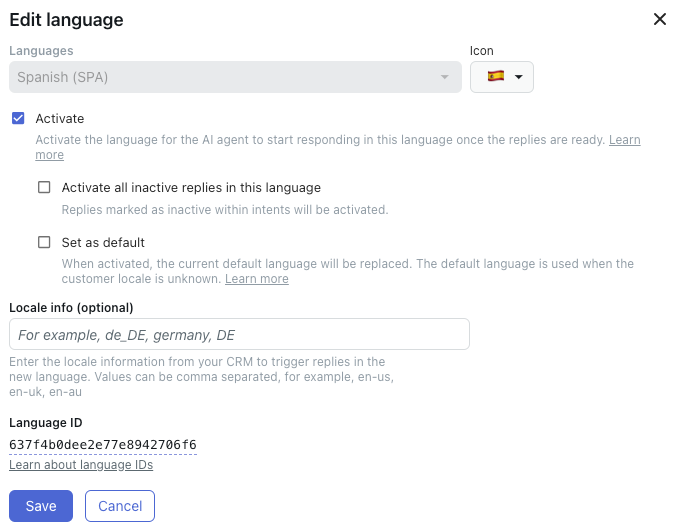
- Select Activate.
- (Optional) Select Activate all inactive replies in this language if you want to activate any reply that’s currently marked as inactive.
- (Optional) Select Set as default if you want to set this language as the AI agent’s default language.
- Click Save.
Setting an AI agent’s default language
An AI agent’s default language is used when the customer’s locale is unknown. A language must first be active before it can be set as the default. An AI agent can have only one default language at a time.
To set a default language
- In the AI agents workspace, select the AI agent you want to work with.
- Click Settings in the sidebar,
then select Languages.
- Find the language you want to activate, click the options menu (), and select Edit.
- Select Set as default.
- Click Save.
Editing an added language
At any time, you can edit a language you added to an AI agent.
To edit a language
- In the AI agents workspace, select the AI agent you want to work with.
- Click Settings in the sidebar,
then select Languages.
- Find the language you want to edit, click the options menu (), and select Edit.
- Make changes as needed.
See Adding a supported language to an AI agent for help.
- Click Save.
Article Q&A
Click to view
Can I use these instructions for my AI agents - Advanced subscription?
This article applies only if you bought AI agents - Advanced before March 10, 2026. Otherwise, use the article titled “Adding and managing supported languages for AI agents” linked in the documentation.
How do I add a language and configure it for my AI agent?
In the AI agents workspace, open the agent’s Settings > Languages, select Add language, choose the language and icon, then click Add. If you have reusable replies in another language, you can choose to duplicate them and select the source language; export the resulting file for translation. For voice agents, choose a locale to set vocabulary and accent. Enter Locale ID values that match your CRM exactly; values are case sensitive, and you can enter multiple values separated by commas.
How do I activate a language, and what should I know before doing it?
Open Settings > Languages for the agent, use the language’s options menu to select Edit, choose Activate, and click Save. Activation publishes all active replies for that language, so make sure they are ready for customers. You can optionally activate all inactive replies and set the language as the default. The agent must have the language added and activated before it can respond in it.
How do I set the default language, and when does my AI agent use it?
Edit an active language under Settings > Languages, select Set as default, and click Save. The default language is used when the customer’s locale is unknown, and the agent can have only one default language at a time.
Why might my AI agent not respond in a language I added?
Adding a language alone isn’t enough: you must also activate it. For dialogue-based responses, an active reply must exist in that language.