A template is a centralized reply that you can link to from multiple generative procedures or dialogues. Templates are useful for:
- Building reusable patterns, such as user authentication or data collection
- Creating copies of dialogues that are live in production to create backups, make edits in draft form, save for later reuse
- Inserting scripted conversation flows in the middle of an otherwise flexible generative procedure
Related article:
About templates in AI agents
Within the AI agents workspace, there are two types of templates: standard and embedded.
Both types of templates are available for messaging AI agents only.
About standard templates
Standard templates can be added to generative procedures or dialogues.
Standard templates can be used to:
- Build reusable patterns, such as user authentication or data collection
- Create copies of dialogues that are live in production to create backups, make edits in draft form, save for later reuse
A standard template must end on an AI agent message.
About embedded templates
Embedded templates can be added to generative procedures only.
Embedded templates let you include a scripted conversation flow within an otherwise flexible generative procedure. The procedure temporarily hands control to the embedded template, the template runs its exact flow, and then control returns to the procedure to pick up where it left off, using whatever information the customer selected or entered within the templated flow.
Embedded templates are ideal for moments in a conversation that need to be exact and predictable rather than non-deterministically AI-generated. For example:
- Word-perfect messaging: Show a legal disclaimer with exact wording and a confirmation button before continuing.
- Rich UI elements: Present buttons, carousels, or forms instead of plain generated text.
- Structured data collection: Collect specific fields, such as shipping address or order number, through a form.
- Guaranteed button flows: Offer a fixed set of options where the wording and choices never vary.
- Dynamic selections: Show a carousel of the customer's recent orders and let them pick one.
If an embedded template can't complete or the conversation is interrupted, the AI agent resumes control and manages the situation conversationally rather than leaving the customer stuck.
Embedded templates have the following restrictions:
- Can’t link to other dialogues or procedures. This keeps the conversation flow contained and prevents endless chains.
- Can’t include an escalation step. The template must return the conversation to the procedure it’s embedded in, not escalate away from it.
An embedded template can end on any of the following dialogue blocks:
- AI agent message (including buttons or forms)
- Customer message
- Carousel
Embedded template example: Legal disclaimer with confirmation
- A generative procedure greets the customer and gathers initial details.
- The conversation flow reaches a Run template block that displays your exact legal disclaimer text with an "I Agree" button.
- The customer clicks the button.
- Control returns to the procedure, which records the agreement and continues to the next step.
Embedded template example: Order carousel
- A generative procedure looks up a customer's recent orders using an action or integration.
- The conversation flow reaches a Run template block that displays those orders in a carousel.
- The customer selects an order.
- Control returns to the procedure with the selected order, and the AI agent continues, for example, to process a return or check the status.
Creating a template
You can create a new template from scratch, or copy an existing reply to a new template. You can also create templates in multiple languages.
You can create a template even if the AI agent is live. Customers won’t be able to see the template until you add it to a dialogue or generative procedure.
To create a template
- In the AI agents workspace, select the AI agent you want to work with.
- Click
 Content in the sidebar, then select Templates.
 - Click Create your first template or Add template, depending on whether
there are existing templates.
The Add template dialog opens.
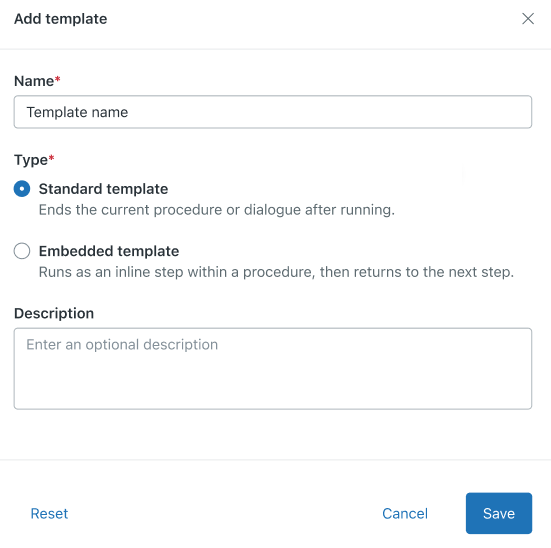
- In Name, enter a descriptive name for the template.
- Under Type, select one of the following options:
- Standard template: The current generative procedure or dialogue ends when the template ends.
- Embedded template: The template runs as an inline step within a generative procedure and hands off to the next step in the procedure when the template ends.
- (Optional) In Description, enter a description that helps other admins understand what this template does.
- Click Save.
The new template is added to your list of templates.
Populating a template with content
After you create a template, you need to populate it with content in the dialogue builder. You can build your scripted flow as needed using messages, buttons, carousels, or forms.
To populate a template with content
- In the AI agents workspace, select the AI agent you want to work with.
- Click
Content in the sidebar, then select Templates.
- In the Replies column, click the Replies drop-down and select a
language.
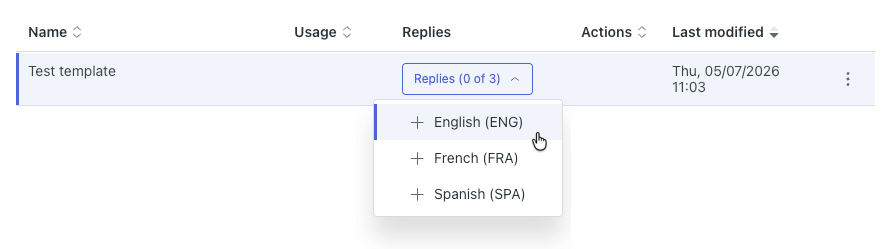
The Confirm template dialogue creation dialog opens.
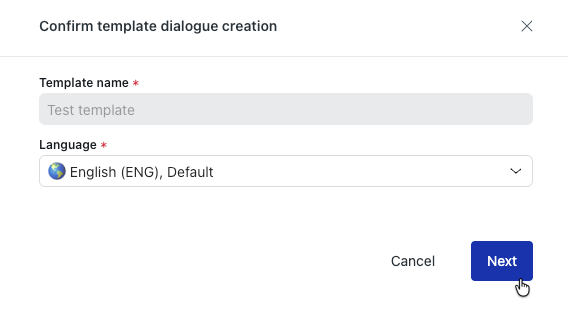
- Click Next.
The dialogue builder opens.
- Add content to the template’s dialogue.
For help, see Creating dialogues to define scripted conversation flows for AI agents.
Note: The Link to and Escalation block types aren’t available for embedded templates.
You must then add a template to either a dialogue or a generative procedure before it can be used in a conversation flow.
Adding a standard template to a dialogue
You can add a standard template to a dialogue.
To add a standard template to a dialogue
- Create a new dialogue or open the dialogue you want to add a standard template to.
- In the dialogue builder, add a Link to block at the point in the conversation where you want the template to take over.
- In the first field of the Link to block, select the template you want to link
to.
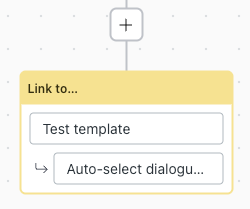
- Click Save to save your changes, or click Publish to make them live to customers.
Adding a standard or embedded template to a generative procedure
You can add a standard or embedded template to a generative procedure.
The process for adding either type of template is the same, but the block that’s added to the generated procedure map is different. Standard templates are added as a Link to block, while embedded templates are added as a Run template block. This means that standard templates don’t return conversational control to the original procedure, but embedded templates do.
To add a standard or embedded template to a generative procedure
- Create a new procedure or open the procedure you want to add a standard template to.
- In the free-text field in the bottom-left, enter natural language adjustments to the
procedure instructing the AI agent to link to the specified template at the appropriate
point in the procedure.
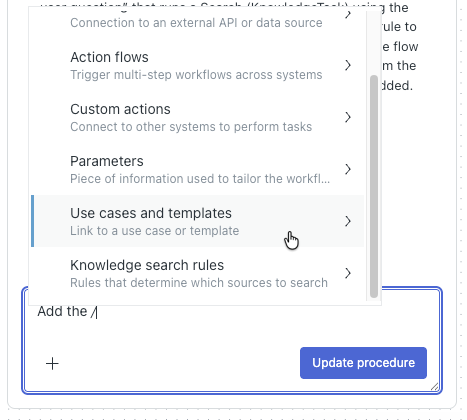
Type a forward slash (/) or click the plus (+) icon and select Use cases and templates, then select the template you want to link to.
- Click Update procedure.
- To make your edits live to customers, click Publish procedure.